Navigate the Fours Console
Find your way around the Fours Console using the left navigation menu and the top bar tools.
Overview
The Fours Console is organized into two areas. The menu on the left side of your screen is your primary control center for your quote-to-cash flow. The top bar gives you quick access to tools that help you work faster and get support.
Main Navigation Menu
Use the left-hand menu to move between the core areas of your quote-to-cash workflow. By default the menu shows only an icon for each area; hover over an icon to see its name. To show the names beside the icons, point at the menu and click the arrow button that appears on its right edge, near the top. Click it again to collapse the menu; the console remembers your choice in this browser. The menu opens only from that button, not on hover, and an open menu moves the page over rather than covering it.
The entries you see depend on your organization: an entry that belongs to a service, such as Co-Sell or Partner, appears only when that service is enabled for your organization, and in a seller organization an Admin can hide those entries for everyone under Settings → Organization → Service Quota (see Service Quotas).
Pages with several sections — Product, Offer, Co-Sell, Usage Metering, Revenue, Partner, Workflows, and Settings — list them in a panel on the left of the page. The arrow button at the top of that panel collapses it to icons (hover over one to see its name), and each page remembers, in this browser, how you left it. The panel stays on screen at every window width, except on Revenue, which shows a row of section links in a narrower window, and on Settings, which shows a menu button there.
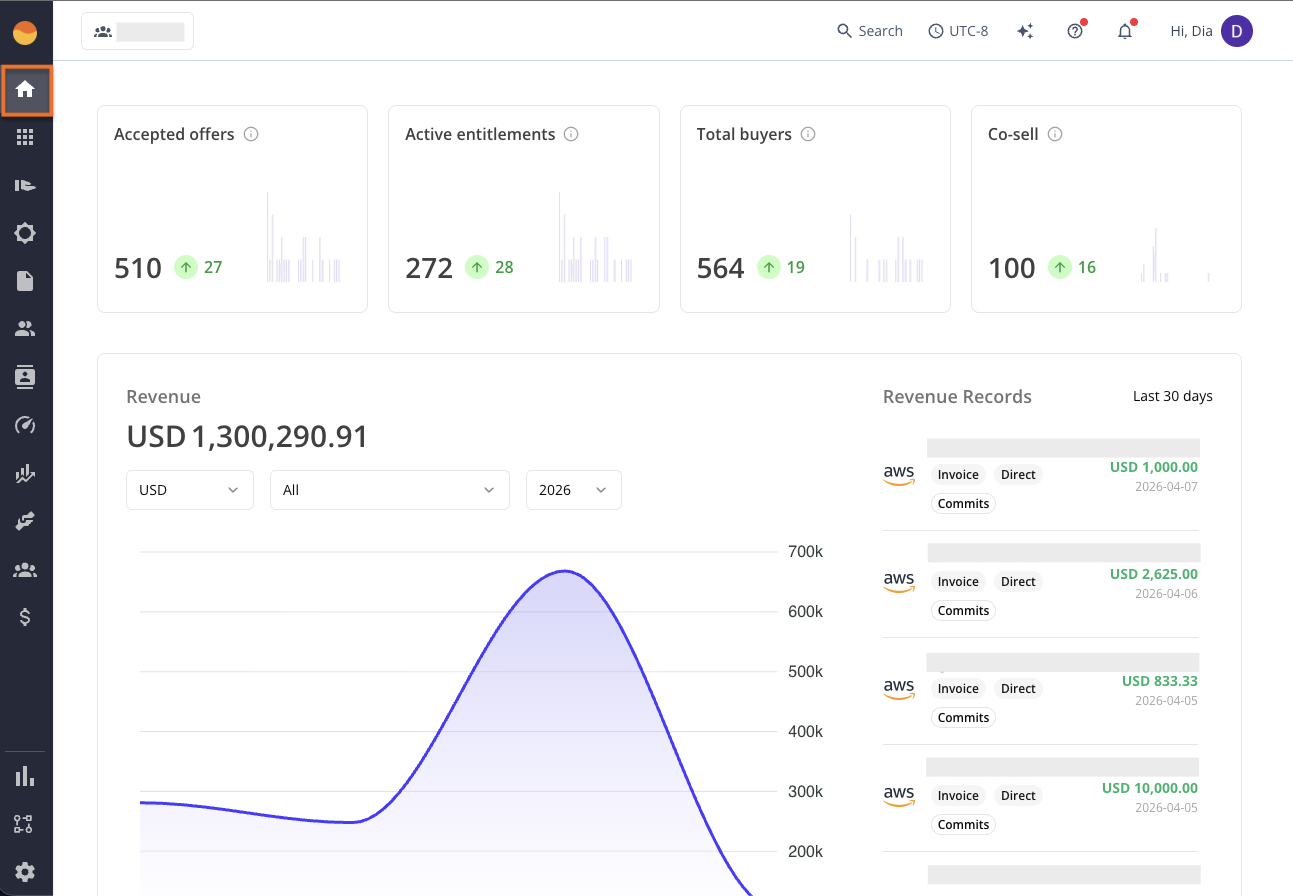
Home
Use this as your daily starting point. It gives you a quick snapshot of marketplace health, revenue movement, and key operational changes. If something is off in your pipeline or revenue flow, you’ll usually spot it here first.
Home opens the Fours AI chat; click To dashboard at the top right of the chat for this snapshot, and the console remembers the choice in your browser. See Home Dashboard.
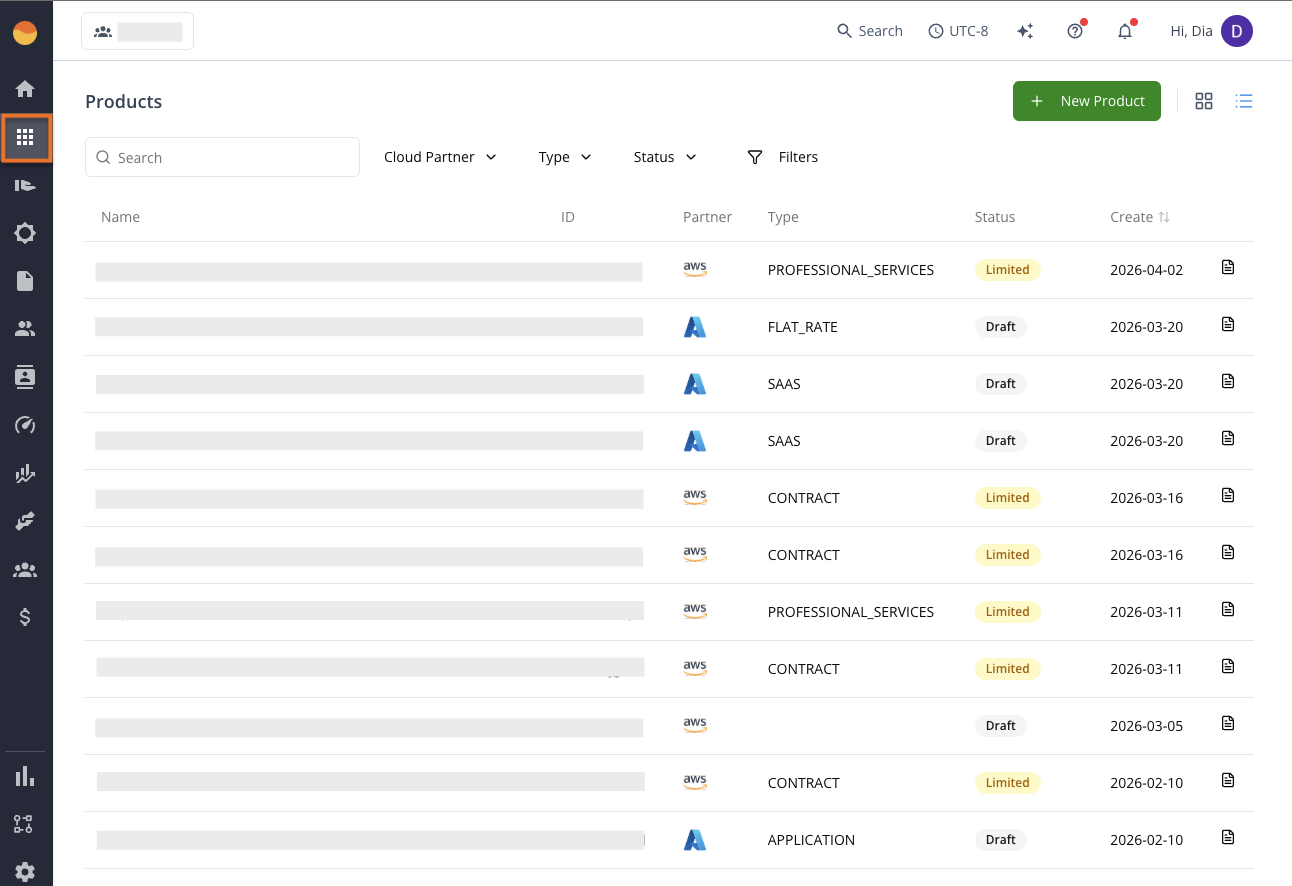
Product
Use this when you are preparing something to sell. This is where you create and manage product listings across AWS, Azure, and GCP. Come here when launching a new product, updating listing details, or maintaining existing marketplace offerings. The page’s sections are Products and, for seller, reseller, and partner organizations, Settings, which holds the signup form new clients land on.
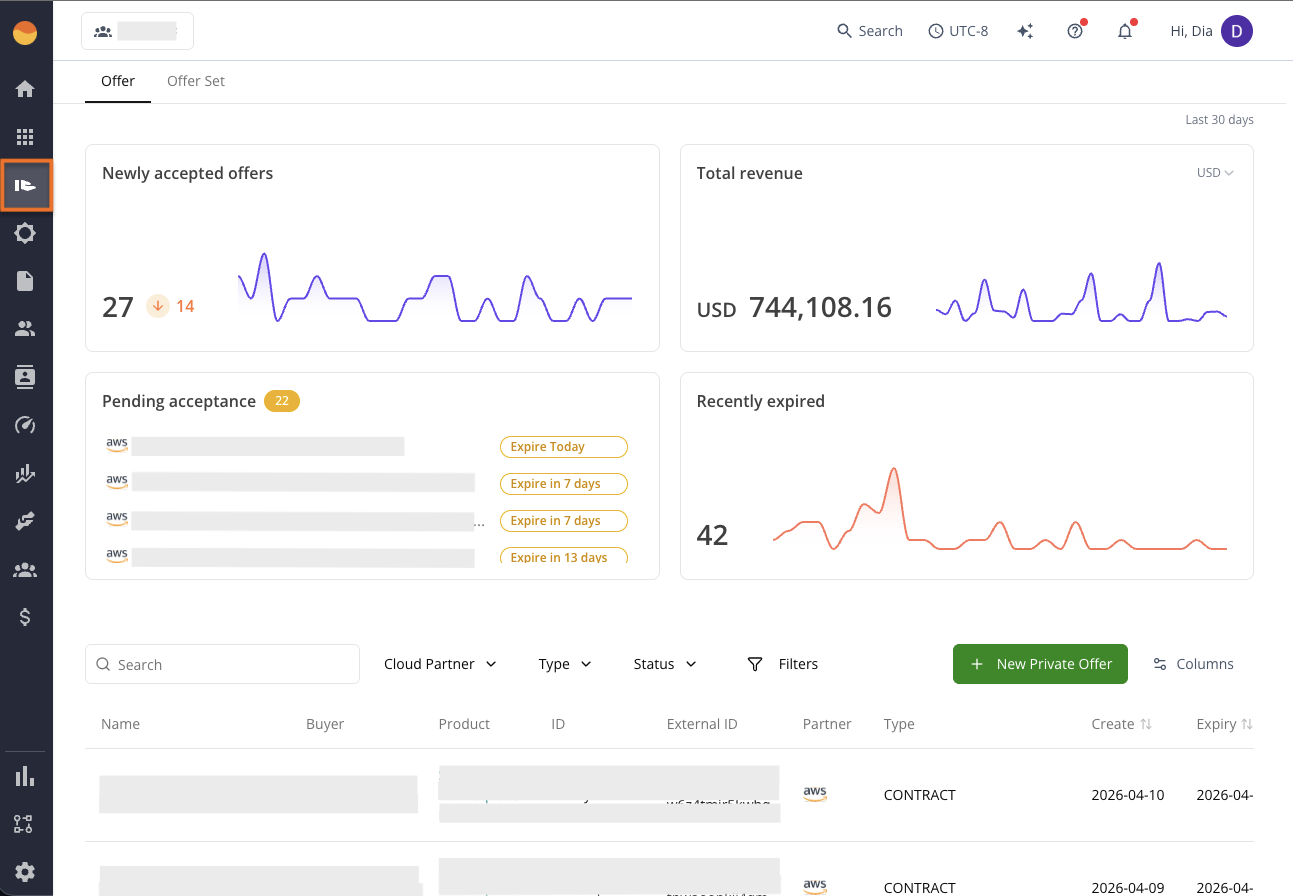
Offer
Use this when you are actively closing deals. From here, you can create and track Private Offers sent to buyers. The page’s sections are Offer, Offer Set, Resale, Logs, and Settings.
Resale
Resale is a section of the Offer page, not an entry in the main menu. Open Offer → Resale when working with partners or channel-led deals: this is where you manage CPPO (Channel Partner Private Offers) and handle resale authorizations. A Sent / Received picker at the start of its filter bar switches between the resale authorizations you send to channel partners and those you receive as a reseller; Received is available only when reselling is turned on for your organization. Old links to the Resale page open this section.
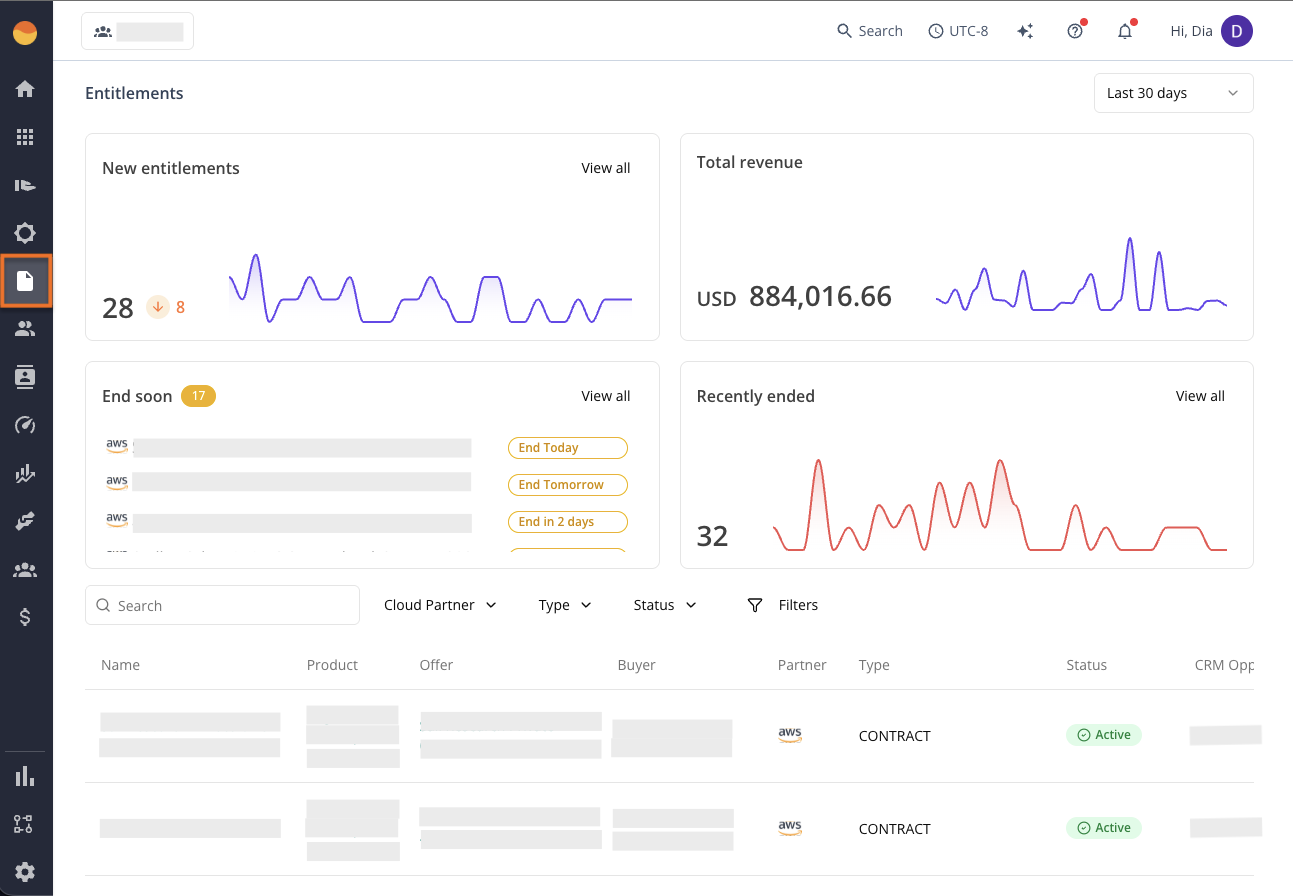
Entitlement
Use this when you need the truth of “who actually bought what.” This is your system of record for active contracts, subscriptions, and accepted offers.
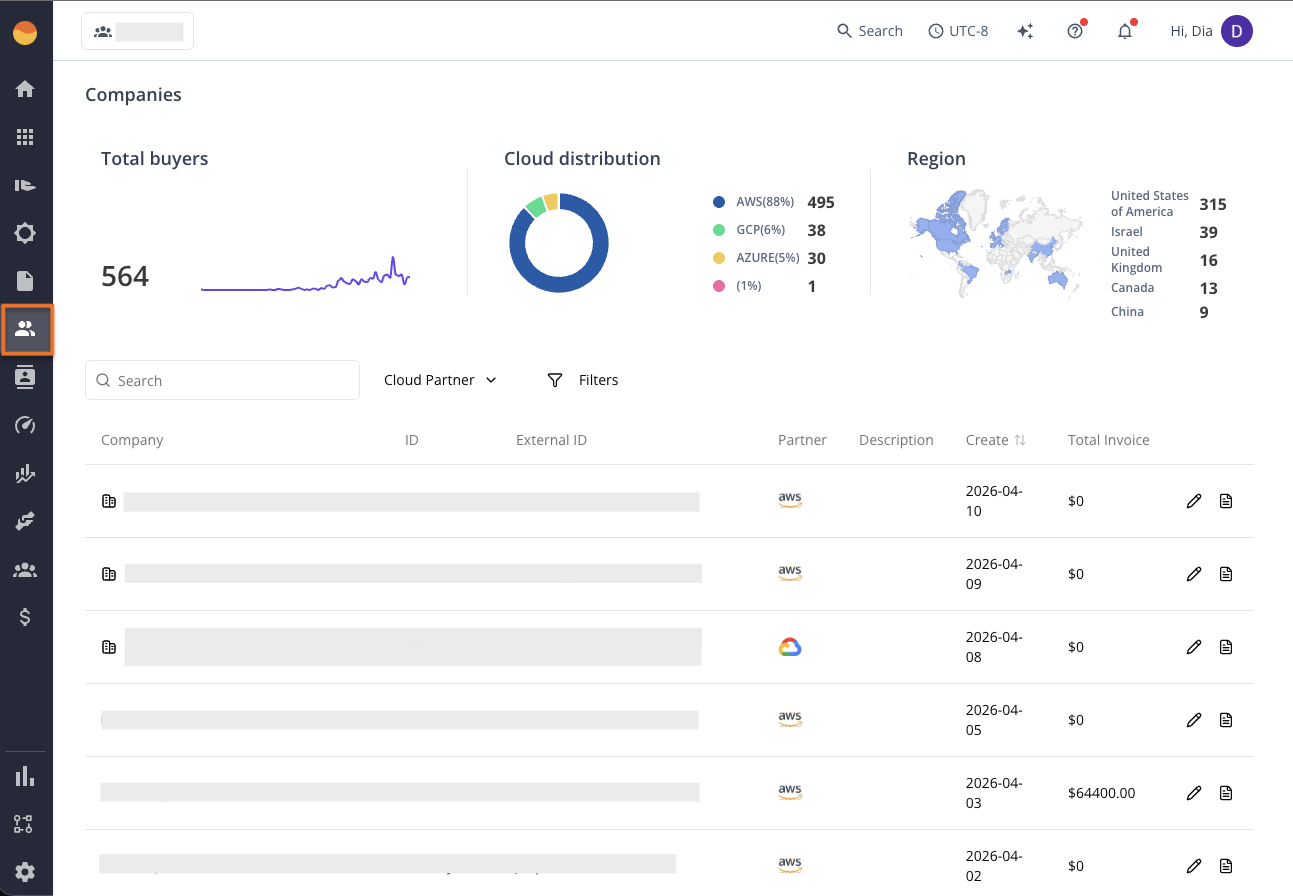
Company
Use this when working on account-level visibility. It consolidates everything about a buyer account, including activity, financial history, and enriched company data.
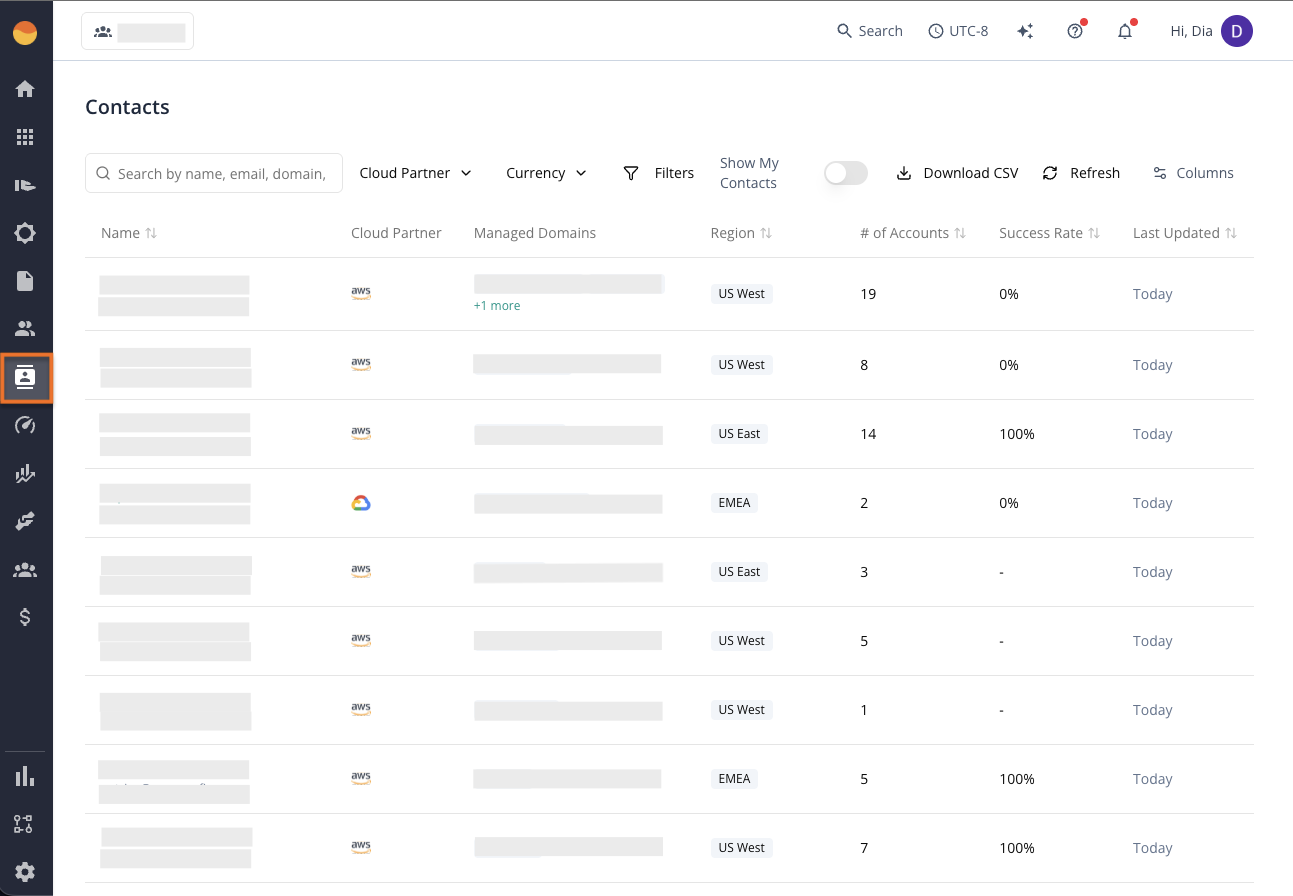
Contact
Use this to manage people, not companies. This is your directory of buyers, admins, and partner contacts tied to deals and accounts.
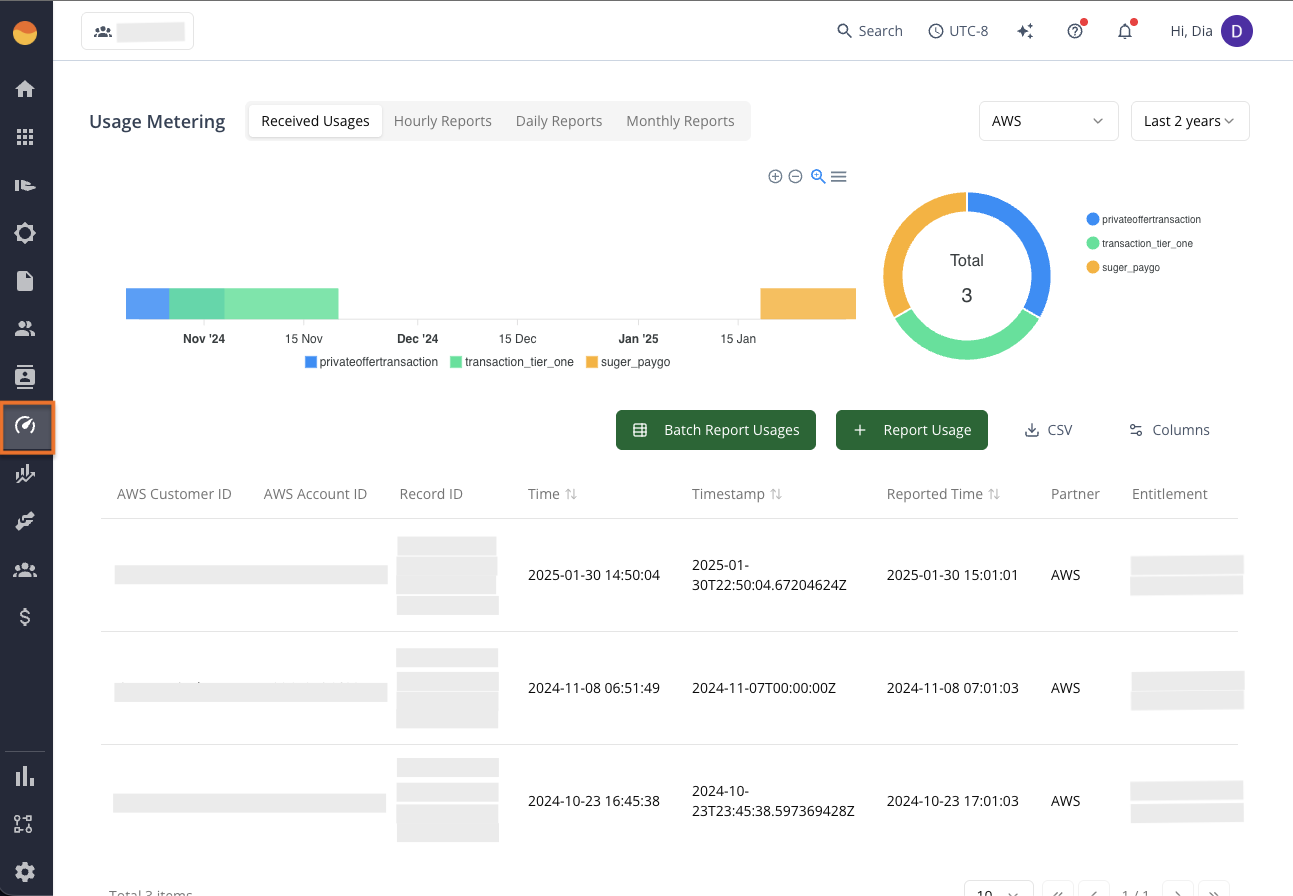
Usage Metering
Use this when billing depends on consumption. Report and review usage-based data that drives metered billing and downstream invoices. The page’s sections are Received Usages, Hourly Reports, Daily Reports, Monthly Reports, and Settings.
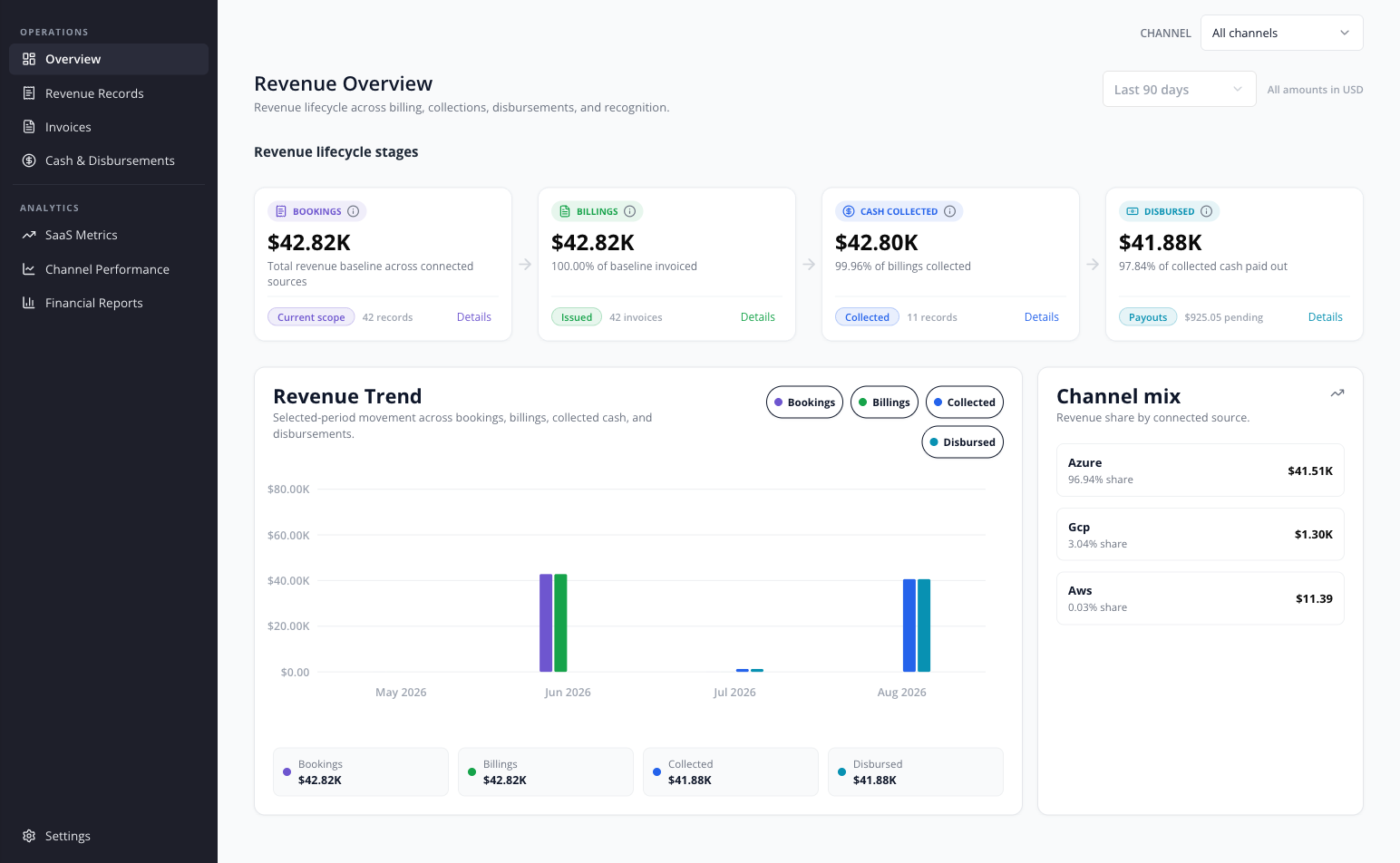
Revenue
Use this when finance needs clarity across connected revenue channels. Revenue opens the Overview and provides these visible workspace pages:
- Operations — Overview, Revenue Records, Invoices, Cash & Disbursements, Bank Reconciliation, Revenue Recognition.
- Analytics — SaaS Metrics, Channel Performance, Financial Reports.
- Settings — Configuration: reporting policies, channel sync configuration, and connected bank accounts.
Every section except Configuration shows a Channel filter in its title row; it narrows Overview, Revenue Records, Invoices, Cash & Disbursements, and SaaS Metrics to the channel you pick.
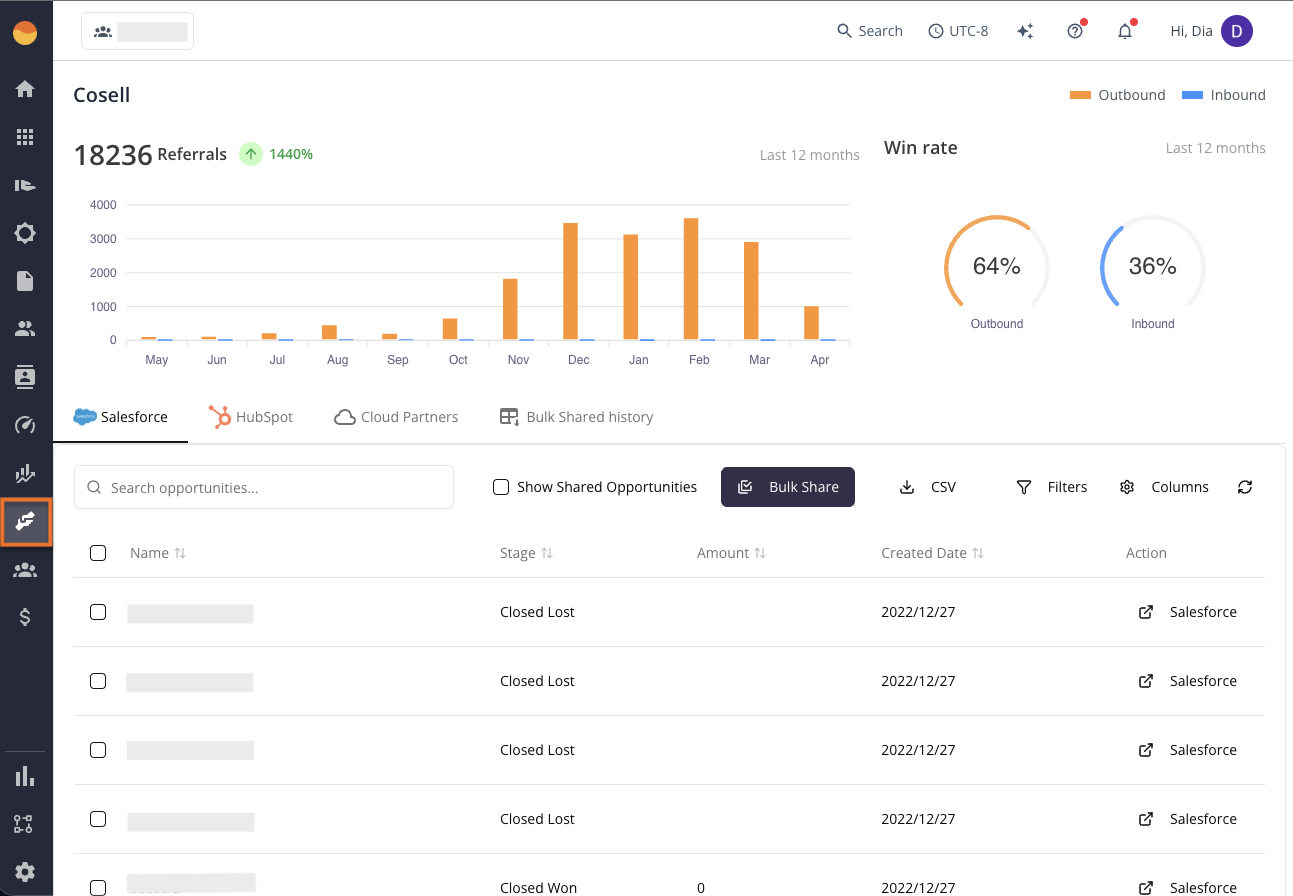
Co-Sell
Use this when working with cloud providers on pipeline acceleration. Track and manage CRM-linked opportunities shared with AWS, Azure, or GCP teams. Depending on what you have connected, the page’s sections are one for each connected CRM (Salesforce, HubSpot, Dynamics 365), Cloud Partners, Metrics, Funding, and Settings.
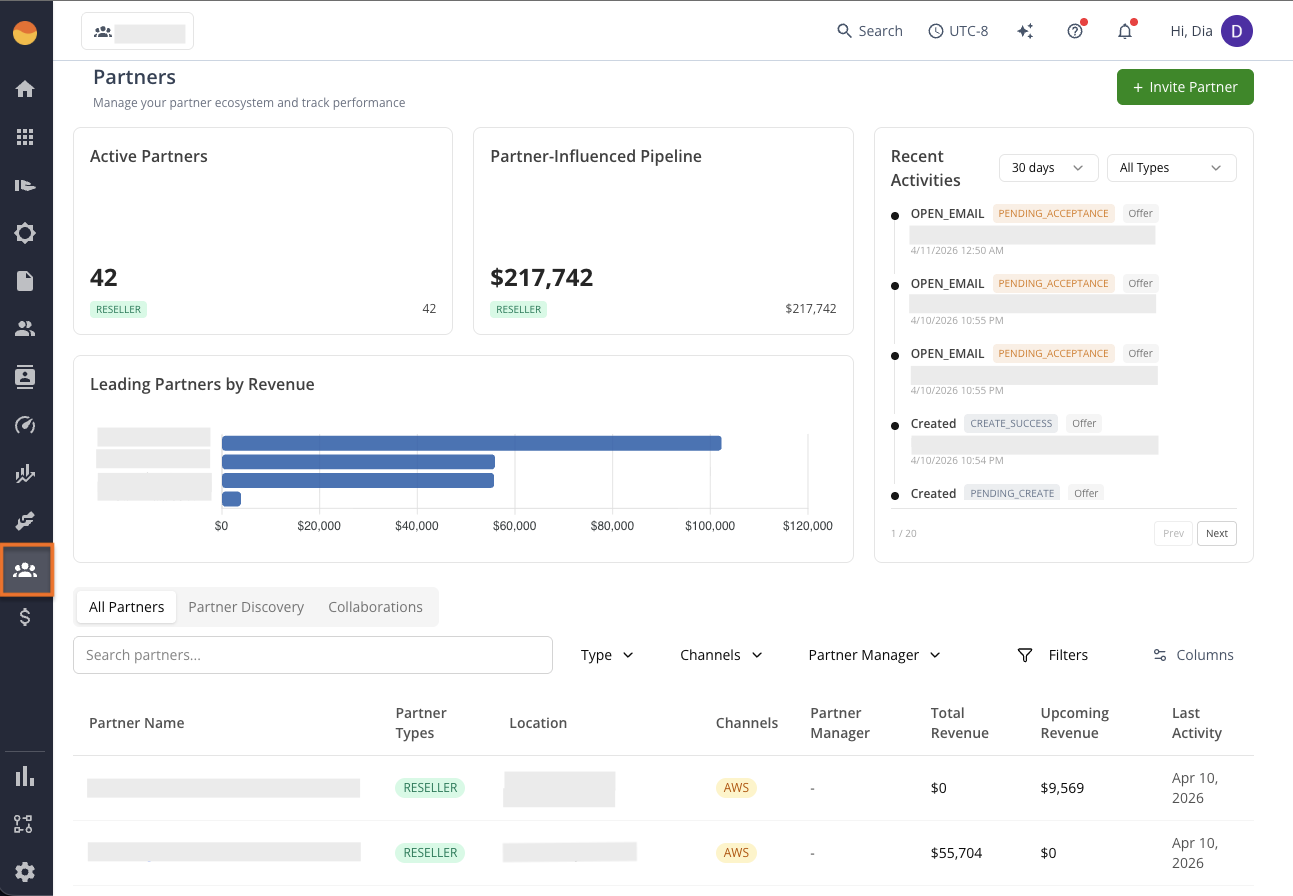
Partner
Use this to understand your ecosystem performance. This is where you track partner influence, pipeline contribution, and channel health.
Funding
Funding is a section of the Co-Sell page, not an entry in the main menu. Open Co-Sell → Funding when deals need acceleration support: submit and track funding requests for AWS funding programs that help move deals forward. Its Requests / Wallet control, beside the search box, switches between your funding requests and your wallet. Funding’s configuration is under Co-Sell → Settings → Funding, for seller and reseller organizations. Old links to the Funding page open this section, and a link to a single funding request still opens that request.
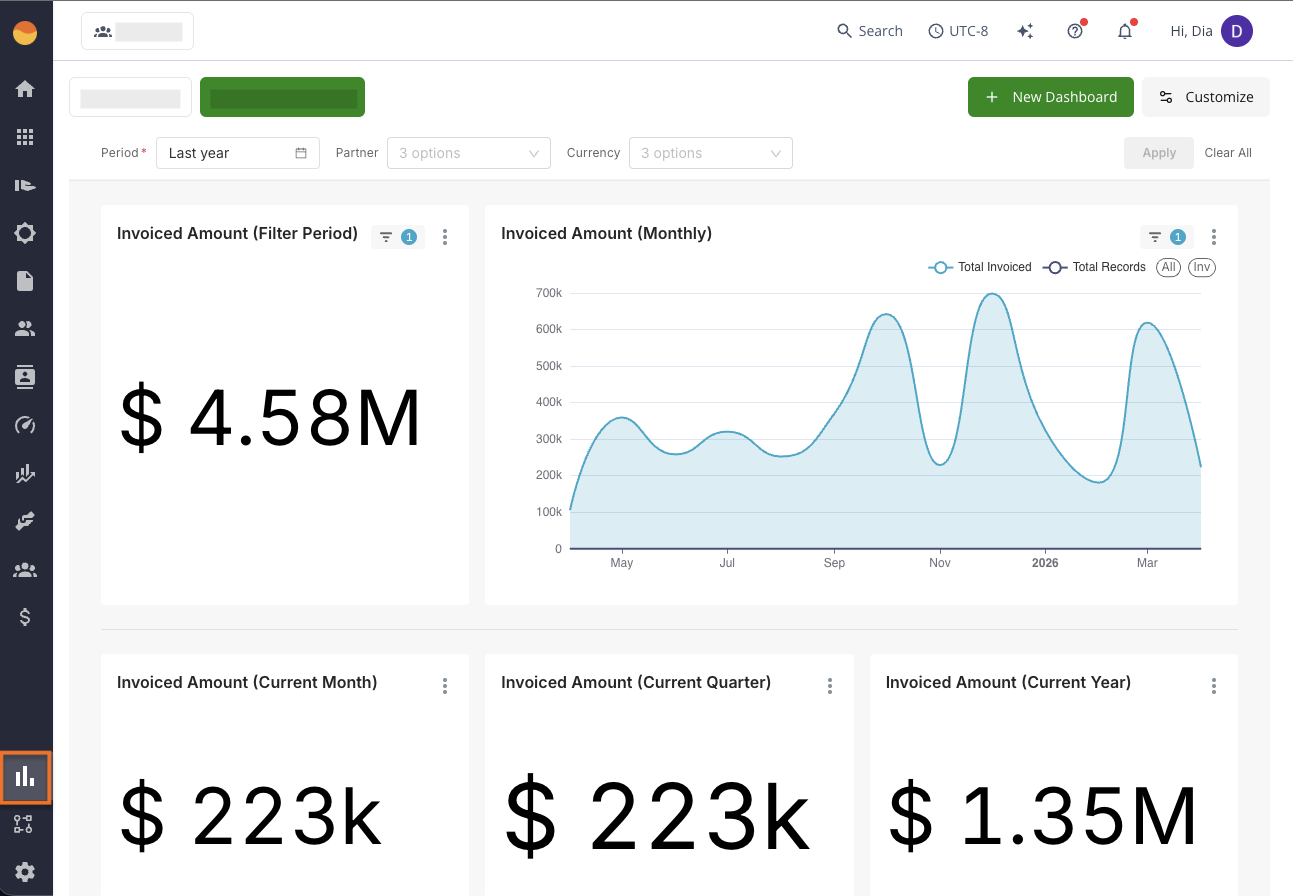
Analytics
Use this when you need answers, not raw data. Build dashboards to understand performance across revenue, deals, usage, and partners.
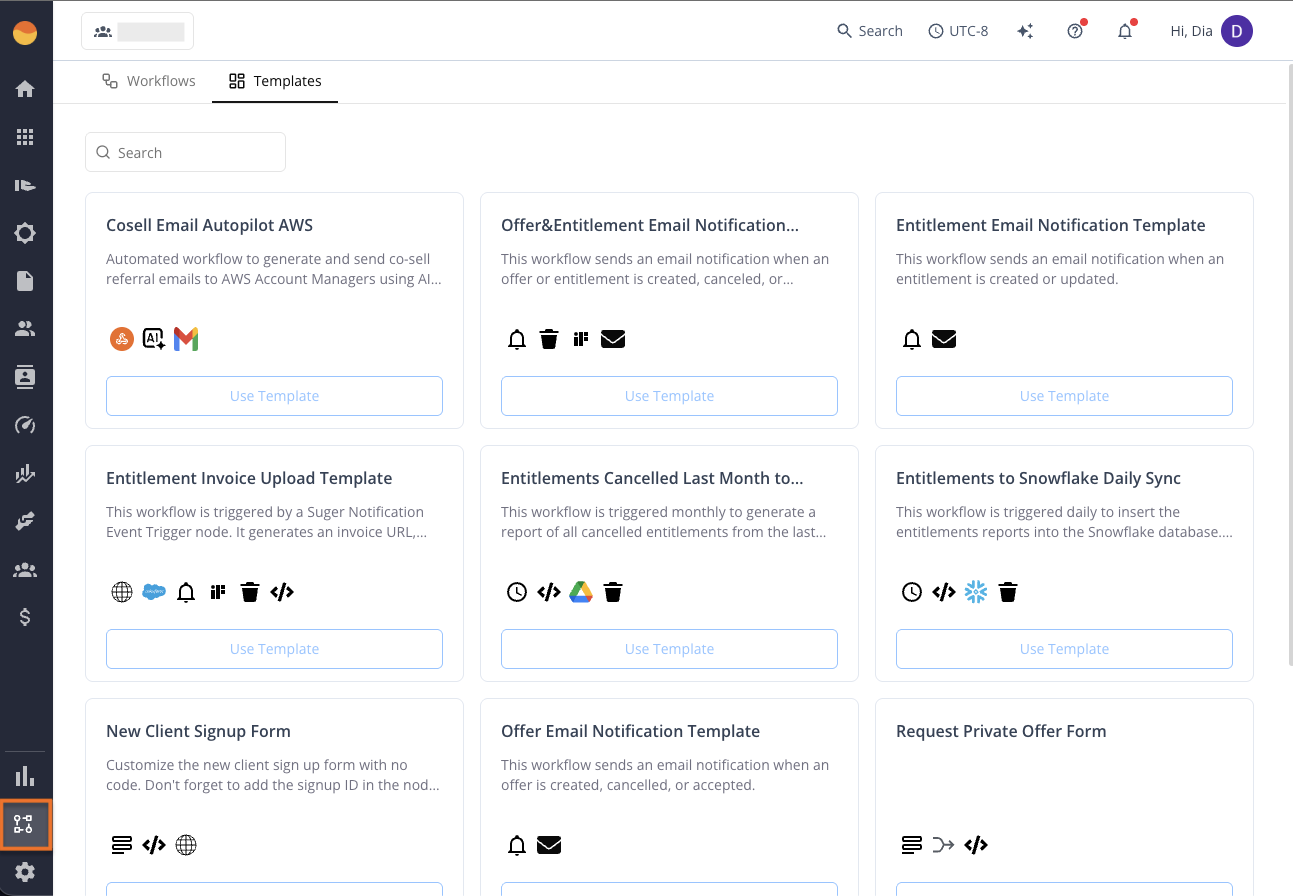
Workflows
Use this when something repeats. Automate operational tasks like syncing data, updating records, or triggering external systems. The page’s sections are Workflows and Templates.
Tasks
Tasks is in the menu of buyer organizations only. It lists the workflow steps that are waiting on someone in the organization — an approval or a decision a workflow paused for — so a run does not sit stalled where nobody sees it. See Request and Task.
Settings
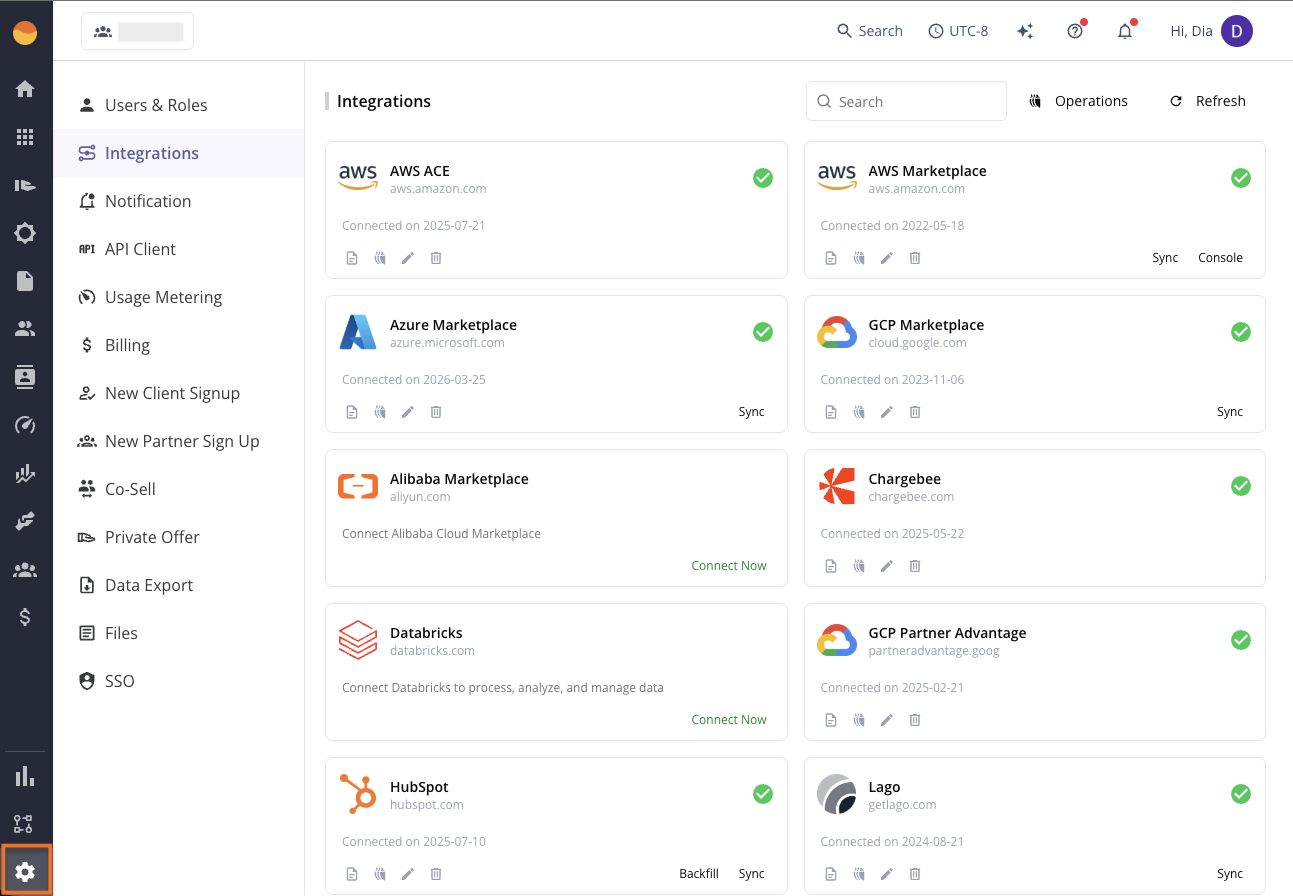
Use this when you need control over the platform. Manage users, roles, integrations, and system configuration.
Top Bar Tools
While the left-hand navigation menu handles your daily quote-to-cash tasks, the top bar gives you quick access to tools that help you work faster and get support.
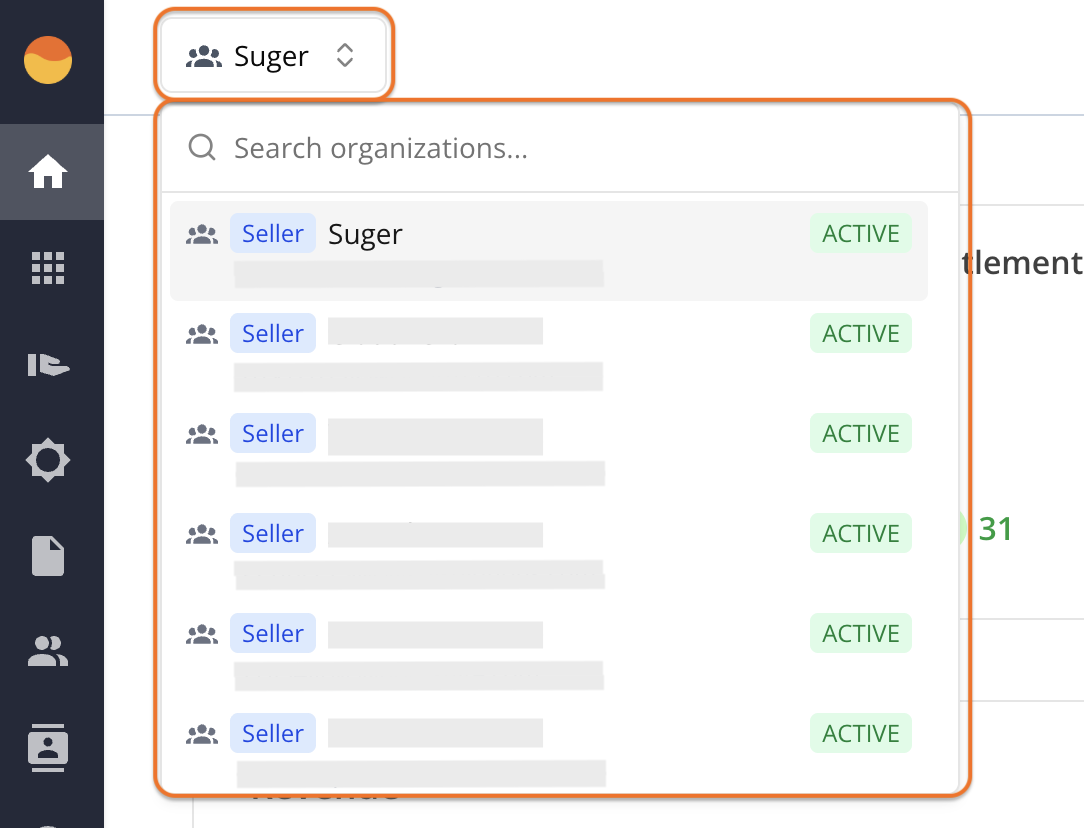
Organization Selector
The Organization selector in the top bar shows the workspace you’re currently using. If you have access to multiple organizations, you can use it to switch between them.
In Fours, all cloud marketplace resources, user roles, and integrations are managed within an organization. Every user must belong to at least one organization to use the platform.
Global Search
Use Global search in the top bar to find your cloud marketplace and CRM records without leaving your current task.
Timezone Selector
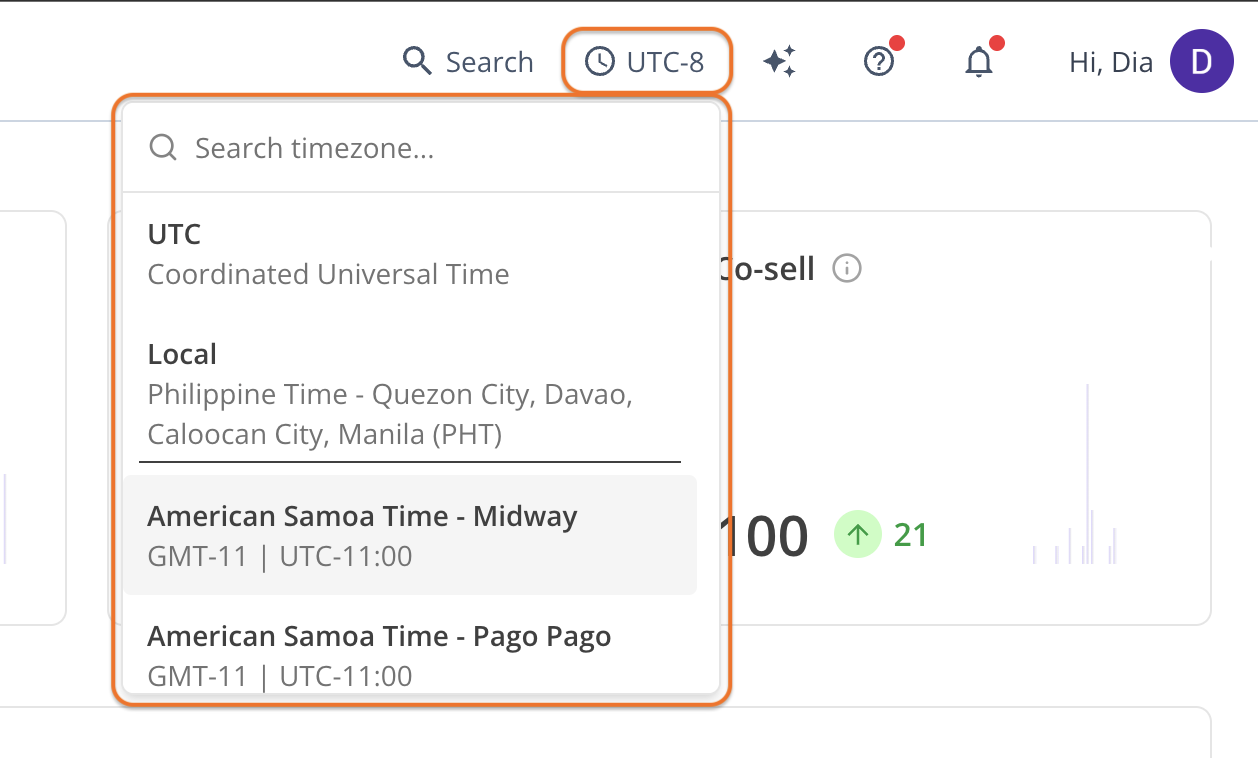
Cloud marketplaces universally report data in Coordinated Universal Time (UTC). While this creates a consistent global record, it can confuse sales and finance teams trying to see exactly when a private offer expires or when an invoice was issued.
The Timezone selector solves this by localizing timestamps directly in your workspace.
AI Chatbot
The AI chatbot is your built-in assistant, always available in the top bar. It gives immediate answers to your platform questions, explains complex marketplace concepts, and helps you navigate Fours without leaving your current workspace.
The assistant in the top bar is the compact view. The full product behind it is Fours Insulin — an AI workspace with its own agents, knowledge bases, jobs, and apps. Use the panel for a quick question; open Insulin when you want the assistant to do sustained work.
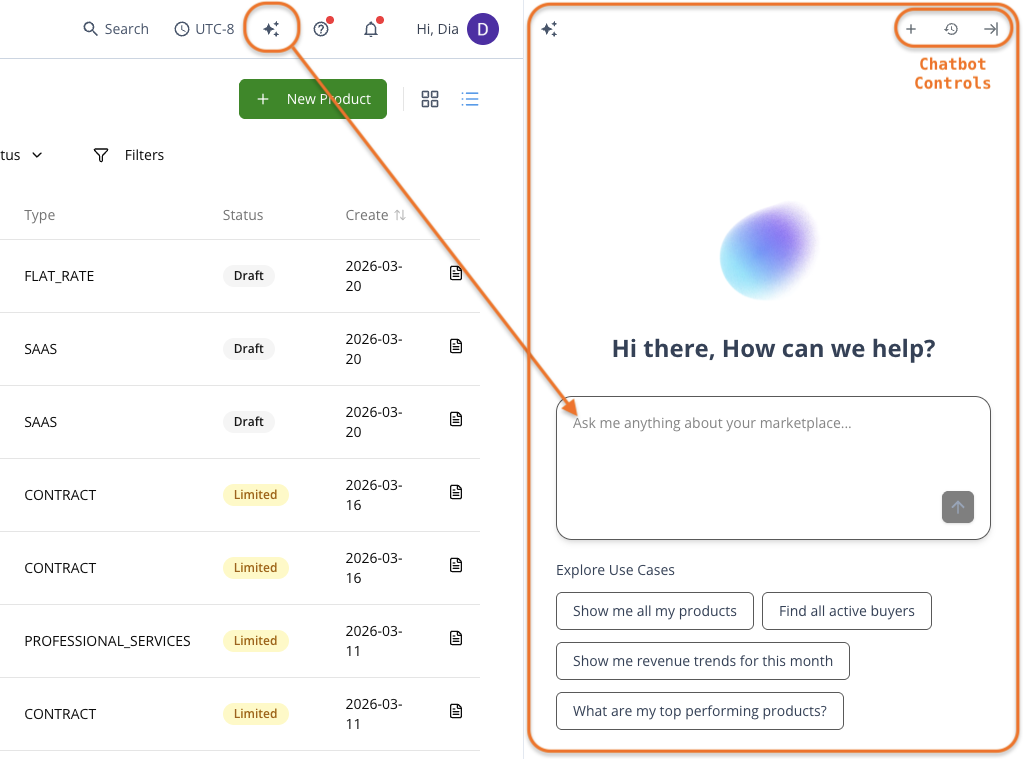
To use it, click the AI chatbot icon in the top bar, and a side panel opens directly over your screen. Here’s a breakdown of the chatbot panel and its controls:
- New chat (+): Start a fresh conversation. Use this when switching to a completely new topic or workflow so the AI doesn’t mix your questions with previous sessions.
- Chat history (clock icon): View past conversations. You can pick up right where you left off, or use the vertical three-dot menu next to any session to rename or delete it for better organization.
- Close panel (arrow icon): Hide the overlay and return to your full-screen workspace. Your current conversation is automatically saved in the chat history.
- Attach (paperclip): Add files for the assistant to read — images, PDFs, text files, and Word, Excel, or PowerPoint (
.pptx) files. You can also paste files into the message box or drop them on it. A message takes up to 10 files, each up to 25 MB and 64 MB in all, and each file shows as a chip you can remove before you send. The full Insulin workspace takes attachments the same way — see File Attachments.
Support
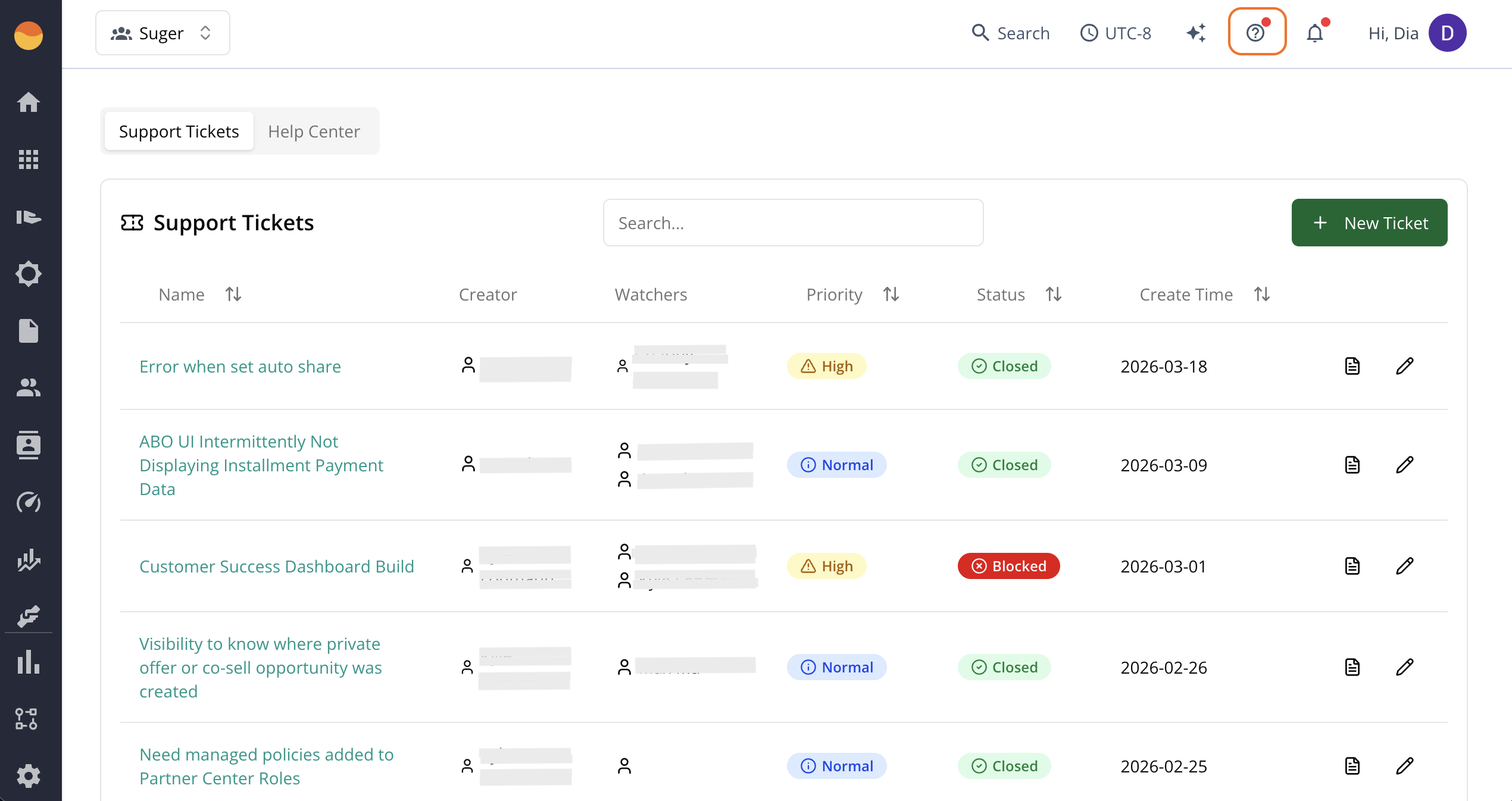
The Support tool in the top bar is your direct, in-product portal to communicate with the Fours team. Use this when something breaks or needs tracking.
Click the (?) icon to open the Support page (partner organizations on the limited partner console don’t have this icon). Depending on your role, its Support Tickets tab lets you follow your organization’s tickets and open new ones — see Support Tickets for how tickets work and who can do what. The AWS Support tab holds the cases you open with AWS — see AWS Support Cases.
Notifications
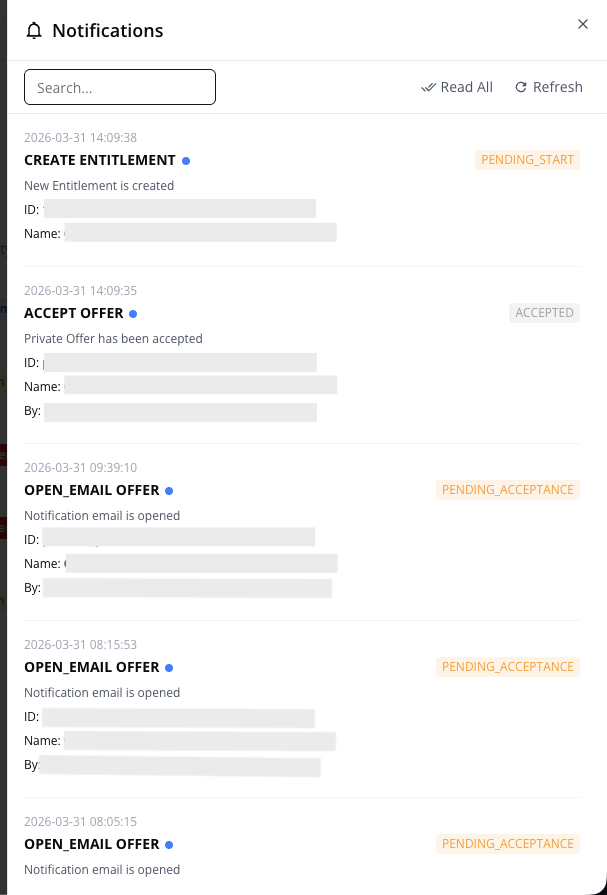
The Notifications tool in the top bar is your real-time alert hub for critical cloud marketplace events. It gives instant visibility into offer acceptances, entitlement changes, and billing milestones, so your team never misses a key update in the quote-to-cash lifecycle.
Click the bell icon to open the Notifications panel, which slides out on the right side of your screen. Events are displayed in chronological order, with the newest at the top, giving you an instant view of everything happening across your organization.
- Search and filter: Use the search bar to quickly find updates by Entity ID, Event Type (like
CREATEorACCEPT), or Status (likeEXPIREDorACTIVE). - Org-wide feed: Everyone in the same Fours Organization sees the same activity feed, ensuring your Sales, Alliances, and Finance teams share a single source of truth.
Profile
The Profile menu shows your name and email so you always know which account is logged in. You can log out securely from here.
All other account settings, like roles, passwords, or API keys, are managed in the main Settings menu.

Spotted something wrong or out of date on this page? Tell us and we'll correct it.