Account
Manage user, organization & RBAC in Fours Console.
Signup & Login
- Fours uses Auth0 as the authentication & authorization provider. Both
Sign inandSign upshare the same entry https://console.suger.io/login.
Standard Login (Email and Password)
Follow these steps if you have a registered Fours account with an email and password.
-
Email Address: Enter the email address associated with your Fours Console account.
-
Password: Type your password.
-
Complete Login: Once both fields are filled, click the “Continue” button to proceed to your account dashboard.
Alternative Login Options
Besides email and password, you can sign in with an existing Google or Microsoft account:
-
Continue with Google: Click the “Continue with Google” button to sign in instantly using your existing Google account credentials.
-
Continue with Microsoft: Click the “Continue with Microsoft” button to sign in using your existing Microsoft account credentials.
To sign in through your company’s identity provider instead, set up a single sign-on (SSO) connection under Settings → SSO. Each connection links one identity provider and can provision users through SCIM; Okta SSO walks through the setup. A Google Workspace connection is the exception: it has no SCIM and uses Directory Sync instead, where three Google groups decide who belongs to your organization and with which role — see Google Workspace SSO. If you need help with another identity provider, contact support@suger.io.
Creating a New Account
If you are a new user and do not yet have an account:
-
On the login form, look for the text “Don’t have an account?”
-
Click the Sign up button
-
Choose how you’d like to register — enter an email and password, or continue with Google, Microsoft, or Okta.
-
If you don’t belong to an organization yet, Fours then opens Join an Organization. If your company’s organization is listed there, ask to join it — see Join an Existing Organization. Otherwise, click Create New Organization and follow the on-screen prompts to name and create your organization.
This will direct you to the registration page where you can create your new account credentials.
Join an Existing Organization
If your company already has a Fours organization, ask to join it instead of creating a second one. While you’re signed in but not yet a member of any organization, Fours opens Join an Organization, which lists the active organizations on your email domain. It also lists an active partner organization that Fours support has linked your email domain to: a partner company whose people use more than one email domain can have the others added to its organization, and a request to join it is normally approved as soon as you submit it (see below).
- Next to your company’s organization, click Join.
- Choose a Requested Role: Viewer (read-only access), Editor (view and edit), or Admin (full access, including user management). It starts at Editor.
- Write a Message of 10 to 1,000 characters saying why you need access, then click Submit Request.
Fours confirms with “Join request submitted successfully!”, marks the organization Pending, and emails its Admins. An Admin approves or rejects the request (see Review Join Requests), and Fours emails you the decision. If your request is rejected, click Re-submit to ask again.
Joining a partner organization is normally immediate. Fours approves the request as soon as you submit it and shows “You have joined the organization.” A request for Admin is granted as Editor. If the organization shows Pending instead, an Admin there reviews your request as usual. See Let teammates join on their own.
Password Management and Security
If you cannot remember your password:
-
Click the “Forgot password?” link located above the Continue button.
-
Follow the on-screen prompts to initiate the password reset process.
Multi-Factor Authentication (MFA)
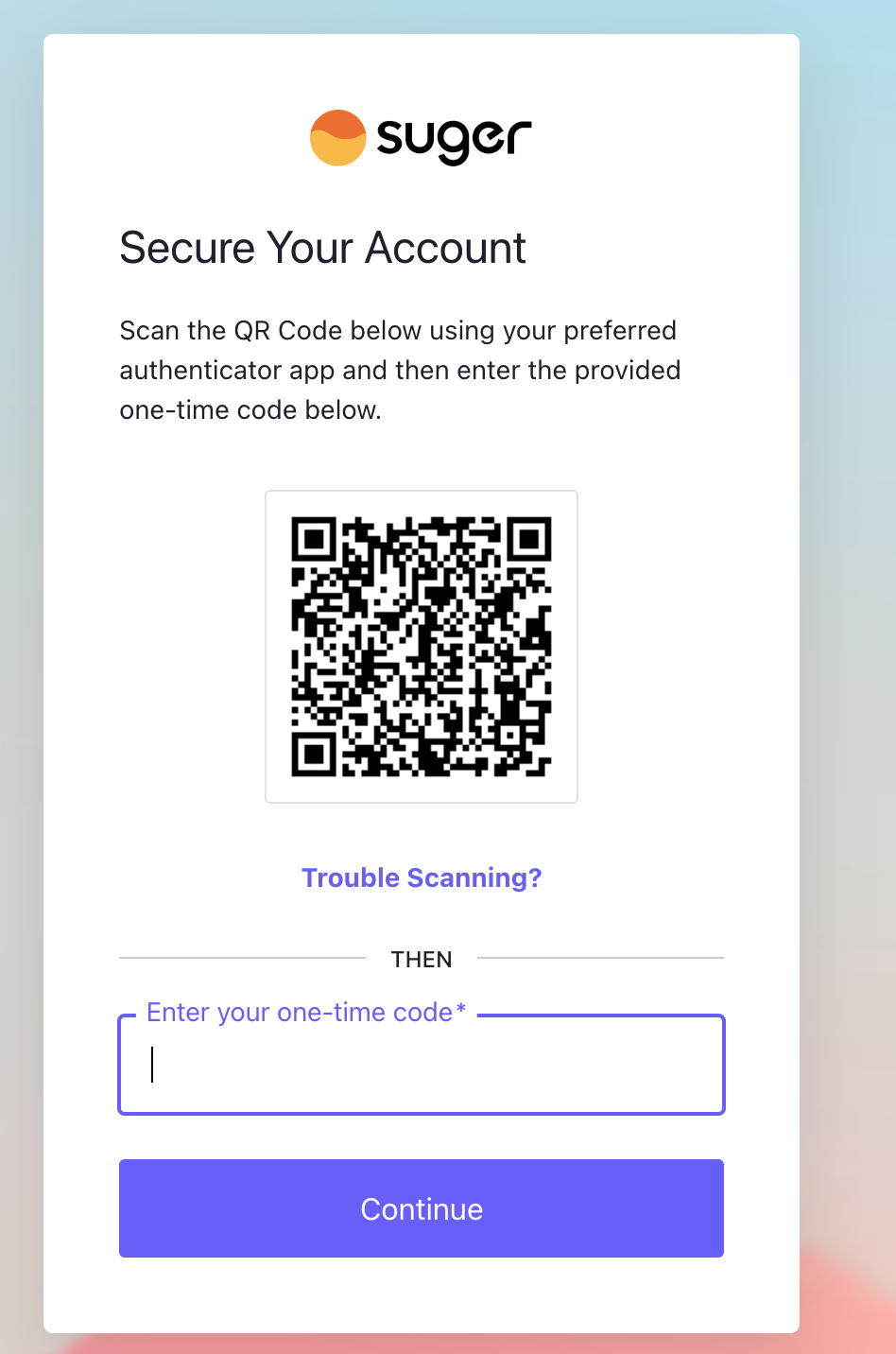
Fours supports Multi-Factor Authentication (MFA) for an additional layer of account security. When MFA is enabled, the “Secure Your Account” screen prompts you to register an authenticator during login.
Before you start, make sure your device’s clock is set to automatic date & time (e.g. Settings → Date & Time → Set Automatically on iOS, Settings → System → Date & time → Automatic date & time on Android). Your authenticator’s codes are generated from the current time, so a device with an incorrect or manually-set clock will generate codes that don’t match what Fours expects, and verification will keep failing even when you’ve entered the code correctly.
-
Open an authenticator app (for example, Microsoft Authenticator or Google Authenticator), or a password manager with a built-in one-time-password feature such as 1Password.
-
In your authenticator, add a new account and scan the QR code shown on the Fours screen.
-
Enter the 6-digit code generated by your authenticator in the “Enter your one-time code” field, then click Continue.
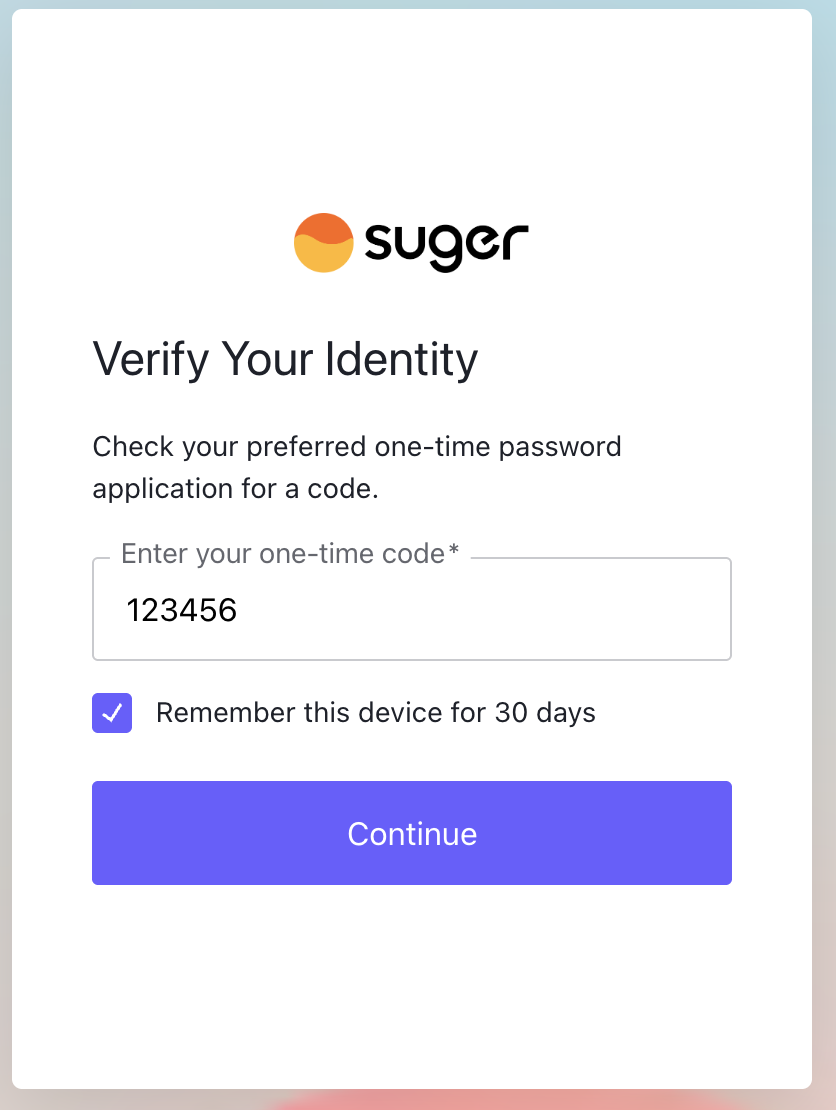
On later logins, the “Verify Your Identity” screen asks for the current 6-digit code from your authenticator. You can select “Remember this device for 30 days” to skip the one-time code on that device on future sign-ins — within the limits described below.
Organization
-
All Fours resources are organized & managed under organization. Each user must belong to at least one organization.
-
When you sign up for Fours for the first time and don’t belong to an organization yet, you will be prompted to join your company’s existing organization or create a new one (see Join an Existing Organization). However, please note that a new organization will require approval from Fours in order to become active. To initiate the approval process for your newly created organization, please get in touch with Fours Support.
-
At most two organizations per email domain may await approval at once. A third create is refused with a
409naming how many are already in the queue. Wait for the pending ones to be reviewed before creating another. -
You can’t create an organization on an email domain that Fours support has linked to an active partner organization. The create is refused with a message naming the partner your domain belongs to. Join that partner’s organization from Join an Organization instead — see Join an Existing Organization.
-
The user who creates the organization has the
ADMINrole as default. It is allowed to add new users, edit user role or delete the users. There are 3 predefined standard roles:ADMIN,EDITOR&VIEWER. Their permission scope is defined below:User Role Recommended for RBAC Permissions ADMINBusiness Technology, Sales Ops, IT/CRM Admins Full access, including management of users, organizations, API Client & Webhook. EDITORSales, Partnerships, Alliances, Deal Desk Full access, but excluding the access to management of users, organizations, API Client & Webhook. VIEWERFinance, Accounting, Executives Can only access Fours services with readaccess, no permission tocreate/edit/deleteany resources. Exception: Partner Management grants Viewers no access at all, not even read — see Who can use Partner Management
Invite Your Team
Once your organization is active, an Admin can add teammates. Inviting a user pre-approves their email for the Fours Console — it does not create an account. The invitee still has to sign up themselves to activate access.
Invite a New Team Member
- Go to Settings > Users & Roles.
- Click New User, at the right end of the tab’s title row.
- In Add New User, enter the user’s First Name, Last Name, and professional Email, then select a Role — Admin, Editor, or Viewer (or a custom role).
- Click Save. Fours emails the user an invitation with a link to sign up.
If that person had already asked to join your organization, Fours normally resolves their pending join request at the same time. When it does, it tells you: “This user already had a pending join request for this organization — it has been resolved automatically.”
Manage Users
- Monitor status: Check the Status column in the user table to see whether an invite is still Pending or the user is Active.
- Update roles: Click the Edit icon next to a user, then select a new role from the dropdown.
- Revoke access: Click the Delete (or Revoke) icon next to a user to remove their access to the organization immediately.
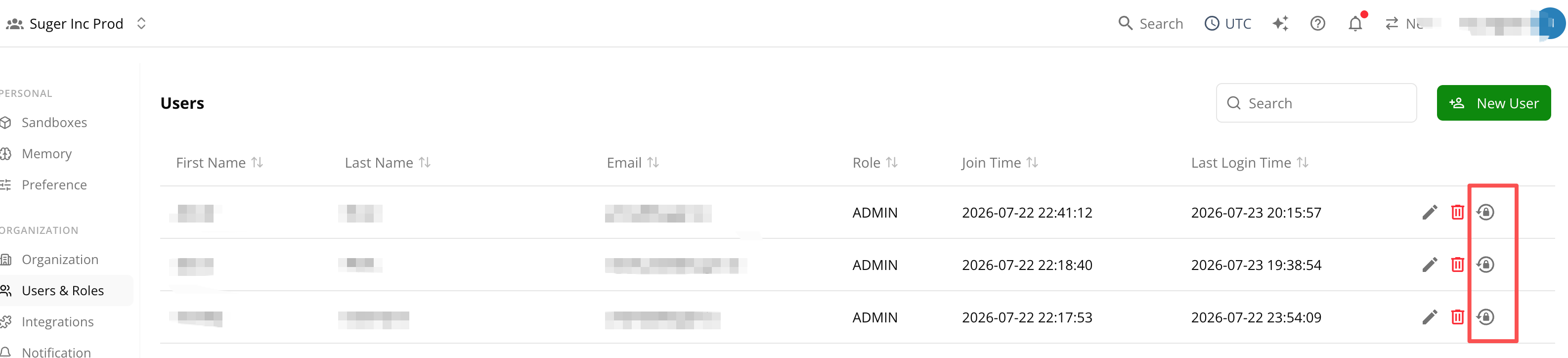
- Reset MFA: If a member is locked out of their authenticator, click the Reset MFA icon next to them to clear their registered factors so they can enroll a new one. See Reset a Member’s MFA.
- Members managed by Google Workspace: A member whose access comes from Google Workspace Directory Sync shows a Google group badge under their role, and their edit and remove icons are disabled; hovering one names the group. Change their role or membership in Google Workspace instead. See Google Workspace SSO.
Review Join Requests
When someone on your email domain asks to join your organization, Fours emails your organization’s Admins and lists the request under Pending Join Requests, at the top of Settings > Users & Roles. Only Admins can see and act on these requests, and the table appears only while at least one is waiting.
Each row shows the first two lines of the requester’s message, or No message if they didn’t write one. Click the row, or the arrow at its start, to read the whole request: who asked, your organization, the role they asked for, when they asked, and their full message. One row opens at a time, and clicking Approve or Reject doesn’t open or close it.
- Approve: the Approve Join Request dialog repeats Their message (click Show more to read a long one). Choose the Grant Role — Viewer, Editor, or Admin. The role they asked for is marked (requested), and the choice starts there. Click Approve, and they join with that role.
- Reject: the Reject Join Request dialog repeats their message too. Optionally give a Reason, then click Reject.
Either way, Fours emails the requester the decision, including your reason if you gave one.
If your organization sells with Partner Management, Manage in PRM → beside the table’s title opens Partners > Applications > User access. That list also keeps the requests you’ve already approved or rejected, and lets you decide several at once. See Review requests to join your organization.
When the requester is already a member. Someone can get access another way before anyone reviews their request — for example, you add them with New User, or they sign in through your company’s single sign-on. Fours normally closes their pending request by itself when that happens. A request that stays open for someone who is already in your organization is marked Already a member:
- Click Approve to clear it. No role dialog opens, and the role they already have doesn’t change.
- Reject is unavailable for that row. Its tooltip reads “Already a member — use Approve to clear this request”.
Requests to join a partner organization are normally approved on submit, and only appear here if that automatic approval fails. See Let teammates join on their own.
Reset a Member’s MFA
If a teammate loses their phone, switches devices, or is otherwise locked out of their authenticator, an Admin can reset that member’s MFA so they can enroll a new one — no need to contact Fours Support.
- Go to Settings > Users & Roles.
- Find the member in the user table and click the Reset MFA icon in their row.
- Confirm the action in the dialog that appears.
What happens next:
- The member’s registered MFA factors (authenticator-app codes and passkeys) are cleared.
- On their next login, the “Secure Your Account” screen prompts them to register a new authenticator — the same as first-time MFA setup.
Complete the Onboarding (For Invited Users)
Once invited, a new teammate follows these steps to activate their account:
- Open the invitation email: Check your inbox for an email from Fours with the subject line “Hi [Your Name], you have been invited to Fours”, then click the Create your account button.
- Establish credentials: The button takes you straight to the Auth0 Sign Up form with your email address already filled in — you don’t need to switch over from the login form or retype your address. If your email address already has a Fours account, the button opens the login form instead, also with your email filled in: sign in to finish joining. If you already have an account but the Sign Up form opens, switch to the login form and sign in with that address.
- Standard signup: Set a secure password to create your account.
- If SSO is enabled: Use Continue with Google, Microsoft, or Okta/SSO to register with your company credentials instead of a password.
- Verify your email: After you set a password, a “Verify your email” dialog appears — “Your account is created. We sent a verification link to [your email address].” Open that link from your inbox to activate the account. Following the link brings you back to Fours and logs you in automatically; if you’d rather finish in the tab you already have open, click I’ve verified — continue there once you’ve opened the link. If you close the dialog instead, Fours signs you out of the unfinished sign-up and returns you to a clean login page, so you can start again; closing it doesn’t delete the account you created. If the invitation went to the wrong address, ask your Admin to invite the right one.
- Access the console: After a successful login, you land on the Fours Dashboard with the access level your Admin assigned.
Custom Role with Granular Permissions
Custom roles offer precise control over permissions, allowing you to go beyond the limitations of predefined standard roles, which may be overly broad. This flexibility enables assigning specific permissions at a more granular level — you can toggle Read, Write, and Delete per console module (for example, Billing, Co-Sell, or Private Offers).
Create Custom Role
- Navigate to the settings page of your organization.
- Locate the Roles section on the Users & Roles tab.
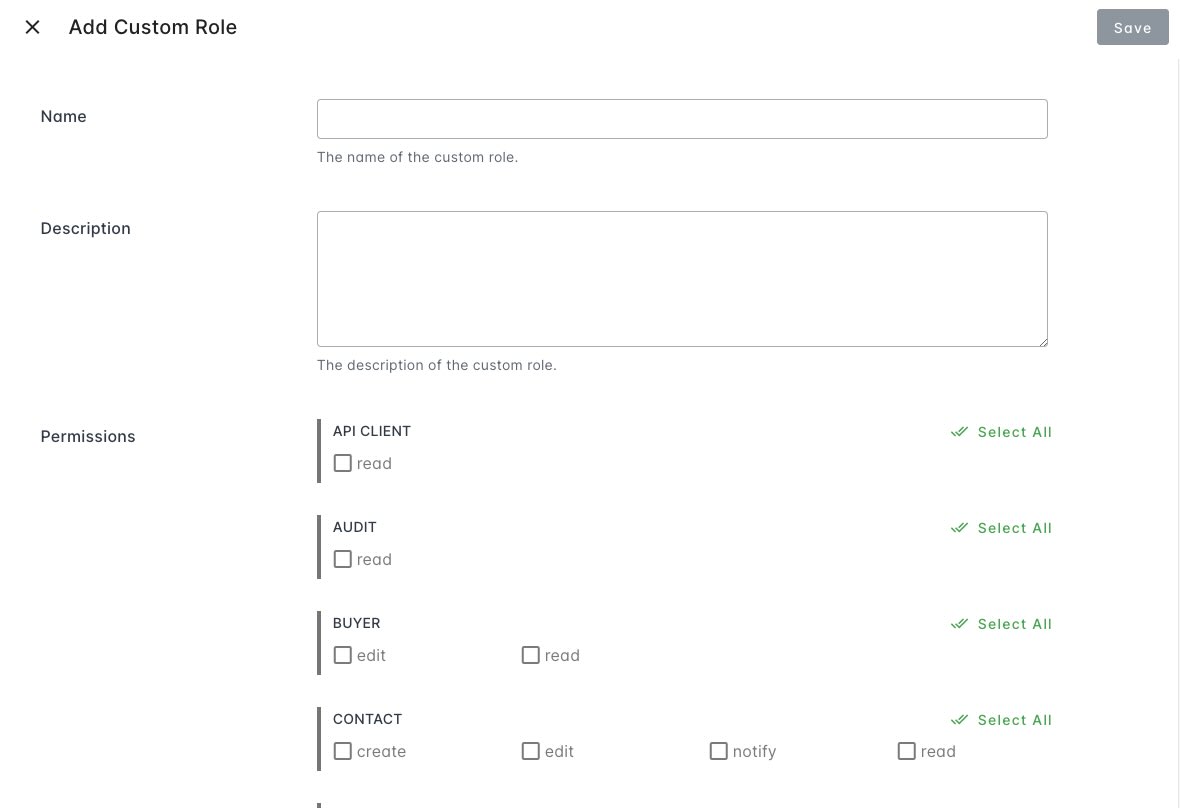
- Click New Custom Role.
- Fill in the name and description fields.
- Set permissions according to your specific requirements.
Assign Custom Role to User
Once custom roles are created, you can apply them during the creation or modification of a user.
- Visit the settings page of your organization.
- Find the Users section on the Users & Roles tab.
- Add a new user by clicking New User, or edit an existing user by clicking the edit button in their row.
- Set the Role field in the Add New User or Edit User dialog to the desired custom role.
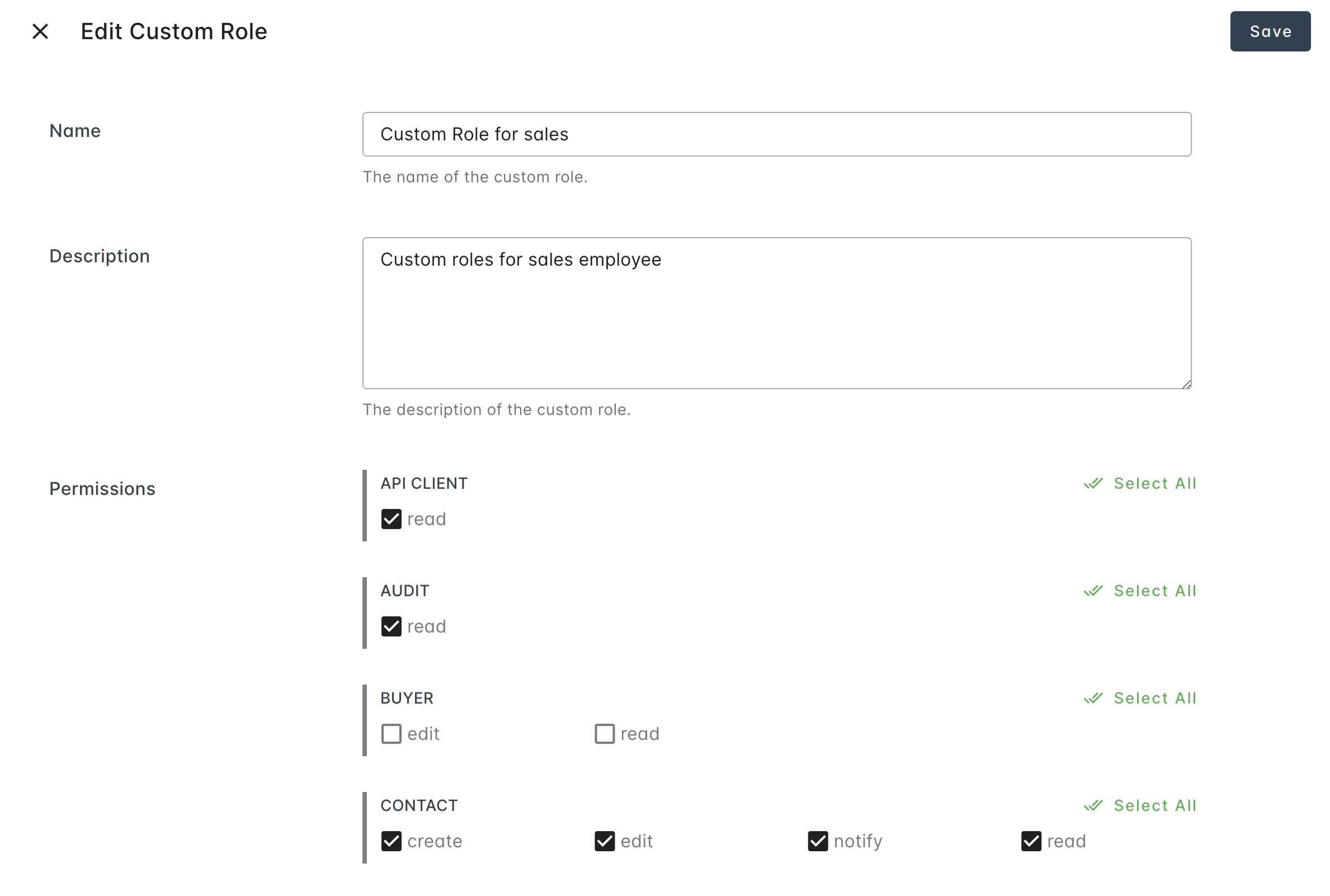
Edit Custom Role
-
Visit the settings page of your organization.
-
Locate the Roles section on the Users & Roles tab.
-
Click the edit button in each custom role row.
-
Modify the name, description, and permissions as needed. Once saved, the updated permission set applies to every user currently assigned to that role.
Use Okta as Identity Provider
Fours supports Okta as an identity provider, allowing centralized user authentication and access management through your Okta account.
Refer to Okta SSO for more details.
Troubleshooting
| Issue | Possible cause | Resolution |
|---|---|---|
| QR code won’t scan when setting up MFA | Common with Microsoft Authenticator specifically | Click Trouble Scanning? on the Fours screen to reveal the setup key. In your authenticator, choose Add account → Other account → Enter code manually, then type in the setup key. Scanning the QR code and entering the setup key register the exact same token. |
| MFA code is rejected even though you entered it correctly | Device clock isn’t set to automatic date & time, so the authenticator generates a code for the wrong moment in time | Turn on automatic date & time in your device’s settings, then wait for a new code to generate before retrying. |
| Invite doesn’t reach the intended person | Email address doesn’t share the organization’s domain | Confirm the invitee’s email matches your org’s domain. Fours only allows invites within the same domain. |
| Reject is greyed out on a join request | The row is marked Already a member — the person got access another way before anyone reviewed the request | Click Approve to clear the request. Their existing role doesn’t change. |
| The edit and remove icons are greyed out for a member | The member has a Google group badge: Google Workspace Directory Sync manages their role and membership | Change their group in Google Workspace. See Google Workspace SSO. |
Frequently Asked Questions
Q: Does inviting someone create their Fours account? A: No. It only pre-approves their email for signup. They must complete registration themselves.
Q: Can I invite someone with a personal or different-company email? A: No — invites are restricted to users sharing your organization’s email domain.
Q: What’s the difference between a standard role and a custom role? A: Standard roles (Admin, Editor, Viewer) are fixed. Custom roles let you toggle Read/Write/Delete permissions per module for more granular control.
Q: Do I have to enter my MFA code every time I log in? A: No — select “Remember this device for 30 days” on the Verify Your Identity screen to skip MFA on that device for 30 days.
Q: A teammate lost the phone with their authenticator — how do they get back in? A: An Admin can reset that member’s MFA from Settings > Users & Roles. On the member’s next login, they’ll be prompted to set up a new authenticator. See Reset a Member’s MFA.
Spotted something wrong or out of date on this page? Tell us and we'll correct it.