Register a Deal with a Partner
Register a deal when a customer needs to buy through a partner instead of directly from you — for example, when a prospect requires purchasing through a specific reseller.
Overview
Registering a deal creates a Co-Sell record that both you and the partner can track, including customer details, collaboration requests, and revenue share terms.
Step 1: Start a Deal Registration
-
Go to Fours Console, then Partners.
-
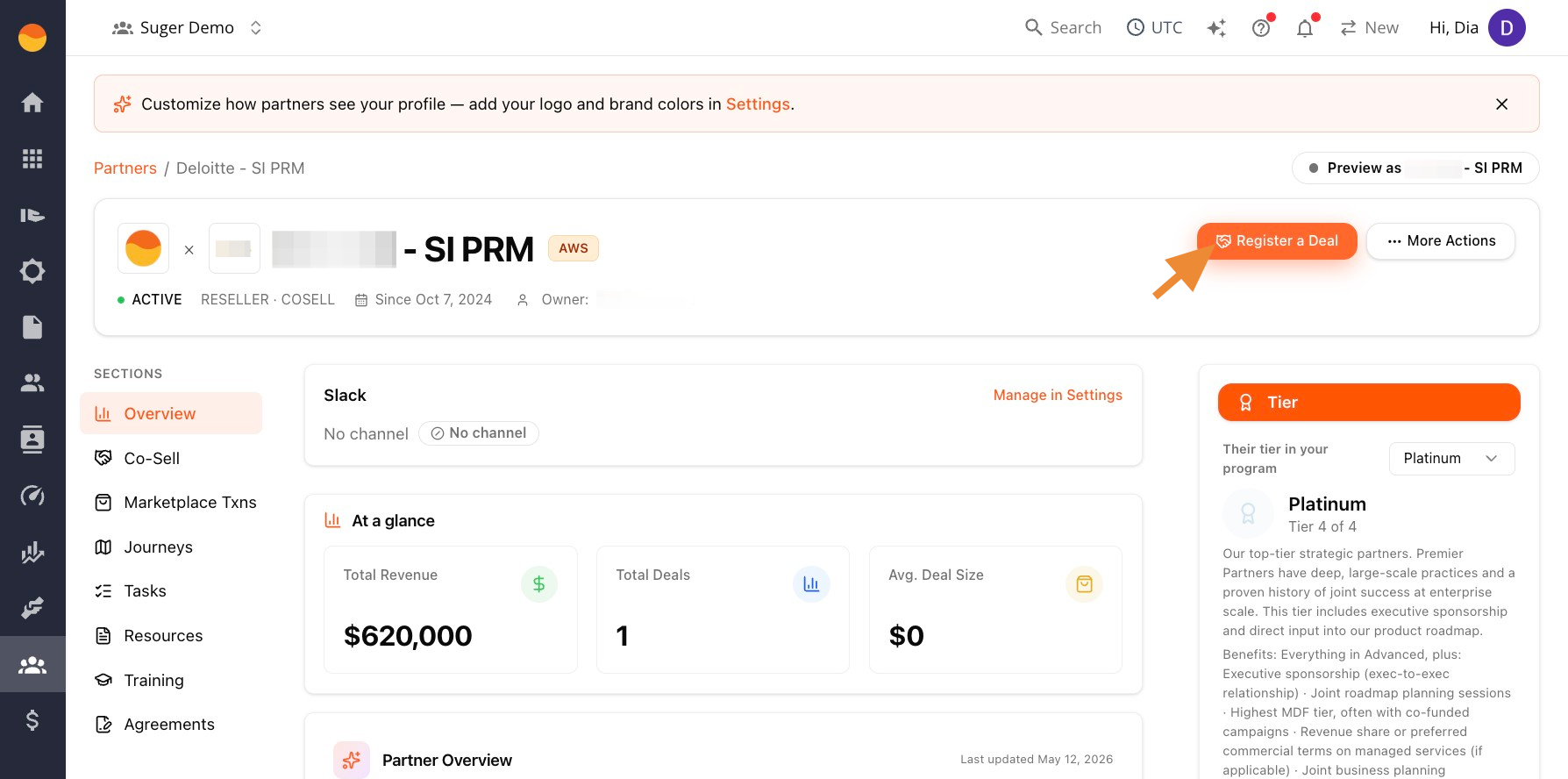
In All Partners, click the name of the partner you want to register the deal with.
-
Click Register a Deal in the top right corner of the partner’s profile.
Step 2: Choose or Skip a CRM Opportunity
The Select an Opportunity window lets you link the deal to an existing CRM opportunity before completing the registration form.
-
Choose Salesforce or HubSpot, depending on where the opportunity lives.
-
Search by opportunity name, ID, or account, or browse the list. Each result shows the current opportunity stage and deal value, when available.
-
Select an opportunity, then click Continue.
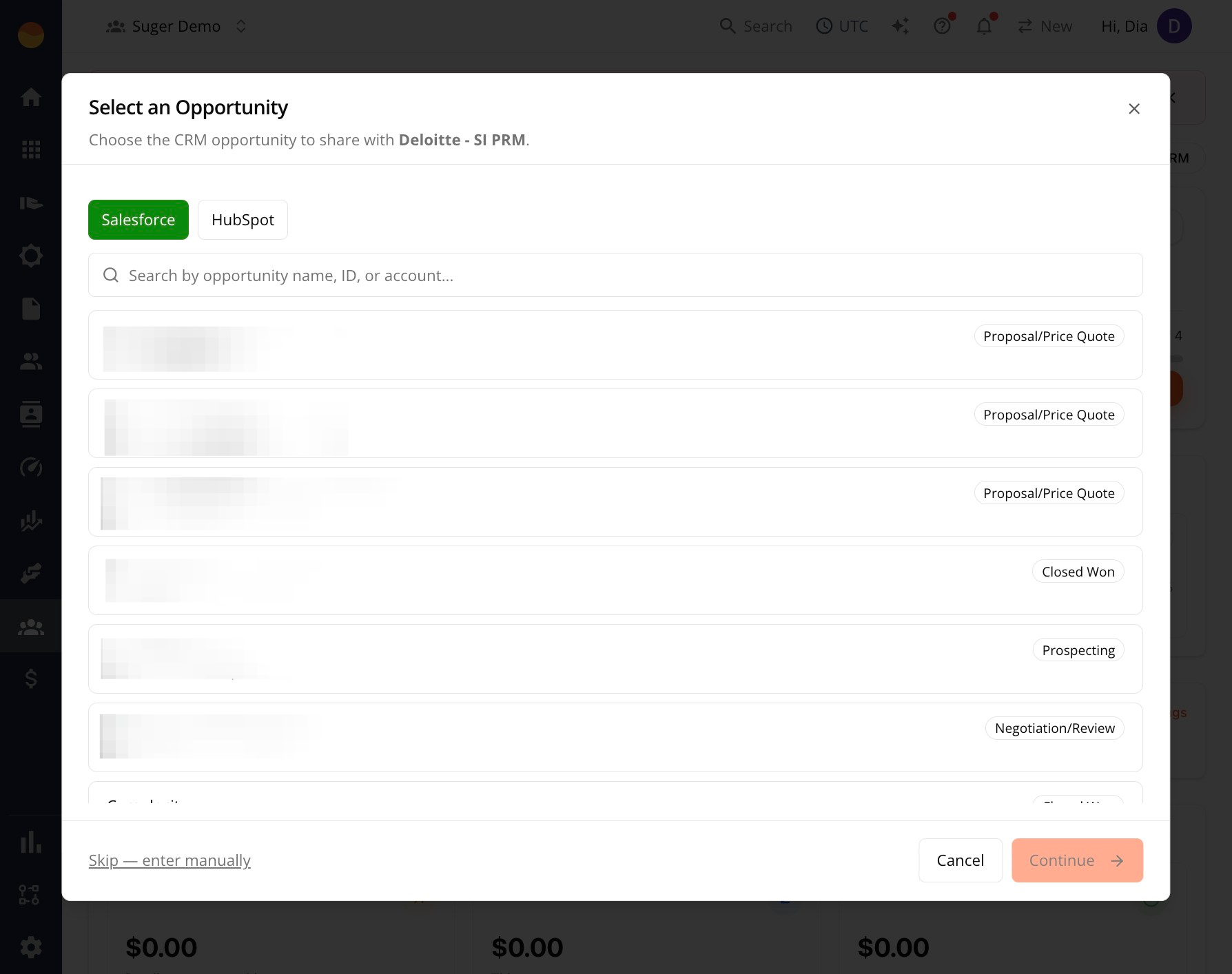
When you select a CRM opportunity, Fours pre-fills parts of the registration form using information from that record, so you don’t have to enter the same details twice.
Skip and Enter Details Manually
If the deal isn’t in your CRM, or you don’t use Salesforce or HubSpot, click Skip - Enter Manually. This opens the registration form with blank fields you’ll need to complete.

Step 3: Complete the Share Co-Sell Form
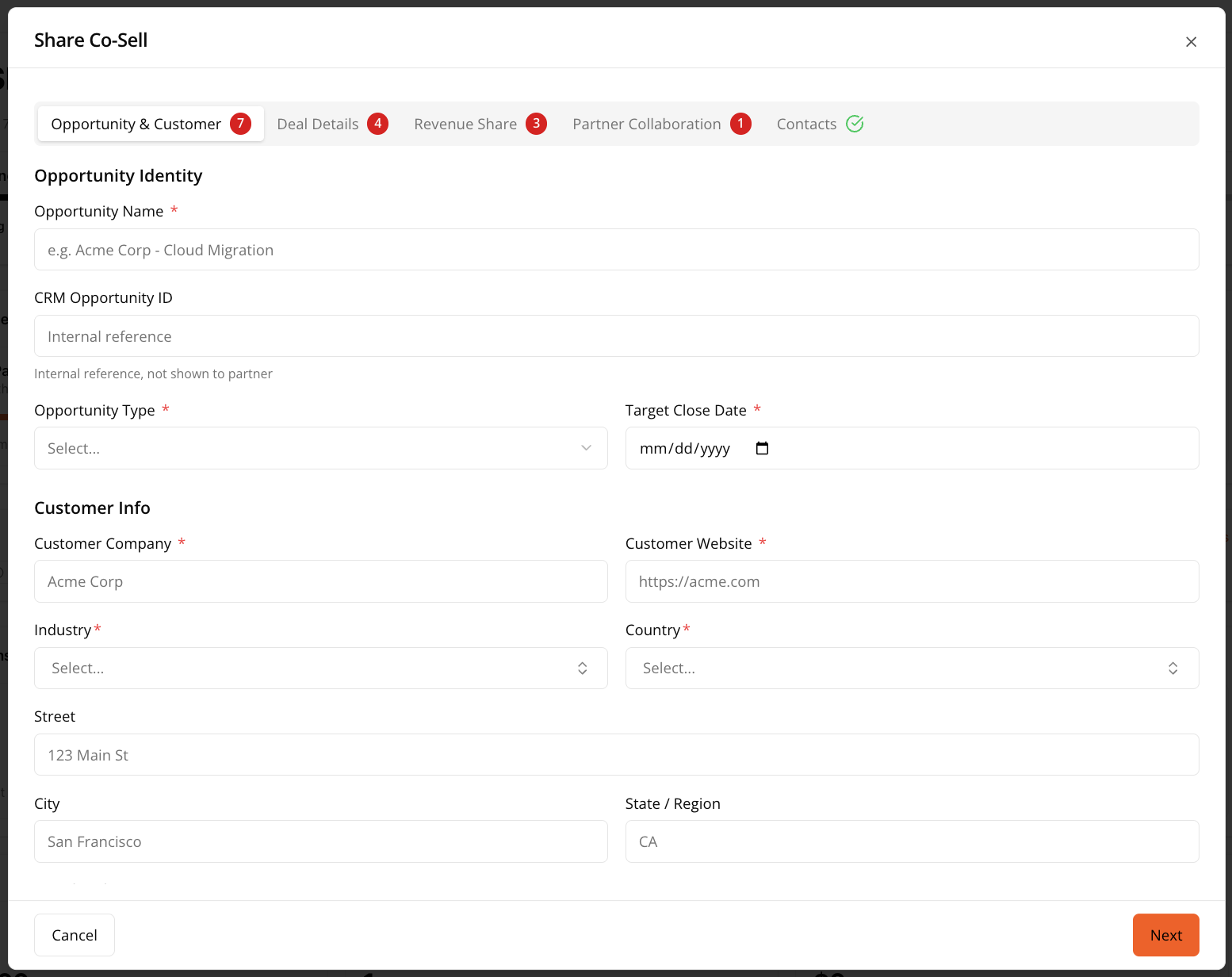
The form is split into five tabs: Opportunity & Customer, Deal Details, Revenue Share, Partner Collaboration, and Contacts.
The number on each tab shows how many required fields still need to be completed. When a tab is complete, the number changes to a checkmark. You can move between tabs at any time using Back and Next.
Which fields the form shows, and which of them are required, follow your organization’s deal registration form. See Choose the Fields of Your Deal Registration Form.
Opportunity & Customer
- Enter an Opportunity Name. This identifies the deal internally and to your partner.
- Add a CRM Opportunity ID if you have one. This is an internal reference only; the partner never sees it.
- Confirm the Opportunity Type and Target Close Date, especially if this data came from a linked CRM record.
- Confirm or enter the Customer Company, Customer Website, Industry, and Country. This is the customer information your partner sees when deciding whether to accept.
- Optionally, add the customer’s Street, City, State/Region, and Postal Code if you want a fuller address on record.
Customer Website is validated for shape, not just for being filled in. It needs at least two labels separated by a dot and an alphabetic top-level domain:
| Entry | Accepted? |
|---|---|
acme.com | Yes |
www.acme.co.uk | Yes |
https://acme.com/about?x=1 | Yes — the scheme and path are stripped |
n/a | No |
192.0.2.10 | No — an IP address is not a website |
pat@acme.com | No — that’s an email address in the wrong field |
A rejected entry shows “Enter a valid website, e.g. acme.com”. Fours checks the format only — it never resolves the domain — so a well-formed typo still passes.
Deal Details
- Write a Partner Brief (minimum 20 characters) describing the customer’s core need and why this partner is the right fit. This is the main pitch your partner reads before accepting, so make it specific.
- Optionally, add a Use Case — a short label for the customer’s primary use case (for example, “Workload migration and expansion”).
- Confirm the Deal Value and Currency.
- Check off the Transaction Model: Cloud Marketplace, Reseller Agreement, Direct Partner Contract, or Other. You can select more than one.
Revenue Share
This tab never pre-fills from your CRM, because commission settings are managed in Fours and in partner commission plans — not in Salesforce or HubSpot.
-
Set Deal Value Visibility. By default, Show deal value is selected, which lets partners see both the deal amount and their commission. This option is typically recommended for resellers and co-sell partners.
-
Choose a Commission Type first. This selection determines the commission settings available for the deal. Available options include:
- Referral Fee
- Reseller Margin
- Co-Sell Revenue Split
- Finder’s Fee
After you select a commission type, the Commission Rules panel appears. It shows the Rate, Maximum Cap, Minimum Deal Value, and Renewal Commission that apply to the partner. These values come from the partner’s Custom Plan if one exists, otherwise from your organization’s Standard Defaults. To learn more, see Set Up and Manage Commission Plans.
-
Confirm the Revenue Share Model and Payment Trigger. If a plan resolved automatically, these should already reflect it, but you can adjust them for this specific deal if it needs different terms than the plan default.
-
Optionally, set a Clawback Window in days. If the deal churns within this window after payment, the commission can be reversed. Leave it blank if you don’t need a clawback.
-
Add any Revenue Share Notes for context.
Partner Collaboration
- Check off What I Need From This Partner. At least one is required.
- Optionally, add Next Steps (for example, “Schedule joint discovery call”) and any Notes for Partner.
Contacts
The Contacts tab has a card for each side of the deal. The first person on each card is set outside the form: they carry a lock badge, and hovering it reads “Set in Partner Details; can’t be changed here”.
- Your team · {your organization} — Who on your team owns this co-sell. It starts with the partner’s Partner Manager, the teammate assigned to the partner in Partner Details, followed by you. Click Add contact to add a teammate: pick them under Choose team member, or type their Name, Email, and Title under Enter manually. Remove takes a teammate off again, you included.
- Their team · {partner} — Who at {partner} receives this co-sell. It starts with the partner’s champion, set in the partner’s contacts. The co-sell is sent to the champion, who owns it on the partner’s side, and to everyone else on this card; Your team gets its own copy. Each side’s email also reaches the people its organization has set to receive co-sell emails in its email notification settings, and no one else — see Who Receives Co-Sell Emails. Add contact adds someone else at the partner, picked from the partner’s contacts or typed in; a typed address must be a company address, and not on your own organization’s domain.
Submit won’t go through until both cards have their first person. Without a Partner Manager, the Your team card reads “{partner} has no Partner Manager. Assign one in Partner Details before sharing.”; without a champion, the Their team card reads “{partner} has no partner champion. Set one in {partner}‘s Contacts before sharing.” A deal with more than one partner has a Their team card for each, with the partner’s role after its name. The Contacts tab’s number counts what these checks still find missing — the Your team card while it has no Partner Manager or a teammate without a name and email, and each partner whose Their team card isn’t complete — so the tab shows its checkmark only once its contacts no longer hold Submit back.
Sharing doesn’t add anyone to either side’s contacts. Once the partner accepts the co-sell, everyone on it joins both sides’ contacts; see Contacts. When you register a deal on a partner’s behalf, the Their team card reads “Who at {partner} confirms this registration.”: the champion is the person Fours asks to confirm it.
Step 4: Submit and Track Your Deal Registration
Once every tab shows a checkmark, click Submit. It is at the bottom of every tab, so you don’t have to page through to the last one.
After you submit, the deal appears on the partner’s profile under the Co-Sell tab, with a status of Pending Acceptance until the partner responds.
Choose the Fields of Your Deal Registration Form
Your deal registration form decides which of the standard fields above a registration asks for, which of them are required, and who is asked. It applies to new deals registered with you in the Fours Console, including on a partner’s behalf, from your partners’ portals, in bulk uploads, and through the API. It applies to your public deal registration link too: that page shows, hides, and requires Customer Website, Industry, Country, Street, City, State / Region, Postal Code, Partner Brief, Use Case, Transaction Model, the deal value’s Currency, What I Need From This Partner, and Notes for Partner the way you set them for Referrers. It never asks CRM Opportunity ID or a Revenue Share field, so a requirement on those doesn’t apply there, and a public registration is never refused for a field it can’t fill in. Next Steps appears there too, but what a submitter types in it isn’t carried into the registration you receive. Deals that already exist keep the values they were submitted with, and editing a deal later doesn’t apply your settings.
- Go to Fours Console, then Partners.
- Click Settings at the bottom of the rail, then Deal Registration Form.
- In the Standard fields table, set each field you want to change. The fields are grouped under the tab of the form they appear on.
- Click Save.
| Column | What it sets |
|---|---|
| Required | Required or Optional — or Default, which keeps the standard rule and names it, as in Default (required) or Default (optional). |
| Shown | A switch. Turn it off to hide the field; a hidden field is never required, and its other two settings are locked until you turn it back on. Turning it on again resets Required to Default. |
| Asked of | All partners, Sellers only, or Referrers only. Sellers only asks the field when the deal is registered as the Seller, as you do on this page; Referrers only asks it when a partner registers the deal with you as the Referrer. Whoever isn’t asked doesn’t see the field and doesn’t have to fill it in. |
Some fields can’t be changed, because a registration can’t exist without them or commissions are calculated from them. The table lists them in one Always asked line at the top of each tab’s group:
| Tab | Fields you can change | Always asked |
|---|---|---|
| Opportunity & Customer | CRM Opportunity ID, Customer Website, Industry, Country, Street, City, State / Region, Postal Code | Opportunity Name, Opportunity Type, Target Close Date, Customer Company |
| Deal Details | Partner Brief, Use Case, Currency, Transaction Model | Deal Value |
| Revenue Share | Currency, Clawback Window (days), Revenue Share Notes | Commission Type, Revenue Share Model, Payment Trigger, Partner Cut (%), Partner Cut Amount |
| Partner Collaboration | What I Need From This Partner, Notes for Partner, Next Steps | — |
| Contacts | — | Contacts |
- Partners may see different labels. Where a partner’s form names a field differently, the row says so under Partners see — for example, partners see Partner Brief as Opportunity Context.
- A hidden currency means US dollars. If you hide a Currency field, a deal value or fixed share entered without one is recorded in USD.
- Preview before you save. Preview in the portal opens the registration form as you’d fill it in as the Seller, with your current settings, saved or not. It’s a preview only: nothing is submitted.
- Preview the public page too. Preview the public form opens your public deal registration link in a new tab as a partner registering as the Referrer sees it, with your current settings, saved or not. The preview never submits a registration. It needs your portal slug, so it can’t be clicked until one is set.
Partner organizations don’t have this section. When a partner registers a deal with you as the Referrer, your form applies.
Spotted something wrong or out of date on this page? Tell us and we'll correct it.