Outbound Referral
Share opportunities from your CRM with partners
Overview
With your co-sell configurations, sharing with partners can be as easy as a few mouse clicks.
Outbox
Outbox is the place to show your CRM opportunities that are ready to be sent to partners.
Without any configuration, this tab lists all your CRM opportunities. The HubSpot section is the exception once a Referral State property is set up: it then lists only the deals not yet shared with AWS, Azure, or GCP. You can click the filter button to specify various filters to narrow down the scope:
You can also use the search box on the top right:
Share an Opportunity
Sharing happens on its own full page, not in a pop-up dialog. The page has its own URL, so you can bookmark a share in progress, reload it, or send the link to a colleague. Its header reads Share to {cloud} co-sell referral — for example, Share to AWS co-sell referral.
Below is an example where we share a Salesforce opportunity with AWS.
-
Find an opportunity from the Outbox.
-
Click on the opportunity name (in teal color) which navigates to the detail page.
-
Click the Share button on the top right. Fours opens the share page.
-
Work through the stepper at the top of the page. Each step groups a related set of fields; fill in the required fields, and any optional fields you want to send.
-
If all validation passed, the Submit button will be clickable. Click on it.
-
Fours sends this to AWS. This process usually takes ~5 seconds but sometimes it takes longer.
-
After submission, open the opportunity again, or find its referral on the Co-Sell page under Cloud Partners, to check its current status.
-
You can click on it to check the details. You should see the “APN CRM Unique Identifier” in the “Destination” section on the bottom.
Duplicate title advisory
When you submit, Fours checks whether the same partner already has a still-open referral with a matching title. Matching ignores letter case and surrounding whitespace, so “Acme Corp — Migration” and “acme corp — migration ” count as the same title.
If it finds one, Fours shows you the matching referrals so you can decide whether you are about to create a duplicate.
Invite other AWS partners
On an AWS referral you can invite other AWS partners — a reseller or a services partner, for example — to work the opportunity with you. Fours sends each one an AWS engagement invitation through AWS Partner Central. You can invite only partners your AWS Partner Central account is connected to; Fours refreshes that list of partner connections from AWS every 6 hours.
You can invite partners in two places:
- While you share — the AWS share page ends with a Partner Collaboration step.
- After the referral exists — open the AWS referral and click Share With Partners.
Invite partners while you share
The Partner Collaboration step is optional. Fill it in to invite partners in the same submission:
| Field | What to enter |
|---|---|
| Partner Connection Name | Type to search your connected partners by company name or AWS account ID, and pick one or more. Each option shows the company name with AWS Account: and its account ID underneath. |
| Partner Engagement Type | One or more of: Distributor, Reseller, Hardware Partner, Managed Service Provider, Software Partner, Services Partner, Training Partner |
| Comments to share with the partner | Up to 255 characters |
Once you pick a partner, an engagement type and the comments become required, and Submit stays disabled until both are filled in. Fours sends one invitation per selected partner, each with the same engagement types and comments.
Invite partners to an existing referral
On the AWS referral’s page, click Share With Partners. The Share with Partner dialog sends one invitation at a time:
- Sender — your Email (required), plus an optional First Name, Last Name, Business Title, and Phone Number.
- Partner — the Partner Connection Name, at least one Partner Engagement Type, and the Comments to share with the partner (up to 255 characters), all required.
Share With Partners is disabled when any of these is true:
- The referral already has 10 outbound invitations.
- AWS has not yet given the referral an opportunity ID.
- The referral’s status is Draft, Create Failed, or Deleted.
- Its stage is Launched or Closed Lost, or it has no stage yet.
- It is an inbound referral still waiting for you to accept it (Pending Acceptance).
Track the invitations
The AWS referral’s Invitations tab lists every invitation sent on it:
| Column | Shows |
|---|---|
| Partner | The partner connection’s name, with its AWS account ID underneath — or the account ID alone when it matches none of your connections |
| Invite Time | When the invitation was sent |
| Status | The invitation’s status at AWS |
| Invitation Id | AWS’s ID for the invitation |
| Sender(s) | The company that sent it |
| Link to invitation | Opens the invitation’s page: Overview, Customer Details, Project Details, and Partners |
Right after it sends an invitation, Fours reads every invitation on the referral back from AWS and stores the dates, sender, message, and customer and project details AWS returns. It does not poll for answers: when an invited partner accepts or rejects the invitation, AWS publishes a status-change event, and Fours reads that event through the Amazon EventBridge rule your AWS Partner Central integration set up, then updates Status. An invitation recorded before early October 2026 can show blank dates or no sender until another invitation is sent on that referral.
Partner names
Partner names come from AWS. Each time Fours syncs your partner connections, it asks AWS Partner Central for each partner’s published company name. Where AWS returns none — for example, for a partner whose profile isn’t published — the partner appears as AWS Account followed by its account ID until a later sync resolves it. A name that was resolved once is never replaced by the placeholder after a failed lookup.
Re-submit a failed referral
A referral that failed on the way to the partner does not have to be recreated from scratch. Open the referral’s detail page and use the Re-submit action.
When Re-submit is available
| Situation | Re-submit? |
|---|---|
Status is CREATE_FAILED | Yes |
| AWS referral whose review status is still pending submission | Yes |
| Any other status — the referral is healthy or already at the partner | No |
If you reach the re-submit flow for a referral that does not qualify, Fours refuses it with: “This referral cannot be re-submitted.”
What happens when you re-submit
- Open the failed referral’s detail page.
- Click Re-submit. Fours seeds the form from the payload it stored on the original attempt, so every value you entered the first time is still there.
- Correct whatever the partner rejected — the error message on the referral tells you what to fix.
- Click Submit.
Board view
For Fours partner-to-partner co-sell, the referrals table offers a List / Board toggle. It appears only when the partner filter is set to Fours alone — the board’s columns are Fours’ own deal stages, which do not describe an AWS, Azure or GCP referral. Your choice is remembered in the browser.
The board has nine columns: the eight deal stages — Pending, Active, In Discovery, Proposal Sent, Negotiating, On Hold, Won, Lost — plus a board-only Rejected bucket.
Each column header shows how many deals the column holds and, when those deals carry a value, their total — added up per currency, because values in different currencies are never combined. Hover the info icon beside either figure for its definition. When the board has loaded only the first of the deals that match your search and filters, both figures cover the loaded deals only and are marked ≥.
Drag a card to change its stage. Two columns accept no drops, and say so rather than appearing to:
| Column | Why you cannot drop into it |
|---|---|
| Pending | The pre-accept state. Dropping here would revert an accepted deal to pending acceptance and re-arm the accept decision. |
| Rejected | Rejection is a status, not a stage. A rejected deal’s stage freezes where it was; the bucket exists so a dead deal is not presented as live pipeline. |
Two stages open a confirmation before the change is saved:
- Lost — requires a closed-lost reason.
- Won — opens the Close Won gate: deal value, visibility, and commission.
The board offers exactly the transitions the deal page’s Change Stage dropdown offers, from one shared list, so the two cannot drift apart.
Bulk Share
You can share multiple opportunities at the same time. This can be very efficient if your CRM data is in good quality (e.g., all postal codes are filled) and the field mappings & templates are well-configured.
-
On the Salesforce, HubSpot, or Dynamics 365 section of the Co-Sell page, tick the opportunities you want to share, then click Bulk Share at the right of the section’s title. On Salesforce and Dynamics 365 it opens a menu of the cloud partners you have connected (AWS, AZURE, GCP): pick one. On HubSpot it shares with AWS, and it appears once your AWS ACE integration is connected.
-
A Preview dialog shows the referral Fours is about to submit for each opportunity you ticked.
You can click on any of them to check the details.
-
If all validation passed, you can click the
Submitbutton. Otherwise you’ll need to manually fill them.
Running two bulk shares at once
You can start a second bulk share while a first one is still processing. Previously the second batch could be dropped, or leave rows sitting in Pending Create indefinitely — that no longer happens.
If a batch cannot be started, its referrals are marked CREATE_FAILED rather than left
stranded, with the message:
Could not start the {partner} submission for this bulk share — please resubmit the referral
Those rows behave like any other failed referral: open one and use Re-submit to push it through.
Auto-Share Retries
Auto-share does not give up on a
referral the partner rejected. A CREATE_FAILED referral re-enters the candidate list on
the next auto-share run — roughly every 3 hours — and Fours updates the existing record
rather than creating a duplicate.
| Retried automatically | CREATE_FAILED |
| Never retried | UPDATE_FAILED, PENDING_CREATE, DRAFT |
| Retry limit | 16 attempts, roughly 48 hours |
After 16 attempts the referral stops being retried and stays CREATE_FAILED. At that
point the cause is almost always data the partner will keep rejecting — fix the underlying
field and use Re-submit on the referral itself.
Auto-Enrich Referrals
Save time and improve data quality by automatically filling in missing company and contact information when sharing opportunities with cloud partners. The auto enrichment feature helps ensure your referrals have complete information, increasing the chances of successful partner engagement.
How It Works
When you preview an opportunity before sharing it with a cloud partner (AWS, Azure, or GCP), Fours can automatically fill in missing fields like company addresses, contact names, and more. This happens seamlessly in the background - you’ll see the enriched data right in your preview.
To enable auto enrichment:
- Go to Co-Sell → Settings → Configs (the Cosell Configs section)
- Find your partner configuration (AWS, Azure, or GCP)
- Enable the Auto-Enrich Referrals option
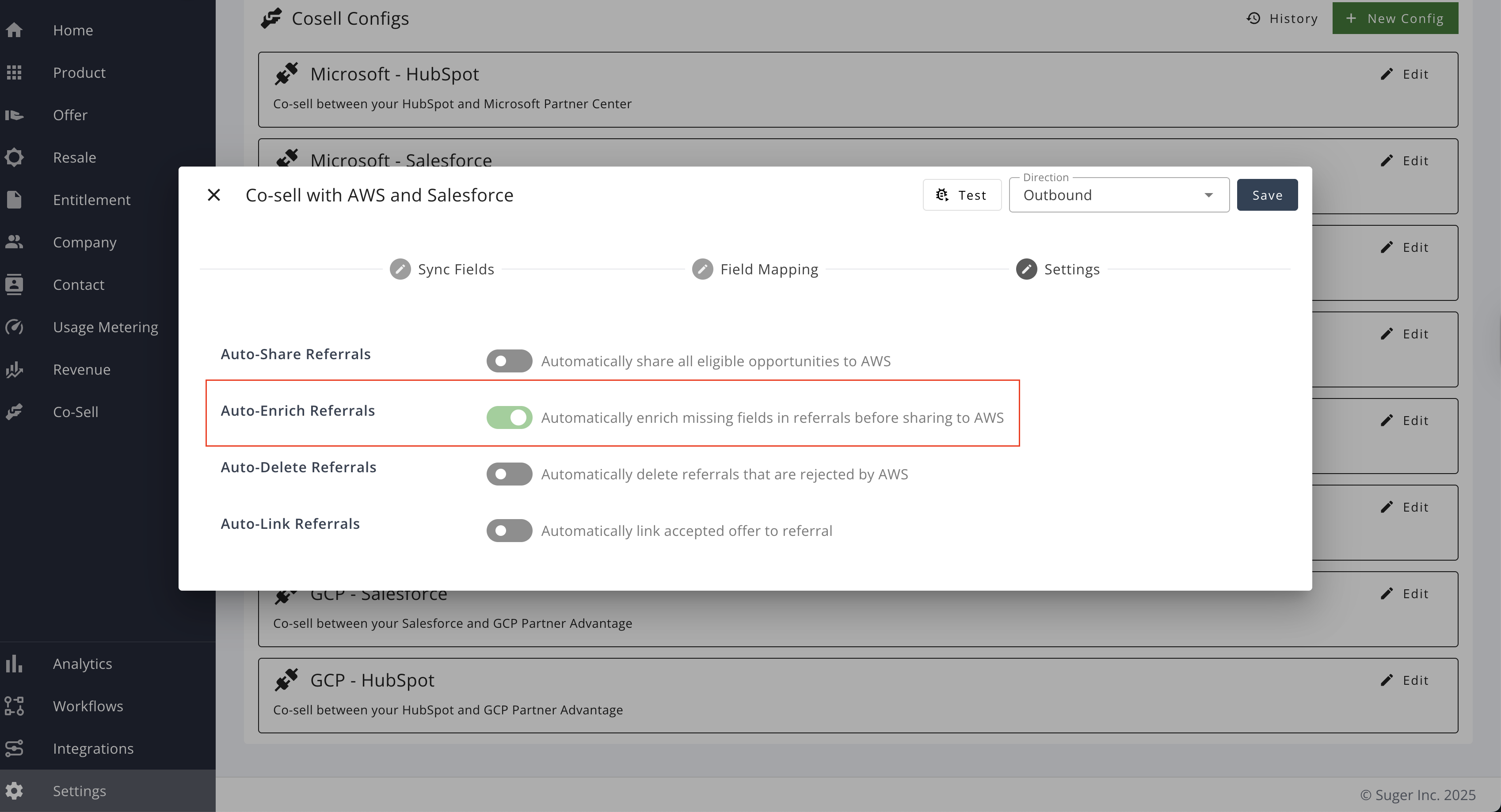
Once enabled, the enrichment will happen automatically whenever you preview opportunities for that partner. Your existing data is always preserved - only empty fields are filled in.
What Information Is Needed
For the enrichment to work effectively, your CRM data needs to have some basic information about the company and contacts.
For company information, the service needs at least:
- Company name, or
- Company website/domain
For contact information, the service needs at least:
- Contact email address, or
- Contact first and last name (along with company information)
If these basic fields are missing in your CRM data, the enrichment service won’t be able to find additional information for that record.
What Fields Can Be Enriched
The auto enrichment feature can fill in many commonly required fields for each cloud partner. Here’s what can be automatically populated:
AWS
Company Information:
- Company name and website
- Full address (country, state, city, street address, postal code)
- Industry classification
Contact Information:
- Email address
- First and last name
- Job title
Azure
Company Information:
- Company name
- Full address (country, state, city, street address, postal code)
Contact Information:
- Email address
- First and last name
- Job title
GCP
Company Information:
- Organization name and domain
- Full address (country, state/province, city, postal code, street address)
- Industry classification
- Company region
- Employee count
Contact Information:
- Email address
- First and last name (given name and family name)
Spotted something wrong or out of date on this page? Tell us and we'll correct it.