Build a Partner Training Course
Use the course builder to create partner training on positioning, pricing, or product knowledge — either by building lessons directly in Fours or by uploading an existing SCORM package.
Overview
You can build a training course three ways: create lessons directly in Fours with the editor, upload a course you already built in another authoring tool as a SCORM package, or link a course that lives in your own LMS — see Connect an External LMS. Once the course is published, you can optionally award a certificate on completion and track learner progress from the Training dashboard.
The Certification Chain
Building a course is the first link in a chain that ends with a certificate in your partner’s hands. Five guides cover it, and it helps to see where each one sits before you start — particularly the two written for the partner rather than for you.
| Stage | Guide |
|---|---|
| Build and publish the course | This page |
| Create the certificate it awards | Partner Certifications |
| Share it and watch progress | Share and Monitor Partner Training Courses |
| What the partner does with it | Take a Partner Training Course |
| How the partner reads their certificates | View Your Team’s Earned Certificates |
Where Training Lives
Everything in this guide happens under Partners → Training, which is organized into four tabs:
| Tab | What it holds |
|---|---|
| My Courses | Courses your organization authors — where you build, publish, and share. |
| Partner Progress | How partner learners are doing across your courses. |
| From Partners | Courses partners have shared with you, for your own team to take. |
| Certificates | Certificates you offer, and the ones learners have earned. |
If your organization joined Fours as a partner rather than running its own program, you only see From Partners and Certificates — there is no authoring side to show.
Step 1: Choose How to Create a Course
- Go to Fours Console, then Partners.
- Click Training, then + Create Course.
- Choose one of three paths:
- Build with editor — create lessons directly in Fours.
- Upload SCORM package — import an existing SCORM 1.2 or SCORM 2004 course created in another authoring tool.
- Link external LMS — publish a course that stays in your own learning management system. It asks only for a course name, destination link, LMS, category and estimated minutes; Fours does not host the lessons. Once completion sync is set up, it also offers Course in your LMS, so completions can come back to Fours. To sign partners in on arrival, connect your LMS; without that connection, the course opens at its destination link.
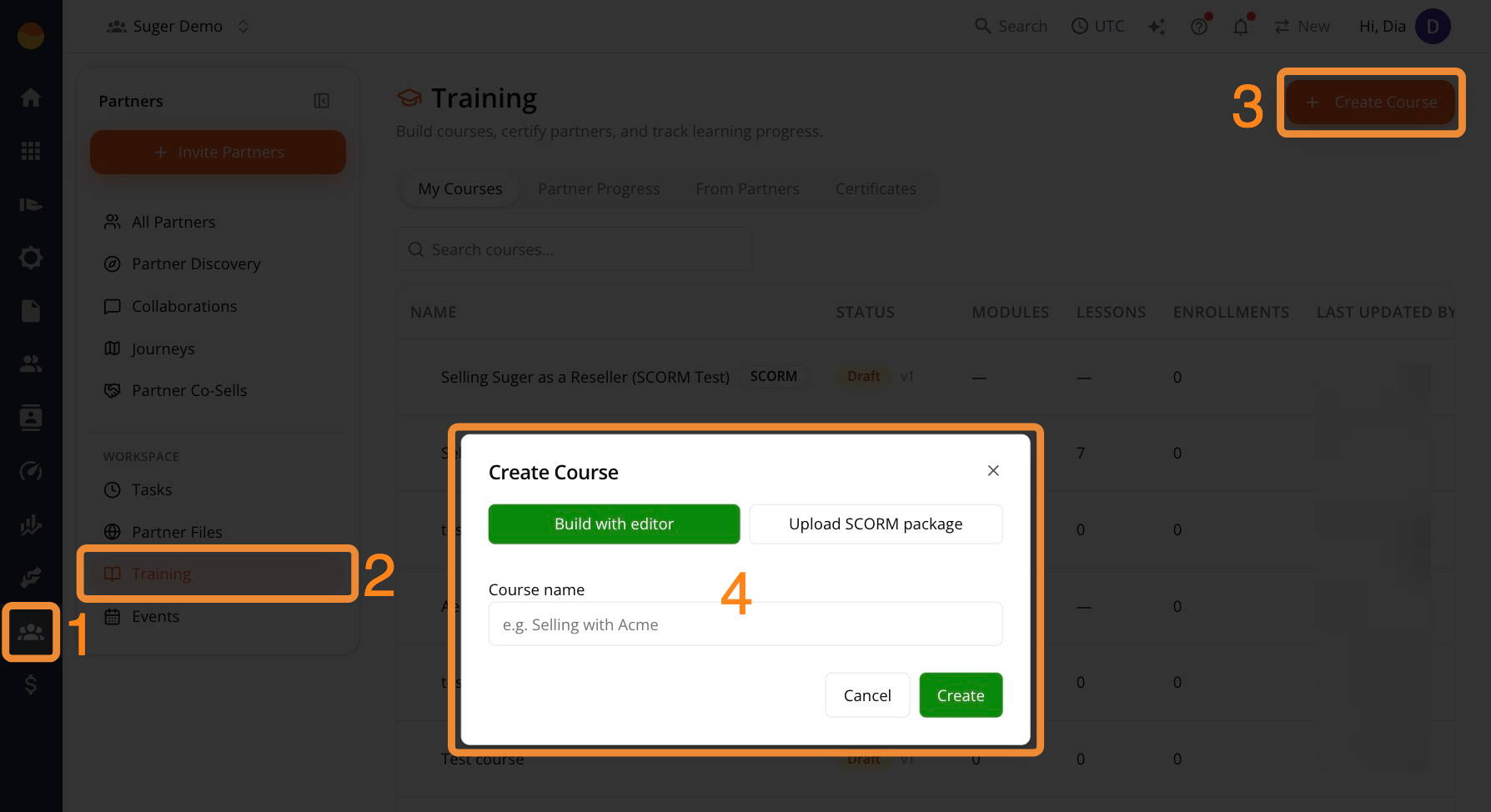
Step 2: Create the Course
Follow Option 1 to build content in Fours, or Option 2 to upload a SCORM file.
Option 1: Build a Course with the Editor
Use this method if you want to create and manage course content directly in Fours using modules, lessons, and quizzes.
Start the course
-
Enter the Course name, then click Create.
-
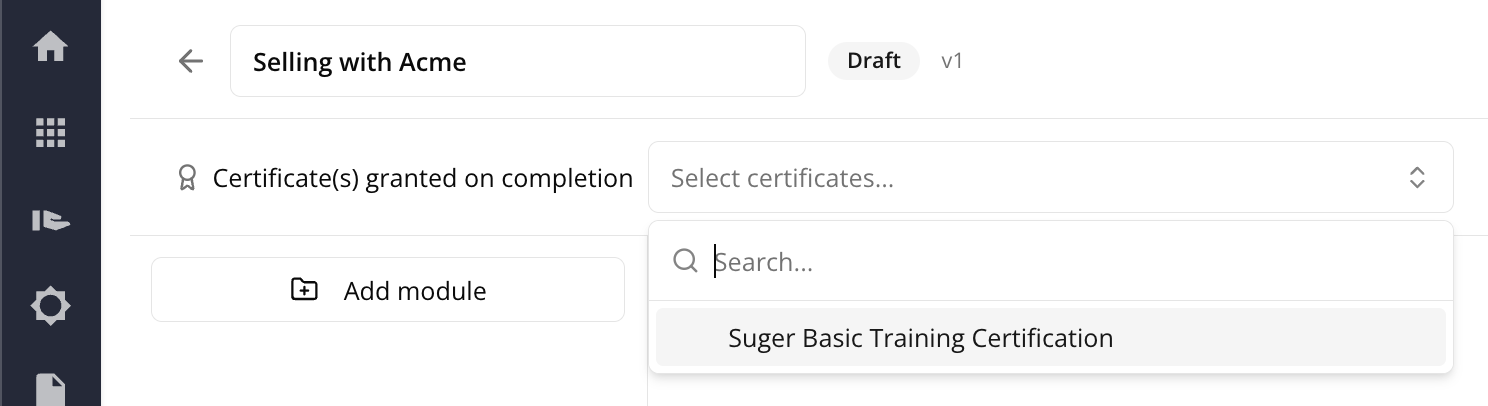
Under Certificate(s) granted on completion, select a certificate to award when learners complete the course. Leave this field blank if the course doesn’t grant a certificate.
-
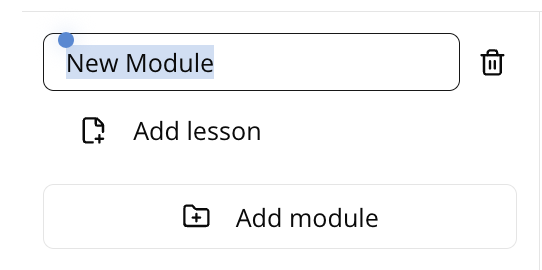
Click Add module to create a section, then rename it.
-
Inside the module, click Add lesson and rename it.

-
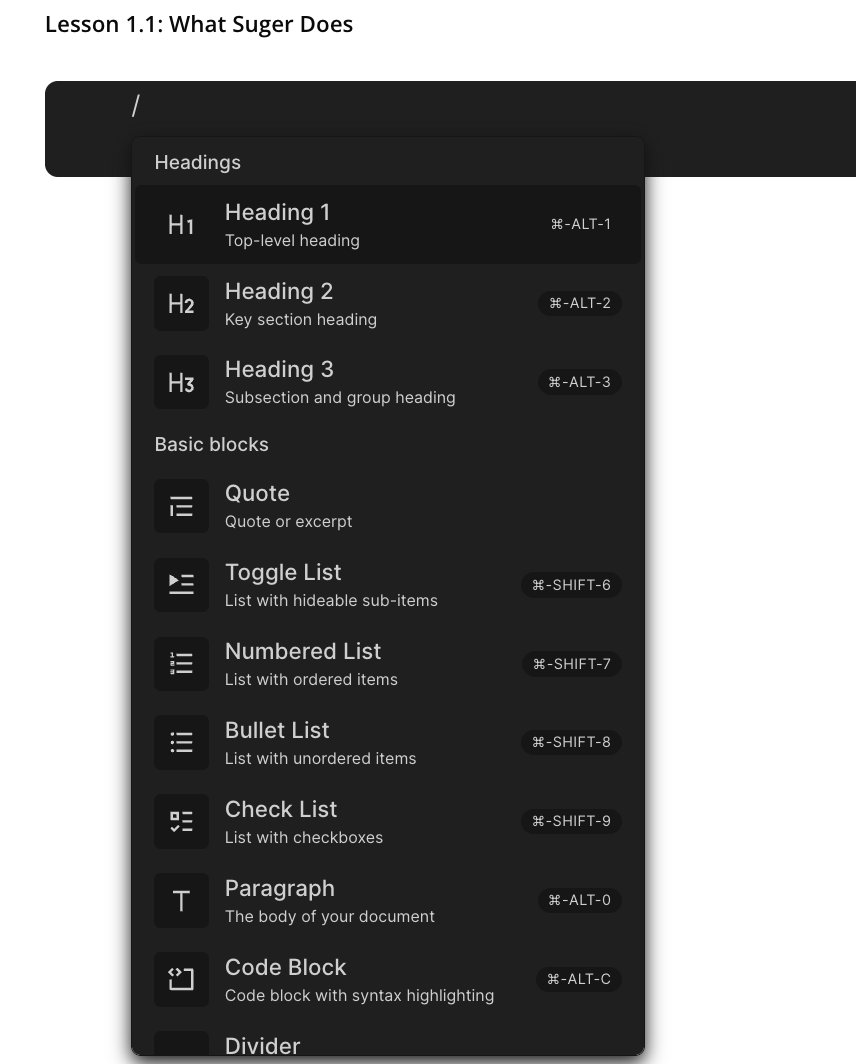
Click inside the lesson body and type / to insert content blocks.
-
Repeat for each module and lesson the course needs.
(Optional) Add a graded quiz
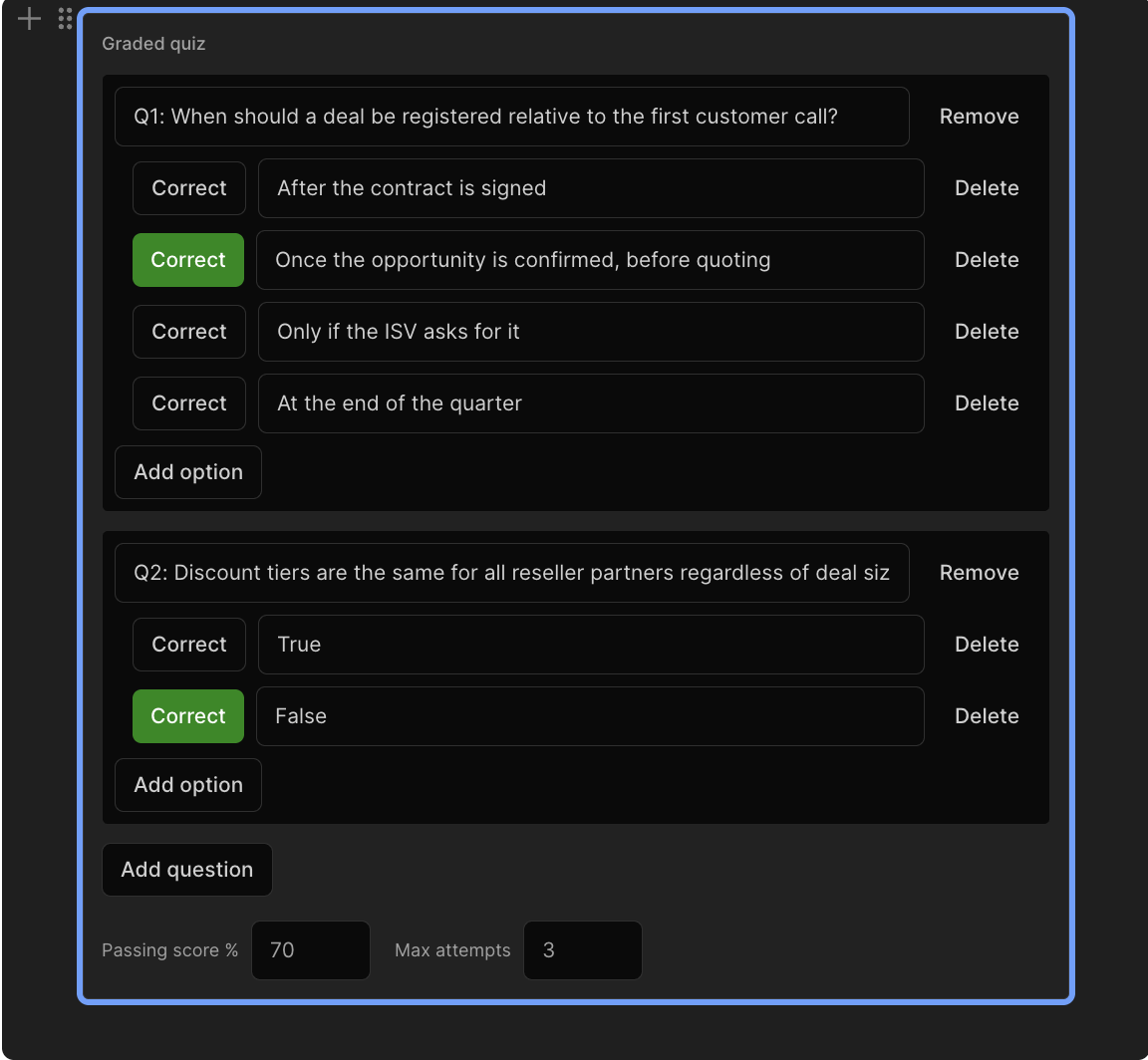
Insert a Quiz block inside a lesson to test what the partner just learned.
- Enter the question text.
- Click Add option to add an answer choice.
- Click Correct next to the right answer.
- Click Add question to add more questions.
- Set the Passing score % and Max attempts at the bottom of the quiz block.
Preview the course
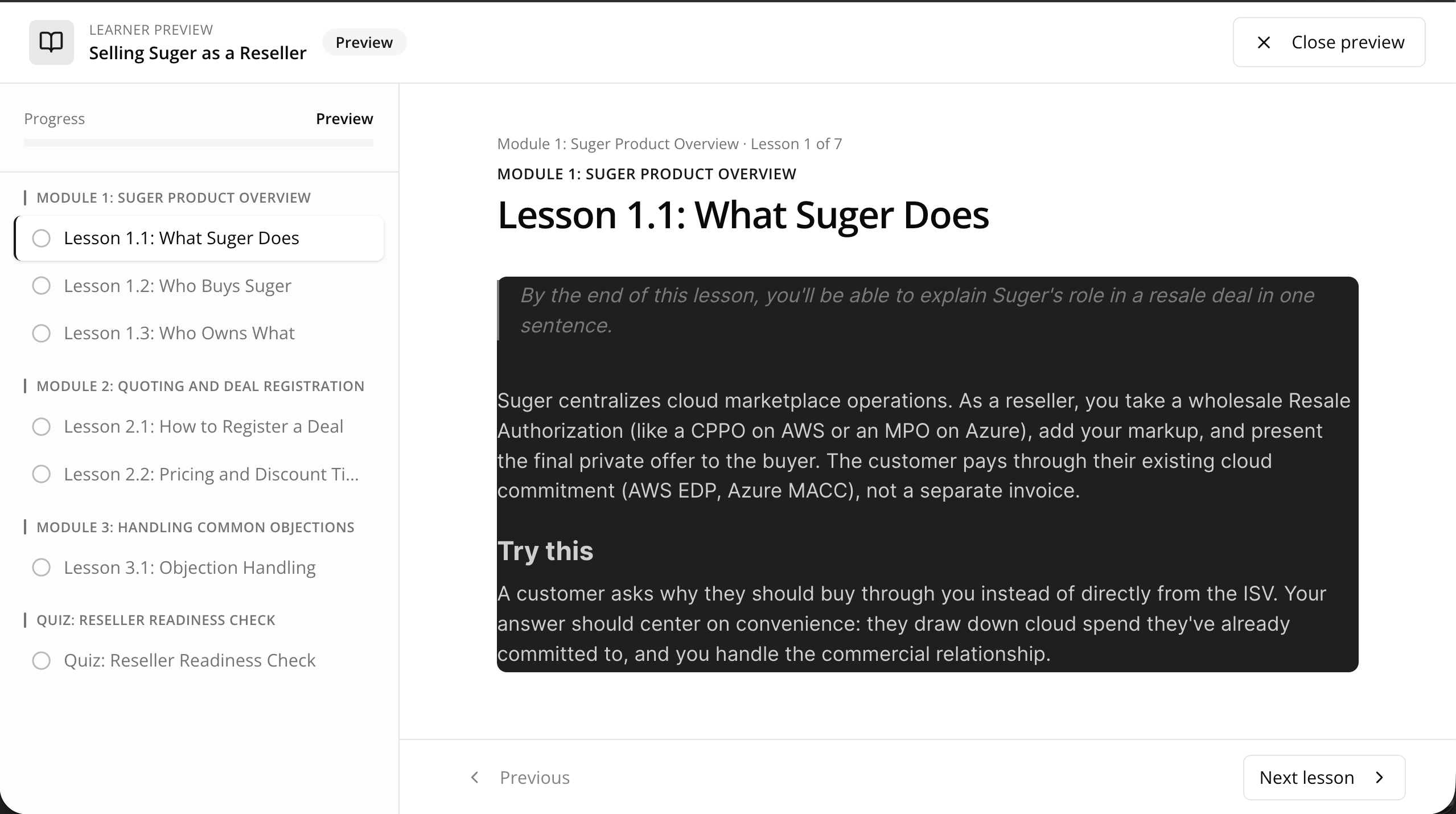
Click Preview in the top-right toolbar to open Learner Preview mode. Use this to catch formatting issues, confirm quiz answer options display correctly, and confirm modules appear in the right order before you publish.
Save or publish the course
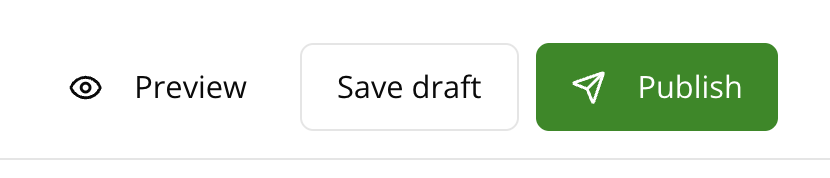
- Click Save draft to keep your changes private while you’re still building the course.
- Click Publish to make the course available for partners to enroll in.
Option 2: Upload a SCORM Package
Use this method if your course is already built in an external authoring tool (like Articulate or iSpring) and exported as a SCORM file. If you’re writing the course content directly in Fours, use Build with editor instead.
What Fours accepts
| Requirement | Detail |
|---|---|
| SCORM version | SCORM 1.2 or SCORM 2004. |
| File format | A single .zip. |
| Manifest | imsmanifest.xml must sit at the root of the zip, not inside a folder. |
| Maximum size | 50 MB. |
The manifest is what Fours reads to work out the course structure, so most upload failures come down to zipping the folder that contains the course instead of its contents. If your archive opens to a single folder, re-zip from inside it.
The course title and description from the manifest pre-fill the new course. Both stay editable afterward.
-
Click Choose .zip to upload your SCORM file. Fours imports the course and creates it as a draft using the name and structure defined in the SCORM package.
-
Under Certificate(s) granted on completion, select a certificate to award when learners complete the course. Leave this field blank if the course doesn’t grant a certificate.
-
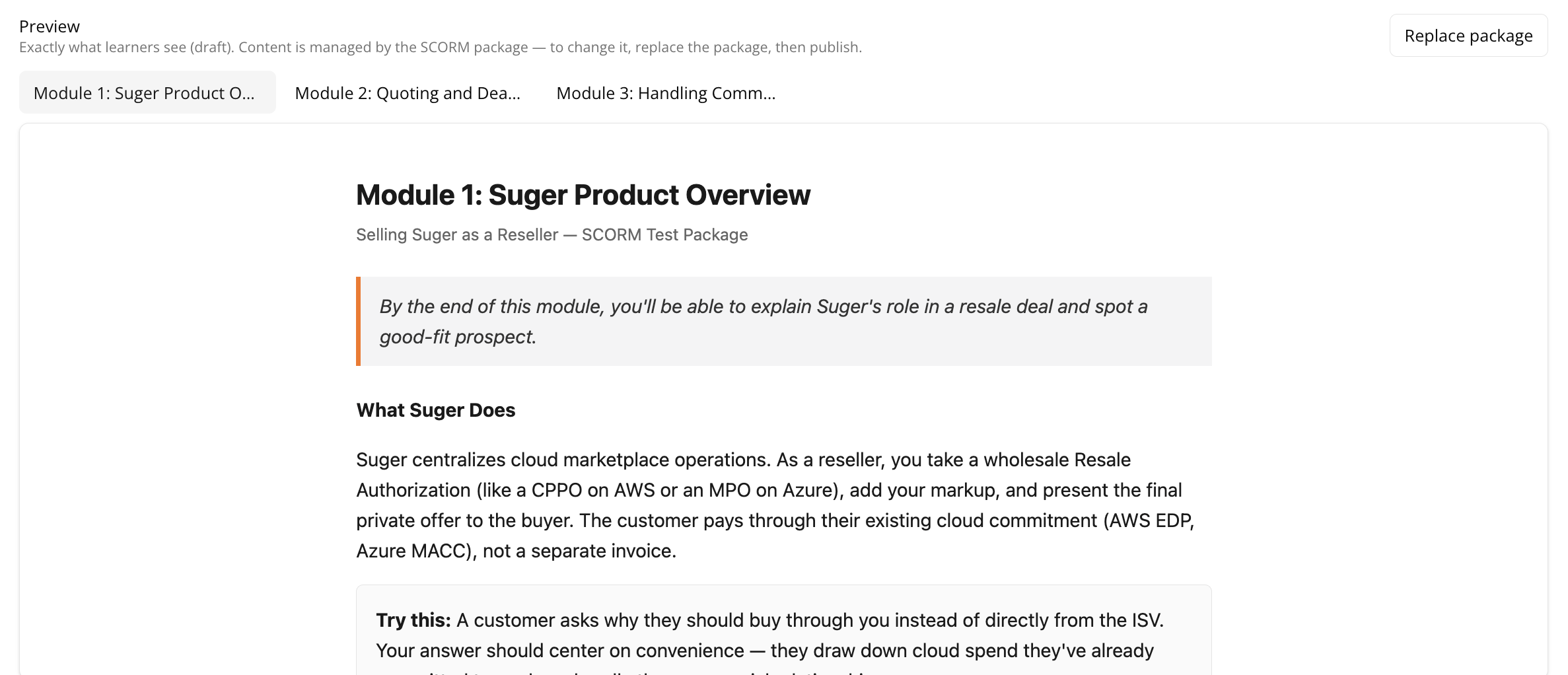
Check the Preview tab to confirm it matches what learners will see.
-
To update the content, click Replace package and upload the new zip. This replaces the entire course, so make sure the new file already includes all your changes.
-
Save or publish the course:
- Click Save draft to keep your changes private while you’re still building the course.
- Click Publish to make the course available for partners to enroll in.
Reference: Training Statuses
Course status — where a course sits in its own lifecycle:
| Status | Meaning |
|---|---|
Draft | Still being built. Not visible to learners. Each course has at most one draft at a time. |
Published | Live and enrollable by whoever the course is shared with. |
Archived | Retired. Kept for the record rather than for new enrollments. |
Course kind — how the content was made:
| Kind | Meaning |
|---|---|
native | Authored in Fours’ editor as modules and lessons. |
scorm | An uploaded SCORM package, hosted as-is. |
external | A link to a course that runs in your own LMS. See Connect an External LMS. |
Enrollment status — where one learner stands. Fours works this out from their lesson progress and quiz attempts — for an external course, from their opens and any completion your LMS reports — rather than storing it, so it’s always current:
| Status | Meaning |
|---|---|
Not Started | Enrolled, no progress yet. |
In Progress | Partway through. |
Opened | External courses only: the learner has followed the link to your LMS. The furthest an external course goes without completion sync. |
Completed | Finished, and any required quiz passed. For an external course, your LMS reported the completion through completion sync. |
Failed | A required quiz ran out of attempts with no passing score. |
Certificate status — the state of a certificate someone already earned. Also derived, from the expiry and supersede dates:
| Status | Meaning |
|---|---|
Active | Valid. |
Expires Soon | Within 30 days of expiring. This is also the window in which a retake can renew it early. |
Expired | Past its expiry date. |
Renewed | A newer issue of the same certificate replaced this one. The old row stays visible as history. |
Working With the Certificates Tab
The Certificates tab lists what learners have earned. Filter it by Certificate, Issuer, and Status, search by learner, certificate, course, or issuer, and use the Columns button to choose which columns you want — your choice is remembered for next time.
Per-row actions live behind the ⋯ kebab menu in the Actions column, Retake among them.
Next Steps
Publishing a course doesn’t automatically make it visible to partners. See Share and Monitor Partner Training Courses to choose who can access your course and track learner progress and completion.
Spotted something wrong or out of date on this page? Tell us and we'll correct it.