Create Co-Sell
Submit a co-sell referral to AWS, Azure, or GCP directly from a Salesforce opportunity using the Fours App.
Overview
A co-sell referral is how you formally ask AWS, Azure, or GCP to work with you on a deal. When you submit a referral, the cloud provider’s sales team can see the opportunity and engage to help you close it — for example, by introducing you to the right contacts, validating the opportunity, or contributing resources. In plain terms, you’re sharing a deal with your cloud partner so they can help you win it.
After adding the Fours App to your Salesforce Console, you can create co-sell referrals from opportunities with ease.
Prerequisites
- The Fours App must be installed, connected, and set up with the Fours widget on your opportunity pages. If you haven’t done that yet, work through the Getting Started and Salesforce Admin Setup steps first.
- You need the Fours User, Fours User - Cosell, or a cloud-specific co-sell permission set assigned to your Salesforce account. If you can’t see the Co-Sell button on an opportunity, your permission set is likely missing or incorrect.
Create a Co-Sell
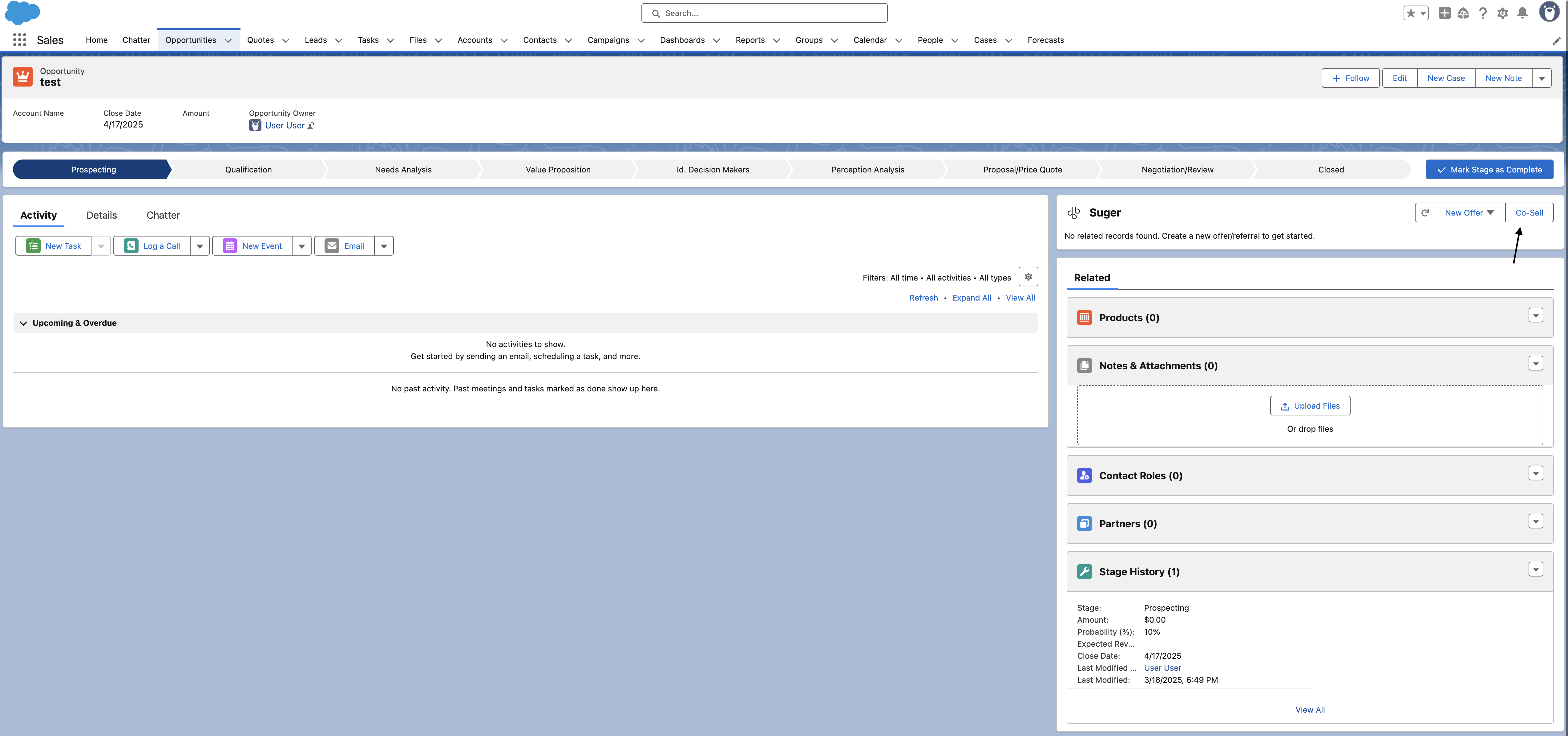
- Navigate to the opportunity’s detail page and click the Co-Sell button at the top of the Fours App. If you don’t see the widget, it may not be added to your page layout yet.
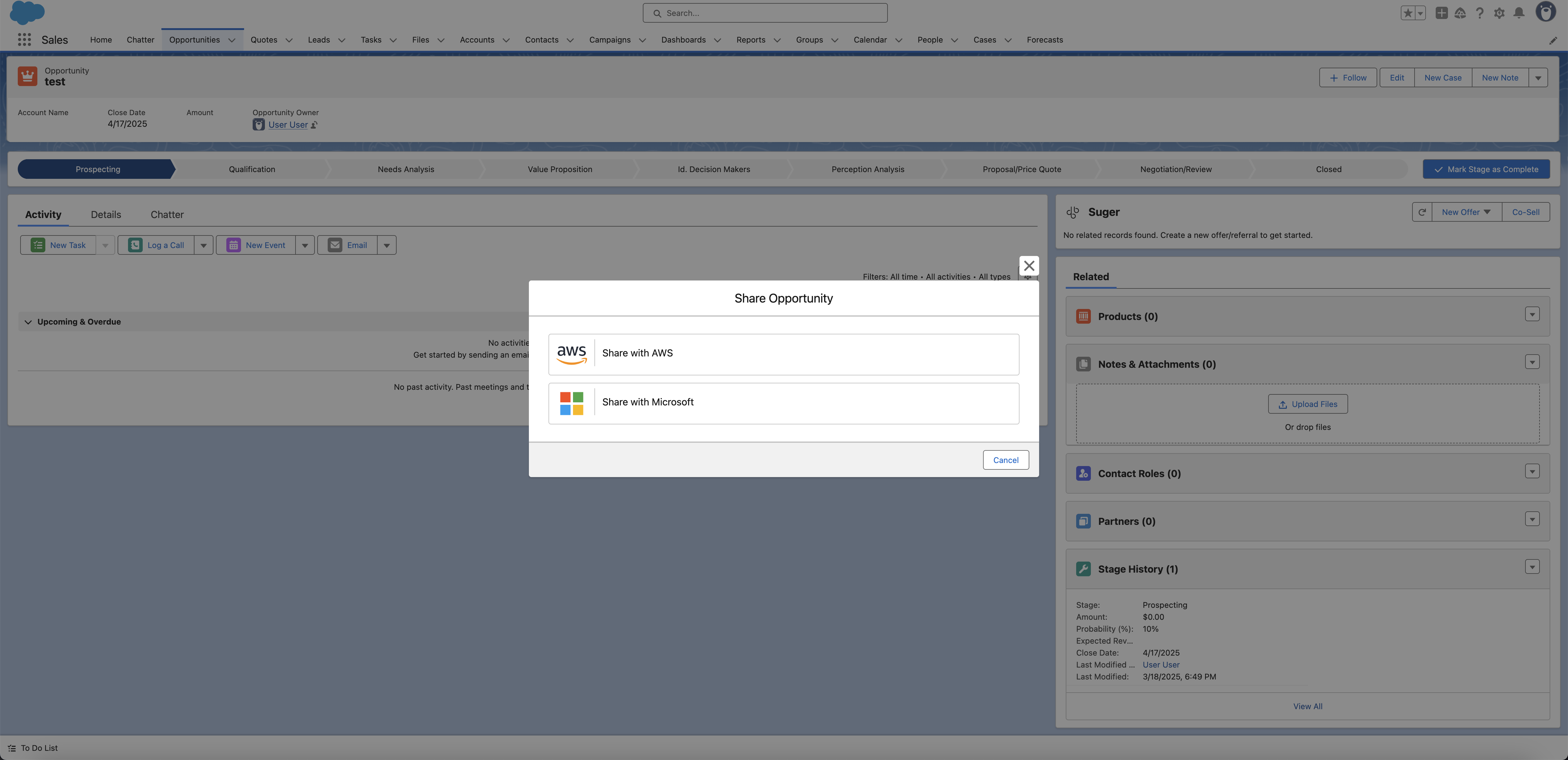
- Choose the cloud partner you want to submit the referral to — AWS, Azure, or GCP — and fill the form with the necessary information. Required fields vary depending on which cloud partner you selected.
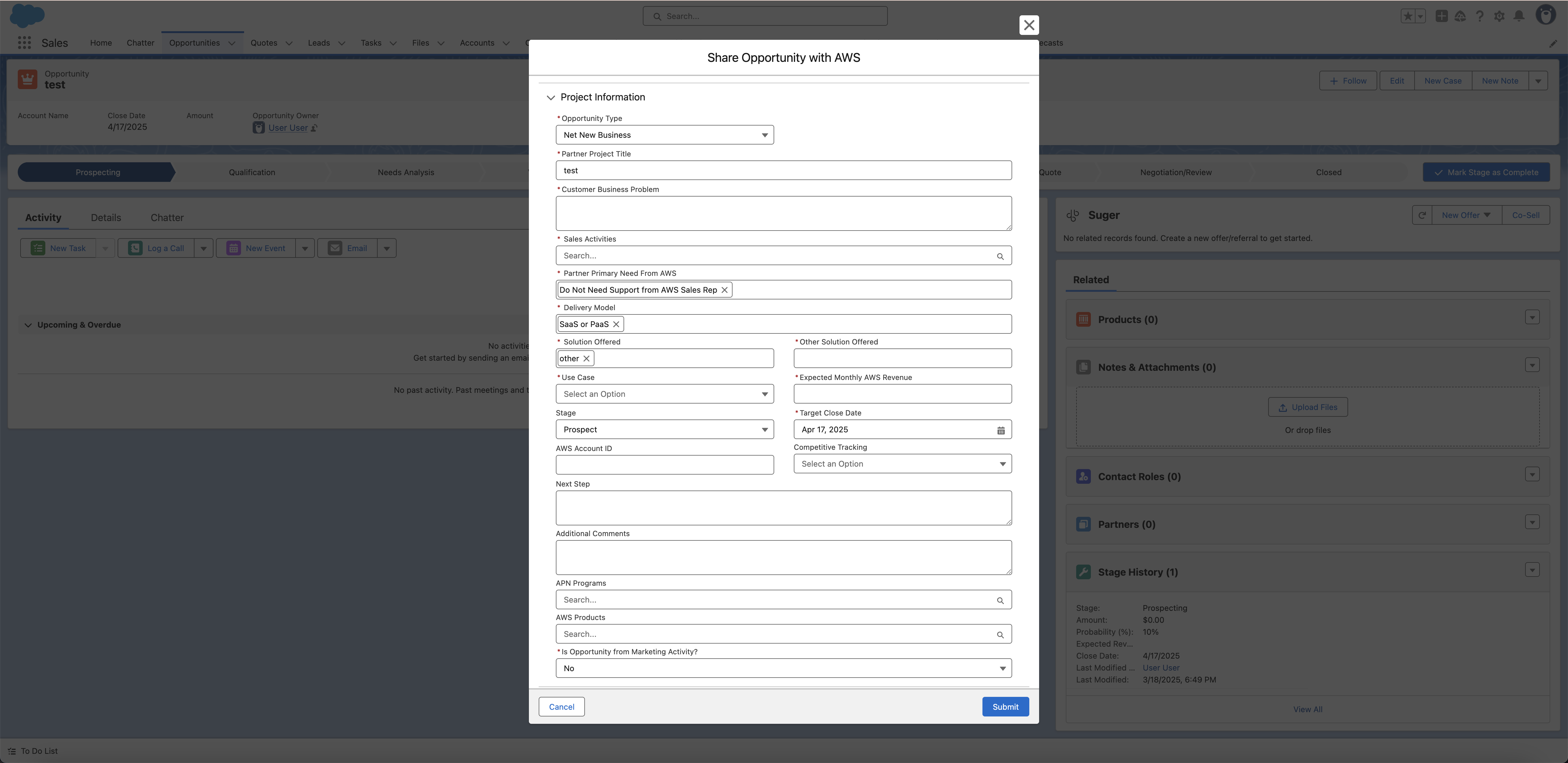
- Once all necessary information is filled in, submit the form to create the co-sell.
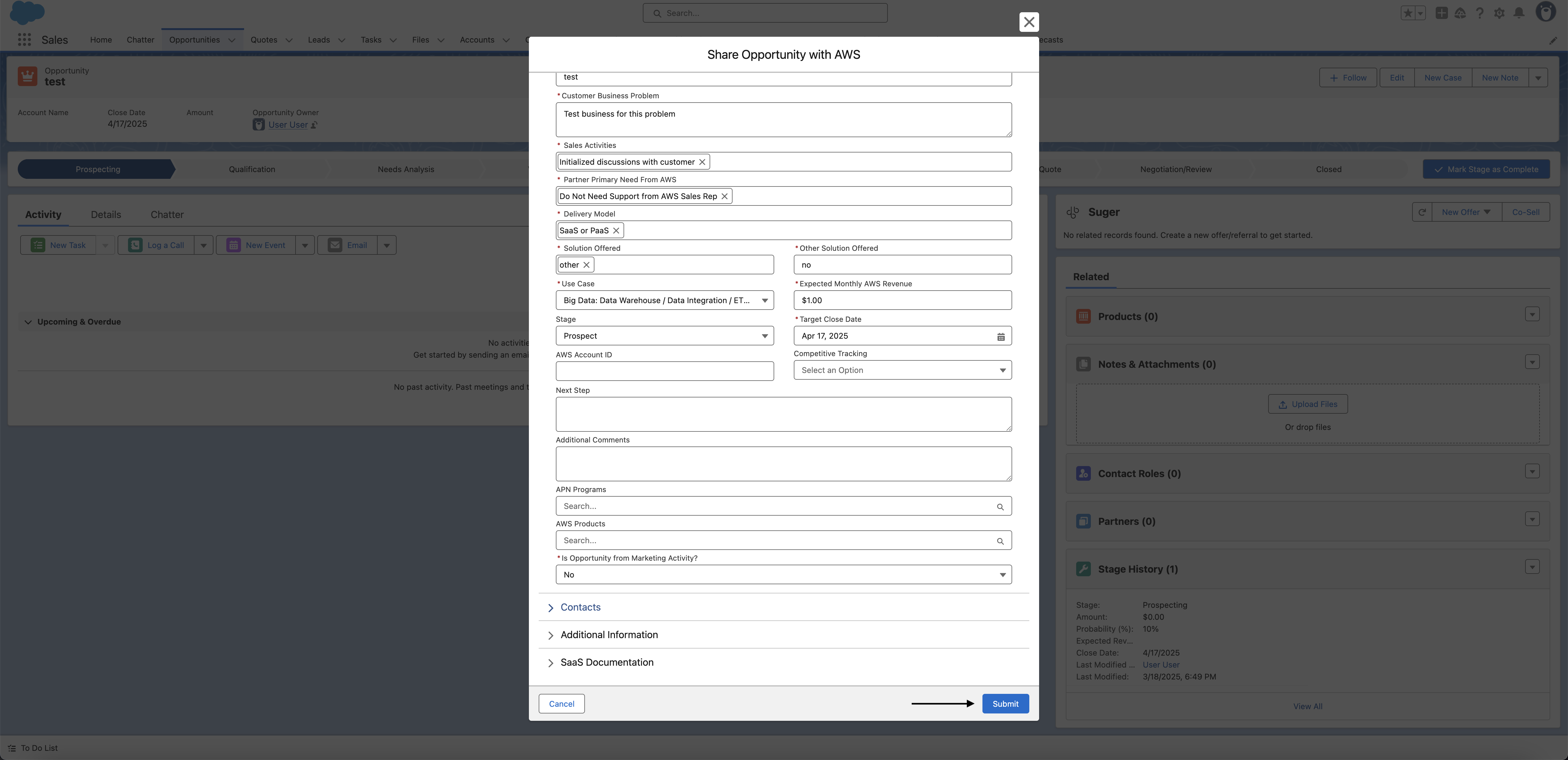
- You are all set!
What happens next
After you submit the referral:
- Fours creates a referral record in your Salesforce org, linked to the opportunity.
- The referral is sent to the cloud partner’s system — for example, AWS Partner Central (ACE), Azure Partner Center, or Google Cloud Partner Network.
- The cloud partner reviews the referral and may accept, reject, or request more information.
- Any future updates you make to the Salesforce opportunity are automatically synced to the referral — you do not need to manually push updates to the cloud partner. Fours scans your pipeline once per hour and updates the referral based on changes to the linked deal.
- If the cloud partner scores or updates the referral on their side (for example, AWS assigning an engagement score), those updates appear on the referral record in Salesforce after the next sync.
Create Salesforce Records from a Fours Referral
For Fours (PRM) deal-reg referrals, you can create a linked Salesforce Opportunity or Account directly from the referral — no need to navigate away and create the record manually.
From the referral record (Actions sidebar):
On the referral’s detail page, the Opportunity and Account cards do more than create records — they are how you attach the referral to the right Salesforce record and correct it later. Which actions the card offers depends on whether a record is linked yet:
| Action | Shown when | What it does |
|---|---|---|
| Create | Nothing linked yet | Opens a pre-filled form with fields populated from the referral’s customer and deal information (such as company name, contact, and deal amount). Review or adjust the values, then submit. The new Opportunity or Account is automatically linked to the referral. |
| Link | Nothing linked yet | Attaches an Opportunity or Account that already exists in Salesforce, without creating anything new. |
| View | A record is linked | Opens the linked Opportunity or Account record. |
| Edit | A record is linked | Edits the linked record in place from the referral. |
| Unlink | A record is linked | Detaches the record from the referral. The Salesforce record itself is not deleted — the card returns to its unlinked state, so you can then Link the correct one. |
In day-to-day use Link and Unlink matter more than Create: the Opportunity or Account usually already exists in Salesforce, and the work is pointing the referral at the right one — or repointing it when a referral landed on the wrong record. Create is for the case where the deal genuinely has no Salesforce record yet.
View is available to anyone who can see the referral. Create, Link, Edit, and Unlink require referral write access — with a read-only permission set (for example Fours Cosell (Read Only)) you will only see View.
Linking an offer: an AWS referral also has an Offer card with the same Link/View/Edit/Unlink actions. Its Link action opens Select AWS Marketplace Offer, which lists only offers an ACE opportunity can be linked to: accepted AWS offers that are neither a resale authorization (CPPO_OUT, CPPO_IN) nor a reseller’s resale offer to the buyer (CPPO). The list is also limited to offers from the AWS account your ACE integration is connected as; an offer with no seller account recorded stays listed, and when the ACE integration connects with access keys rather than an IAM role, offers from every AWS account are listed. Search with the box (Search by name, ID, or external ID…); each term must be at least three characters, and terms separated by commas must all match. The search runs on the server rather than filtering a preloaded page, so it still finds the right offer in an org with a large offer catalog. Each result shows its external ID, offer type, and status, and a search with no match reads No offers found. Try an offer name, offer ID, external ID, buyer, or AWS account ID.
After accepting an inbound Fours referral:
When you accept an inbound Fours referral, you are prompted to create linked Salesforce records as an optional next step. You can create an Opportunity, an Account, or both — and a Lead too when your inbound field mapping targets Lead. Fields are pre-filled from the referral data where available. Skipping this step is fine — you can always use the Create button on the cards later.
From an AWS, Azure, or GCP referral: the referral page’s header carries a Create Records button once your Fours admin has saved an inbound field mapping from that cloud to Salesforce. It needs write access to that cloud’s referrals and is hidden on a closed referral. The button opens Create Record, which offers one Create … tile per Salesforce object the mapping fills for this referral — Create Account and Create Opportunity, and Create Lead when the mapping targets Lead. If the mapping preview cannot be loaded, the dialog warns Field mapping preview unavailable. Default values will not be pre-populated. and offers Create Account and Create Opportunity only.
The create form. Whichever way you open it — a card’s Create, the Create Records button, or the prompt after accepting — the form for each object works the same way:
- Select Record Type comes first when you can use two or more active record types for the object, with your default record type preselected; click Next. With one or none, the form opens directly.
- The form lists every field the inbound mapping fills for that object, in the order the mapping saves them — including mapped fields this referral has no value for, so you can fill them in. Any other prefilled fields and the object’s remaining required fields follow. Fields Salesforce sets itself on create, such as Created Date and Created By ID, are not added as required inputs, and a mapped field the object does not have is skipped.
- Click Create. A toast confirms {Object} created: with a link to the record.
Only an Opportunity or Account created this way is linked back to the referral; an Opportunity also links its Account, if it has one. A Lead is created in Salesforce but is not linked to the referral. If the record is created but linking it fails, a sticky {Object} created, but linking to the referral failed error asks you to link it manually — use Link on the card rather than creating the record again.
Fours partner-to-partner (PRM) referrals are also included in the periodic Salesforce backfill, not only in single-record syncs — so a deal-reg referral that was created or changed between syncs still arrives in Salesforce on the next backfill run, without anyone pushing it across by hand.
Contacts on an AWS referral
AWS referrals carry contacts from three different sides of the deal, and the app keeps them separate so it is always clear who owns a given name.
On the AWS referral detail page
Contacts are grouped into three accordion sections, ordered by who owns the record — the customer, then AWS, then you:
| Section | Who is in it |
|---|---|
| Customer Contacts | The end customer’s people — the contact details submitted with the referral. |
| Cloud Contacts (AWS) | AWS-side people on the deal, such as the partner development manager. |
| ISV Contacts | Your own people on the deal — the partner contacts you supplied when sharing the referral. |
Each section shows its own empty state (“No contacts found”) when there is nobody in that group yet, so an empty Cloud Contacts (AWS) section usually just means AWS has not assigned anyone to the opportunity.
ISV Contacts rows carry an Edit button for changing the person filling a role. AWS owns the role, so editing preserves it: the role renders as static text and only first name, last name (each up to 80 characters), email, and phone can be changed. A role can never be renamed or removed — you replace the person in it, or fill it when it is still empty.
Phone is optional, but when given it must be in international format with a + and the country code, for example +12025550170. A number without the + is refused with “Enter the phone in international format with a + prefix.” rather than having a country code guessed for it — the same rule as in the Fours Console.
The two ISV roles render with their plain-English names rather than AWS’s internal codes:
| AWS role | Shown as |
|---|---|
PartnerAccountManager | Partner Account Manager |
OpportunityOwner | Partner Opportunity Owner |
AWS-side roles in Cloud Contacts (AWS) are deliberately not relabelled — AWS keeps adding to that list (PDM, WWPSPDM, ISVSM and others), and a fixed map would silently drop any role it did not know about.
On the AWS co-sell form
The AWS create form mirrors AWS Partner Central’s Add contact details step: one customer contact, plus two partner contacts whose roles are fixed for you.
| Section on the form | Role |
|---|---|
| Customer contact | The customer’s contact. Its Customer Title is free text — you type whatever the person’s title is. |
| Partner Contact - Owner | Fixed role: Opportunity Owner. |
| Additional Partner Contact - Account Manager | Fixed role: Partner Account Manager. |
For the two partner contacts, the role is part of the section heading rather than a field you pick, so there is nothing to select — fill in the name, email, and phone and the role goes across correctly. Leaving a partner contact blank is fine: empty partner contacts are dropped when the referral is submitted.
Your team on a Fours (PRM) referral
The Share Co-Sell wizard (titled Share Co-Sell with {partner}) collects the people on a partner-to-partner deal as one card per person, and what it asks for depends on which side is the Seller.
When you are the Seller — your product is being sold — the wizard has two sections, both Required, each led by a locked card:
- Your team opens with a locked Partner Manager card: the Partner Manager assigned to this partner, with their name and email. It has no Remove and cannot be edited. Its help text explains that the Partner Manager comes first, then anyone you add — a Salesforce User, a Salesforce Contact, or an existing Fours contact. If the partner has no Partner Manager, the section reads {partner} has no Partner Manager. Assign one in Partner Details before sharing.
- Their team · {partner} opens with a locked Champion card: the partner’s champion contact. If the partner has none, it reads {partner} has no partner champion. Set one in {partner}‘s Contacts before sharing., and its Add contact button stays disabled. Everyone in this section joins both sides’ contacts once the co-sell is accepted.
The cards you add after the locked ones are optional:
- On Your team, Add contact adds a Team Member card. Choose team member fills it from a picker — a Salesforce User, a Salesforce Contact, or an existing Fours contact — or you type the Name and Email yourself (Enter manually). Title is optional.
- On Their team, Add contact adds a Partner Contact card. Choose from their contacts lists the partner’s contacts who are not on the team yet, or you enter Name, Email, and Title by hand.
- Remove takes an added card off. Every card needs a name and an email.
Share Co-Sell is refused with Please complete the required fields. while the Partner Manager or the Champion is missing, or while any card lacks a name or email.
When the partner is the Seller, there is only Your team, with no locked card: add at least one person the same way (“People from your side working on this co-sell. Add a Salesforce User, a Salesforce Contact, or an existing Fours contact — at least one is required.”).
The Accept dialog on an inbound Fours referral (Accept Co-Sell, or Accept & Complete Co-Sell when you are the Seller) uses the same cards under Deal Owner Contacts (Seller Deal Owner Contacts when you are the Seller): Add contact adds a Partner Owner card, and at least one is required.
There is no role picklist on these cards — the roles are implied by the deal’s two sides, so there is nothing to select.
APN Programs on an AWS referral
APN Programs is a multi-select on the AWS referral. The package carries the full AWS list of eighteen programs, including Cloud Adoption Framework Program (CAF), P3, WWPS NDPP, and Model Provider PARC:
| APN Immersion Days | ISV Immersion Day SFID Program | Partner Opportunity Acceleration Funded |
| APN Solution Space | ISV Workload Migration | The Next Smart |
| ATO (Authority to Operate) | Migration Acceleration Program | VMware Cloud on AWS |
| AWS Marketplace Campaign | Model Provider PARC | Well-Architected |
| Cloud Adoption Framework Program (CAF) | P3 | Windows |
| Partner Launch Initiative | Workspaces/AppStream Accelerator Program | WWPS NDPP |
Seventeen of the eighteen are selectable when you share a referral outbound — every one above except Model Provider PARC. All eighteen are selectable when you edit a referral that AWS originated.
The referral detail page shows the selected programs under APN Programs in Project Detail, semicolon-separated (Model Provider PARC; Well-Architected). The Apex Action accepts that value as-is — it trims each program, so a string copied from the detail page works whether or not you remove the spaces.
Timestamps on the referral detail page
Every referral pane shows how fresh the partner’s copy is, read from Fours’ unified external timestamps rather than from each partner’s own payload:
| Pane | Date rows |
|---|---|
| AWS | Created Date, Last Updated Date |
| GCP | Creation Date, Last Updated Date |
| Azure | Created Date and Last Updated Date |
Both render as YYYY-MM-DD HH:MM — for example 2026-09-02 16:12 — on a 24-hour clock, in your own timezone. That is the same YYYY-MM-DD the other dates on the pane use (Estimated Close Date, Target Close Date, Submitted Date), so a whole pane reads in one format; the time of day is kept because a “last updated” without an hour cannot tell you whether the partner’s copy moved this morning or last week.
An Azure draft that Partner Center has never seen renders both blank. The Opportunity card on the referral also shows the CRM-side Stage, so the partner’s stage and your Salesforce stage can be compared without opening the Opportunity record.
Notes & Attachments on a Referral
Every referral detail view (AWS, Azure, GCP, and Fours deal-reg) has a Notes & Attachments section at the bottom of the page, so the deal’s supporting materials — private offer PDFs, deal-registration confirmations, customer requirement documents, call notes — live on the referral itself instead of scattered across email and drives.
What you can do:
- Upload Files — attach one or more files to the referral. Files are stored as standard Salesforce Files, so they also appear in Files home, global search, and reports.
- New Note — write a titled note with basic formatting (bold, italic, underline, lists). Notes are standard Salesforce enhanced notes: you can open and edit them later with the native note editor, and they render identically there.
- Preview / Download / Delete — each row’s action menu opens the native file preview, downloads the original file, or removes the item from the referral. A file that is only attached to this referral is permanently deleted; a file that is also attached to other records is detached from this referral only (the file itself is kept, along with its other locations). Delete is only offered on items you added yourself (Salesforce file ownership rules); other people’s items are managed by their owners or by an admin through standard Files pages.
Permissions: the section follows your referral permissions. With read-only access (for example the Fours Cosell (Read Only) permission set) you can view, preview, and download items, but the upload, note, and delete controls are hidden.
Troubleshooting common issues
| Issue | Possible cause | Resolution |
|---|---|---|
| No Co-Sell button visible on the opportunity | Fours permission set not assigned, or the Fours widget is not on the page | Check your permission set. If the widget is missing, add it to your page layout. |
| Only one or two cloud partners appear in the partner selector | Your permission set restricts co-sell access to specific clouds | If you need access to additional clouds, ask your Salesforce admin to update your permission set. |
| Form fields are blank — not pre-filled from the opportunity | Field mapping has not been configured | Field mapping is an optional admin setup. Contact your Salesforce admin to configure it. |
| Referral was submitted but does not appear on the opportunity | Sync between Fours and Salesforce is delayed | Referral records sync on a schedule. Refresh the page after a few minutes. If it still doesn’t appear, confirm the referral was created in the Fours Console. |
| An AWS referral’s Engagement Score reads Not provided by AWS | AWS has not scored this opportunity yet | The referral shows AWS’s own score once AWS scores the opportunity. The field API name is Suger__AWS_EngagementScore__c if you want to use it in automations. The Fours Predicted Engagement Score in the Fours widget is Fours’ own prediction, not AWS’s: it is never written to the referral, so it does not fill this field. Azure and GCP supply no score of their own, so their referral cards show a Fours Predicted Engagement Score row instead. |
| A referral created directly in AWS ACE is not showing in Salesforce | ACE referrals only sync to Salesforce after an update event | The referral appears in Salesforce after AWS accepts it or after you manually edit something. To link it to a specific opportunity, enter the Salesforce opportunity ID in the Partner CRM Unique Identifier field in ACE. |
| A referral has a Partner CRM Unique Identifier in ACE but is not linked to the opportunity | Something other than a Salesforce Opportunity ID is in the field | Either spelling of the Salesforce Opportunity ID works — the 15-character case-sensitive form and the 18-character form are both normalized before matching, so you can paste whichever one your org surfaces. If the link still doesn’t form, check that the value really is an Opportunity ID and that the opportunity exists in the connected org. |
| After Accept or Reject on an AWS engagement invitation, the referral does not change | AWS refused the request | Hover the icon on the invitation’s status badge: it reads Update Failed: followed by AWS’s reason. The referral keeps its previous status, and the message clears when a later accept or reject succeeds. |
| Changes to the Salesforce opportunity stop reaching its AWS referral, which shows Update Failed with a reason starting CRM sync rejected: | Fours’ AWS update check rejected the values the sync derived from the opportunity — for example, Once the opportunity reaches Committed stage or beyond, ‘Other’ is no longer accepted — please select a valid solution identifier. The referral keeps its status, and nothing is sent to AWS. | To read the full reason, hover the error icon beside the referral’s status on its card in the Fours widget, or, on a partner-originated referral, open its Status panel. Correct what the reason names: the value mapped from the opportunity, or the referral data it conflicts with (in the example, a valid solution). The sync re-checks the opportunity on every scheduled run, and once the values pass, a later sync clears the message. |
Frequently Asked Questions
Q: What’s the difference between a co-sell referral and a private offer?
A co-sell referral shares your deal with the cloud provider’s partner team so they can help you close it. A private offer is a custom-priced contract you send directly to a buyer. They serve different purposes — co-sell is about getting the cloud partner involved in the deal; a private offer is the actual transaction.
Q: Do I need to manually update the referral every time the opportunity changes?
No. Fours automatically syncs changes from your Salesforce opportunity to the referral once per hour. If you update the close date, stage, or any mapped fields on the opportunity, those changes flow through to the cloud partner automatically.
Q: Can I submit a referral to more than one cloud partner for the same opportunity?
Yes. You can submit separate co-sell referrals to AWS, Azure, and GCP from the same opportunity — just click Co-Sell again and select a different partner.
Q: Can I see the AWS engagement score on the opportunity page rather than just on the referral record?
Not by default, but it is possible. Your Salesforce admin can set up a formula field on the Opportunity object that pulls in the score from the referral record. The field API name is Suger__AWS_EngagementScore__c. That field holds only AWS’s own score for the opportunity. The Fours Predicted Engagement Score shown in the Fours widget is not stored on the referral, so a formula cannot pull it in.
Q: What happens if I created a referral directly in AWS ACE instead of through Salesforce? Will it show up?
Yes, but not immediately. It appears in Salesforce after AWS accepts it or you manually edit something in ACE. To connect it to the right Salesforce opportunity, enter the opportunity’s Salesforce ID in the Partner CRM Unique Identifier field in ACE — Fours will then associate them automatically.
Spotted something wrong or out of date on this page? Tell us and we'll correct it.