Update Listing
Edit, republish, restrict, or clone your existing AWS Marketplace listings from the Fours Console.
Overview
Once a product is listed on AWS Marketplace, you can keep it up to date from the Fours Console — updating its details, pricing, and fulfillment URL, changing its visibility, or cloning it into a new draft. What you can edit depends on the listing’s current status in AWS Marketplace and your role in Fours.
Permissions required
To edit AWS listings, you need the correct permissions in both Fours and AWS.
- AWS: Fours must be connected through an IAM role that has permissions to manage Marketplace listings.
- Fours: Admin or Editor role. If you don’t have access yet, ask your company admin to invite you to the organization. See Manage Users and Roles.
Listing status and editing permissions
Your editing options depend on the listing’s status in AWS Marketplace:
| Status | Visibility | What you can edit in Fours |
|---|---|---|
Draft | Private | Full access. You can edit all fields before submitting the listing. |
Limited | Allowlisted accounts | You can edit product information, pricing (SaaS listings), fulfillment URL and the allowlist of AWS accounts that can see the listing for testing. |
Public | All AWS buyers | You can edit product information and fulfillment URL. Pricing changes are restricted by AWS rules. |
Restricted | Existing customers only | You can only download the listing’s data spreadsheet. |
Edit a listing’s info, pricing, and fulfillment URL
- Go to the Product menu in the Fours Console.
- Open the relevant AWS listing.
- Click More actions in the top right corner.
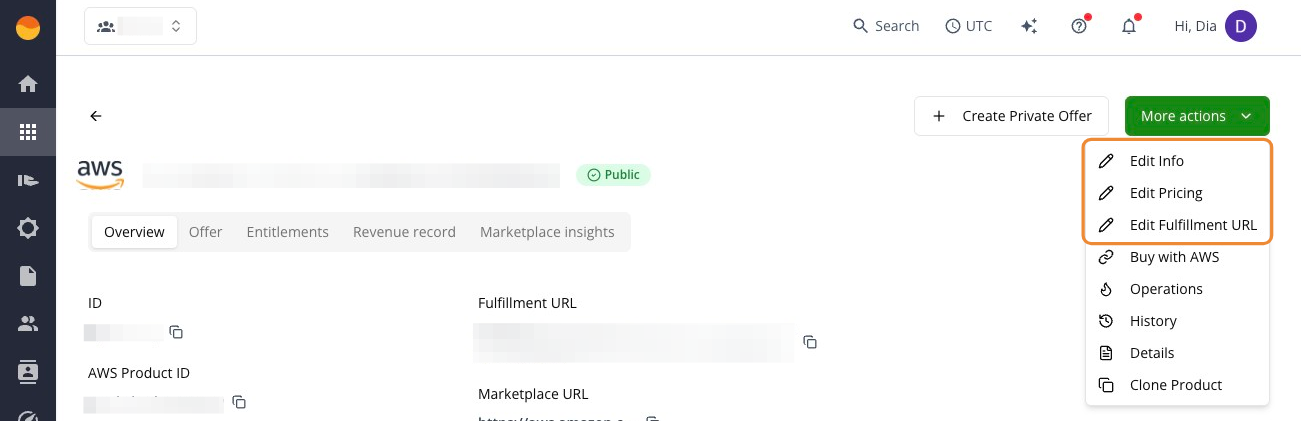
- Select the action you need:
- Edit Info: Update listing details like title, description, highlights, categories, and keywords.
- Edit Pricing: Update contract pricing and usage dimensions of a SaaS listing (contract or subscription), whether it is
LimitedorPublic— on a live listing, subject to AWS restrictions. - Edit Fulfillment URL: Update the redirect link that sends buyers to your onboarding or registration flow after subscription.
- Make your adjustments in the dialog box and click Save.
After saving, Fours submits a change request to AWS. Allow 10 to 20 minutes for the updates to be fully processed and appear on both platforms.
For highlights and the Short Description, Edit Info checks AWS’s limits before anything is sent. If any highlight is longer than 500 characters, Save is blocked with “Each highlight must be 500 characters or less.” If the Short Description is longer than 1,000 characters, Save is blocked with “Short Description must be 1000 characters or less.”
While AWS processes a saved edit, the listing shows Update in progress. If AWS rejects the change, the listing moves to Update Failed and shows an Update Product Failed banner with AWS’s reason. Edit Info stays available in that state: correct what the reason names and save again — a successful update clears the banner.
Once AWS applies the edit, the listing returns to its Public or Limited status, More actions → History records the update, and Fours sends the Update Product notification (UPDATE.PRODUCT) — Product … update was applied in AWS Marketplace — to wherever you route that scope. See Email Notification.
Edits made in the AWS Marketplace Management Portal
You can also edit a SaaS listing outside Fours — in the AWS Marketplace Management Portal or through the AWS Marketplace Catalog API. Each edit reaches AWS as a change set, and AWS reports the outcome to Fours over your integration’s EventBridge connection:
- AWS applies the change. Fours refreshes the listing straight away, without waiting for the hourly sync. If that refresh fails, the hourly sync still brings the change in.
- History records it. On the product, More actions → History shows Product … was changed in AWS Marketplace with Source: Cloud Partner, dated when AWS applied the change. Fours also sends the same message as the Update Product notification (
UPDATE.PRODUCT) to wherever you route that scope — see Email Notification. - AWS rejects or cancels the change. Nothing in Fours changes: the listing isn’t refreshed and History gets no entry. The outcome still appears in the integration’s Auditing Events as
Change Set FailedorChange Set Cancelled— see Verify. - An edit you saved in Fours is still running. While the listing shows Update in progress, Fours records the outside change in History but doesn’t refresh the listing yet. The Fours update reads the listing back from AWS when it finishes.
Only SaaS listings are refreshed and recorded this way. An edit you save in Fours is recorded once, by Fours’ own update, not a second time as a Cloud Partner change.
Change a listing’s visibility
In Fours, you can update an AWS listing’s visibility to control whether it’s in testing, live, or restricted.
Make a Limited listing Public
- Go to the Product menu in the Fours Console.
- Open the relevant AWS listing (it displays a yellow
Limitedbadge). - Click More actions in the top right corner, then Publish Product.
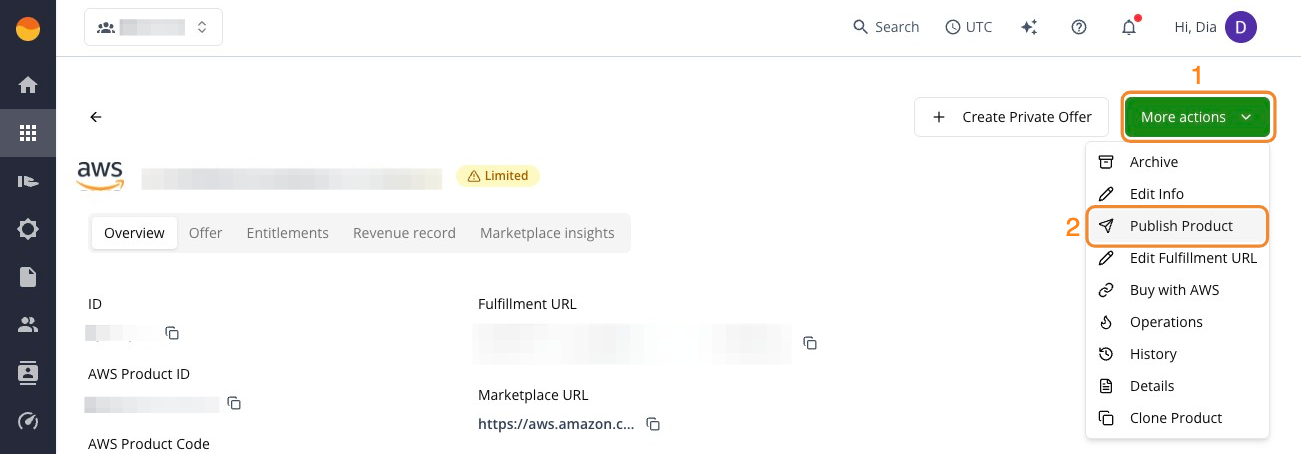
- Review your pricing and click Save to submit the change request to AWS.
For a SaaS listing, Fours shows the review on the product page and notifies you of AWS’s decision — see Monitor the review status.
Allowlist AWS accounts on a Limited listing
A Limited listing is live on AWS Marketplace but visible only to your own AWS account and the accounts on its allowlist. Add the AWS accounts you test with — a sandbox account of your own, a partner’s account, a pilot customer — so they can find the listing, subscribe, and exercise the fulfillment flow end to end before anyone else can see it.
- Go to the Product menu in the Fours Console.
- Open the
LimitedAWS listing. - Click More actions in the top right corner, then Manage Allowlisted Accounts.
- Enter the 12-digit AWS account IDs, one per line, and click Save. The list you save is the complete allowlist: accounts you leave out are removed, and an empty list removes every account you added.
The change is submitted to AWS as a change request and usually applies within a few minutes; the listing shows Update in progress until it does, and Update Product Failed with AWS’s message if AWS rejects an account ID. The most common rejection is an account ID that does not exist — reopen Manage Allowlisted Accounts, correct it and save again; a successful save clears the failure. AWS adds a few of its own operations accounts to every allowlist, so you may see accounts you did not enter.
Restrict or sunset a Public listing
AWS doesn’t allow listings to be deleted. Instead, you can change a listing’s status to Restricted to stop new subscriptions while keeping existing customers active. This is done in the native AWS Marketplace Management Portal (AMMP):
- Log in to the AWS Marketplace Management Portal.
- Go to the Products tab and select your listing.
- Click the Request changes dropdown, then Update product visibility.
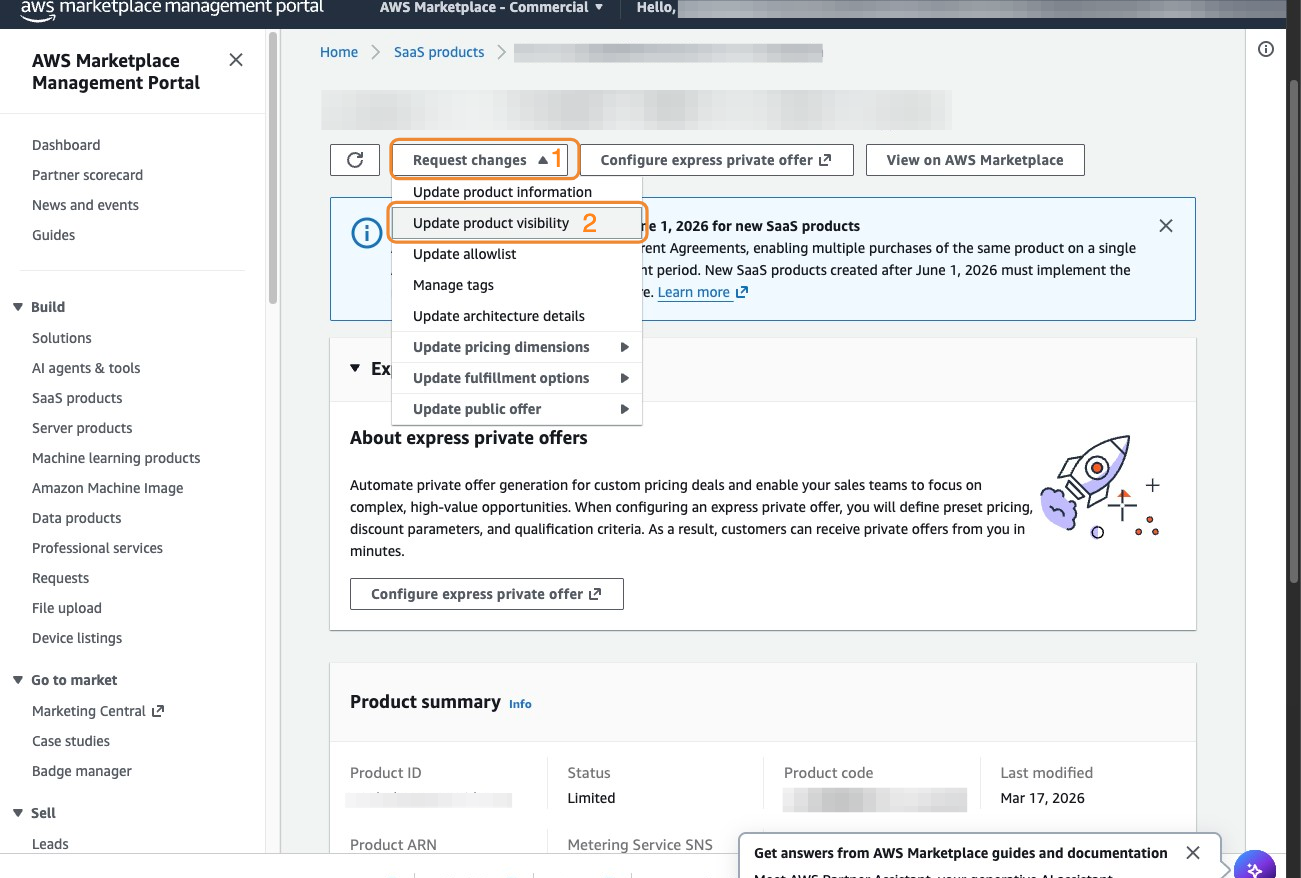
- Select Restricted.
- (Optional) Add a Replacement product ID. Use this field if you’re replacing this listing with a new one. AWS will notify existing subscribers and guide them to the new listing.
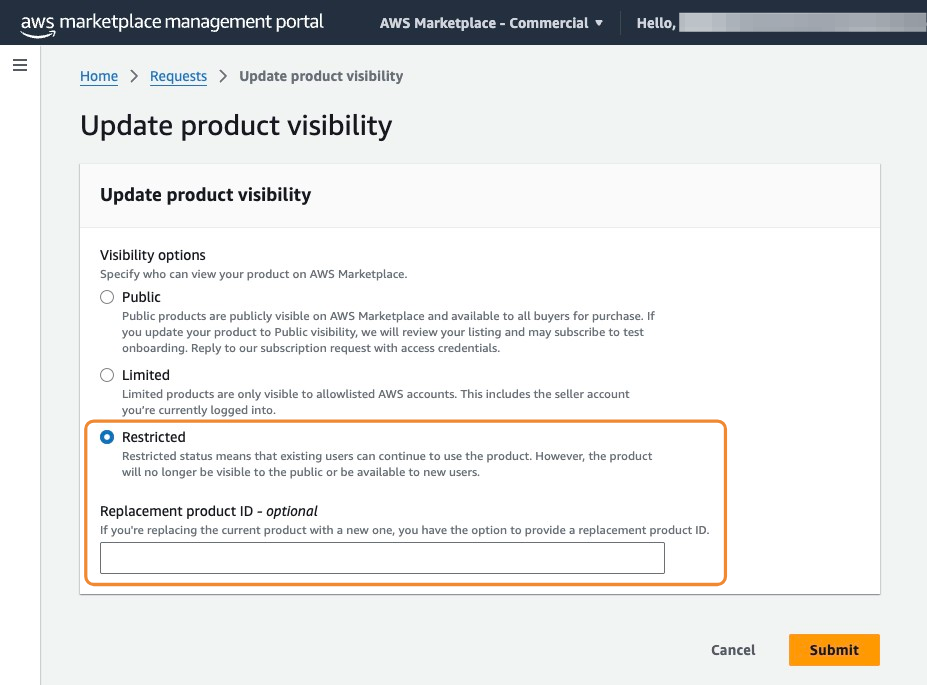
- Click Submit to start the takedown process.
Clone an AWS listing
The Clone Product feature lets you duplicate an existing AWS listing in Fours. This creates a new draft pre-filled with your existing setup, so you can reuse the details and update only what’s needed.
Step 1: Clone the listing in Fours
- Go to the Product menu in the Fours Console.
- Open the relevant AWS listing.
- Click More actions in the top right corner, then Clone Product.
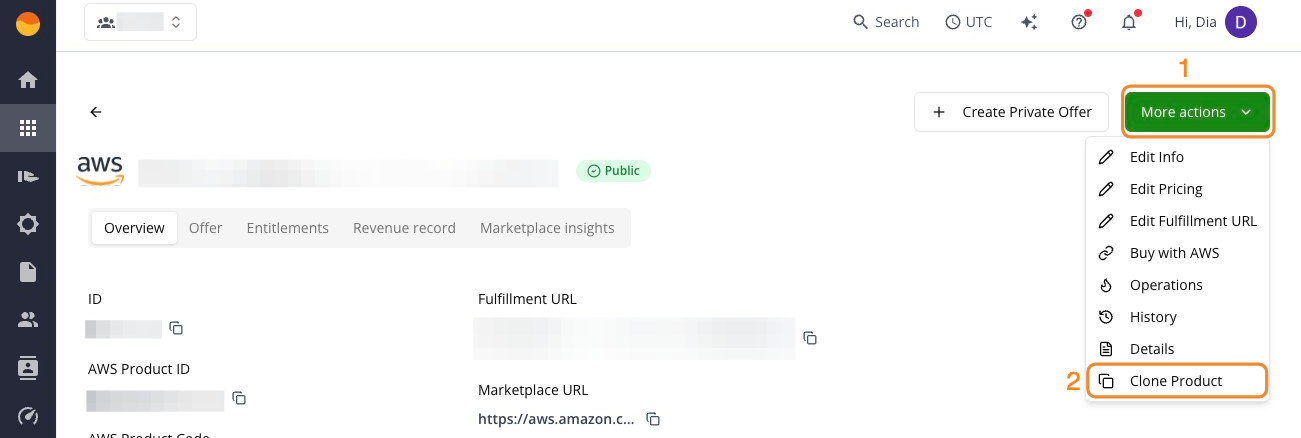
- Edit the newly created draft to update its specific details (such as the Product ID or pricing) and save your changes.
Step 2: Finalize and submit the new listing
Once cloned, the new listing appears in your catalog as a Draft. You can now modify it and submit it to AWS.
- Open the cloned draft in Fours.
- Update unique fields like pricing or Product ID.
- Click Create or Save to submit the listing directly to AWS for approval.
Step 3: Test and publish the listing
Once AWS processes your cloned draft, it appears in your Fours Console with a Limited status. Since the clone is treated as a new AWS listing, you’ll need to complete the standard go-live steps before it can be used by new buyers. See Create and publish an AWS Marketplace listing for the full test and publishing process.
FAQ
Why can’t I change my pricing immediately after updating it?
AWS has a 90–120 day restriction on pricing changes for marketplace listings. Once you update pricing, you must wait this period before making another pricing change.
Should I make changes in Fours or directly in the AWS Marketplace console?
For most listing changes, use the Fours Console, as it syncs with AWS. However, for Professional Services listings, you must make changes directly in the AWS Marketplace Management Portal — these can’t be edited through Fours. If you do edit a SaaS listing in the portal, Fours picks up the change once AWS applies it and records it in History — see Edits made in the AWS Marketplace Management Portal.
How long do listing changes take to appear publicly?
Most changes require AWS approval and can take anywhere from a few hours to several days, depending on the type of change.
My changes aren’t saving or syncing properly. What should I do?
First check the listing’s detail page. If it shows an Update Product Failed banner, AWS rejected the change — the banner quotes AWS’s reason, so correct it with Edit Info and save again. If there is no banner, the change may simply still be processing (Update in progress) or waiting on a sync between Fours and AWS: refresh your browser and check whether the changes appear. If they still don’t, contact Fours support.
What parts of my listing can I edit, and what’s locked?
You can typically edit descriptions, pricing (subject to the 90-day rule), images, and most metadata. However, some core product attributes and Professional Services listings have restrictions. The Fours interface shows you which fields are editable for your specific listing type.
Spotted something wrong or out of date on this page? Tell us and we'll correct it.