Set Up and Manage Commission Plans
Commission settings control how much partners earn and under what terms — a referral fee, a reseller margin, a co-sell split, or a finder’s fee.
Overview
Fours gives you two layers to work with:
- Standard Defaults apply automatically to all partners.
- Custom Plans override those defaults for specific partners who need different terms.
How Commission Plans Are Applied
When a co-sell is created, its Revenue Share tab is populated using the following priority order:
Custom Plan → Standard Defaults → Manual
Fours first checks whether the partner has an assigned Custom Plan. If not, it uses your Standard Defaults. If no applicable defaults are available, the revenue share setup falls back to a manual configuration path rather than being automatically populated.
The Four Commission Types
Both Standard Defaults and Custom Plans are organized around the same four commission types:
| Type | Purpose |
|---|---|
| Referral Fee | Pays a partner for referring an opportunity to you. |
| Reseller Margin | Pays a partner that resells your product directly. |
| Co-Sell Revenue Split | Shares revenue on opportunities you and the partner close together. |
| Finder’s Fee | Pays a partner for introducing an opportunity with limited involvement beyond the introduction. |
You’ll set the same fields below for whichever commission types apply to your partner program.
Understand the Fields
Both Standard Defaults and Custom Plans use the same set of fields for every commission type.
| Field | Description |
|---|---|
| Revenue Share Model | Determines how the commission is calculated. % of Final Transaction: Pays the partner a percentage of the deal value. Use this when commission should scale with deal size. Fixed Amount: Pays the partner a flat amount regardless of deal value. Useful for programs that pay the same amount for every qualified lead or referral. |
| Default Rate (%) | Percentage used when the model is % of Final Transaction. For example, a 15% rate on a $100,000 deal results in a $15,000 commission. |
| Payment Trigger | Determines when the commission becomes payable. On Deal Close: Commission becomes payable as soon as the deal is marked Won. On Customer Invoice: Commission becomes payable after the customer has been invoiced. On Payment Received: Commission becomes payable only after customer payment has been received. |
| Clawback Window (days) | Optional number of days during which a paid commission can still be reversed if the deal is canceled or otherwise reversed. |
| Maximum Commission Cap | Optional maximum payout regardless of deal size. |
| Minimum Deal Value | Optional minimum deal amount required before any commission is paid. |
| Renewal Commission | Controls whether commission is paid only on the initial deal (One-time) or also on renewals (Recurring). |
Set Your Standard Commission Defaults
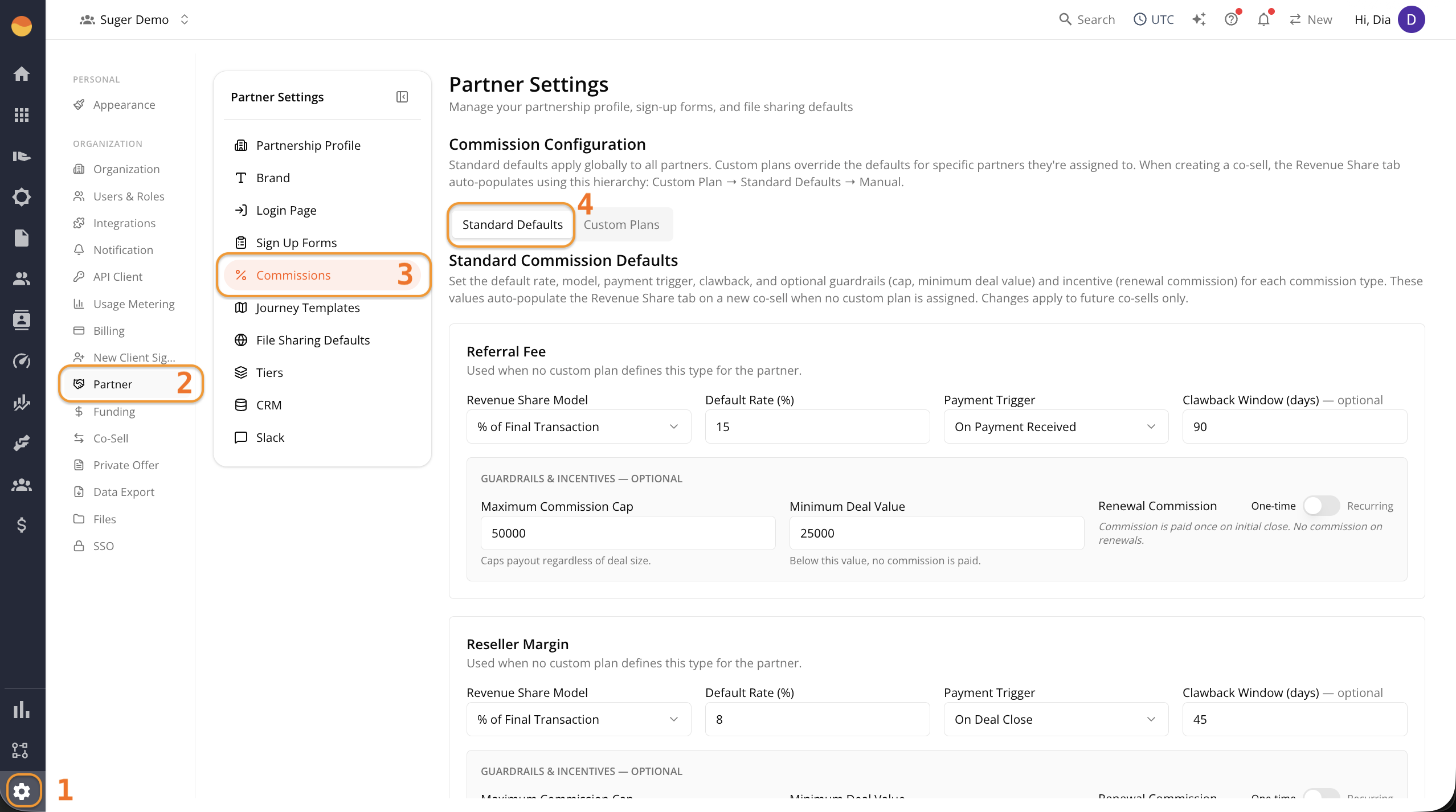
The Standard Defaults tab is selected by default when you open the Commissions page. These values become your global commission rules and apply to all partners unless a Custom Plan overrides them.
-
Go to Fours Console, then Partners.
-
Click Settings at the bottom of the rail, then Commissions.
-
Open the Standard Defaults tab (selected by default).
-
For each commission type your program actually uses, fill in the fields as described above in the Understand the Fields section.
-
Click Save Defaults.
Create a Custom Commission Plan
Use this when a specific partner needs different terms than your defaults — for example, they negotiated a higher margin, or a strategic account gets better payment terms.
-
Go to Fours Console, then Partners.
-
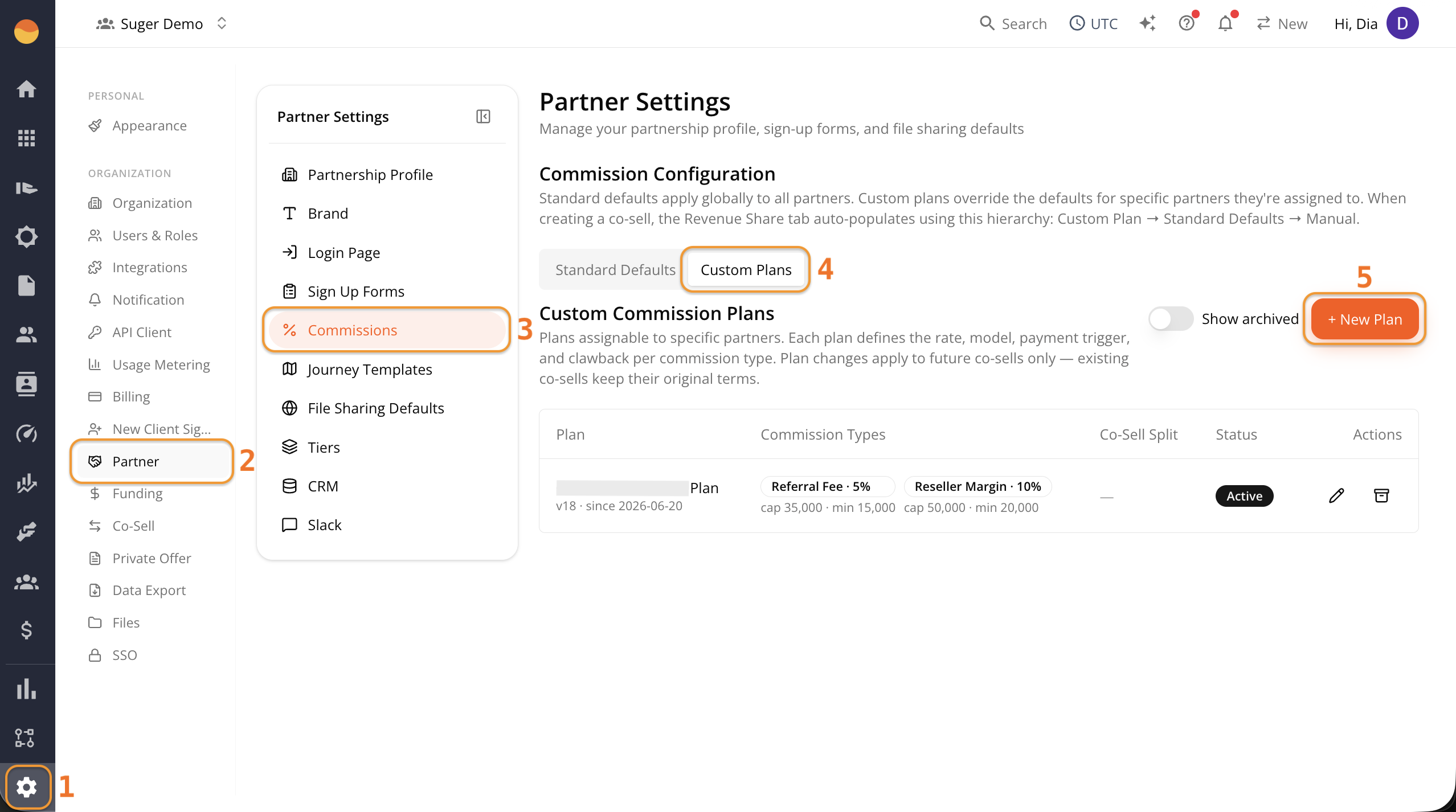
Click Settings at the bottom of the rail, then Commissions.
-
Click the Custom Plans tab, then + New Plan.
-
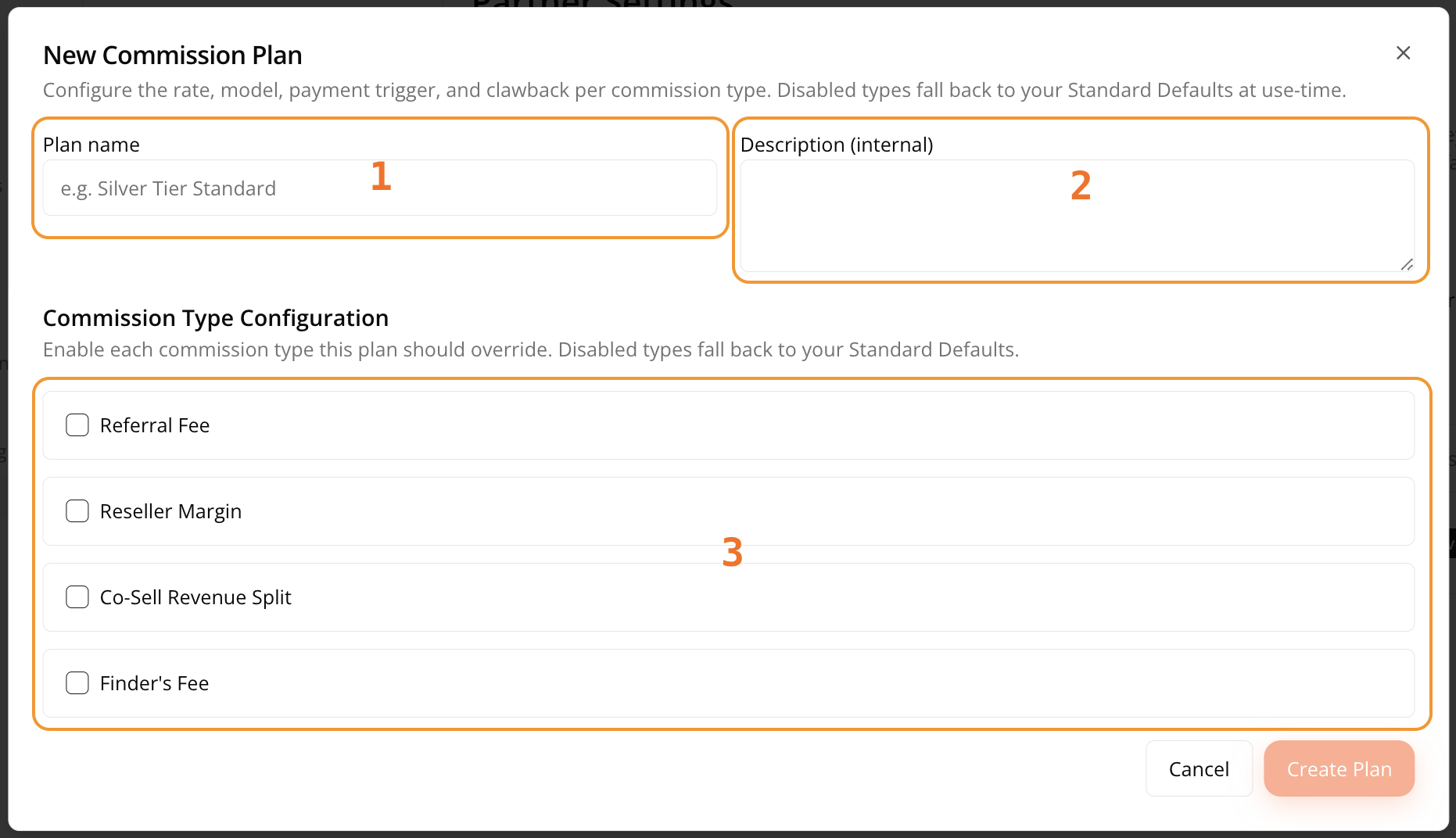
Give the plan a Plan name and an optional internal Description (not partner-facing).
-
For each commission type, check the box to enable it for this plan, then fill in its fields the same way as Standard Defaults.
-
Click Create Plan.
Assign a Custom Plan to a Partner
Creating a plan doesn’t apply it to anyone. A custom plan sits unused until you attach it to a specific partner, and you do that from the partner’s own record rather than from the Commissions page.
- Go to Fours Console, then Partners.
- In All Partners, click the partner you want to put on the plan.
- In the right-hand sidebar, find the Commercial card. The Commission Plan row shows which plan applies today — Default when none has been assigned.
- Click Assign plan.
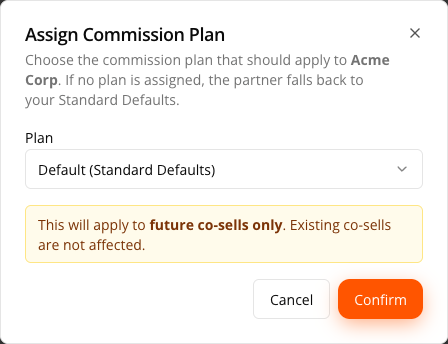
- In the Assign Commission Plan dialog, open the Plan dropdown and choose one:
- Default (Standard Defaults) — remove any custom plan and fall back to your organization-wide defaults.
- Any Active custom plan, listed by name. Plans you haven’t activated don’t appear here.
- Click Confirm.
See What a Partner Owes and Is Owed
A partner record has its own Commissions section that reports the relationship in both directions rather than as one blended number:
- You owe — pending commission you owe that partner.
- {Partner} owes — pending commission the partner owes you.
- Paid so far — what has already settled. When money moves both ways, this splits into a paid-by-you figure and a paid-by-them figure.
The table underneath filters by Type, Direction (You pay / You receive), and Currency, with tabs for All, Pending, and Completed.
For how to read and work that section, see Work a Partner Record.
Commission Values on a Fours Co-Sell
The commission types above are the labels you configure your program with. When a commission is attached to a Fours co-sell, the record stores one value from each of these two fixed sets — and these are the exact strings the bulk import below expects.
Commission type
| Value | Meaning |
|---|---|
Referral Fee | Paid for referring the opportunity. |
Reseller Margin | The margin a reselling partner keeps. |
Cosell Split | A revenue split on a jointly closed deal. |
Finder Fee | Paid for the introduction alone. |
Payment trigger
| Value | Commission becomes payable |
|---|---|
On Close | When the deal is marked Won. |
On Invoice | Once the customer has been invoiced. |
On Payment | Only after the customer pays. |
Custom | On terms agreed for that specific deal. |
Import Historical Co-Sell Referrals
Deals that closed before you started tracking them in Fours can be loaded in bulk, so your commission history is complete rather than starting from the day you switched on.
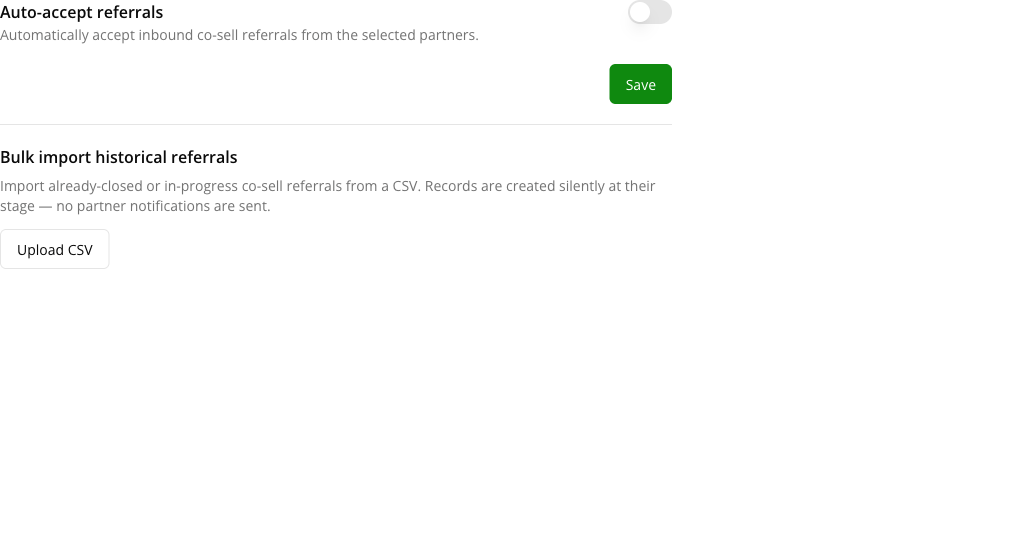
This lives with your co-sell settings, not on the Commissions page.
- Go to Fours Console, then Partners.
- Click Settings at the bottom of the rail, then Co-Sell.
- Under Bulk import historical referrals, click Upload CSV.
- Click Download Template to get a file with the correct headers, then fill in one row per deal.
- Drag the finished file onto the drop area, or click Choose CSV File.
- Review the preview table. Rows with problems are flagged; remove any you don’t want with the trash icon.
- Click through to submit. Fours confirms how many rows were queued.
Required columns are Partnership ID, Opportunity Name, Stage, and Customer Company. The template also carries Opportunity Type, Deal Role, customer website / industry / country, close date, deal value and currency, both sides’ owner name and email, CRM opportunity ID, a brief, and a closed-lost reason.
The commission columns are optional. When you use them:
- Commission Amount is a flat amount in the deal’s currency. If your arrangement was a percentage, work out the figure yourself first — there is no separate commission currency column, because the commission always rides the deal currency.
- Commission Type and Payment Trigger take the values listed in Commission Values on a Fours Co-Sell above.
- Commission Status marks a won deal’s commission as already settled. Leave it blank and the commission rests as pending.
The Commission Lifecycle After Close-Won
The plan decides what a partner is owed. Once the deal is Won, the commission moves through a fixed sequence that records whether it has actually been paid — and each step belongs to one side of the deal, so neither party can advance the other’s half.
| Transition | Who does it | What it means |
|---|---|---|
PENDING → APPROVED | Seller | The seller accepts the calculated commission as owed. |
APPROVED → PAYMENT_SENT | Seller | Payment has been issued outside Fours; the ledger records it. |
PAYMENT_SENT → CONFIRMED | Partner | The partner confirms the money arrived. This is what closes the loop. |
PAYMENT_SENT → APPROVED | Partner | The partner says the payment did not arrive. Fours records PAYMENT_REJECTED and returns the commission to APPROVED so the seller can re-send. |
CONFIRMED → CLAWED_BACK | Seller | The deal reversed inside the clawback window, so the commission is reversed too. Only possible after the partner confirmed, and only while the window is open. |
Changing the terms after Close-Won is a separate, two-sided flow. The seller proposes new
revenue-share terms; the commission moves to PENDING_UPDATE_APPROVAL and waits for the
partner to approve or reject, which returns it to whichever state it was in before. A seller
cannot quietly re-rate a won deal.
Where This Shows Up on a Deal
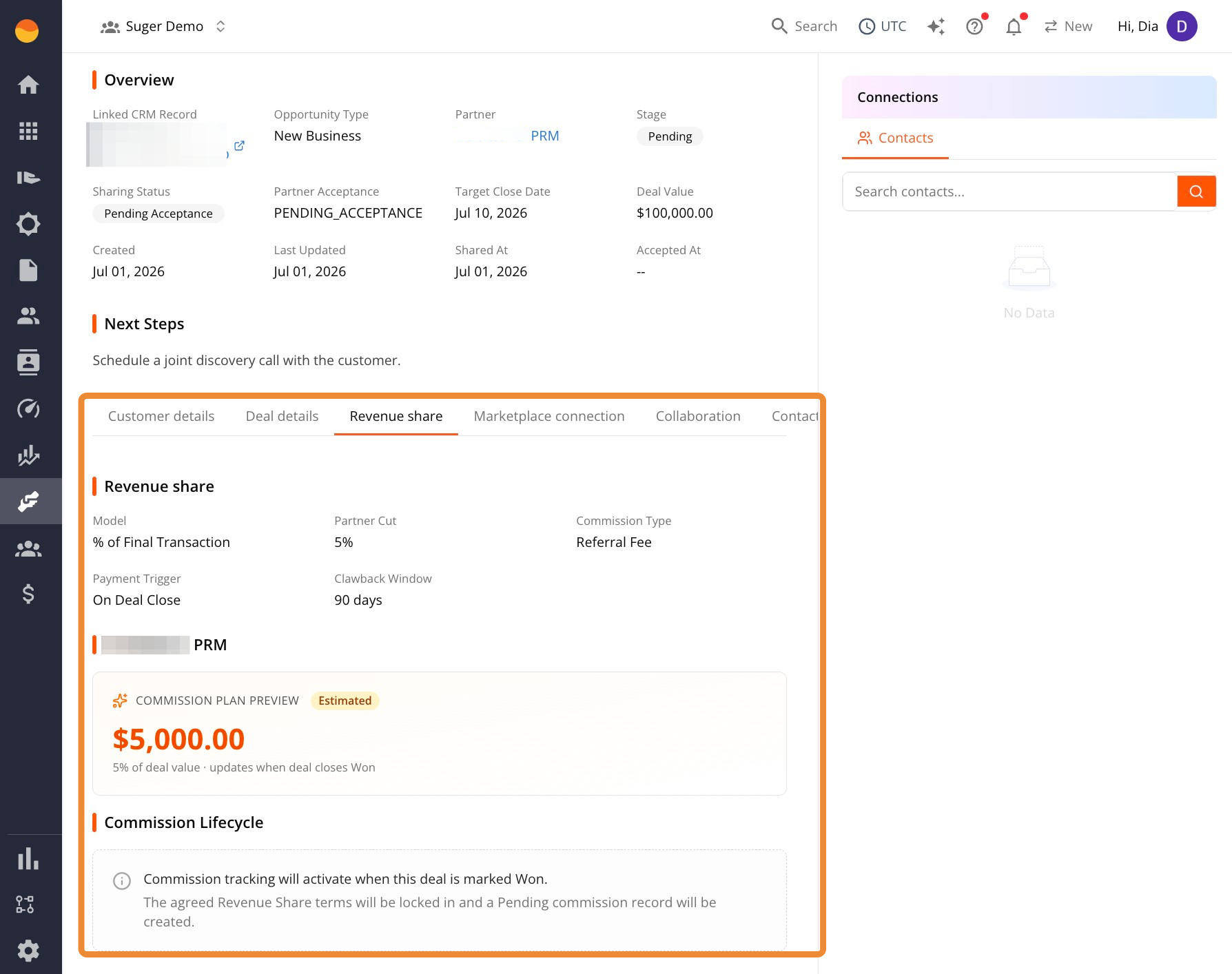
Once a co-sell is created, its Revenue Share tab shows the resolved terms — the model, rate, payment trigger, and clawback window that apply — based on the priority order above.
Spotted something wrong or out of date on this page? Tell us and we'll correct it.