Partner Discovery
Discover and invite partners without leaving Fours, using AI-assisted recommendations, the resellers already moving your product on a marketplace, or partner companies you track in Salesforce.
Overview
Partner Discovery helps you find new partners and invite them into your network. You can source partners three ways:
- Recommended Partners — AI-assisted recommendations generated from your existing partner and co-sell data.
- From Your Marketplace — resellers your organization has already transacted with on a cloud marketplace.
- From Your CRM — partner companies that already exist in Salesforce and have been configured as partners.
Use Partner Discovery to identify new partnership opportunities, formalize the resale relationships you already have, or quickly invite partners you already track in Salesforce.
Navigate to Partner Discovery
- Go to Fours Console, then click Partners.
- Click Partner Discovery.
- Switch between the Recommended Partners, From Your Marketplace, and From Your CRM tabs to see each source.
Recommended Partners
The Recommended Partners tab shows AI-assisted recommendations generated from the partner, referral, CRM, and co-sell data already available in your Fours account.
The candidates come from Fours’ directory of resellers, which draws on public AWS reseller data. Fours matches that directory to your own CRM: it compares the customer accounts each reseller works with against the accounts in your CRM, and recommends the resellers whose accounts overlap with yours.
Use this tab when you’re:
- Expanding your partner network using existing relationship data
- Looking for partners that may help create or accelerate opportunities
- Prioritizing which partners to engage first
Understanding the Recommendation Cards
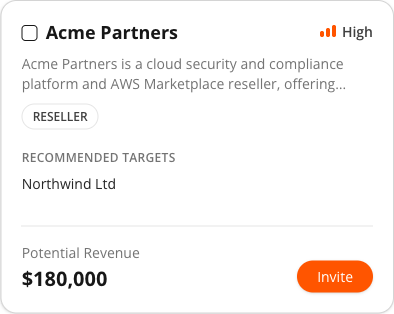
Each recommendation card includes:
- Partner Type — The type of partner, such as a reseller.
- Confidence — A three-bar meter next to a
High,Medium, orLowlabel, so you can rank outreach at a glance. - Company size — A
Small,Medium, orLargebadge. Hover it to see the employee count behind the label. - Recommended Targets — Customer accounts where Fours has identified potential overlap or co-sell opportunities with this partner. Reads
No matcheswhen there is no overlap to show. - Potential Revenue — An estimated revenue opportunity associated with the partnership, based on the data available in your account.
The confidence label is derived from the recommendation’s score:
| Label | Score |
|---|---|
| High | 0.7 and above |
| Medium | 0.4 up to 0.7 |
| Low | Below 0.4 |
Company size follows the headcount Fours has on the company:
| Badge | Employees |
|---|---|
| Small | Fewer than 100 |
| Medium | 100 to 999 |
| Large | 1,000 or more |
Who Doesn’t Appear Here
Discovery only suggests companies you haven’t acted on. A company drops out of the recommendations once your relationship with it has a real state:
- Active partners — already in your network.
- Inactive partners — you’ve already decided about them.
- Pending partners — you’ve invited them and are waiting on a reply. An invitation counts as having found them, so Fours stops re-suggesting a company you already reached out to.
That leaves SUGGESTED — companies Fours surfaced that you have never acted on — as the population the Recommended Partners tab draws from.
Partners That Promote Themselves
A Pending company — one you invited and are waiting on — that starts producing real marketplace revenue with you is promoted to Active automatically. You already initiated the relationship, and money moving is stronger evidence that it is live than a status field is, so Fours stops treating the company as a lead and moves it into All Partners.
The trigger is realized revenue — revenue already disbursed. Upcoming or projected revenue does not promote anyone, since it hasn’t happened yet.
How to Use These Recommendations
Partner Discovery helps you decide where to focus your outreach efforts. A simple approach is:
- Start with High confidence recommendations. These recommendations generally have stronger signals in your organization’s data.
- Review the Recommended Targets. Look for customer accounts where the partner may be able to help create or accelerate opportunities.
- Evaluate the opportunity. Consider whether the account overlap and estimated revenue opportunity make the partnership worth pursuing.
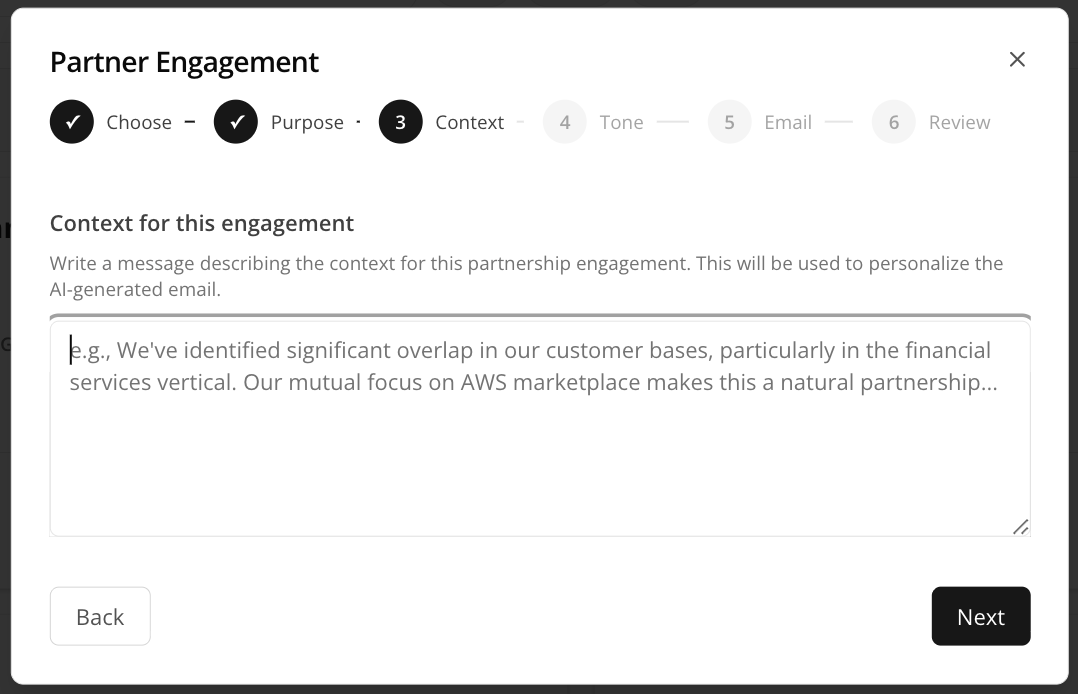
- Personalize your outreach. When sending an invitation, reference the shared account or opportunity in the Context for this engagement field so the invitation feels relevant rather than generic.
From Your Marketplace
The From Your Marketplace tab shows resellers your organization has already transacted with on a cloud marketplace. These are the strongest candidates in the product: the relationship exists commercially, it just isn’t a formal partnership in Fours yet.
Fours builds this list by grouping your marketplace transactions by reselling company, so nothing has to be configured for the tab to fill in.
A reseller has to have been paid to appear here. The tab lists companies with at least $10,000 in disbursed CPPO revenue. Upcoming and unrealized revenue does not count, and neither does deal count — CPPO paperwork is not money. The floor exists so the tab holds real commercial relationships rather than every company that once appeared on a resale document.
What a Marketplace Card Shows
A marketplace card swaps the recommendation-specific fields for the transaction record behind the company:
| Field | What it holds |
|---|---|
| Deal count | The number of deals transacted with this reseller, shown in place of the confidence meter. |
| Reseller Account | The reseller’s account identifier on each channel, as channel · id. Reads Not reported when the channel didn’t supply one. |
| Last transaction | The date of the most recent transaction. |
| Revenue Transacted | Actual revenue through this reseller, shown in place of Potential Revenue. |
Channel badges appear here too — the marketplaces this company has actually transacted on.
The list view of this tab carries the same four columns: Reseller Account, Revenue Transacted, Deals, and Last Transaction. Use the Columns button to choose which ones you want.
These Resellers Are Candidates, Not Partners
A reseller Fours finds this way is created as SUGGESTED. It is a candidate you can see and invite, not a partnership — nobody sent an invitation and nobody accepted one, so calling it active would assert a relationship that does not exist.
In All Partners they carry an amber SUGGESTED status badge, distinct from the blue PENDING of a partner you invited and the green ACTIVE of one who accepted — so a discovered reseller is never mistaken for a recruited partner. Filter the Status column to SUGGESTED to see just this population. They become real partners the same way everyone else does: you invite them, and they accept.
From Your CRM
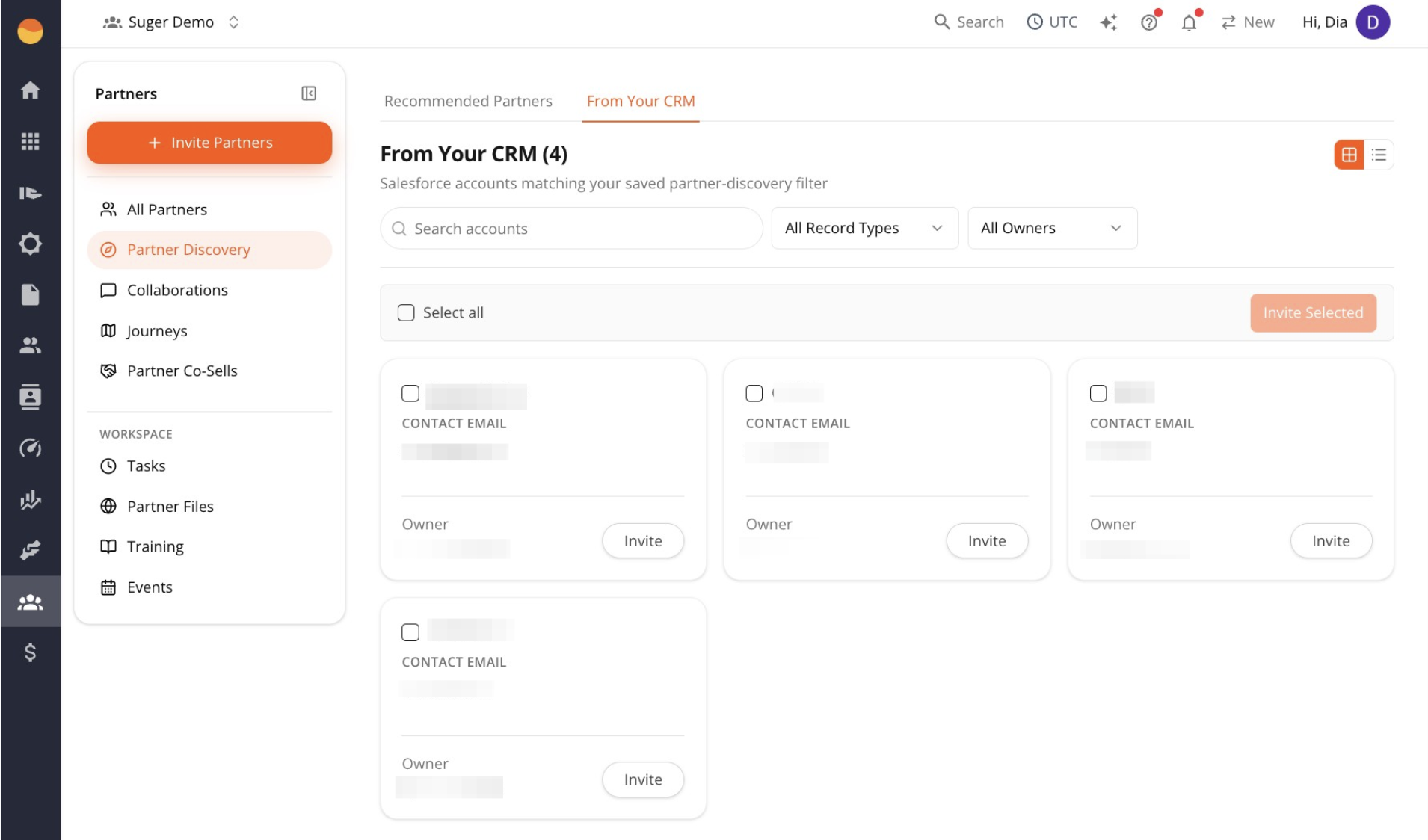
The From Your CRM tab shows partner companies that already exist in Salesforce.
During Salesforce setup, you tell Fours how to identify which Salesforce accounts should be treated as partners — for example, accounts where Type = Partner. Any accounts that match that rule automatically appear in this tab.
Companies you have already connected are hidden by default. The tab is for finding partners you do not have yet, so an account that is already a partner in Fours would be noise. A Show already connected (n) toggle brings them back when you want to check one.
Use this tab when you already manage partner companies in Salesforce and want to invite them to Fours without manually entering their information.
Once your CRM configuration is saved:
- Matching partner accounts automatically appear here.
- Company names and contact emails are pre-filled from Salesforce.
- You can invite one or more partners directly from the results.
Invite Partners You Discover
After identifying partners on any of the three tabs, you can invite them directly.
-
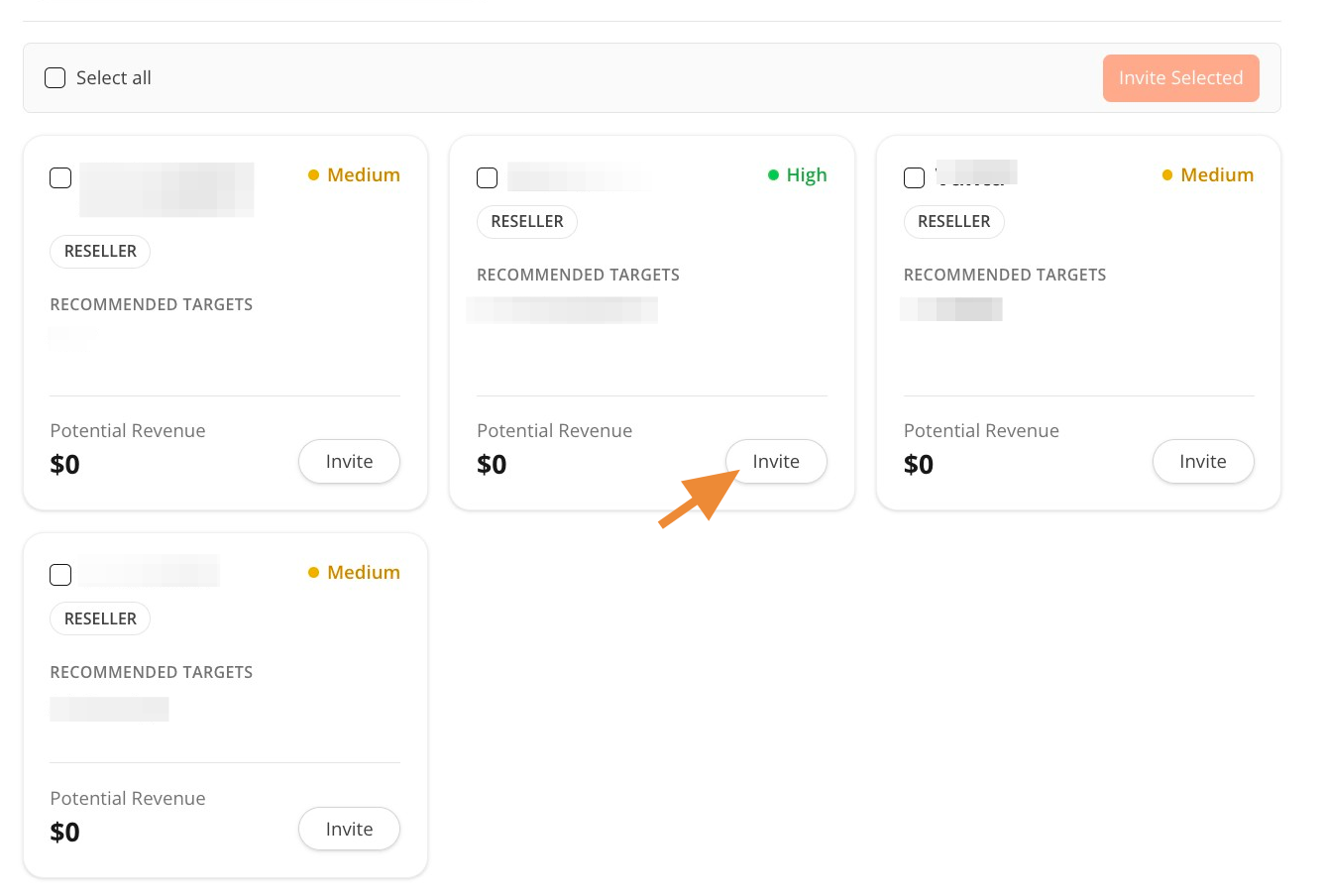
Click Invite on an individual partner card to invite one company.
-
Select multiple partners and click Invite Selected to send invitations in bulk.
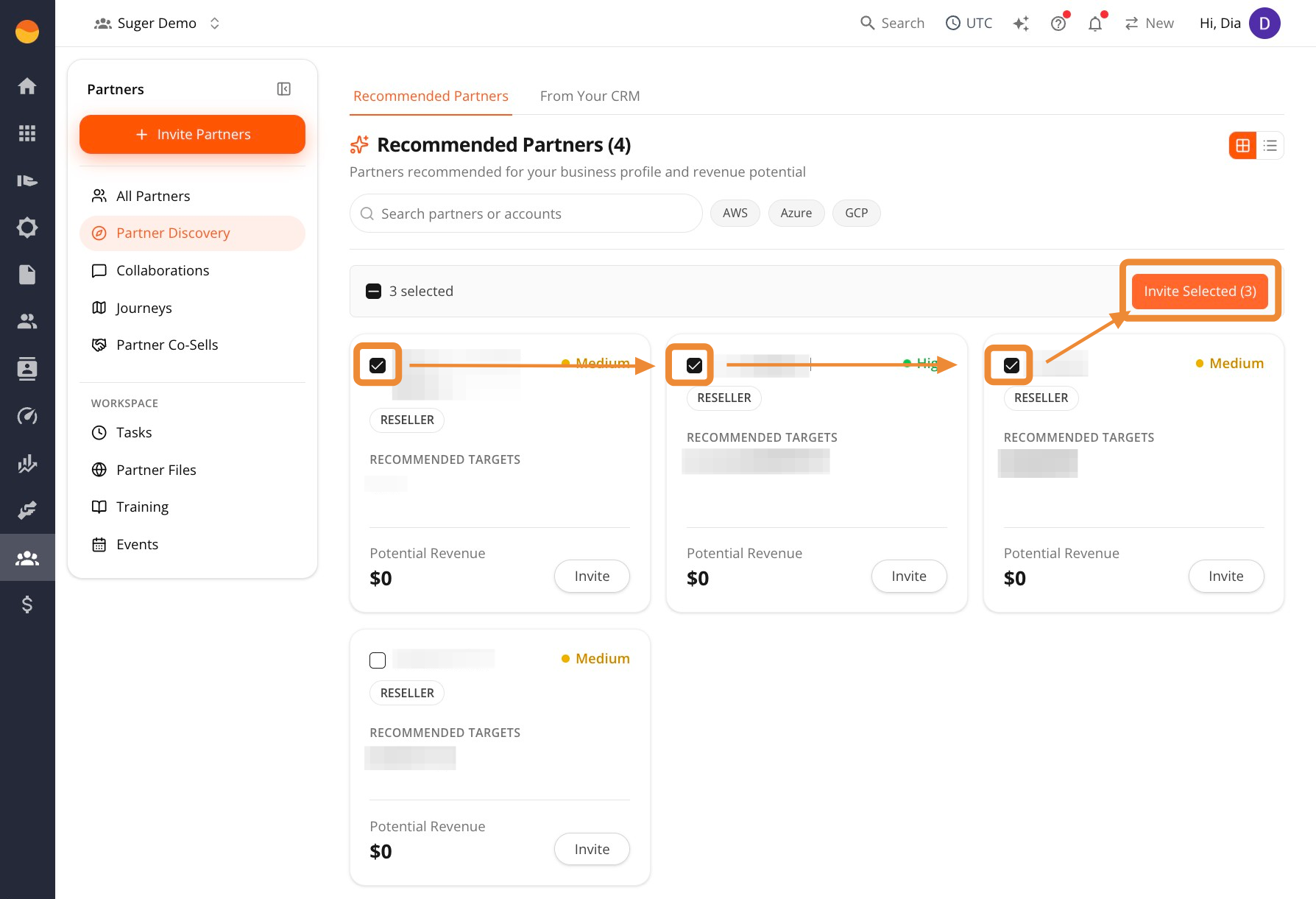
A candidate whose recorded name is only a placeholder, such as ---, is shown by its domain, or by its company ID when it has no domain. In a bulk invitation, its row is flagged Partner name required until you type the company’s name.
Partner Discovery uses the same invitation workflow as manual invitations. For detailed instructions on inviting partners, see Invite Partners.
Spotted something wrong or out of date on this page? Tell us and we'll correct it.