Sync Partners from Salesforce
If your partner companies already exist in Salesforce, you don’t have to re-enter them into Fours — pick which Salesforce accounts count as partners and they’ll appear automatically in Partner Discovery, take each partner’s Partner Manager from its Account owner, and optionally sync their documents into your file library.
Overview
Once Salesforce is connected, you can tell Fours which of your Salesforce accounts are partners. Fours uses a filter you define to match those accounts and surface them under Partners → Partner Discovery → From Your CRM. You can also set each partner’s Partner Manager, and optionally its Partner Champion, from its linked Salesforce Account, and turn on Document Sync to pull files from your partner records into your Fours file library.
Set Up Your Partner Mapping
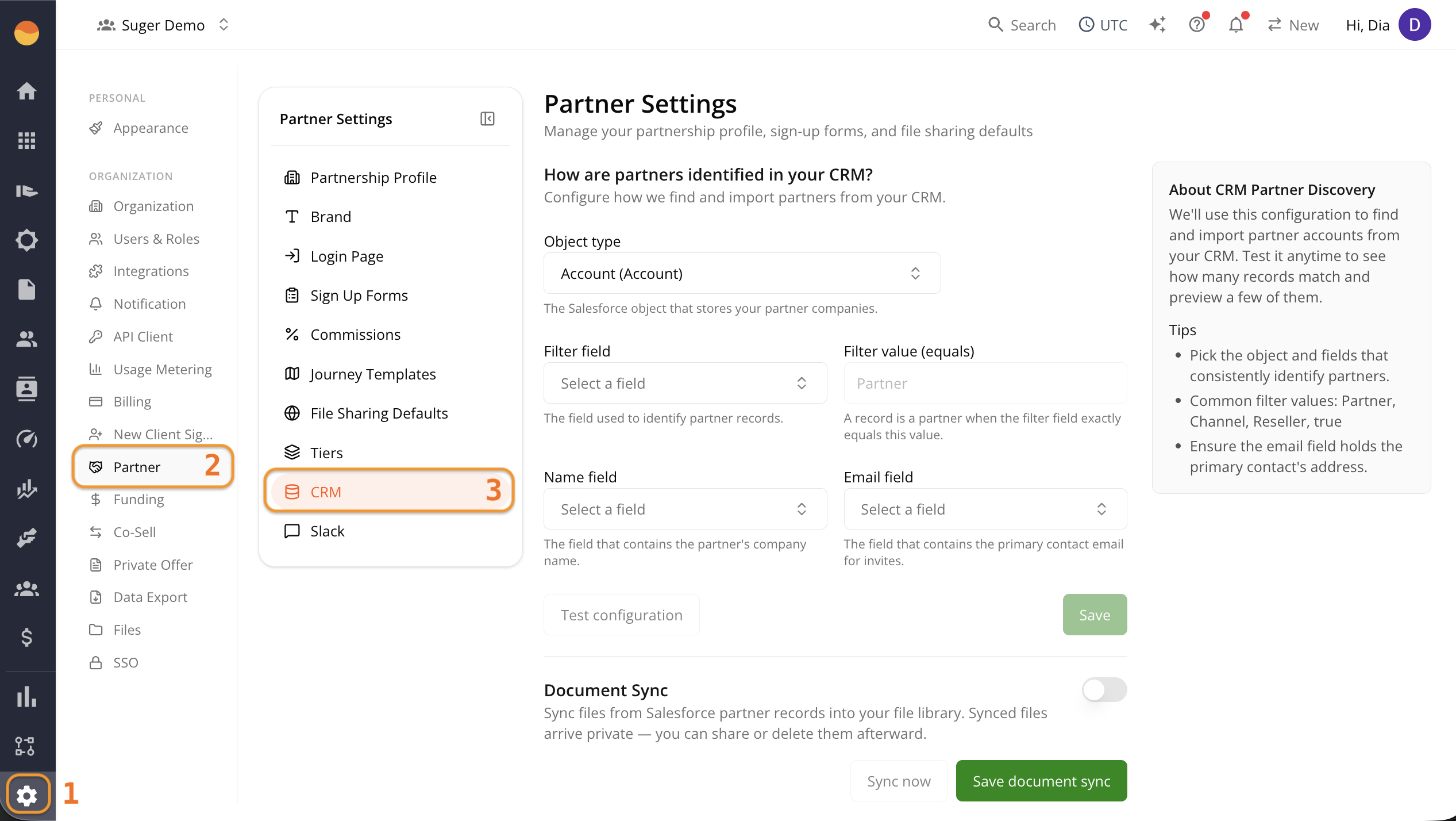
Step 1: Access your partner settings
- Go to Fours Console, then Partners.
- Click Settings at the bottom of the rail, then CRM.
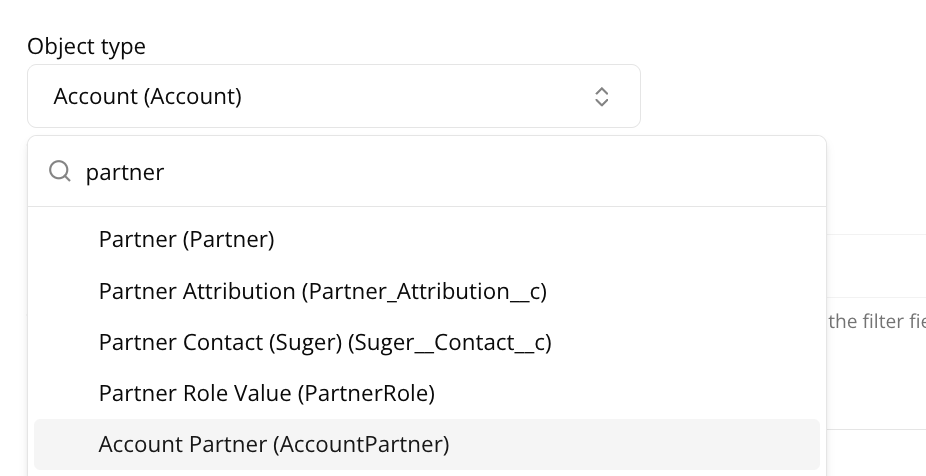
Step 2: Choose the object that stores your partners
Under Object type, select the Salesforce object where your partner companies are stored.
Step 3: Set the filter that identifies a partner
Most teams mark partner accounts using an existing Salesforce field rather than a dedicated “is this a partner” checkbox. This step tells Fours which field and value to look for, so it knows which accounts are partners and which are regular customers.

- Under Filter field, select the field your team uses to mark an account as a partner — for example, the Account object’s Type field.
- Under Filter value (equals), select or enter the value that field holds on partner records.
What this field looks like depends on how it’s set up in your Salesforce org:
- If it’s a picklist (a fixed dropdown of options), Fours shows you the same dropdown, so you just select the matching value — for example Partner — with no risk of a typo.
- If it’s a free-text field, you’ll need to type the value manually, and it must exactly match what’s stored on the record. Confirm the correct spelling and case with whoever manages your Salesforce data.
Step 4: Map the name and email fields
- Under Name field, select the field that holds the partner’s company name.
- Under Email field, select the field that stores the email address you want Fours to use when inviting the partner. Depending on your Salesforce setup, this may be an Account field or a custom field.

Step 5: Test and save
- Click Test configuration. Fours shows how many accounts match and a sample of the results.
- Check the Sample matches table to confirm company names and emails look correct.
- Click Save.
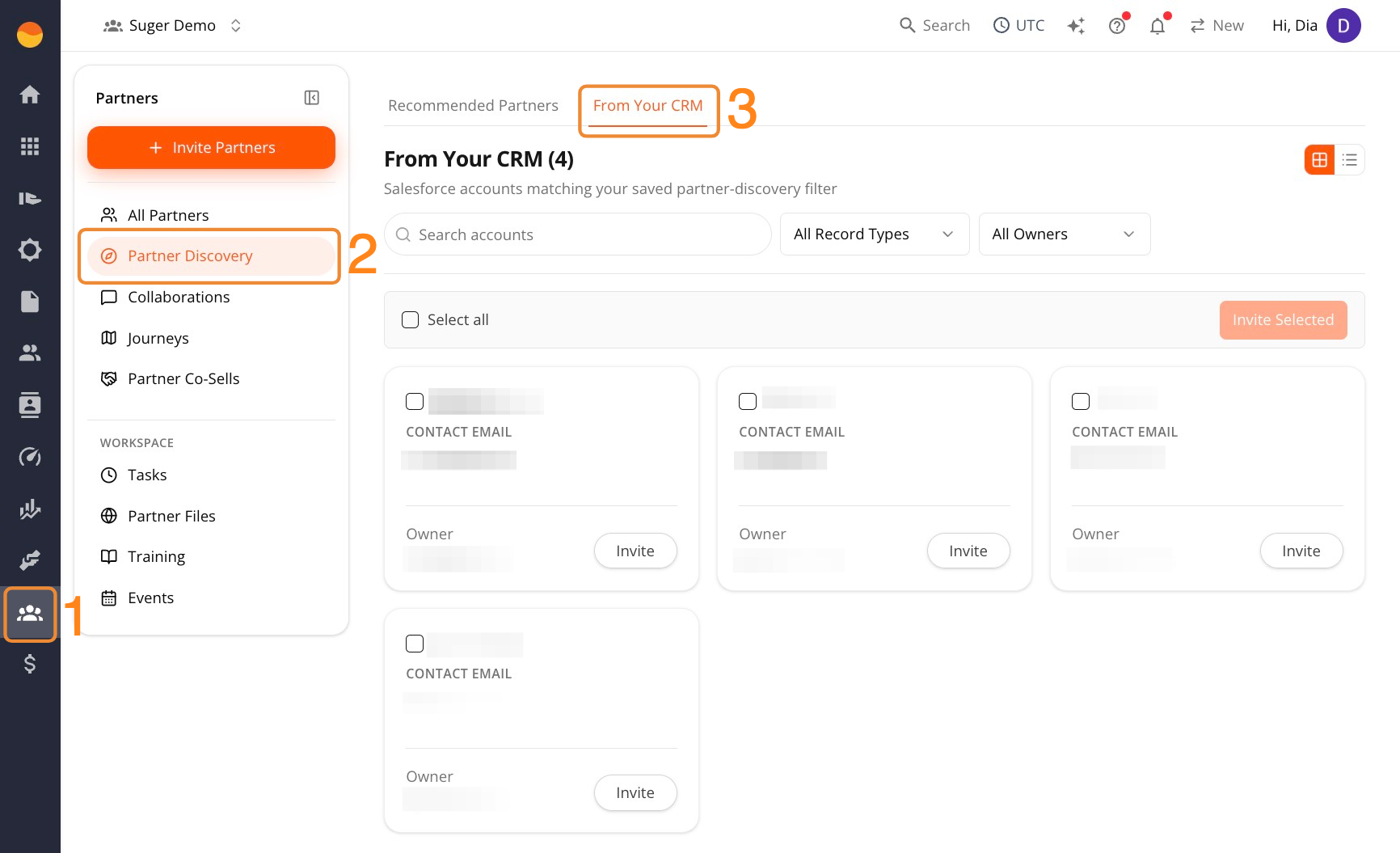
Step 6: Check where matched partners show up
After you save the configuration, matching accounts appear under Partners → Partner Discovery → From Your CRM. See Partner Discovery to learn more about Partner Discovery.
Set the Partner Manager from Salesforce
If your team keeps each partner’s owner in Salesforce, Fours can take the Partner Manager from there instead of you picking it by hand on every partner record, and, optionally, the Partner Champion too. Both matter for co-sell: the Partner Manager leads your side of every co-sell you share with the partner, and the champion receives it. See Work a Partner Record.
- On the same CRM tab, switch on Partner Manager from Salesforce.
- Under Account owner field, pick the user lookup on Account that names each partner’s owner. It starts on the Account’s own owner field,
OwnerId, which is what most organizations use. - Optionally, under Partner Champion field, pick a contact lookup on Account whose contact should become the partner’s champion. Leave it on Not synced to keep picking champions by hand.
- Click Save Partner Manager mapping. Fours starts syncing your Salesforce-linked partners right away.
What the sync covers. Your ACTIVE partners that are linked to a Salesforce Account; a partner linked to a HubSpot company is left alone. It runs every two hours, when you save the mapping, and whenever you link a partner to a Salesforce Account, so a new link shows its Partner Manager straight away. Nothing is ever written back to Salesforce.
| The Account’s owner… | The partner’s Partner Manager |
|---|---|
| Is a user in your Fours organization | Becomes that user. |
| Is on your organization’s email domain but isn’t a user yet | Is left empty. The partner record says so and offers Add to organization; once the owner is added, they become the Partner Manager. |
| Is on another email domain | Is left empty, because the owner can’t join your organization. Change the owner in Salesforce. |
| Isn’t set on the Account | Stays as it was, and you can still change it by hand. |
Salesforce decides while it has a value. As long as the Account names an owner, the partner record’s Partner Manager is read-only and changes only when the owner changes in Salesforce. The same goes for the Partner Champion when you’ve mapped a champion field and the Account names a contact in it. Link a partner to a different Account, or remove the link, and whatever the previous Account set is dropped; people you picked by hand stay.
Set Up Automatic Document Sync
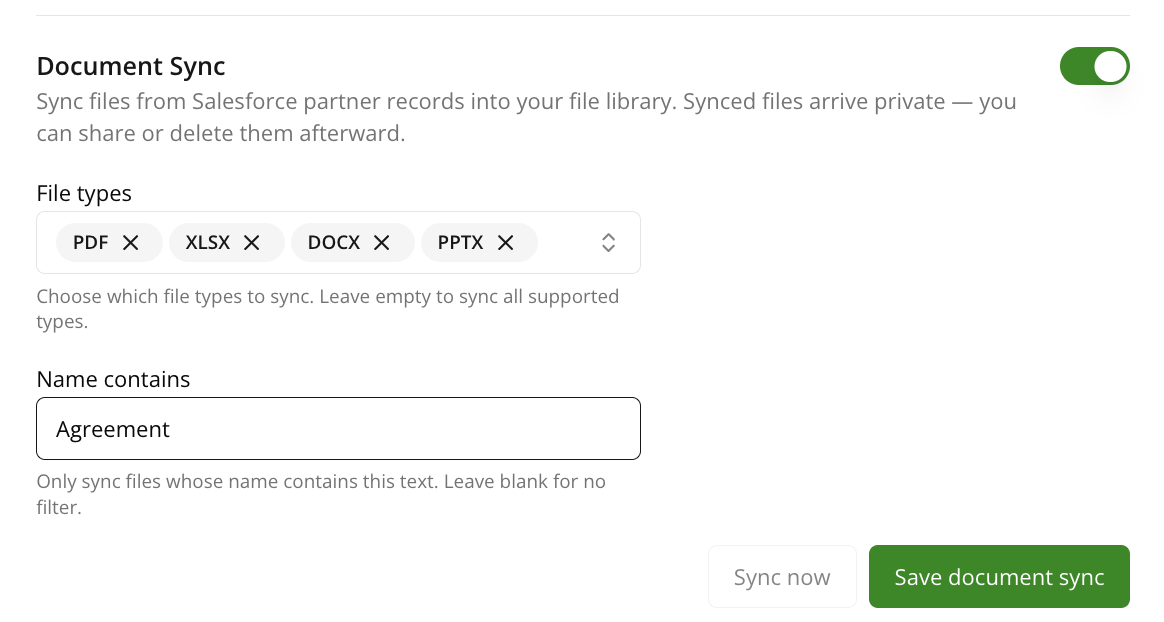
Document Sync adds files from your Salesforce partner records into your Fours file library automatically.
- Turn on the Document Sync toggle.
- Under File types, choose which file types to sync (PDF, PPTX, DOCX, XLSX, and others). Leave this empty to sync every supported type.
- Under Name contains, optionally enter text to only sync files whose name includes it — for example,
Agreementto pull in only agreement-related documents. Leave this blank to skip this filter. - Click Save document sync to save your settings.
- Click Sync now to immediately trigger a sync.
Once files sync, they appear in Partners → Partner Files, alongside any manually uploaded files. Use the All Sources filter and select From Salesforce to view only synced files separately.
Spotted something wrong or out of date on this page? Tell us and we'll correct it.