Revenue Settings
Revenue Settings is where you configure how revenue is reported, review each channel’s sync configuration, and choose which bank accounts feed cash matching. Open it from Configuration, under Settings in the Revenue sidebar — the page is titled Configuration and has two tabs: Revenue Settings and Bank Accounts.
Overview
Open Settings → Configuration in the Revenue sidebar. Unlike the rest of the workspace, it is not scoped by the channel filter.
Changing anything here needs revenue write access (see Who can change what). In the Insulin Revenue app, the controls that change settings — and the Revenue Recognition Policies card — appear only if your role has it; the console shows them to every role and rejects a change the role can’t make.
Revenue reporting policies
A revenue reporting policy controls whether revenue is reported gross (full invoice amount) or net (after channel fees) for a given scope. The policies table lists each policy’s level, channel, product, reporting basis, source, effective dates, and last update.
To add or change a policy:
- Select Add Policy (or the Edit action on an existing row).
- Choose the channel and, optionally, a product.
- Choose the reporting basis — Gross or Net.
- Set the effective from and effective to dates.
- Save.
Validation: the effective-from date cannot be in the past, and effective-to must be on or after effective-from. Use Delete to remove a policy you no longer need.
Delete appears only on policies you added (source Manual). The six default policies Fours seeds for every organization can’t be deleted, and a change to a default’s reporting basis does not last: Fours restores the defaults each time the table loads, which is also why a default row’s Last update shows when the page was last opened. To report a channel or product differently, add your own policy for that scope — it overrides the default.
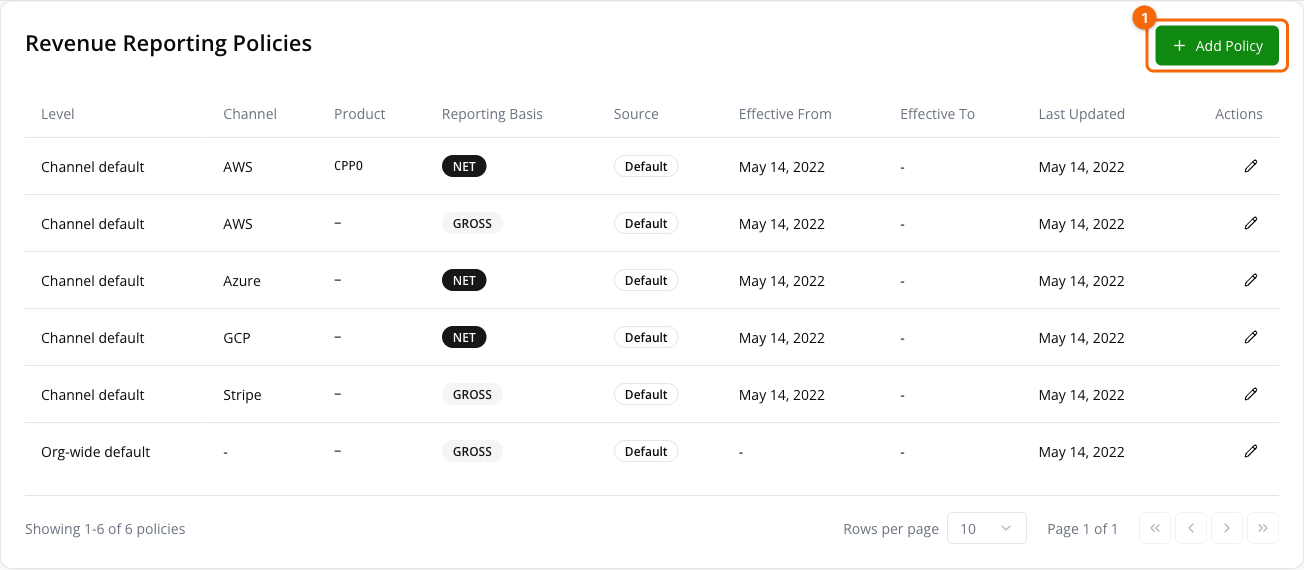
The ① Add Policy button (circled) creates a new rule. Each row shows the policy’s Level (Org-wide default, Channel default, or Product override), Channel, Product, and Reporting Basis (GROSS or NET) — for example, AWS CPPO reports NET while Stripe reports GROSS. Use the Edit action at the end of a row to change it.
Recognition policies (ASC 606)
Directly below the reporting-policy table, the Revenue Recognition Policies card sets how revenue is recognized over time under ASC 606 — separate from the gross-or-net question above. This card lives here on Settings, not on the Revenue Recognition dashboard.
Four recognition methods are supported:
| Method | Recognizes revenue |
|---|---|
| STRAIGHT_LINE | Evenly across the service term. This is the default when no policy applies. |
| POINT_IN_TIME | All at once, at the moment of transfer. |
| USAGE_BASED | In line with metered consumption. |
| MILESTONE | When a defined milestone is reached. |
Multi-element allocation, percentage-of-completion, and ramp models are not available.
Fours applies the most specific active policy in effect on a record’s invoice date: a product policy, then a channel policy, then an org-wide one; with none, the default method in the table above applies. Within one scope, the policy with the higher Priority wins, then the newer one. The Scope column shows each policy’s level.
Saving or deactivating a policy re-runs schedule generation for the records that don’t have a recognition schedule yet; records that already have one keep it.
Some methods take extra parameters, supplied as a JSON method configuration on the policy.
Channel sync configuration
Each connected channel (AWS, Azure, GCP, Stripe) appears as a card showing its connection status (VERIFIED), last sync time, and error count. Two values describe how that channel ingests data:
- Schedule — Daily. This is a fixed displayed value, not a choice and not a promise about cadence: the control is locked to Daily, and each channel’s schedule is set by Fours. Read this field as Fours manages the schedule, not as this channel syncs once a day.
- Backfill Months — 24. Also locked. Connecting a channel pulls up to 24 months of history; the amount is not adjustable per channel.
Both fields are read-only, and Save only confirms these locked values — it doesn’t change how or when the channel syncs. Connect a revenue channel first if the list is empty.
Bank Accounts
The Bank Accounts tab manages the connected accounts used for cash matching against your revenue records.
Open it directly at /revenue/bank-accounts, from Configuration → Bank Accounts, or with Connect a bank account on Bank Reconciliation while no account is connected. The dedicated path exists because bank providers redirect back to an exact URL when they finish linking an account.
The header carries two actions — Refresh, which reloads the account list, and Connect Stripe — above the summary cards: Connected Accounts, Active Accounts, and Institutions.
Summary cards
| Card | Meaning |
|---|---|
| Connected Accounts | Total bank accounts connected for sync and cash matching. |
| Active Accounts | Connected accounts currently in an active state. |
| Institutions | Distinct financial institutions across connected accounts. |
Connecting an account
Fours supports two bank connectivity providers: Plaid and Stripe Financial Connections. There is no third — Tink has no implementation and is not planned.
- Connect Stripe opens Stripe Financial Connections. It does not require your organization to connect a Stripe billing integration. If you close Stripe’s window without choosing an account, nothing is connected and no error is shown.
- Plaid links are completed by returning from the provider’s own OAuth redirect. There is no Connect Plaid button on this page; the tab resumes an in-flight Plaid link when the provider redirects back to it, and tells you to start again if that link has expired.
- If you start a connection from the Revenue app in Insulin, Fours reopens Insulin on this tab when the provider finishes. If your browser blocks that window, allow pop-ups or reload to retry.
Either way, connecting an account starts transaction import immediately. The first import pulls 24 months of history; every sync after that re-reads a 7-day overlap window before the last cursor, so transactions the bank posts late or corrects are still picked up. Plaid additionally pushes updates to Fours over a signed webhook, so Plaid-linked accounts do not wait for the next poll.
Unlinking an account
Each ACTIVE row in the accounts table carries an Unlink action.
- Select Unlink on the account’s row.
- Confirm at the Unlink bank account? prompt.
Unlinking stops future transactions from syncing, and the account then drops off the list and out of the summary cards. Existing transactions and reconciliation history are preserved — you are disconnecting the feed, not deleting the record. Rows that are not active do not offer the action.
The accounts table lists each account’s name, provider, currency, status, last sync, and provider account reference.
Transactions imported here are what Bank Reconciliation matches against your invoices, payouts, and payment transactions.
KPI calculation formulas
The Revenue Settings tab has no KPIs. The Bank Accounts tab shows connection counts:
| KPI | Applies to | Formula | Calculation details |
|---|---|---|---|
| Connected Accounts | Plaid, Stripe Financial Connections | count(connected bank accounts) | Unlinked (inactive) accounts are not counted. |
| Active Accounts | Plaid, Stripe Financial Connections | count(accounts with active status) | — |
| Institutions | Plaid, Stripe Financial Connections | count(distinct institutions) | Distinct financial institutions across connected accounts. |
Spotted something wrong or out of date on this page? Tell us and we'll correct it.