Connect an AI Assistant
Set up Fours MCP Server in your preferred AI assistant or code editor.
This guide walks you through connecting the Fours MCP Server to your preferred AI assistant or code editor. Setup takes under a minute — you just need the server URL and an OAuth login.
MCP Server URL: https://apiv2.suger.cloud/mcp
Prerequisites
- A Fours account on any pricing plan
- An AI assistant or code editor that supports the Model Context Protocol (MCP)
Claude
Claude Desktop
- Go to Customize > Connectors
- Click + Add, then Add custom connector
- Enter the following:
- Name: Fours
- Remote MCP server URL:
https://apiv2.suger.cloud/mcp
- Click Continue through the authentication settings Claude detects, then complete the OAuth login when prompted
Custom connectors are available on every plan (Free is limited to one connector). On Team and Enterprise plans, an Owner first adds the connector under Organization settings > Connectors; members then find it in Customize > Connectors and click Connect.
Claude Code
claude mcp add --transport http suger https://apiv2.suger.cloud/mcpThen run /mcp within a Claude Code session to complete authentication.
Cursor
Open Cursor Settings > MCP > Add new MCP server, then enter:
- Name: Fours
- Type: HTTP
- URL:
https://apiv2.suger.cloud/mcp
Alternatively, add this to .cursor/mcp.json:
{
  "mcpServers": {
    "suger": {
 "url": "https://apiv2.suger.cloud/mcp"
    }
  }
}
VS Code (GitHub Copilot)
Run in your terminal:
code --add-mcp '{"type":"http","name":"suger","url":"https://apiv2.suger.cloud/mcp"}'Then open the MCP panel in VS Code and start the Fours server.
Devin Desktop (formerly Windsurf)
Devin Local, Devin Desktop’s default agent, reads MCP servers from the Devin CLI configuration. Add the server from a terminal, then sign in:
devin mcp add suger https://apiv2.suger.cloud/mcp
devin mcp login suger
devin mcp login opens a browser window to complete the OAuth login.
ChatGPT
- Open Plugins in ChatGPT
- Select +, then Add custom MCP server
- Enter a name (Fours) and, under Connection, the server URL
- Authorize access to your Fours workspace when prompted
Account and workspace policies decide whether you can add custom MCP servers.
Other Clients
Any MCP-compatible client can connect. Use the standard configuration:
{
  "mcpServers": {
    "suger": {
 "url": "https://apiv2.suger.cloud/mcp"
    }
  }
}
If your client doesn’t support remote MCP servers natively, use mcp-remote as a bridge:
npx -y mcp-remote https://apiv2.suger.cloud/mcpSign in and approve access
The first time a client connects, it opens Fours in your browser. You sign in, choose what the assistant can reach, and the browser hands you back to the client. The steps are the same for every client above.
-
Sign in. Your client opens the Fours console sign-in page at
console.suger.io/login. How you continue depends on how your organization signs in:You are… What to do Already signed in to the Fours console in this browser Nothing. The page shows Redirecting… and moves straight to step 2 Not using single sign-on Click Log In to open the Fours login form, then sign in with email and password, Google or Microsoft Using single sign-on (SSO) Click the SSO to button that carries your organization’s name. You sign in at your company’s identity provider, such as Okta. If the button isn’t there, see below The SSO to button only appears for an organization you have already signed in to with SSO in this browser. Until then, the page shows only Log In:

After you have signed in to the Fours console with SSO once in this browser, the page shows an SSO to button for each of those organizations:

If your organization’s button isn’t listed, sign in to the Fours console with SSO first (see Okta SSO), then connect the client again.
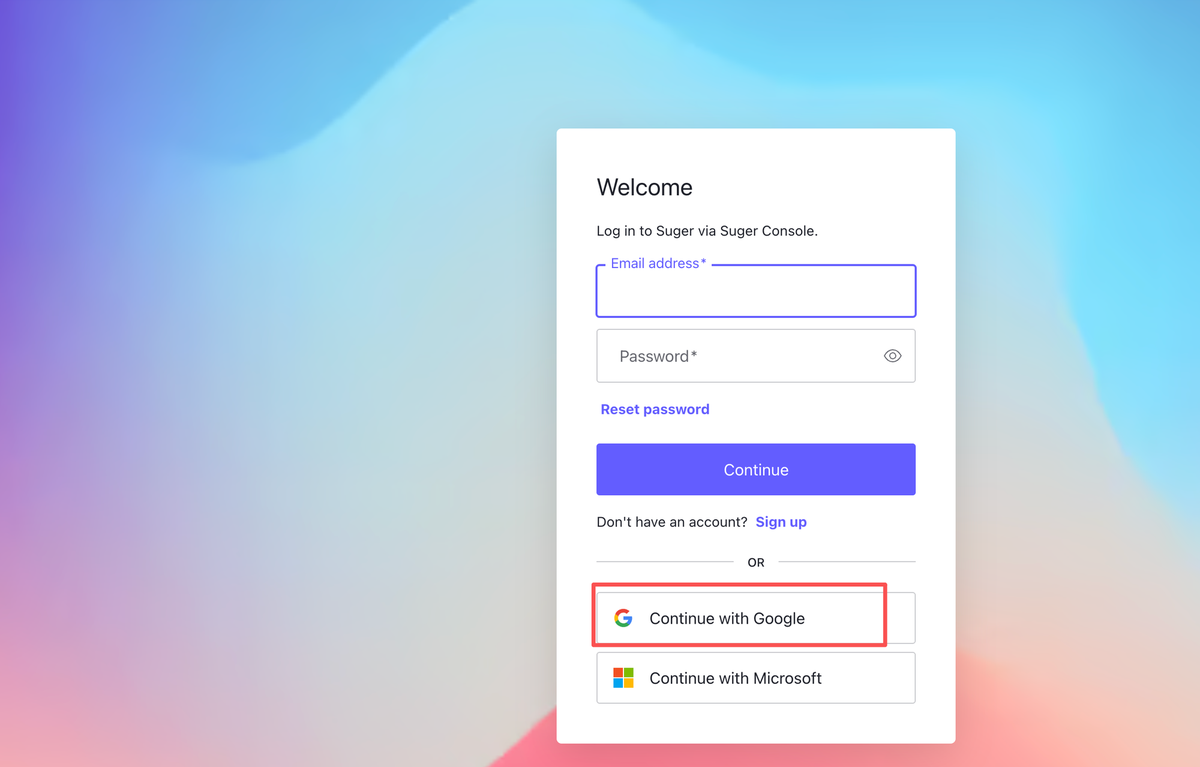
Log In opens the Fours login form, where you can enter an email and password or choose Continue with Google or Continue with Microsoft:
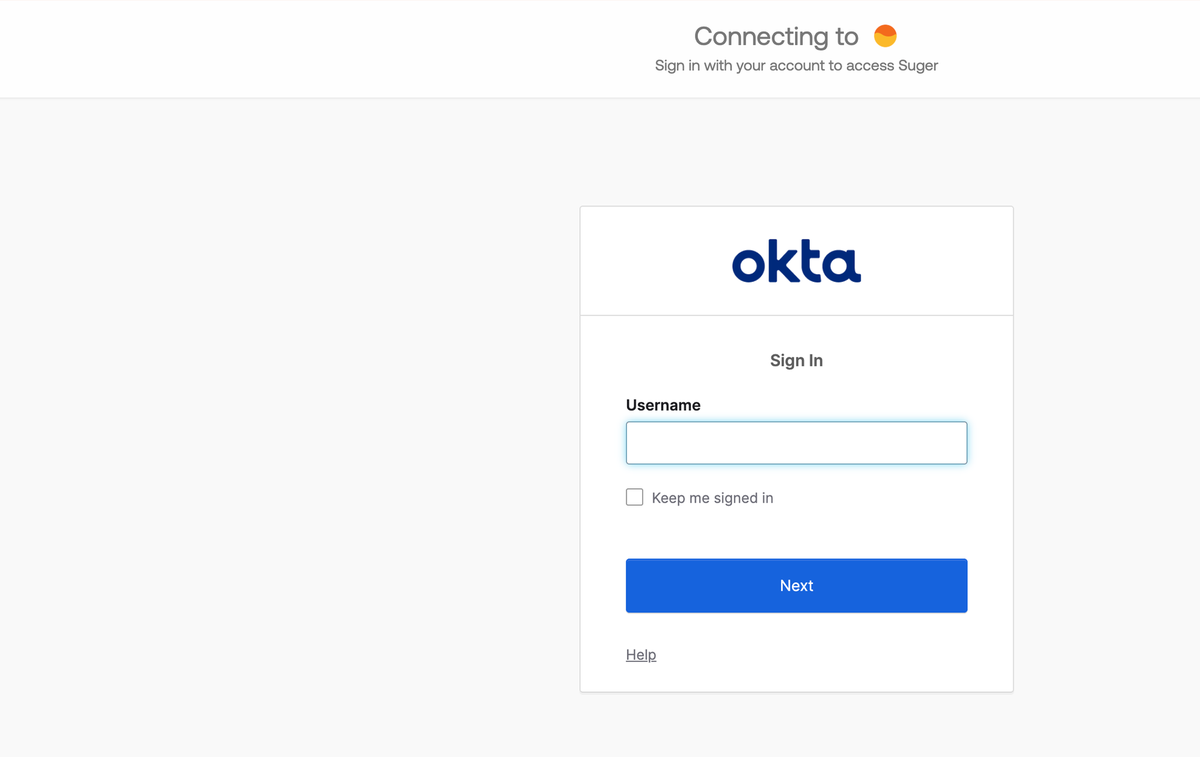
SSO to skips the Fours login form and sends you straight to your company’s identity provider:
-
Check the account. The Authorize Application screen names the client asking for access and shows the account you’re signed in as, under Authorizing as. If that’s the wrong account, see Use another account.
-
Choose access for each organization. Every organization you belong to is listed, each with three choices:
Choice What the assistant can do in that organization All Whatever your role allows, checked on every request — if your role changes, so does the assistant’s access Custom Only the permissions you select, and never more than your role allows. Up to three organizations can use Custom Off Nothing — the assistant can’t reach that organization -
Click Allow. Your browser returns to the client, which is now connected. Deny cancels the connection.
Use another account
Use another account on the Authorize Application screen signs this browser out of Fours — including the Fours console — and shows the Fours console sign-in page, so you can sign in as someone else. You then come back to Authorize Application as that account.
Verify Your Connection
After setup, try a few prompts to confirm everything is working:
"List my marketplace offers"
"Show recent entitlements"
"How many active buyers do I have?"
If the connection is successful, your assistant will prompt you to authenticate (first time only), then return live data from your Fours workspace.
Troubleshooting
Authentication fails
- Ensure your Fours account has the required permissions for the operations you’re attempting
- Confirm your MCP client supports OAuth 2.1 with PKCE
- Try disconnecting and reconnecting the integration
Signed in as the wrong account
- On the Authorize Application screen, click Use another account and sign in again — see Use another account
Your organization uses single sign-on
- On the Fours console sign-in page, choose the SSO to button for your organization
- If it isn’t listed, sign in to the Fours console with SSO in the same browser, then reconnect the client
- If you are sent to the Fours login form instead of your identity provider and your account has no password, go back to the Fours console sign-in page and use SSO to instead
- If choosing SSO to does not reach the Authorize Application screen — for example, the sign-in stops on an error page — contact Fours support
- To make SSO mandatory for your whole organization, contact Fours support
An error mentions organization or invalid_signature
parameter organization is not allowed for this clientcan appear if an earlier SSO to attempt left a different organization selected in this browser. On the Fours console sign-in page, click Log In again; if it persists, clear this browser’s site data forconsole.suger.ioand reconnectinvalid_signaturemeans the sign-in link was changed or has expired. Close the tab and start the connection again from your client
Tools not appearing
- Double-check the server URL is exactly
https://apiv2.suger.cloud/mcp - Restart your MCP client after any configuration change
- Verify network connectivity to
apiv2.suger.cloud
Rate limit errors
- Tool calls are not rate limited per request; a rate limit error while connecting comes from the sign-in (OAuth) endpoints, which limit attempts per minute. Wait a minute, then reconnect
- A tool that creates resources can reach one of your organization’s service quotas — request an increase there
- Contact Fours support if the errors persist
Spotted something wrong or out of date on this page? Tell us and we'll correct it.