Track Journey Progress
Once a journey is assigned to a partner, use it to track where they stand, mark steps complete as they finish them, and manage the journey itself over time.
Overview
A Journey is a set of steps a partner works through, such as signing an agreement or completing training, built from a Journey Template. This page covers checking a partner’s progress, marking steps complete, and managing a journey once it’s assigned.
How Steps Get Completed
Steps complete two ways: Fours ticks them for you when the underlying action happens, or you tick them by hand.
Steps That Complete Themselves
When a partner actually does the thing a step describes, Fours marks that step done — you don’t have to notice and confirm it. Five actions trigger this:
| The partner… | Completes a step of type |
|---|---|
| Reaches a fully executed agreement | SIGN_AGREEMENT |
| Completes the course the step names | COMPLETE_COURSE |
| Earns the certificate the step names | EARN_CERTIFICATION |
| Uploads a file | UPLOAD_DOCUMENT |
| Has a Fours co-sell reach Active or beyond | REGISTER_DEAL |
Two details worth knowing:
- Auto-completion ignores the sequential lock. Sequential mode gates manual ticking, to stop you skipping ahead. An automatic completion records something that genuinely happened, so it lands whatever order it arrives in.
- Steps match what they name. A step tied to a specific course or certificate completes only for that one. A
SIGN_AGREEMENTstep attached to a particular agreement waits for that agreement; an unattached one completes on any executed agreement.
Reading a Step’s Status
Every step carries one of three statuses, and both you and the partner see the same one:
| Status | How it looks | What it means |
|---|---|---|
NOT_STARTED | An open circle | Nothing has happened on this step yet. |
IN_PROGRESS | A spinner in place of the circle | Partial credit. A REGISTER_DEAL step asking for several co-sells sits here once the first one qualifies. |
DONE | A checkmark, the title struck through, and a completion date | Finished, automatically or by hand. |
A step whose checkbox is locked by sequential mode is dimmed and shows a padlock in place of its status icon. That is a lock on ticking, not a fourth status.
Steps You Tick Yourself
CUSTOM_TASK steps, and anything the automatic hooks didn’t catch, are marked by hand.
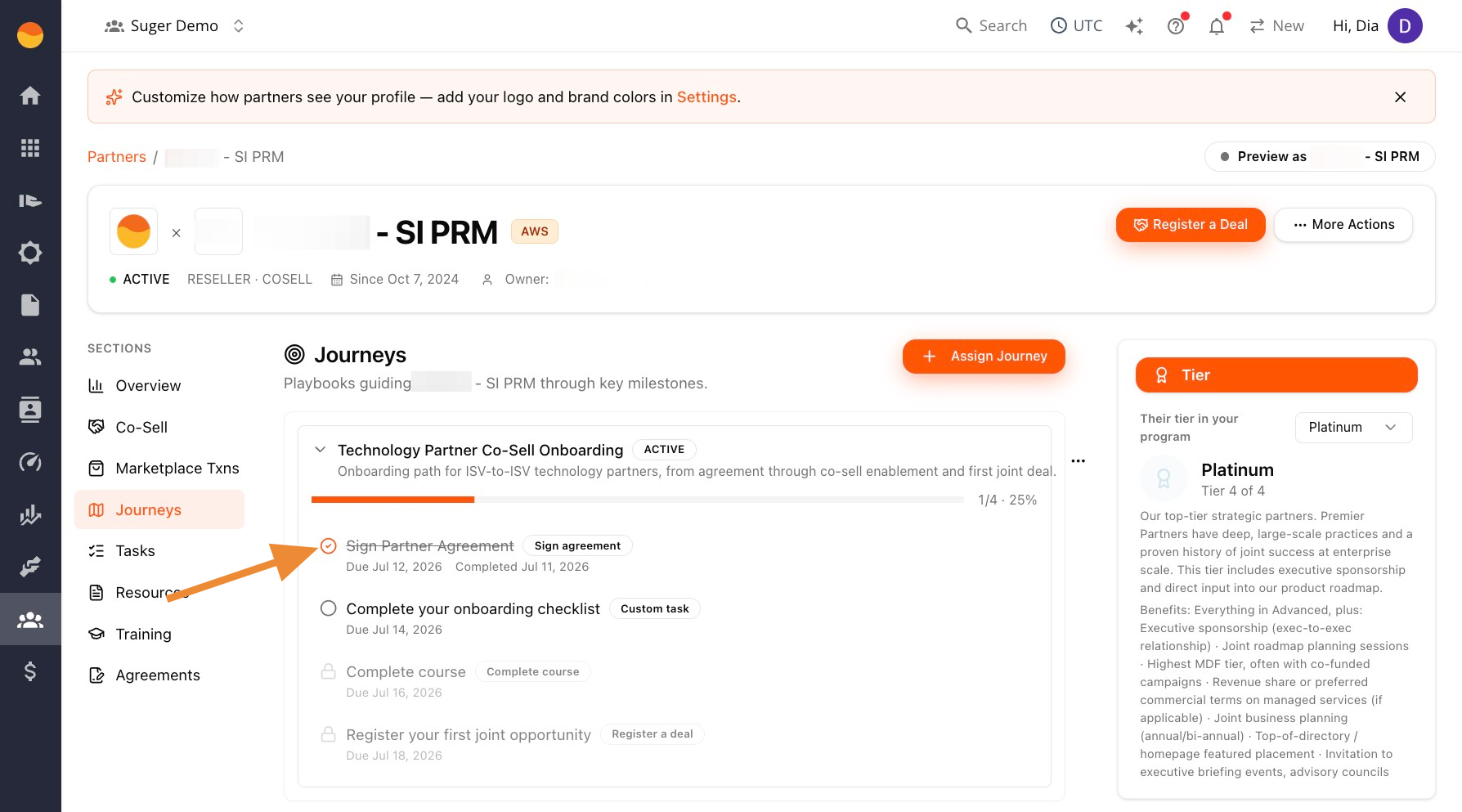
- Go to Fours Console, then Partners.
- Click Journeys, then the partner’s name to open their journey card.
- Click the checkbox next to a step to mark it done.
Complete Custom Task Steps Linked to a Task
Steps linked to a task stay locked until the linked task itself is marked Completed.
- Go to Partners, then Tasks.
- Complete the task assigned to you.
- Return to the partner’s Journey card. The step’s checkbox is now clickable.
- Click the checkbox to mark the step done.
Manage a Partner’s Journey
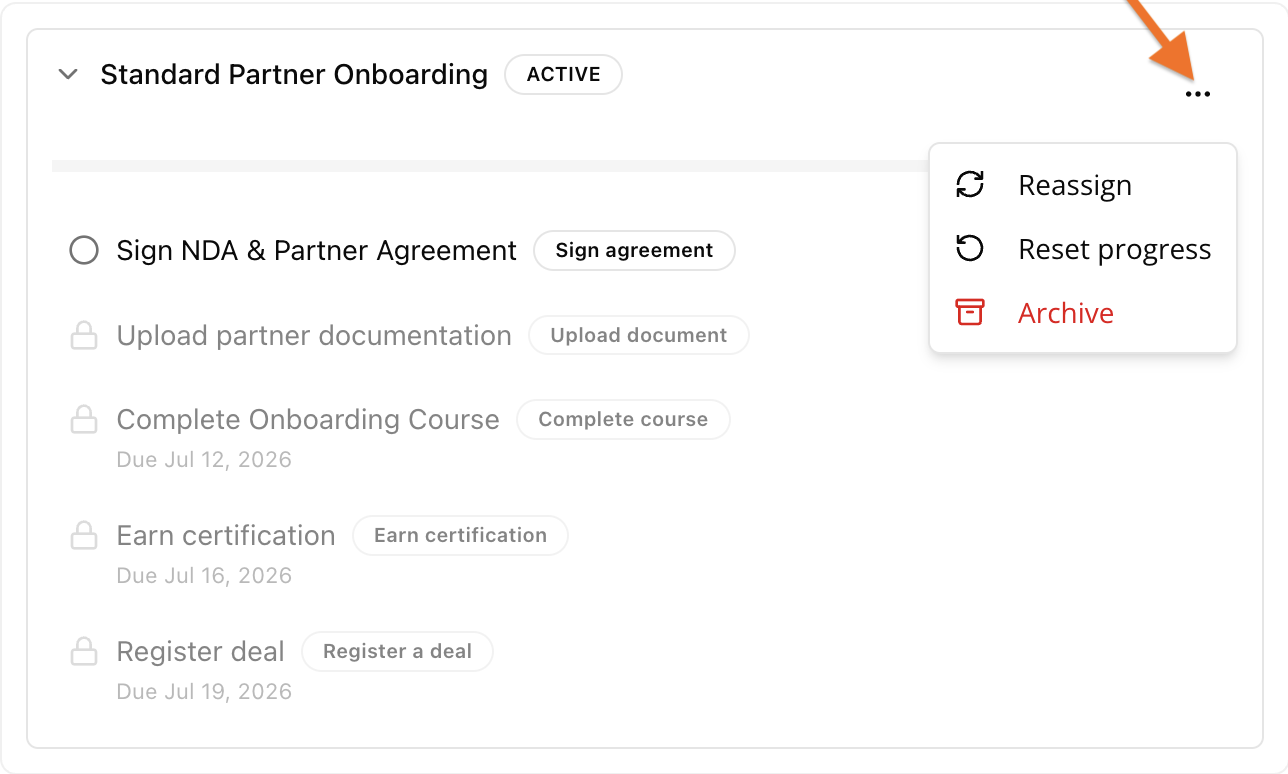
Go to Fours Console → Partners → Journeys → partner’s name, then click the … menu on the journey card. Use the option that matches what you need:
| If you need to… | Use | What it does |
|---|---|---|
| Start the journey over from the beginning | Reset progress | Clears all completed steps and returns the journey to its starting point. All steps become unchecked again. |
| Remove a completed journey from your active view | Archive | Permanently archives the journey. You can still view archived journeys later by filtering Status → Archived. |
| Apply changes you made to the journey template after it was assigned | Reassign | Updates the partner’s journey assignment to reflect the latest version of the template. |
Check Journey Progress
Check Progress Across All Partners
Go to Fours Console → Partners → Journeys for a single view of every partner’s journey assignments. What you check depends on what you’re trying to find out:
- Who needs my attention today? Start with the summary line above the table (for example “3 active · 0 completed · 0 stalled”), then filter All statuses down to
Stalled, since that’s who’s actually behind rather than just in progress. - How is one journey type performing across everyone? Use the All templates filter to isolate it, then scan the Progress column for that group.
- Where does one specific partner stand? Use the search box, Search by partner or journey name, rather than scrolling, especially once your partner list grows. It matches a journey’s name as well as the partner’s.
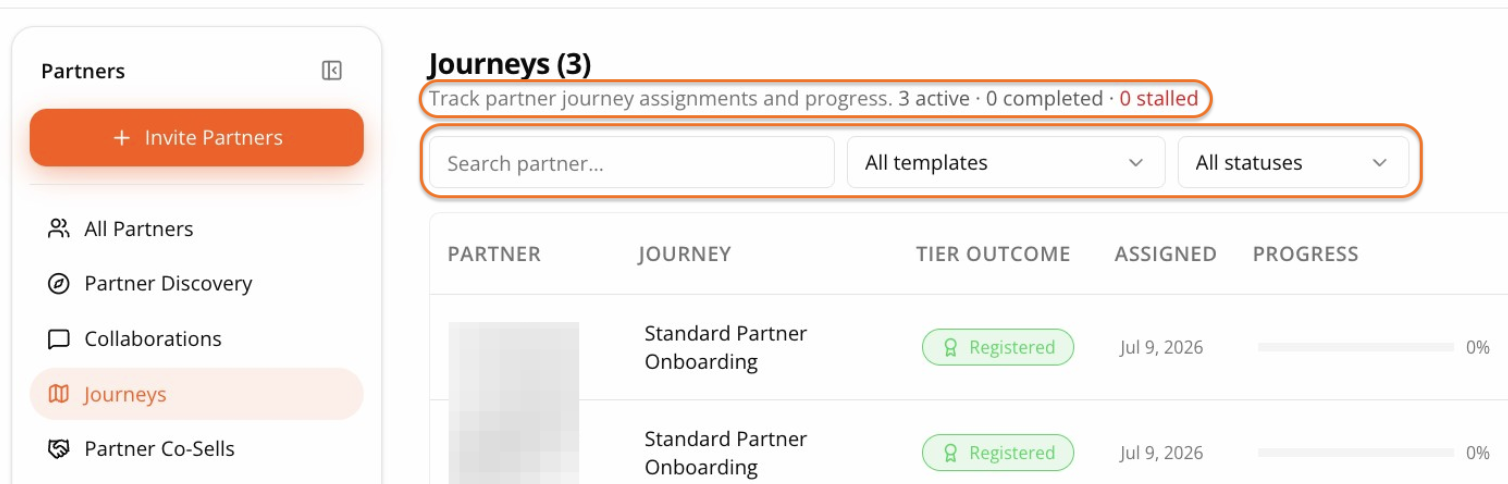
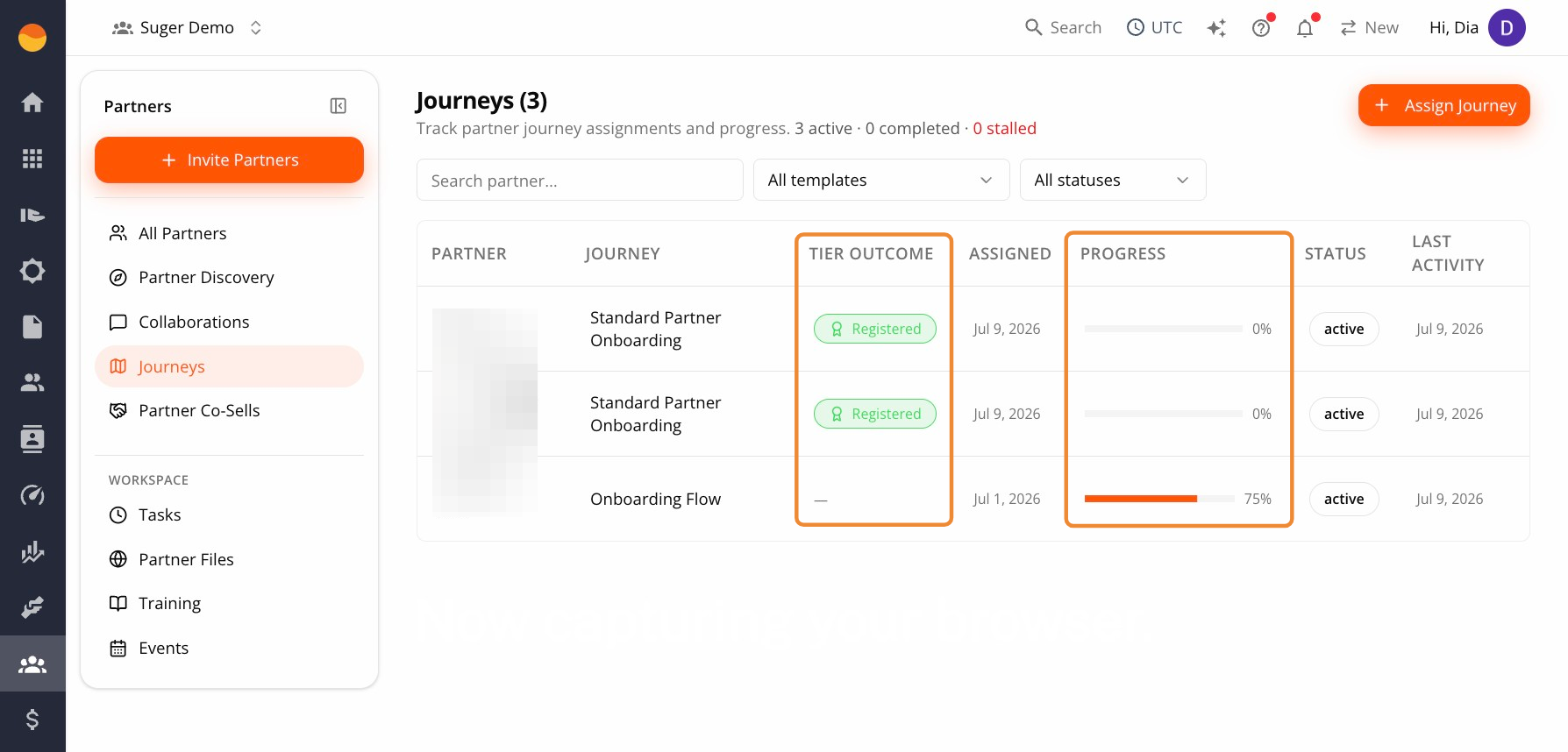
Two columns are worth knowing regardless of what you’re looking for:
- Progress shows a bar and percentage for that row’s journey.
- Tier Outcome shows which tier completing this journey will promote the partner into. A dash means this journey isn’t tied to a tier. See Partner Tiers for how tiers are set up.
Check a Partner’s Progress in Detail
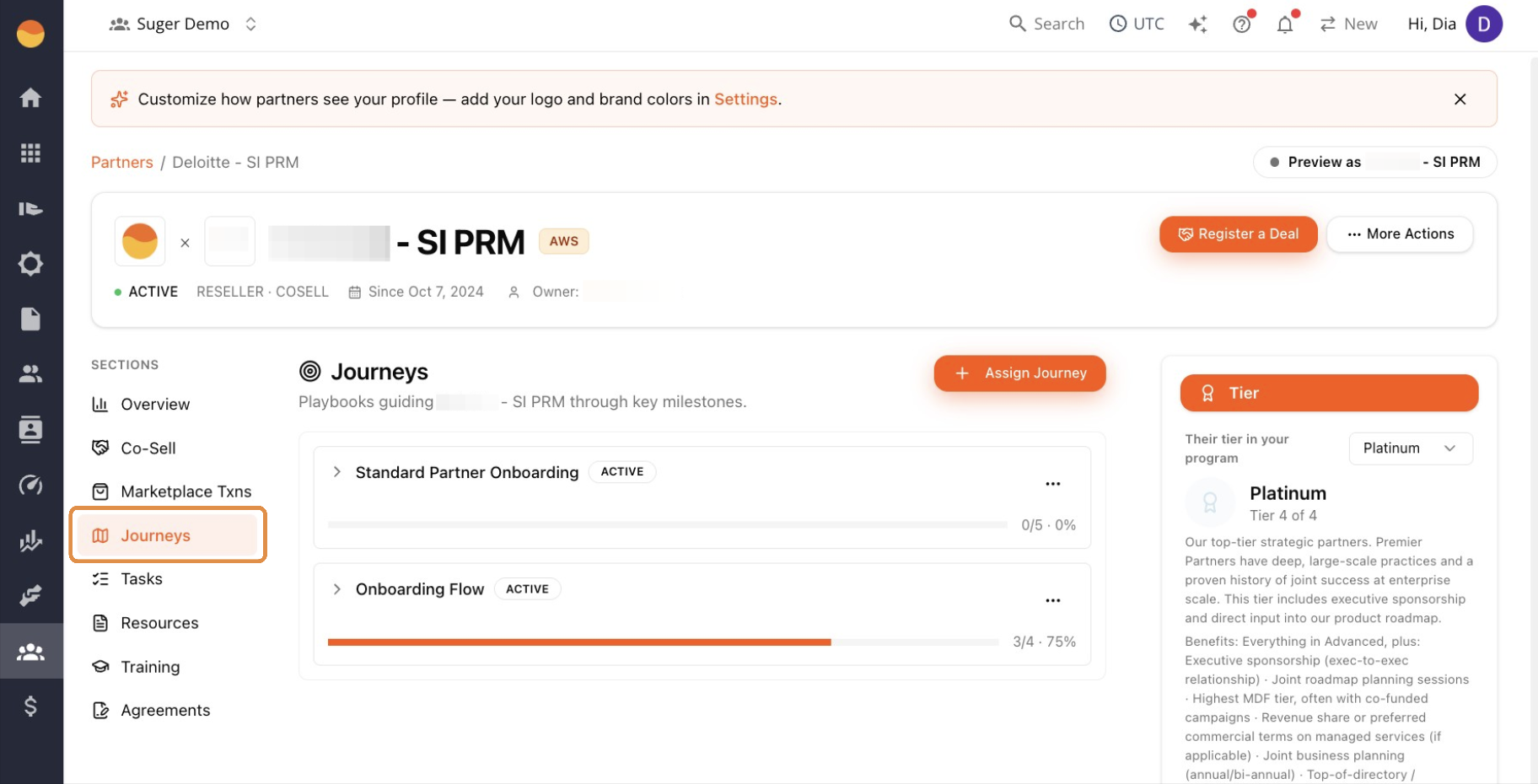
Go to Fours Console → Partners → Journeys → partner’s name. If the partner has more than one journey assigned, each shows as its own card, stacked on the page.
Read the Progress Strip
A partner’s active journey also appears as a strip on their record, condensed to what you usually want:
- Which journey, and whose — a You assigned or Assigned to you badge, then {Partner}‘s Journey (or Your Journey on the receiving side) and the template’s name.
- Where it’s going — an unlocks · {tier} marker when the journey promotes the partner on completion.
- How far along —
40% · Step 3 of 5, with a progress bar under it. - Who it’s on, and what for — Waiting on partner or Waiting on you, followed by the title of the step being waited on and its due date when it has one. That’s the difference between a stalled journey and one where the ball is simply in their court.
A View journey action opens the full journey from there.

When a Journey Finishes
A completed journey doesn’t vanish quietly. For 14 days after completion, the partner’s record shows a celebration line in place of the active-journey strip — “{Partner} completed a journey” on your side, “Journey complete” on theirs — naming the journey and, when the journey had a tier outcome, the tier they reached.
After 14 days the line clears on its own and the space goes back to whatever is active. Nothing is lost: the completed assignment stays in the Journeys list with the status Completed.
Spotted something wrong or out of date on this page? Tell us and we'll correct it.