Share and Monitor Partner Training Courses
Publishing a course doesn’t automatically make it visible to partners. Before anyone can enroll, choose which partner organizations can access it, then track their progress as they complete the training.
Overview
Sharing and monitoring a course happens in two stages:
- Share the course with the right partner organizations so learners can discover and enroll.
- Monitor progress as learners work through the course and see who has earned a certificate.
Share a Course with Partners
- Open the course:
- Go to Fours Console, then Partners.
- Click Training, then My Courses.
- Open the course you want to share.
- Set sharing:
-
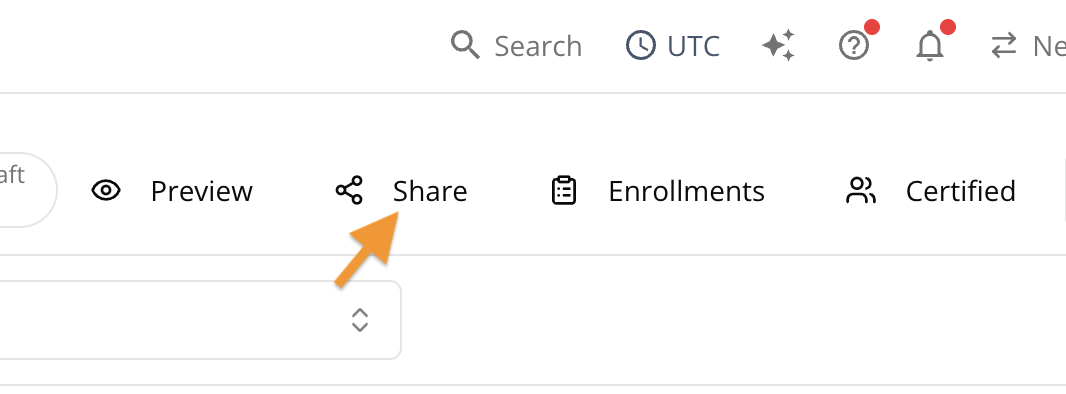
Click Share in the top toolbar.
-
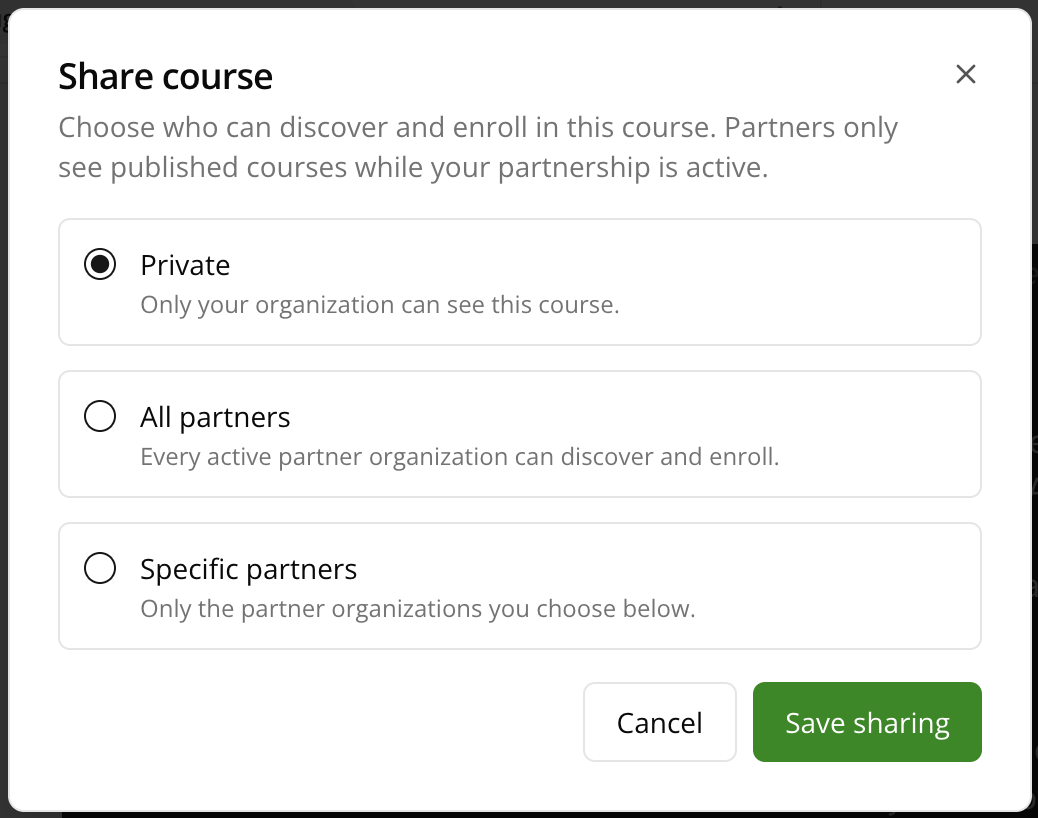
Choose how you want to share it:
- Private: Only your organization can see this course.
- All partners: Every active partner organization can discover and enroll.
- Specific partners: Only the partner organizations you select. Use Search partners to find and add them.
-
Click Save sharing.
-
You Can Only Share With Active Partners
Specific partners accepts active partner organizations only. Inactive, suggested, and pending organizations are refused — an organization you invited but that hasn’t accepted yet can’t be given a course.
Sharing is all or nothing: if one organization in your selection isn’t an active partner, the whole save is refused rather than going through for the others. Fours names the organizations it rejected, so remove those and save again.
Assign a Course to Your Own Team
Courses shared with you can be pushed to your colleagues rather than waiting for them to find it.
- Open the course and click Assign to team.
- Search the member list and tick everyone who should take it.
- Click Assign.
Re-assigning is safe — people already enrolled are skipped rather than reset.
Monitor Course Progress
Get a Quick Overview Across All Courses
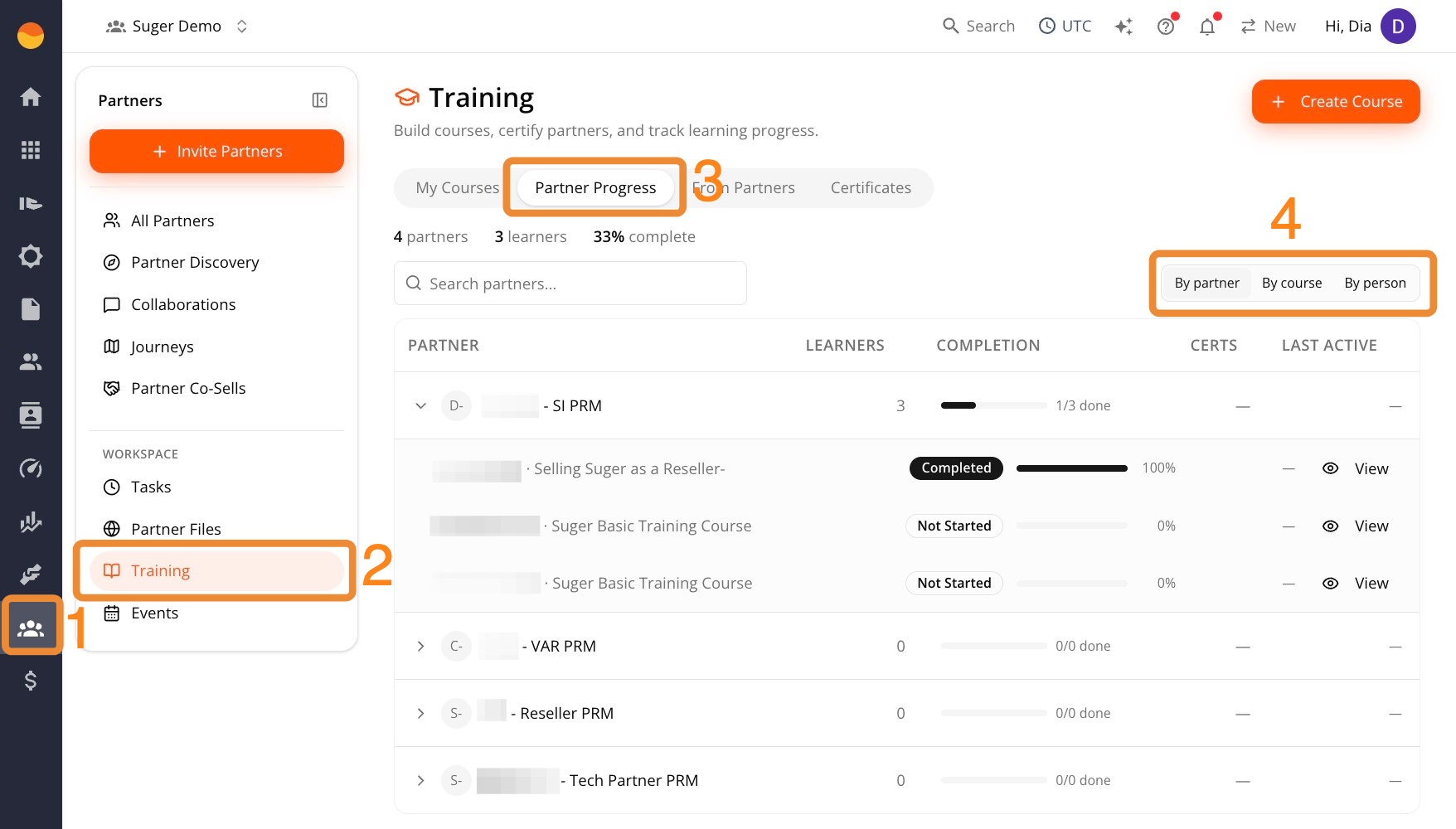
- Go to Fours Console, then Partners.
- Click Training, then go to the Partner Progress tab.
- Switch between By partner, By course, or By person.
Each learner shows a progress bar and status: Not Started, In Progress, Completed, or Failed — or, on a course hosted in your own LMS, Opened (see the note below).
Above the table, four tiles sum up your whole program. They count partner learners only; your own team’s enrollments are left out.
| Tile | What it counts |
|---|---|
| Partners training | Partners with at least one enrollment. |
| Enrollments | Partner enrollments across your published courses. |
| Completions | Those enrollments that are finished, with the share of all enrollments they make up. |
| Published courses | Your published courses, noting when they include external-LMS courses. |
If you publish external-LMS courses and completion sync is off, a warning under the tiles reads Completions from your external LMS are not being read back. Until you turn it on, those courses count zero completions here, whether or not learners have finished them. The warning’s Set up completion sync link opens Partners → Settings → Training / LMS.
Check Detail for One Course
- Go to Fours Console, then Partners.
- Click Training.
- Open the course from the My Courses tab.
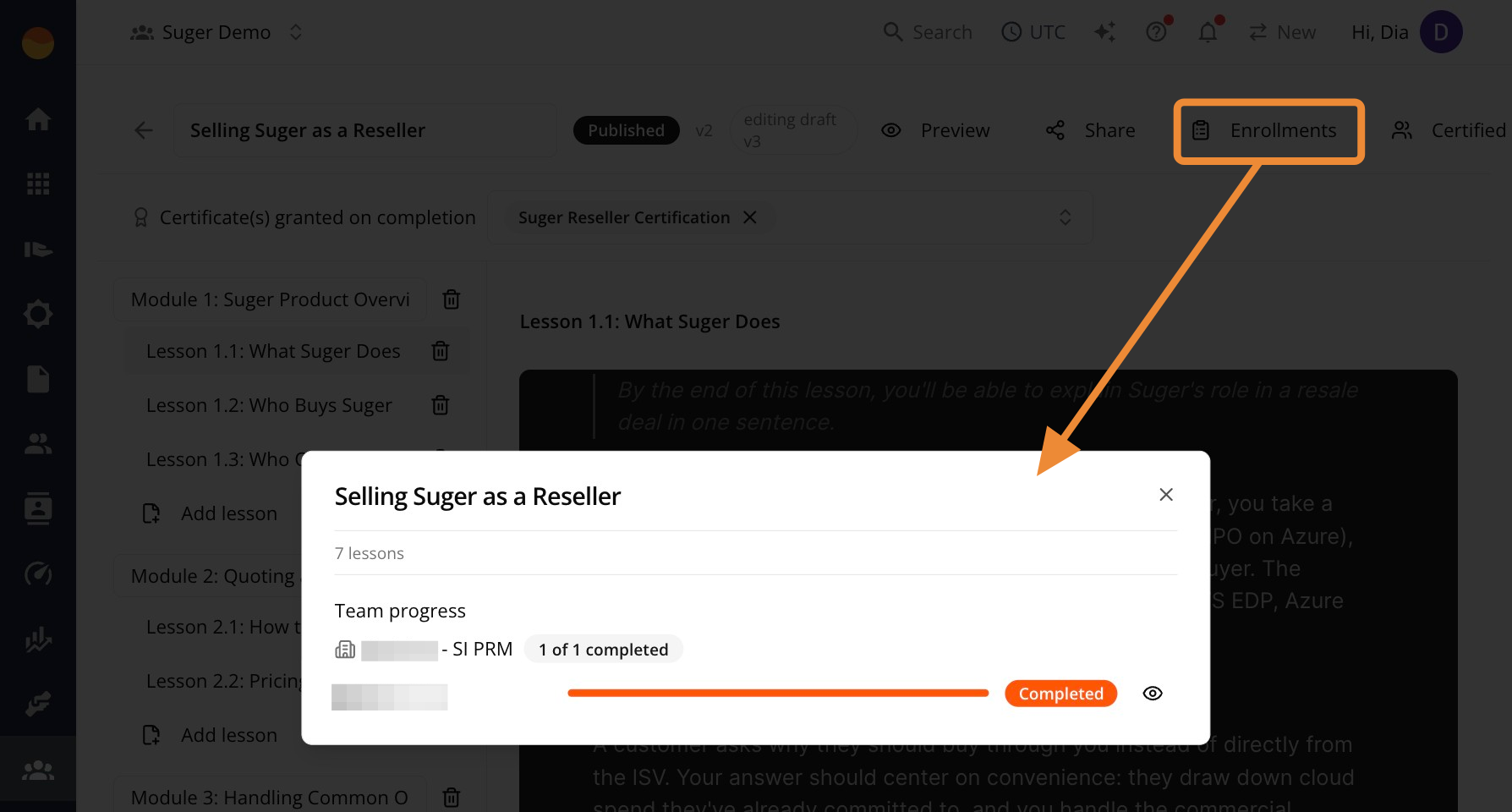
- Click Enrollments in the top toolbar.
- Review Team progress, grouped by partner organization.
Each learner shows a progress bar and status (Completed, In progress, or Not started).
Spotted something wrong or out of date on this page? Tell us and we'll correct it.