Set Your File Sharing Defaults
Define who can access each file category by default, so every new file you upload to Partner Files starts with the right sharing setting automatically.
Overview
File Sharing Defaults let you configure sharing once per file category instead of choosing a setting for every upload. When someone adds a new file to Partner Files, the file inherits the default sharing setting for its category.
Set a Default per Category
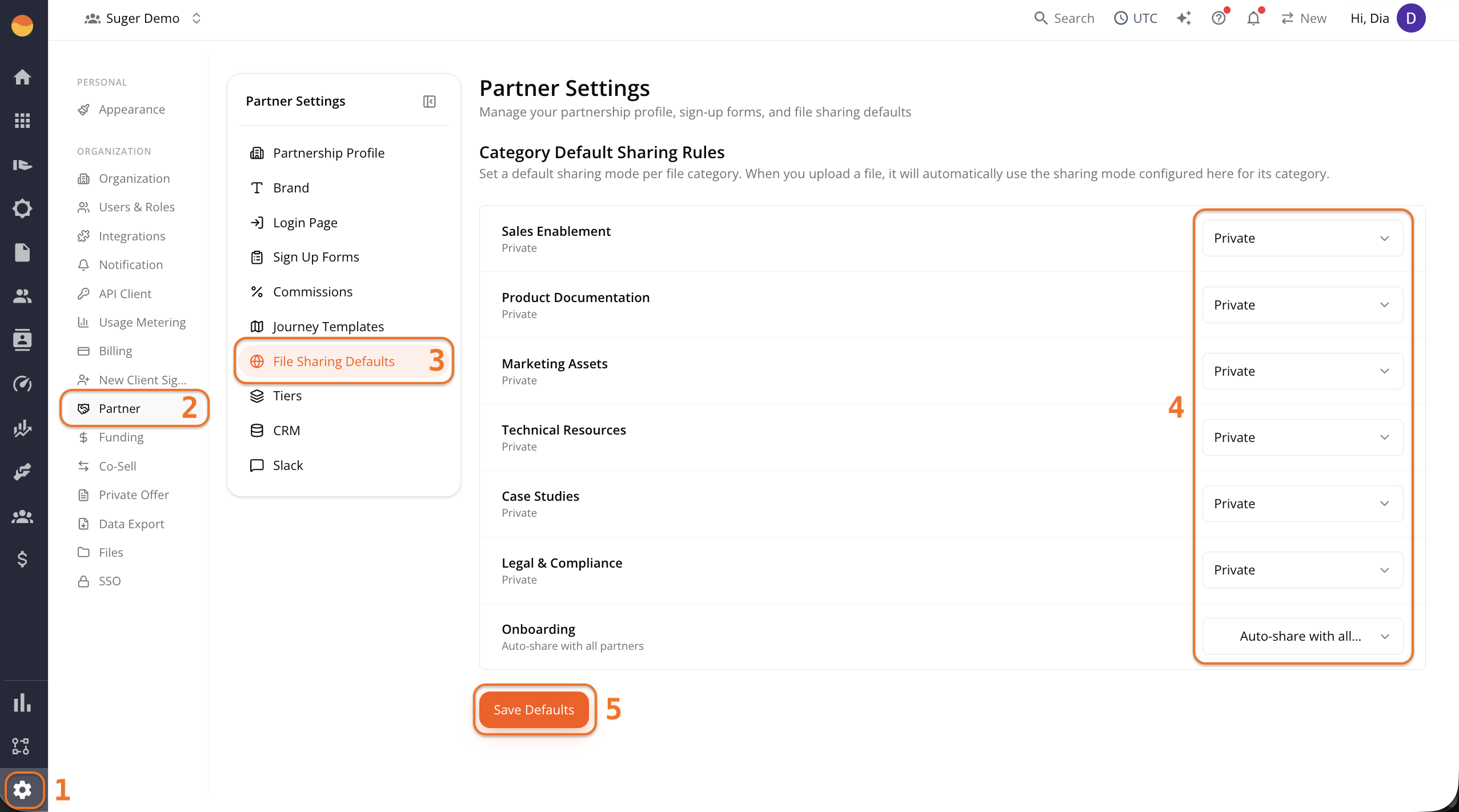
- Go to Fours Console, then Partners.
- Click Settings at the bottom of the rail, then File Sharing Defaults.
- Click the dropdown next to the category name. It shows the current setting, for example “Private”.
- Choose one of the three options:
- Private — Only your team can see files in this category. Nothing is shared with partners by default.
- Auto-share with all partners — Files in this category are automatically visible to your entire partner network the moment they’re uploaded.
- Share with specific partners — Files aren’t shared broadly. You choose which individual partners get access.
- Repeat for each category you want to change.
- Once you’ve updated everything, click Save Defaults.
How Defaults Apply When You Upload a File
Once your defaults are configured, every new upload follows the same flow:
- Select a Category for the file.
- The Sharing field automatically pre-fills with that category’s default setting.
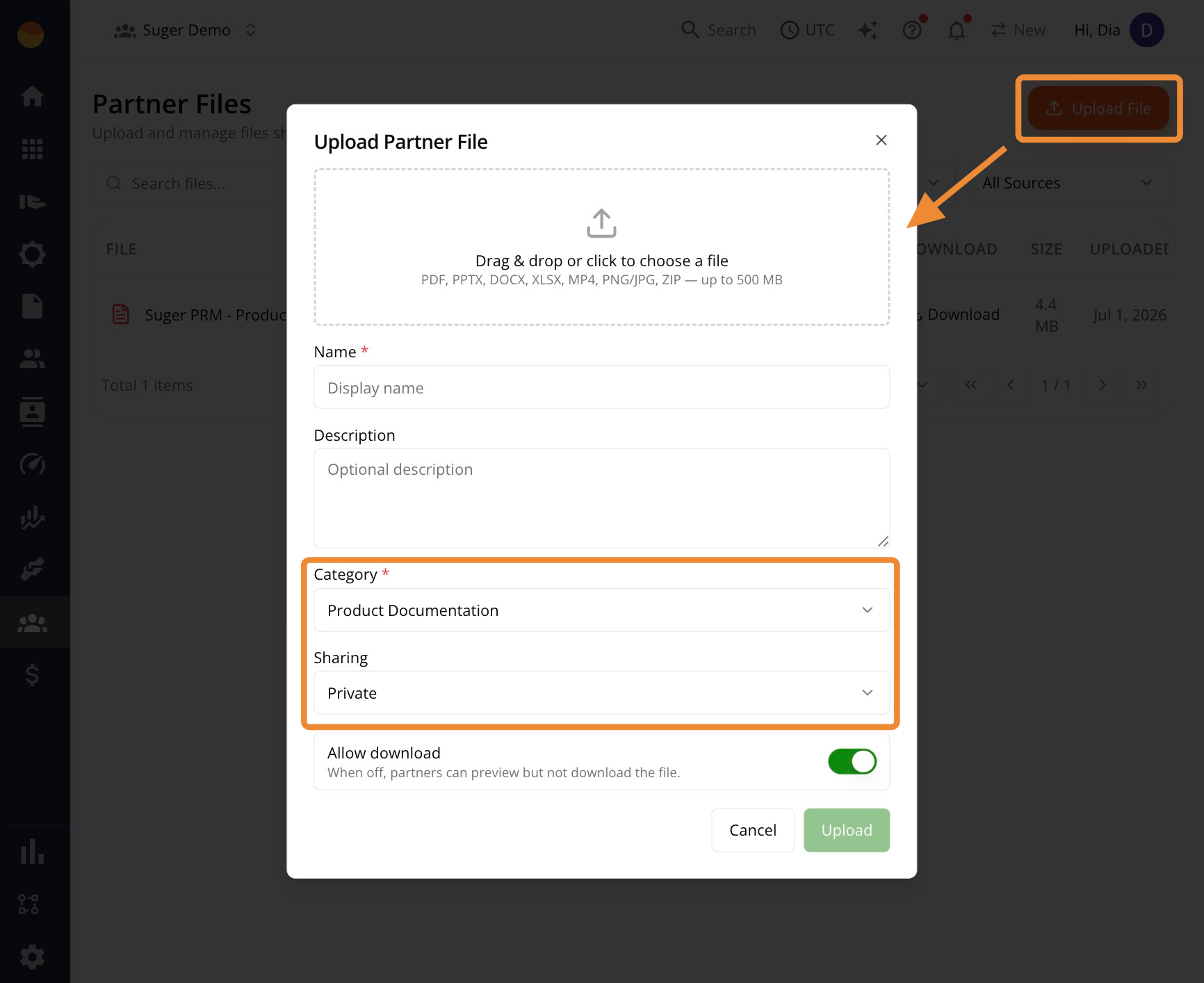
- If needed, change the sharing setting for that individual file before saving.
Who Can Change a Shared File
Sharing grants read and download only. The organization that uploaded a file keeps control of it for its whole life.
| Action | Owning organization | Organization the file is shared with |
|---|---|---|
| View and download | Yes | Yes |
| Rename | Yes | No |
| Change who it’s shared with | Yes | No |
| Delete | Yes | No |
The Actions kebab menu on a row still shows Edit and Delete to everyone who can see the file. On a file you don’t own, choosing either one is refused by Fours and nothing changes — the check runs on the server, not in the table.
Who You Can Share With
You can only share a file with an organization that is an active partner of yours.
- Inactive, suggested, and pending partners are rejected.
- The partnership counts in either direction, so the partner does not need a matching partnership record of their own.
- A partner company that isn’t a Fours organization has no organization to address, so it can’t be named as a share target.
Sharing is all or nothing. If you select several organizations and one of them isn’t an active partner, the whole share is refused rather than going through for the rest — Fours names the organizations it rejected so you can remove them and try again.
Spotted something wrong or out of date on this page? Tell us and we'll correct it.