Create Co-Sell
Submit a co-sell referral to AWS, Azure, GCP, or a Fours partner directly from a HubSpot deal using the Fours App.
Overview
A co-sell referral is how you formally ask AWS, Azure, or GCP to work with you on a deal. When you submit a referral, the cloud provider’s sales team can see the opportunity and engage to help you close it — for example, by introducing you to the right contacts, validating the opportunity, or contributing resources.
In plain terms, you’re sharing a deal with your cloud partner so they can help you win it. The same button also shares a deal with a Fours partner — a partner connected to you through Partner Management — so a referral can go to a channel partner rather than a cloud. After adding the Fours App to your HubSpot Console, you can create all of these straight from a deal.
For more details, see Co-Sell.
Prerequisites
The Fours App must be set up in HubSpot and the Fours app card must be visible on your deal pages. If you haven’t done that yet, see Set up the Fours App in HubSpot.
Create a Co-Sell
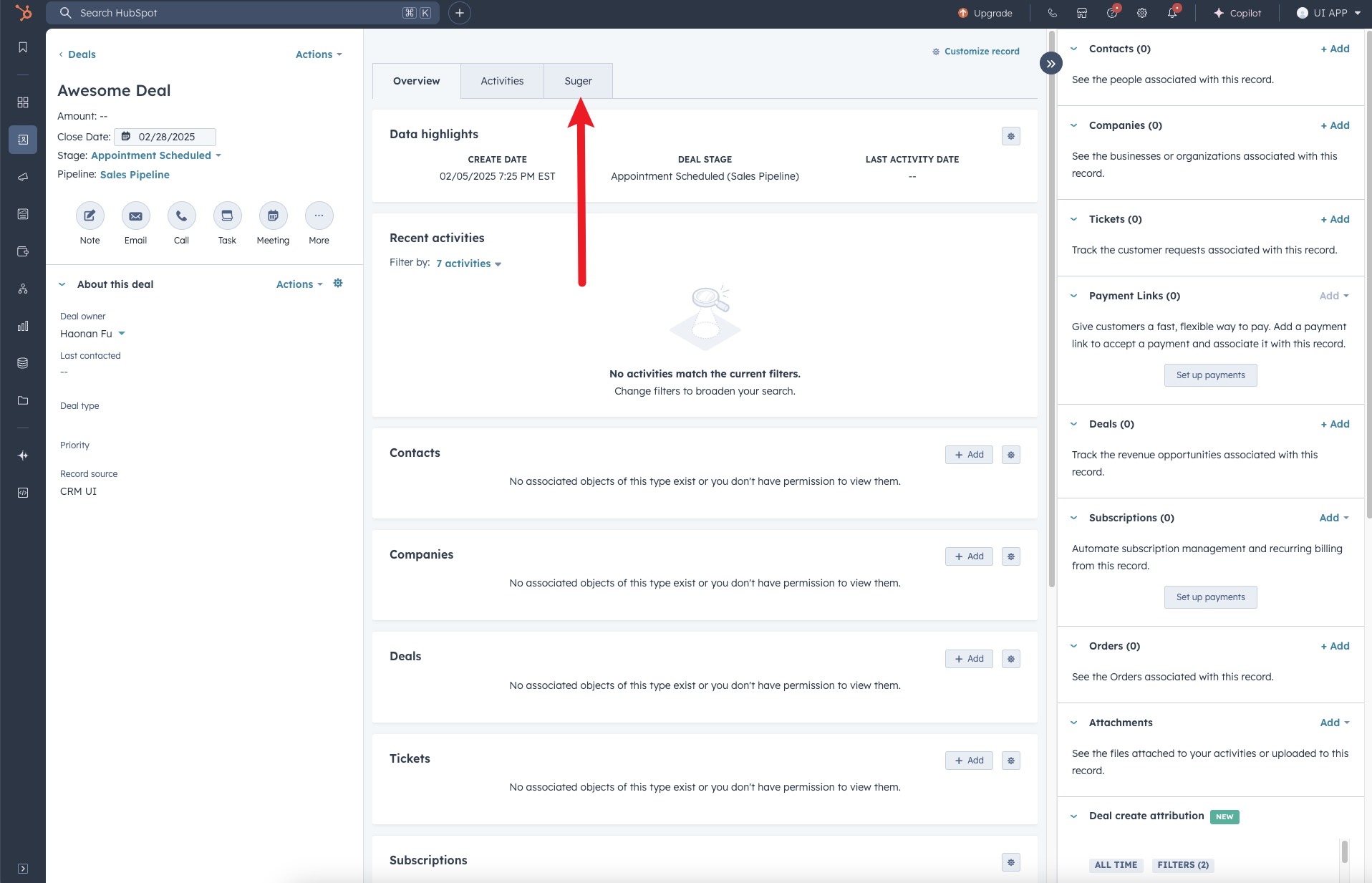
- Navigate to the deal’s detail page and click the “Suger” tab at the top of the page.
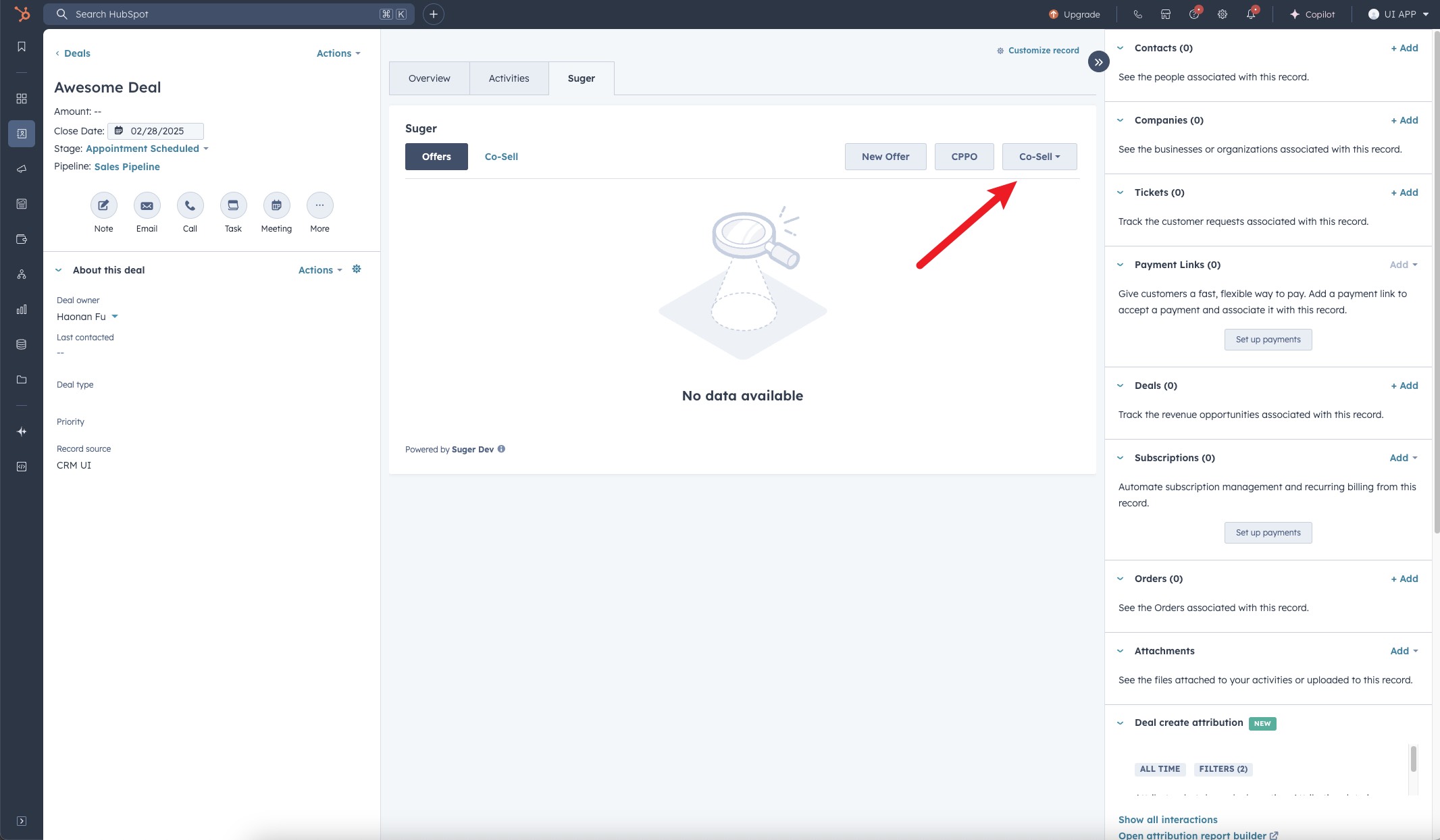
- Locate and click the “Co-Sell” button.
- Choose the destination you want to submit the referral to. There are up to four: AWS, AZURE, GCP, and Partner — a partner connected to you through Fours.
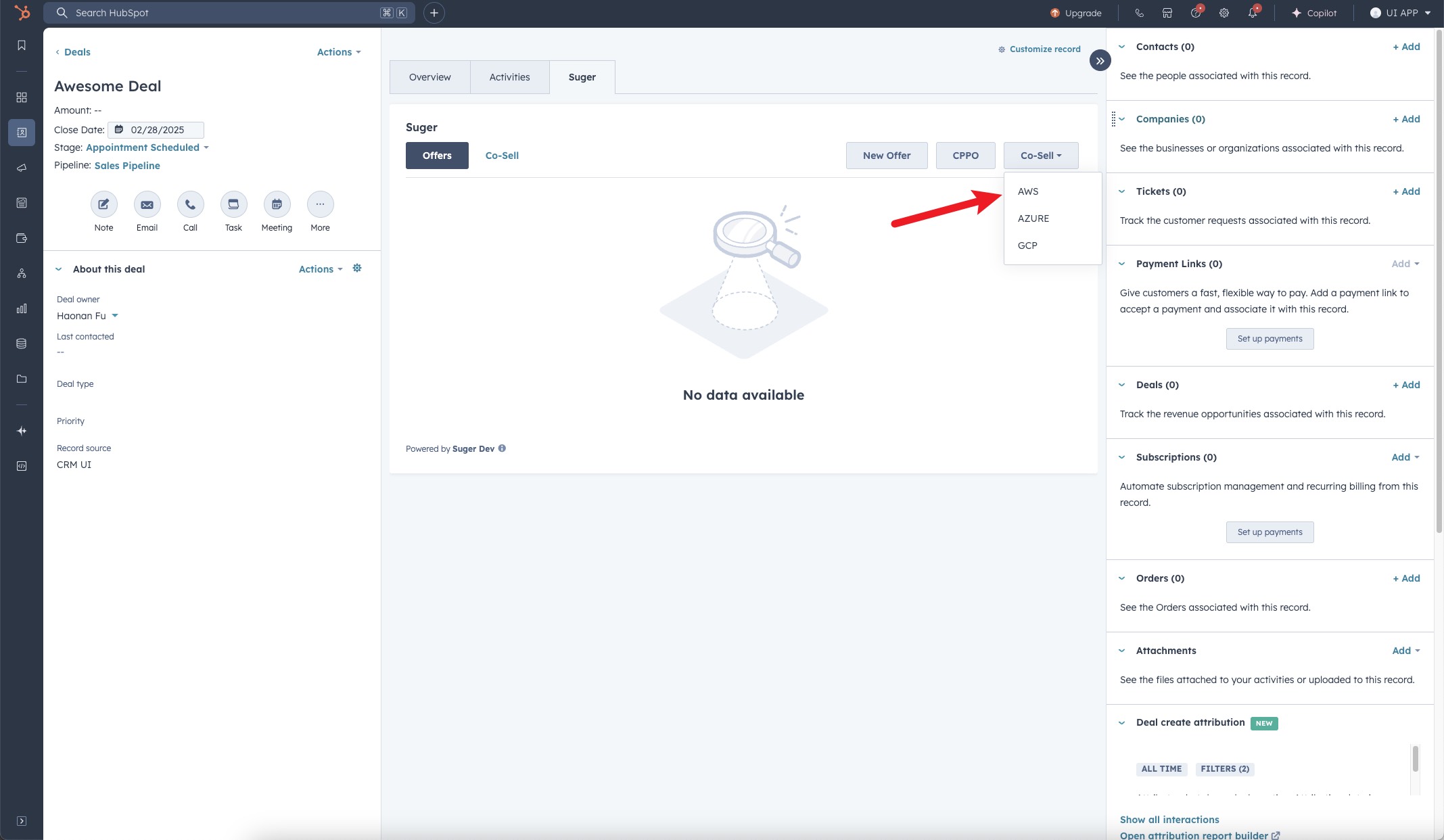
The button adapts to what your organization has connected:
- More than one destination — the button reads Co-Sell and opens a dropdown listing each one.
- Exactly one destination — there is no dropdown. The single entry renders as a plain Co-Sell button that opens that destination’s form directly.
- No destinations — the button does not appear at all.
If your AWS connection still uses the legacy AWS S3 API, choosing AWS opens an AWS S3 API Deprecated notice instead of the referral form: “The AWS S3 API is no longer supported. Please contact your administrator to upgrade to the new AWS ACE API.” Ask your administrator to upgrade to the AWS ACE API — the referral form is not available until they do.
- Complete the required fields in the form. Note that the required fields may vary depending on which cloud partner you selected.
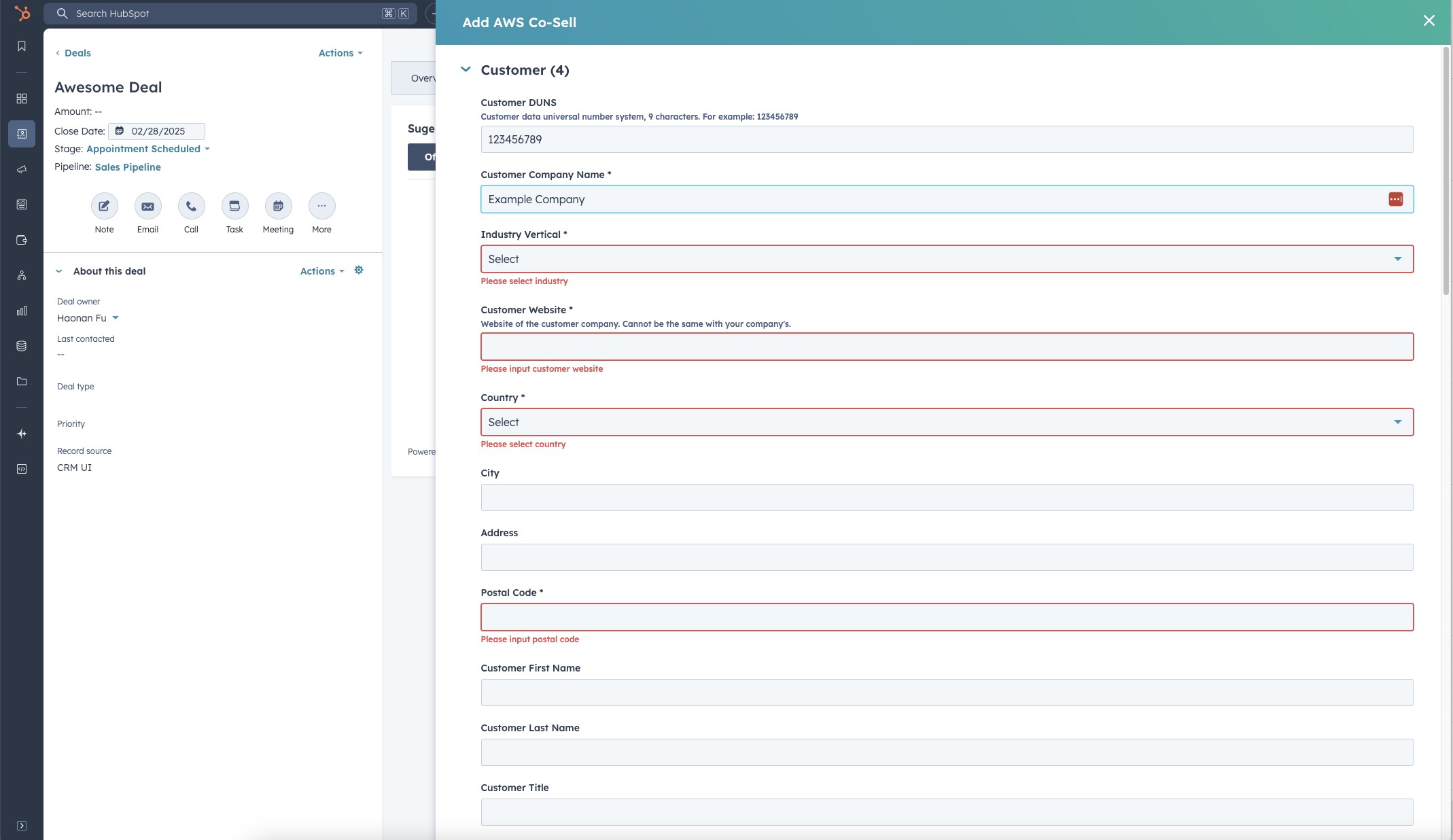
- Once all necessary information is filled in, submit the form to create the Co-Sell.
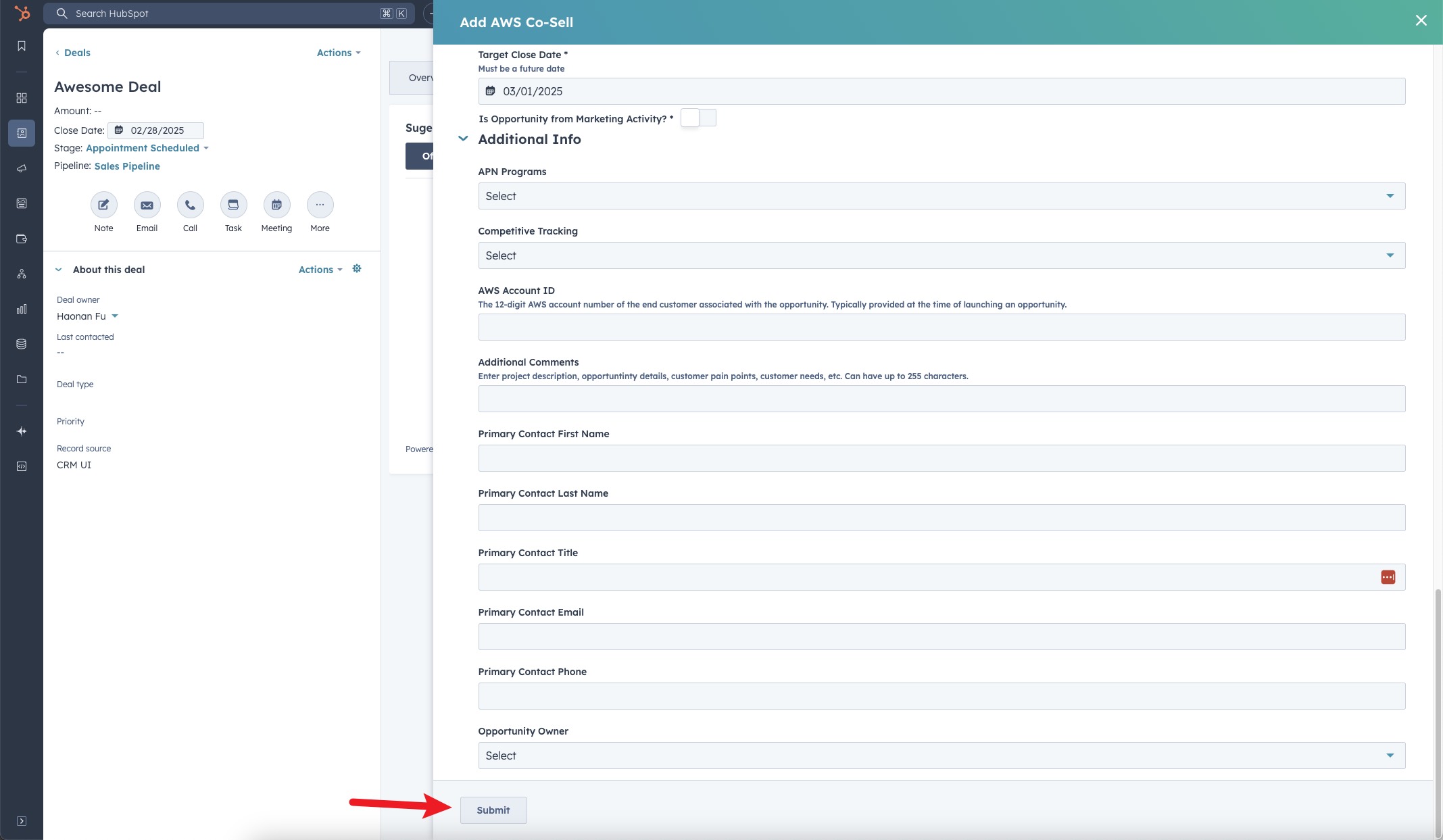
- You are all set!
AWS: contacts on the referral form
The AWS ACE referral form’s Contact details accordion holds one customer contact and two partner contacts, each under its own labels so it is clear who is who:
| On the form | Who goes here |
|---|---|
| Customer name, Customer title and Customer contact details | The person at the customer this opportunity is with |
| Partner Opportunity Owner, with its Contact details | The person on your side who owns the opportunity |
| Partner Account Manager, with its Contact details | An optional second person on your side |
Three behaviours worth knowing:
- The customer contact comes from one deal contact. On a new referral, your co-sell field mapping fills the customer fields from one of the deal’s contacts, picked so that a reseller’s contact is not sent as the customer’s. Which deal contact becomes the customer contact explains which contact is used and why the fields can come up empty. Editing or re-submitting a referral keeps the contact it was saved with. The Azure and GCP forms pick the customer contact the same way.
- Blank partner contacts are dropped. If you leave a partner contact section empty, it is not sent to AWS — you do not have to fill in the account manager just to submit.
- Partner contacts are read-only when editing. Once a referral exists, you can edit the rest of it, but the partner contacts are fixed.
On the referral detail, contacts are presented as two separate cards — Cloud Contacts (AWS) for the people AWS has assigned, and ISV Contacts for yours — so it is clear at a glance which side owns which name.
AWS: predicted quality score
Before you submit, the Share Opportunity with AWS and Re-submit AWS Opportunity panels show a Predicted AWS Opportunity Quality box above the form: Fours’ estimate of how AWS will score the opportunity, so you can improve it first. It is not shown on Edit AWS Opportunity — once the opportunity is in ACE, AWS’s own score applies.
- The score reads N / 100 with its band, a meter, and a one-line verdict.
- The breakdown lists each scoring dimension with the points earned out of the points it carries, marked ✓ (full credit), – (partial) or ✗ (none).
- What to change — Suggested improvements (n) lists the edits that would raise the score; an entry can name the field it concerns and the points it would add. When the opportunity misses a basic requirement, an alert reads AWS will likely score this opportunity 0, and the list is titled Fix these to clear a 0 (n) instead.
The box scores the opportunity when the panel opens, and again about three seconds after you change the contacts or make a substantial edit to the customer business problem or the next steps. Re-analyze scores it on demand. With no business problem it reads Add a customer business problem to get a predicted score. and Re-analyze is disabled; after other edits it may read Content changed. Click Re-analyze to refresh the score.
This is a different number from the Suger Predicted Engagement Score on the Insights tab, which is Fours’ prediction for the customer’s company rather than for this opportunity — see Engagement score on the Insights tab. For how the score and its bands are read, see AWS Opportunity Quality Score.
Azure: solution area and play
The Azure referral form has a Solution Area/Play section. Pick the solution area first, then the play underneath it; the second dropdown’s placeholder is Conversation, and in field mapping the same field is labelled Solution Play/Conversation.
The solution areas are Microsoft’s FY27 set:
| Solution area |
|---|
| AI Business Solutions |
| Cloud and AI Platforms |
| Microsoft Services |
| Security |
| Windows and Devices |
Azure: company lookup and team members
The Microsoft company lookup runs on its own. When the Azure form opens with a valid customer address, Fours searches Microsoft for the matching company automatically — you no longer need to click Search. If the address is incomplete, fix it and use the Search button as before.
Adding team members. The Azure form’s Add Team Member modal takes four fields: First Name, Last Name, Email, and Phone Number.
Share a deal with a Fours partner
Beyond the three clouds, you can share a deal with a partner connected to you through Fours — the same partnership network you manage in Partner Management. It is a fourth destination on the Co-Sell button, not a separate tab or button.
Step 1 — pick the partner
Choosing Partner opens the Share Co-Sell with Partner panel. It explains what is about to happen: “Choose a partner connected via Suger. The selected partner will receive an inbound copy of this co-sell.”
- Start typing in the Partner field. Its placeholder is “Search by name or domain”, so either works.
- If there are more matches than the list shows, a hint reads ”+{n} more — keep typing to narrow the list.” Keep typing until your partner appears.
- Select the partner and click Continue.
Step 2 — complete the form
The second step is the co-sell form itself, organized into accordions:
| Accordion | What you enter |
|---|---|
| Customer & Opportunity | The customer company name, website, industry, and country, plus the opportunity type |
| Deal Details | Deal name, target close date, the customer’s business problem, delivery model, and the deal value |
| Revenue Share | Commission type, revenue share model, payment trigger, and clawback window. Shown only when you are the seller |
| Partner Collaboration | What you need from the partner on this deal |
| Team | Your people on the deal. Use Add Team Member to add a row and Remove to drop one |
The footer has two buttons: Back to return to the partner picker, and Share Co-Sell to submit.
Two things about this form catch people out:
- The deal role is not editable. Whether you are the Seller or the Referrer on this co-sell is derived from your partnership relationship type with that partner — you cannot change it on the form. It also drives what you see: the Revenue Share accordion only appears for the Seller, and for the Referrer the deal-value field is labelled Estimated Deal Value rather than Deal Value.
- The customer business problem has a minimum length. It must be at least 20 characters, so a one-word answer will not submit.
Option lists used on this form:
| Field | Options |
|---|---|
| Revenue Share Model | % of Final Transaction, Fixed Amount, To Be Defined |
| Deal value visibility | Show deal value, Hide deal value |
After you share
Partner co-sells appear in the same Co-Sell table as your cloud referrals, with Partner identifying the destination. Opening one shows the Partner Co-Sell modal with the details as shared: Overview, Customer, Deal, Revenue Share, and Team.
The modal is no longer read-only. It now carries the same three surfaces the Fours Console has:
Activity
An Activity tab holds the conversation on the co-sell — messages grouped into threads, each with its author. Posting is scoped: a message can be internal to your side, or visible to everyone on the co-sell. Use it instead of a side email thread, so the discussion stays attached to the deal both parties are looking at.
Add Partner
A co-sell is created with exactly one partner. The create API takes a single partner by contract, so Partner 1 is fixed when you share the deal — every additional partner joins afterwards, through the Add Partner dialog on this modal.
Revenue-share terms for the partner you add prefill from that partner’s own commission setting: their custom plan when they have one, your standard defaults otherwise.
Commission
A Commission section on the modal pre-populates from the HubSpot deal rather than asking you to retype figures that already exist on the record.
Track referrals on the Co-Sell tab
The Co-Sell tab lists every referral raised from this deal, cloud and partner alike:
| Column | What it shows |
|---|---|
| Name | The opportunity name. Click it to open the referral’s detail modal |
| ID | The referral identifier |
| Partner | Where it was submitted — AWS, Azure, GCP, or a Fours partner |
| Direction | Whether the referral is outbound (you shared it) or inbound (it was shared with you) |
| Status | Where the referral stands with that partner |
| Create Date | When the referral was created |
| Last Activity Date | When it last changed |
Failed updates are flagged on the row. If an AWS referral is in UPDATE_FAILED, an error badge appears next to its name. Hover it and the tooltip shows the raw failure message returned by AWS, which is usually enough to tell you which field to correct before resubmitting.
Engagement score on the Insights tab
The deal’s Insights tab — and the Co-sell Insights card on company records — groups the customer’s co-sell signals by cloud, in blocks headed AWS Co-sell Signals, Azure Co-sell Signals and GCP Co-sell Signals.
Each block leads with Suger Predicted Engagement Score. It is Fours’ prediction for the customer’s company, not a score a cloud gave a specific referral:
- On a deal, it is still the company’s score. The tab shows the score for the deal’s associated company and no longer swaps in the engagement score from the deal’s AWS referral.
- No score, no row. When Fours has no score for the customer on a cloud, the row is left out rather than shown empty.
How the score is worked out, and how it differs from a partner’s own score on a referral, is covered in Engagement Score. Fours can also write it into a HubSpot property through CRM Enrichment — see What intelligence signals can Fours write into HubSpot?
What happens next
After you submit the referral:
- Fours creates the referral and links it to the HubSpot deal.
- The referral is sent to the cloud partner’s system — for example, AWS Partner Central (ACE), Azure Partner Center, or Google Cloud Partner Network. If you shared it with a Fours partner instead, that partner receives an inbound copy of the co-sell.
- The cloud partner reviews the referral and may accept, reject, or request more information.
- Any future updates Fours syncs from your HubSpot deal are automatically reflected on the referral — you do not need to manually push updates to the cloud partner.
- The referral is also visible in the Fours Console on the Co-Sell page under Cloud Partners, which lists your AWS, Azure and GCP referrals and the co-sells you share with Fours partners.
Troubleshooting common issues
| Issue | Possible cause | Resolution |
|---|---|---|
| No Suger tab visible on the deal page | The Fours app card has not been added to the deal layout | Set up the Fours App in HubSpot to add the app card |
| No Co-Sell button visible inside the Suger panel | The HubSpot integration connection has been disrupted | Go to Fours Console → Settings → Integrations → HubSpot and click Verify to re-verify the connection |
| Only one or two destinations appear in the selector | Your Fours account may not have co-sell configured for all clouds | Contact your Fours admin to confirm which cloud partners are enabled for co-sell. With exactly one destination there is no dropdown at all — a single Co-Sell button is the expected behaviour |
| Partner is missing from the selector | Your organization has no connected Fours partners | The Partner destination only appears once a partnership exists. See Partner Management |
| Choosing AWS opens an “AWS S3 API Deprecated” notice | The AWS connection still uses the legacy AWS S3 API | Ask your administrator to upgrade the integration to the AWS ACE API. The referral form is unavailable until then |
| Form fields are blank — not pre-filled from the deal | Field mapping has not been configured | Field mapping is an optional admin setup. Contact your admin to configure it |
| The customer contact is empty on a new referral, while other fields are pre-filled | The deal has two or more companies and none of its contacts belongs to the primary company, or the deal has no contacts | See Which deal contact becomes the customer contact, or type the contact in before you submit |
| Referral was submitted but is not visible on the deal | Sync between Fours and HubSpot is delayed | Refresh the page after a few minutes. If it still doesn’t appear, confirm the referral was created in the Fours Console |
Frequently Asked Questions (FAQs)
-
Q: What’s the difference between a co-sell referral and a private offer?
A: A co-sell referral shares your deal with the cloud provider’s partner team so they can help you close it. A private offer is a custom-priced contract you send directly to a buyer. They serve different purposes — co-sell is about getting the cloud partner involved in the deal; a private offer is the actual transaction.
-
Q: Can I submit a referral to more than one cloud partner for the same deal?
A: Yes. You can submit separate co-sell referrals to AWS, Azure, and GCP from the same HubSpot deal — just click Co-Sell again and select a different partner.
-
Q: Do I need to manually update the referral every time the deal changes in HubSpot?
A: No. Fours automatically syncs changes from your HubSpot deal to the referral. If you update mapped fields on the deal, those changes flow through to the cloud partner automatically.
-
Q: Will the co-sell referral show up in the Fours Console too?
A: Yes. Any referral created from HubSpot is also visible in the Fours Console on the Co-Sell page under Cloud Partners, including co-sells shared with a Fours partner.
Spotted something wrong or out of date on this page? Tell us and we'll correct it.