Finance, Billing, and Tax
A guide to help your finance team navigate revenue, disbursements, notifications, and tax on AWS Marketplace using the Fours Console.
Overview
This guide helps your finance team use the Fours platform effectively. It covers the key console pages for tracking revenue, how to set up event notifications, and essential information about AWS billing, disbursements, and taxes.
For convenience, you can grant finance team members Viewer access to the console. For more on user roles, see the Account and organization roles documentation.
Inside the Fours Console
Entitlement
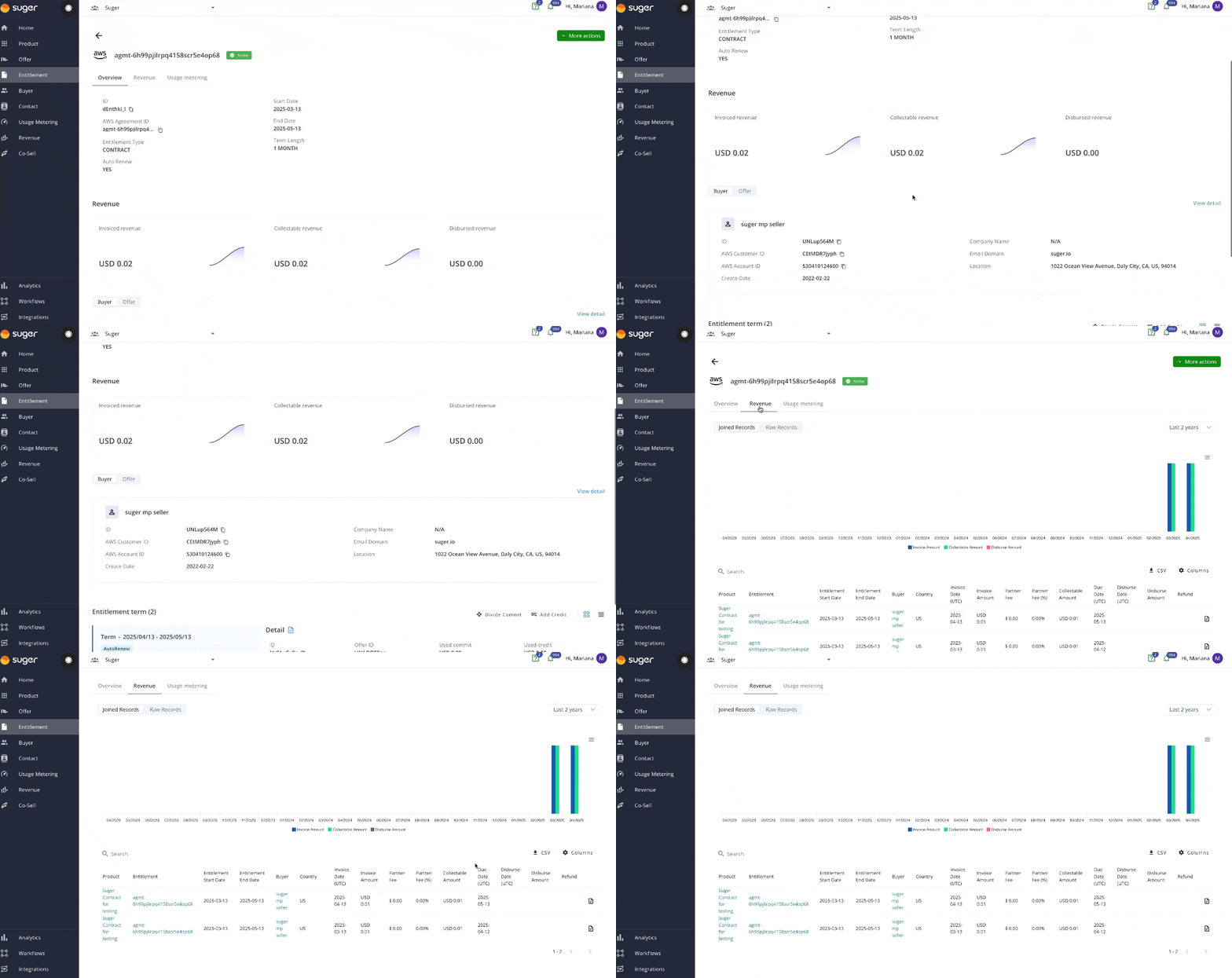
The Entitlement page provides a detailed view of contract-specific data. Here’s what you can access:
Overview:
- Agreement ID
- Entitlement Type
- Auto Renew
- Start Date and End Date
- Term Length
Buyer Information:
- Account ID
- Company Name
- Email Domain
- Location
Revenue Details:
- Entitlement Terms
- Invoice Date
- Invoice Amount
- Partner Fee
- Collectable Amount
- Due Date
- Disburse Date
- Disburse Amount
- Refund
Revenue
Revenue in the main navigation opens the Revenue workspace, which reports your AWS Marketplace revenue alongside your other channels. Its sections sit in the page’s rail, in three groups:
- Operations — Overview, Revenue Records, Invoices, Cash & Disbursements, Bank Reconciliation, and Revenue Recognition.
- Analytics — SaaS Metrics, Channel Performance, and Financial Reports.
- Settings — Configuration.
See Revenue for what each section shows.
Analytics
The Analytics page provides advanced insights into your financial data. Explore detailed metrics and trends to make informed decisions. Learn more in the Analytics documentation.
Event Notifications
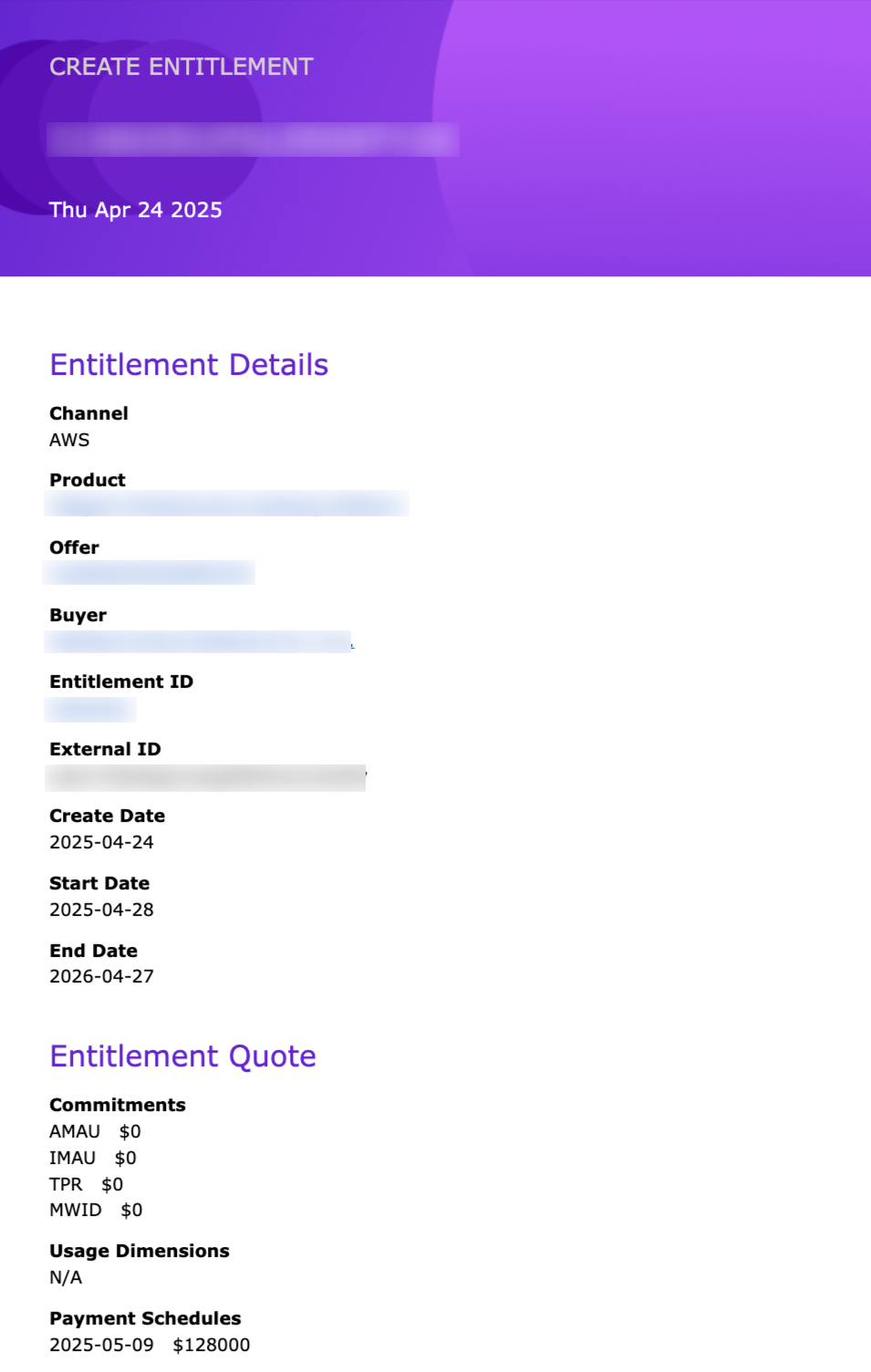
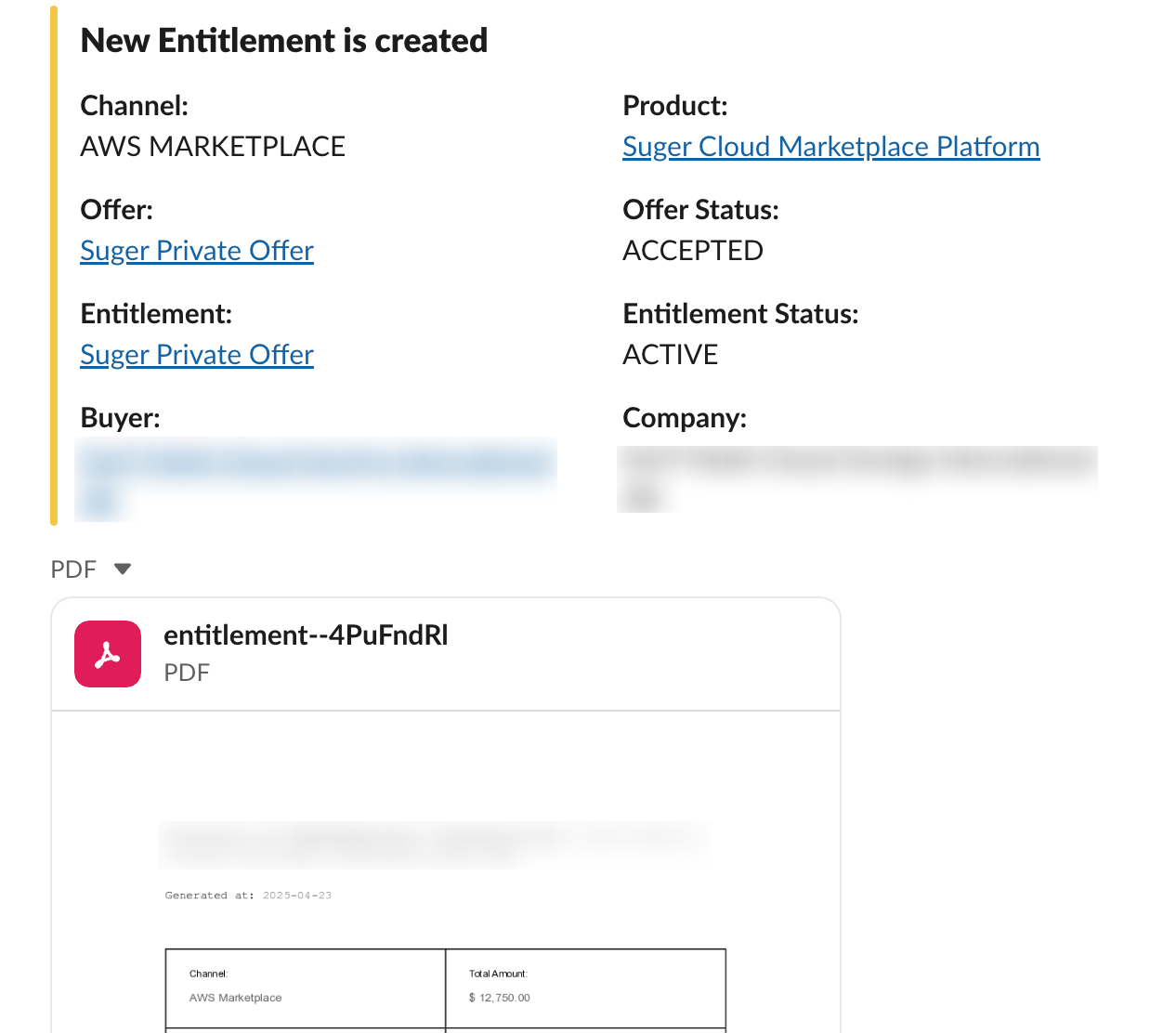
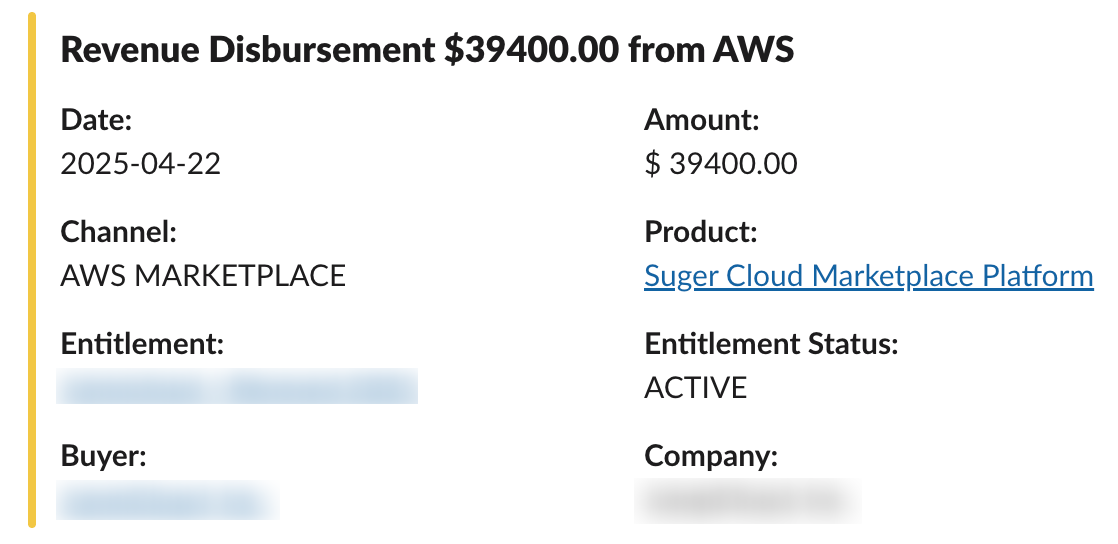
You can configure email and Slack notifications to keep the finance team informed about key events. Examples include:
- Entitlement creation
- New disbursements from AWS
To set up notifications, see:
Example of an email notification:
Examples of Slack notifications:
Flow of Events
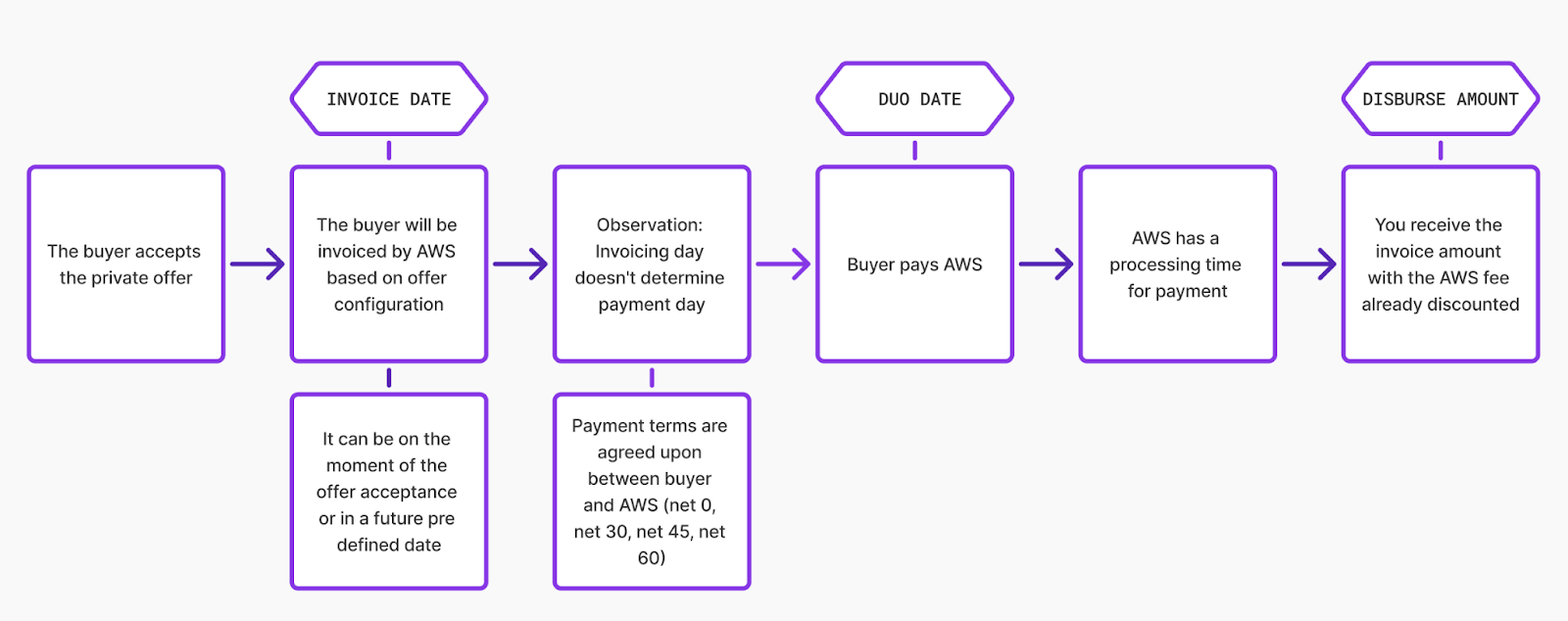
The flowchart below shows how a contract moves from acceptance through invoicing, buyer payment, and disbursement:
Tax Information
Fours does not handle tax calculations. For official AWS tax information, see AWS Tax Help.
Whether you need to charge and remit taxes separately depends on the buyer’s country. Where AWS is responsible for collecting and remitting the tax, as in the USA, AWS handles it for you; elsewhere, or for some transaction types, the seller or buyer settles it. The AWS Marketplace Sellers Tax Grid lists the treatment per country and transaction type. See AWS Marketplace tax help for sellers for details on product types, supported countries, and the process.
Additional AWS Resources
These AWS resources can help your finance team understand the underlying processes:
FAQ
Who do I receive the payment from?
Payment is always deposited into your registered bank account. To check your registered bank account, visit AWS Marketplace Management Portal Settings > Payment Information.
How much listing/transaction fee does AWS take?
Listing fees depend on the type of listing, the TCV of the offer, and the type of offer. AWS’s Listing and transaction fees document covers the fee structure for all scenarios.
When is the customer billed?
AWS bills the customer in one of three ways:
- Date of subscription acceptance (upfront billing).
- Custom payment schedule (private offers built with the flexible payment scheduler).
- Metered usage, billed on the second and third day of the month for the prior month’s usage.
When will I receive money from AWS?
Each invoice is due on its payment terms: the buyer’s standard AWS terms by default, or, on a private offer, the net terms you set when you create it — Net 15, 30, 45, 60, 90 or 120 days from the invoice date. Once a customer receives the bill, they must pay within the agreed terms. A private offer can override the buyer’s account-level terms with its own Buyer net payment term — Net 15, 30, 45, 60, 90, or 120 days. Longer terms push out the date AWS collects, and therefore the date AWS disburses to you. See Buyer net payment term. Every seller has a disbursement cycle, which you can set up under settings. There are two cycles: daily and monthly. You can receive the money as soon as AWS receives it, or on a specific date every month. To review your settings, visit AWS Marketplace Management Portal Settings > Payment Information > Update Banking Information > Disbursement Preference.
Do I need to charge and remit taxes separately?
This depends on the buyer’s country. Where AWS is responsible for collecting and remitting the tax, as in the USA, AWS handles it; elsewhere, or for some transaction types, the seller or buyer settles it. The AWS Marketplace Sellers Tax Grid lists the treatment per country and transaction type. See AWS Marketplace tax help for sellers for more details.
What should we do if there is a delay in receiving payments from AWS?
Create a ticket with AWS Support using the AWS Marketplace contact page.
How do I process refunds?
Issue a full or partial refund as a billing adjustment from the agreement on the Agreements page in AWS Partner Central, or through the Billing Adjustments API — in Fours, from the entitlement (see Refunds and Cancellations). AWS processes it automatically after validation, without buyer approval. Open an AWS Support case only for a request the Agreements page doesn’t support. A billing adjustment can also reduce the outstanding balance of an invoice the buyer hasn’t paid yet.
Can I invoice a customer in their currency?
You can create a private offer in USD, EUR, GBP, AUD or JPY (and INR if you are an India-based seller) once you set up a disbursement preference for that currency. If you price in USD and the buyer’s account uses another currency, AWS bills the buyer in their own currency, using exchange rates published by Bloomberg every day. See the list of supported currencies. For multi-currency accounts, see Multi Currency.
How can I change the type of disbursement?
-
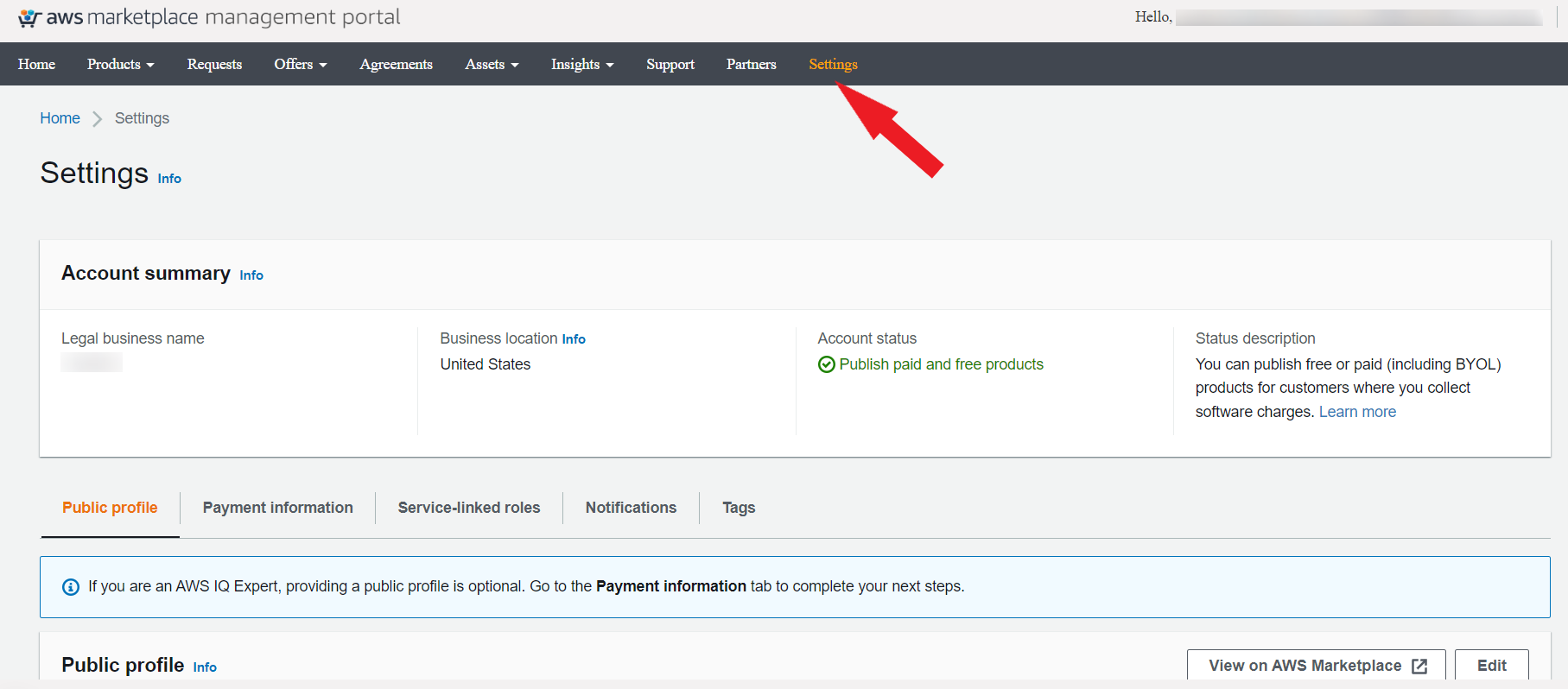
Log in to the AWS Marketplace Management Portal and go to the Settings tab.
-
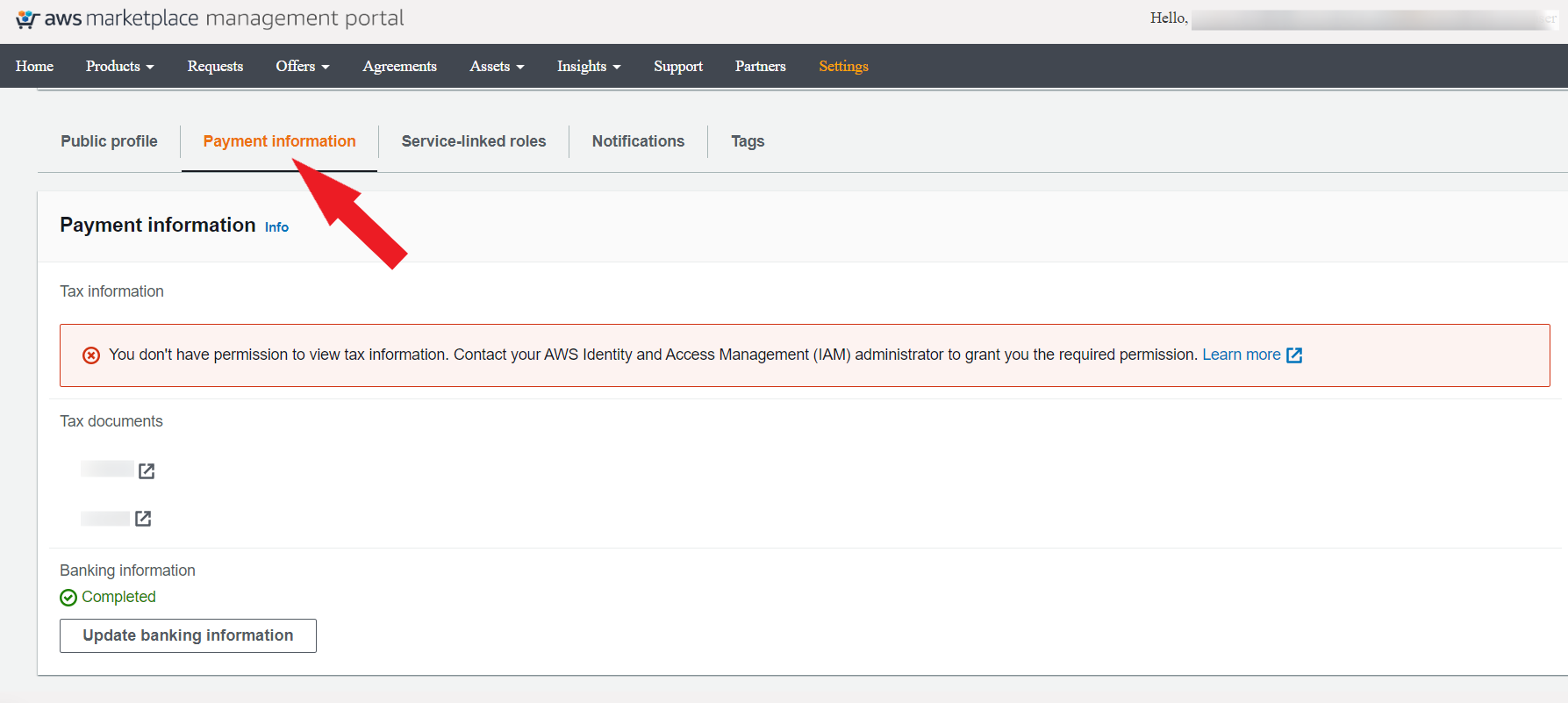
Select the Payment Information tab.
-
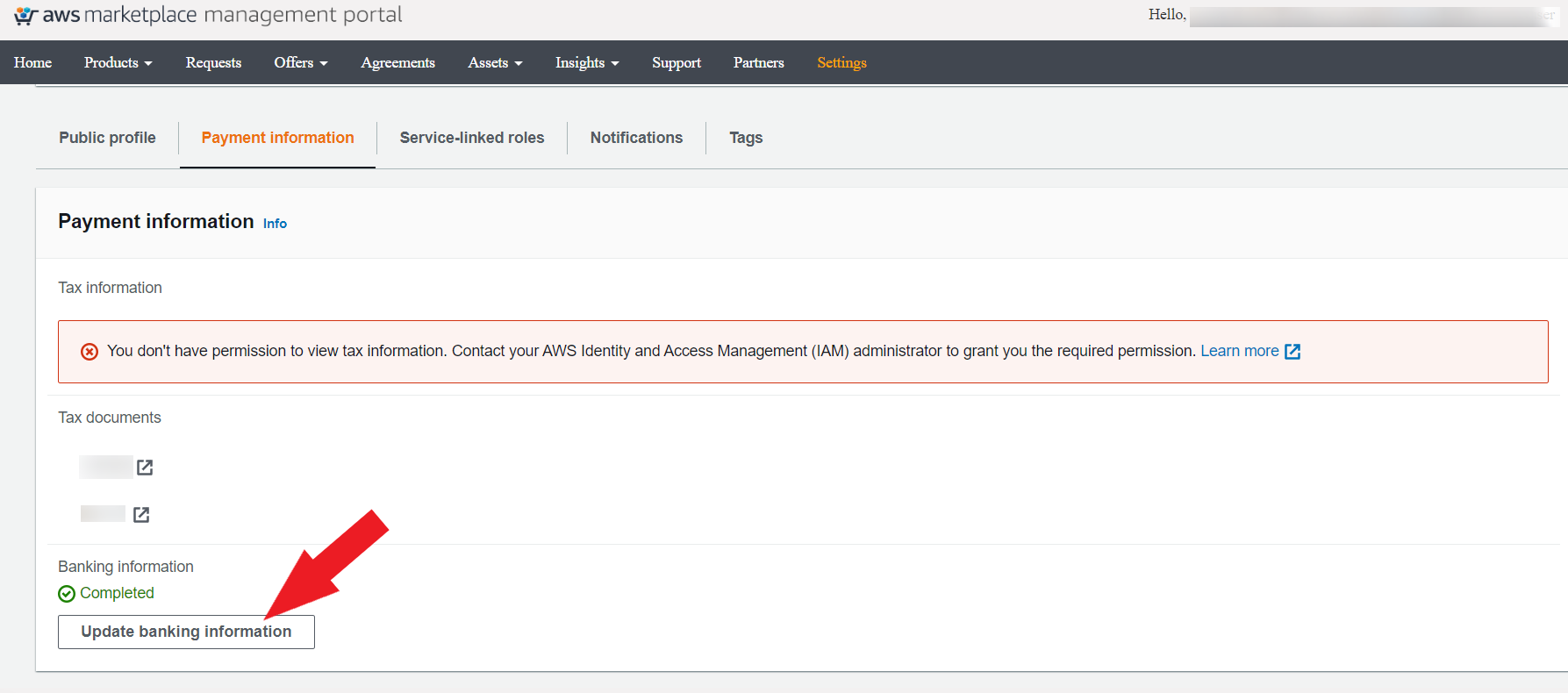
Click Update Banking Information.
-
Scroll down to the Disbursements option and select the desired disbursement option (daily or monthly).
Spotted something wrong or out of date on this page? Tell us and we'll correct it.