Slack
Receive instant Fours notifications and alerts in your Slack workspace, and chat with Fours AI there.
Overview
By connecting with Suger app for Slack in your Slack workspace, you and your team can get instant notifications & alerts as soon as possible if any important sales operations are happening cross your cloud marketplaces. The same installation lets your team chat with Fours AI from Slack — see Chat with Fours AI in Slack.
Org-Level vs User-Level
- Org-Level: One shared workspace installation for the whole organization. Fours posts as the Suger bot, and this is what drives the notification and alert configuration described below, and what lets your team chat with Fours AI in Slack. An administrator connects it once under Settings → Integrations.
- User-Level: You connect Slack as yourself under User Integrations. Fours mints a user token alongside the bot token, so when Fours AI sends a Slack message on your behalf it is posted as you — your name and avatar — rather than as the Suger bot, and when it reads or searches Slack it sees only what you can see. Looking up workspace members still runs on the bot token issued alongside it.
The user-level connection requests these Slack user scopes:
| Scope | What it allows |
|---|---|
chat:write | Post messages as you, in channels and conversations you can already post to. |
channels:read | Look up public channels by name so a destination can be resolved from what you typed. |
groups:read | Look up the private channels you are a member of. |
im:write | Open a direct-message conversation so a message can be sent to a person. |
channels:history | Read messages in public channels. |
groups:history | Read messages in the private channels you are a member of. |
im:history | Read your direct messages. |
mpim:history | Read your group direct messages. |
search:read | Search messages across the conversations you can see. |
A Slack connection keeps the scopes it was granted when you connected. If Fours AI can’t read or search Slack for you, your connection predates those scopes: open your Slack card’s ⋯ menu under User Integrations, choose Details, and click Reconnect to grant them.
Create Integration
In your Fours Console Integration, find the Slack card among your organization’s integrations. Only an administrator can connect it.
- Click Connect on the Slack card, then click Start connection in the Connect Slack dialog. Slack’s authorization page opens in a new window; if you are not yet signed in to your Slack workspace, Slack asks you to sign in first.
- Slack asks you to allow the Suger app for Slack to access your workspace. You must pick a Slack channel (e.g. #suger-alerts), created ahead of time, to receive Fours notifications in. Click the
Allowbutton:

- Back in Fours, the dialog shows Slack is connected. Click Close. The Slack card now shows a green check.
- Optional: to check that messages reach your channel, open the card’s ⋯ menu and click Verify. Your Slack channel receives a verification message from the Suger app.
To see which workspace is connected, open the card’s ⋯ menu and choose Details. The Workspace section reads the workspace live from Slack: its name, its Slack domain, and the account the app is connected as.
Configure Notification
An administrator changes where notifications go: open the Slack card’s ⋯ menu and click Edit. The dialog also shows the Channel your installation posts to by default and the Scope the Suger app holds in your workspace.
When Fours needs a Slack scope your installation was not granted, the Slack card shows an orange alert, and the Edit dialog lists the missing ones under New scopes need to be authorized. To grant them, open the card’s ⋯ menu, choose Details, click Reconnect, and authorize the app again in Slack. Reconnecting keeps your notification settings.
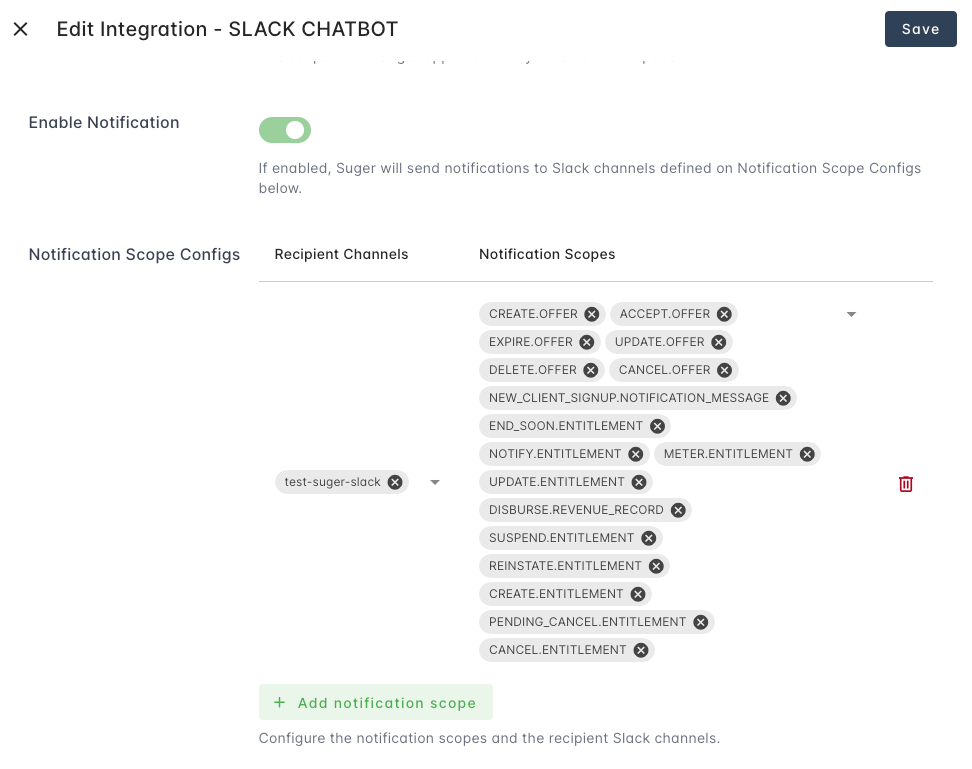
You are allowed to edit the notification configurations below:
-
Enable Notification: Enable or disable the notification in the Slack channel by toggling the switch. Use this master toggle to pause or resume all Slack alerts instantly.
-
Notification Scope Configs: You can configure the notification scopes and their corresponding destination slack channels, so specific alerts can go to different teams. For example, route
CREATEactions to#sales-winsandCANCELactions to#customer-success. To add a new scope, clickAdd notification scope.
Fours AI Tools
Beyond the notification channel described above, a connected Slack workspace also gives Fours AI a set of Slack capabilities. Fours AI can:
| Capability | What it does |
|---|---|
| Send a message | Post a message to a channel, a private channel, or as a direct message to a person. You can give a channel name (#sales-wins), a channel id, or a person — Fours resolves it to the real destination before sending. |
| Find channels | Search the workspace for channels whose name contains what you typed, so you can say “post this in the deals channel” without knowing its id. |
| Look up one channel | Given a channel id, return which channel it actually is — its name, whether it is private or archived, its topic and purpose, and whether the connected Slack account is a member. Fours uses this to tell you the channel name before it posts to an opaque id, and to warn you when a send would fail because the account has not joined that channel. |
| Find a person | Look up workspace members by email address, or by part of their handle, real name, or display name, so a message can be addressed to a person rather than to a channel. Every match is returned rather than a single guess — if more than one person matches, Fours asks you which one it should use. |
| Read a conversation | Read the recent messages in one channel, private channel or direct message — or the replies in one thread — to answer “what did we decide in #pricing?”. It returns up to 200 messages at a time, not the whole history. A message with attachments shows the files’ names, not their contents. |
| Search messages | Search every conversation the connected Slack account can see, using Slack’s own search modifiers such as in:#channel, from:@person, before: and after:. Each match links back to its message. Needs a user-level connection. |
Which Slack connection these use depends on whose agent is running, never on which connections happen to exist. The Fours AI assistant and agents you own use only your user-level Slack connection: messages post as you, and reading and searching see only what you can see in Slack. Without a user-level connection, they have no Slack capabilities at all. Org-level agents use the org-level installation and post as the Suger bot; they cannot search messages. See User-Level vs Org-Level Agents.
If a send is approved but the destination is a private channel the connected account has not joined, Slack rejects it (not_in_channel) and Fours reports the failure — it never reports a silent success. Invite the account to the channel and try again.
Chat with Fours AI in Slack
Your organization’s Slack installation is also how people reach the Fours AI assistant from Slack. Once it is connected:
- Send the app a direct message, or @mention it in a channel. In a channel the app has to be a member — Slack delivers a mention only to an app that is part of the conversation (Slack’s
app_mentionreference) — so invite it first with/invite @Suger. There it answers only when mentioned, after reading the thread’s or the channel’s recent messages, with each one’s author by Slack name, so it can follow the discussion. - Who it answers. Fours matches the email on a person’s Slack profile to a Fours account in the organization this workspace is connected to. Someone without a matching account is told what is missing instead of getting an answer.
- In a channel, as in a direct message, only sending a Slack message waits for you. A mention gets every tool your connections give it, the MCP servers you connected yourself included; a Slack message it wants to send arrives on an approval card that only you can answer. Anyone in the channel can write the messages it reads there, so check what it proposes before you approve. Its answer is posted in the thread as usual and is visible to everyone in the channel, and it can draw on what your connections can read, which may include your private messages.
- Attach files and images. Fours AI reads the files and images attached to a message you send it — see Slack Bot for what it can read. If it replies that it can’t read Slack attachments yet, your installation predates the permission to read files: an administrator reconnects Slack as described under Configure Notification.
For how conversations, cards, the approval card and long replies work in Slack, see Slack and Teams in the Insulin docs.
Delete Integration
Only an administrator can disconnect the org-level installation. Open the Slack card’s ⋯ menu and click Disconnect, type Slack to confirm, and click Delete.
Disconnecting removes the connection and its tokens from Fours, and Fours stops sending Slack notifications. Your notification settings — Enable Notification and your Notification Scope Configs — are kept, so when you connect Slack again they apply as before.
Your own user-level Slack connection is disconnected from its card’s ⋯ menu under User Integrations.
Type of Notifications
Each notification scope pairs an Action with the Entity it happened to, and the Notification Scopes picker lists it as ACTION.ENTITY — for example CREATE.OFFER. The picker always shows the current set of scopes Fours can send to Slack.
Offer and entitlement scopes
The offer and entitlement entities and actions are listed below:
Entity | The type of the entity who can do action is one of:
|
Action | The action performed. Can be one of:
|
The table below summarizes what the most common actions mean for your business:
| Action | Marketplace Event Description |
|---|---|
| CREATE | A new offer is generated or a buyer officially starts a subscription. |
| CANCEL / SUSPEND | A contract has been terminated or paused by the buyer or provider. |
| EXPIRE | A private offer has reached its end date without being accepted. |
| PENDING_START | An entitlement is scheduled to begin at a future date. |
| UPDATE | Metadata or resource changes have been made to an existing contract. |
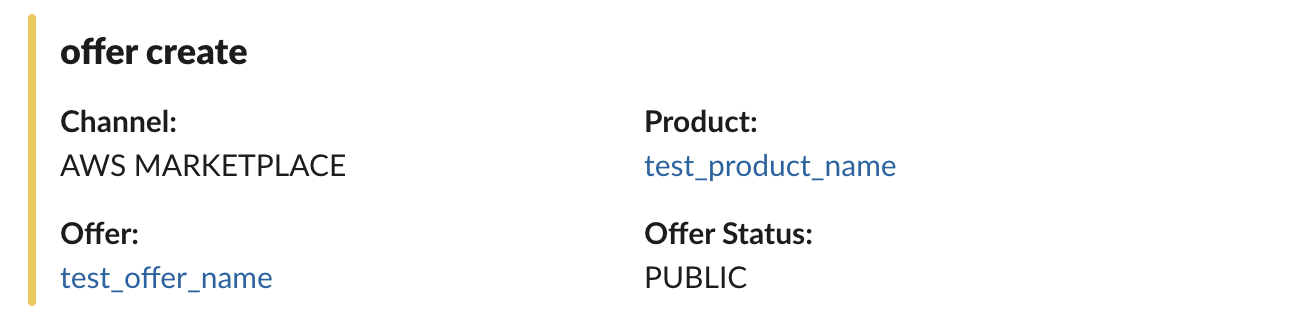
Here is an example of notification you will receive in your Slack channel when a new offer is created:
Partner co-sell and commission scopes
If you run a partner program in Fours, the picker also offers eight co-sell scopes (SUGERCOSELL), nine commission scopes (COMMISSION) and one partner-application scope (INBOUND.PARTNERSHIP). Map them to a channel under Notification Scope Configs to get co-sell, commission and partner-application alerts in Slack alongside the emails you already receive. Each card opens with the header below, followed by the deal name when there is one.
| Scope | Card header |
|---|---|
CREATE.SUGERCOSELL | New co-sell registered on the side that registered it; on the receiving side, New co-sell from {partner name} or New co-sell shared with you |
REGISTER_ON_BEHALF.SUGERCOSELL | Co-sell registered on behalf of {partner name}; on the partner’s side, Co-sell registered on your behalf |
ACCEPT.SUGERCOSELL | {partner name} accepted, or Co-sell accepted |
DECLINE.SUGERCOSELL | {partner name} declined, or Co-sell declined |
CLOSE_WON_REMINDER.SUGERCOSELL | Closed Won |
CLOSE_LOST.SUGERCOSELL | Closed Lost |
COMMISSION_TERMS_UPDATED.SUGERCOSELL | Commission terms updated |
DEAL_UPDATED.SUGERCOSELL | Co-sell updated — sent only while the seller has Partners — Deal update emails switched on |
PENDING.COMMISSION | Commission pending |
APPROVE.COMMISSION | Commission approved |
PAYMENT_SENT.COMMISSION | Payment sent |
PAYMENT_CONFIRMED.COMMISSION | Payment confirmed |
PAYMENT_REJECTED.COMMISSION | Payment rejected |
CLAWBACK.COMMISSION | Commission reversed |
UPDATE_PROPOSED.COMMISSION | Commission update needs approval |
UPDATE_APPROVED.COMMISSION | Commission update approved |
UPDATE_REJECTED.COMMISSION | Commission update rejected |
INBOUND.PARTNERSHIP | New partner application from {company}, or New partner application when no company was given |
A partner-application card says who applied, from which company and through which form, and links to your pending applications. A card links to the deal or commission with Open in Suger, but never carries a one-click action, because anyone in the channel could click it. A copy that comes with a one-click link — the link a partner uses to approve a commission update, or to confirm a co-sell registered or closed on its behalf — is sent by email only. For what each alert contains, see Co-Sell and Commission Alerts in Your Team’s Channels.
Spotted something wrong or out of date on this page? Tell us and we'll correct it.