Stripe
Allow Fours to manage your Stripe seamlessly, including customers, payments.
Overview
Stripe is a popular online payment processing platform that allows businesses and individuals to accept payments over the internet. It provides a range of tools and services that simplify the process of setting up and managing online payments, including online payment gateway integration, merchant account services, and developer-friendly APIs.
By connecting Fours to your stripe, we can build customized automation workflow in manage of customer, coupon and payment.
How the integration works
| Direction | Two-way. Fours writes to Stripe when it acts on a buyer’s behalf (customers, payment methods, PaymentIntents, invoice charges) and reads from Stripe when it pulls usage for marketplace reporting. Stripe pushes state changes back over webhooks. |
| Source of truth | Stripe owns customers, payment methods, charges and disputes. Fours owns the buyer↔customer link, the mapping to marketplace dimensions, and the usage records it reports onward. |
| Scope | Organization-level for billing and metering. Each person can also connect their own Stripe account at the user level, which gives the Fours AI assistant read access to it — see Create User Integration (OAuth) and Fours AI Tools below. |
| Schedule | An hourly job at 25 minutes past the hour runs for every verified Stripe integration. It always imports Stripe revenue data, and when Enable Auto Report Usage is on, it also pulls meter records and reports them as usage record groups. Each run is listed under Operations in the Stripe card’s ⋯ menu (partner organizations using the limited console don’t see Operations there). |
| Credentials | A Stripe API key (a restricted key is recommended — see Use Restricted Keys). Fours stores it in a secret manager, not in the integration record. The publishable key is stored separately for the embedded checkout form. |
Webhook events
Fours registers a webhook endpoint in your Stripe account when the integration is created — that is why the restricted key needs Webhook Endpoints-Write. Deleting the integration removes the endpoint again.
It subscribes to exactly these events:
| Event | Why Fours listens |
|---|---|
charge.updated | Charge state changed after capture |
charge.refund.updated | A refund progressed or failed |
charge.dispute.created | A dispute was opened |
charge.dispute.closed | A dispute was resolved |
customer.updated | Customer details changed in Stripe |
payment_intent.succeeded | A payment completed |
payment_intent.payment_failed | A payment attempt failed |
payment_method.attached | A payment method was added to a customer |
payment_method.detached | A payment method was removed |
payment_method.updated | Payment method details changed |
payment_method.automatically_updated | The card network pushed updated card details |
setup_intent.requires_action | Saving a payment method needs customer action (for example 3-D Secure) |
The endpoint is pinned to the Stripe API version Fours’ client uses, so a new event type appearing in Stripe does not silently change what Fours receives.
Prerequisites
Before connecting, get the following credentials from your Stripe Dashboard:
- Public Key: Your standard identifiable key.
- Secret Key or Restricted Key: A standard Secret Key works, but Fours strongly recommends using a Restricted Key so you can grant least-privilege access scoped specifically to marketplace operations. See Use Restricted Keys for the required permissions.
Create Integration
In your Fours Console Integration, you will see the Stripe integration connection. Click the Connect button to create an integration with your stripe instance. This will open an dialog for you to input.
The Public Key and Secret Key can be found in the stripe dashboard apikeys.
Stripe Test Mode
If you want to use stripe in your test environment with stripe test mode, use keys in stripe test mode dashboard test apikeys.
You may need a test suger organization to build a complete test environment. Or you can create the integration with test mode keys and then switch to live mode keys after the test is finished.
Use Restricted Keys
You can use stripe restricted keys with specific access limits and permissions for greater security. The Restricted key provided to the suger must have the following permissions.
- Core resources
- Balance - Read
- Charges - Write
- Customers - Write
- Customer session - Write
- Disputes - Write
- Events - Read
- PaymentIntents - Write
- PaymentMethods - Write
- Products - Write
- SetupIntents - Write
- Sources - Write
- All Checkout resources - Write
- All Billing resources - Write
- All Order resources - Write
- Webhook resources
- Webhook Endpoints-Write
See more about stripe keys stripe docs.
Once the integration process is finished, you can proceed by clicking the VERIFY button. This action triggers the Fours service to test the connection to the APIs of your stripe instance. If everything is configured correctly, the integration status will be updated as VERIFIED.
Manage Buyers & Customers
When you use Fours’ metering and billing with Stripe, each of your customers is represented by a Fours buyer that is linked to a customer in your Stripe account. Fours stores the Stripe customer ID on the buyer and uses it for every Stripe operation on that buyer’s behalf — collecting payment methods, charging via PaymentIntents, applying charges to invoices, and matching incoming Stripe webhooks.
How the link is established
The link between a Fours buyer and a Stripe customer is established when the buyer is created, based on the optional Stripe Customer ID field:
- Stripe Customer ID provided — Fours connects the buyer to that existing Stripe customer. It verifies the customer exists, tags it with a
sugerBuyerIdmetadata entry pointing back to the Fours buyer, and imports the customer’s saved payment methods into the buyer’s wallet. No new Stripe customer is created. - Stripe Customer ID left blank — Fours automatically creates a new Stripe customer, populated from the buyer’s name, description, and company address, and tagged with the same
sugerBuyerIdmetadata.
Duplicate protection: If another buyer in your organization is already linked to the Stripe Customer ID you provide, buyer creation is rejected. This prevents two Fours buyers from pointing at the same Stripe customer.
The link is set only at creation
The Stripe Customer ID cannot be changed after the buyer is created. Editing a buyer does not re-connect it to a different Stripe customer or create a new one — only the create step performs the connect-or-create logic. To link a buyer to a different Stripe customer, create a new buyer.
Payment methods and wallets
Payment methods are collected securely through the Stripe SDK; sensitive card details are never stored in Fours. A buyer’s wallet supports the following types, which map to Stripe payment methods:
| Wallet type | Stripe payment method | Typical currency |
|---|---|---|
| Card | Card | All |
| ACH Debit | US bank account | USD |
| SEPA Debit | SEPA debit | EUR |
| BACS Debit | BACS debit | GBP |
| Credit | — (managed by Fours) | Buyer’s currency |
Credit is a Fours-managed balance rather than a Stripe object; it functions like store credit and is applied automatically during invoice payment. A default payment method can be set for a buyer to prioritize it when paying invoices.
Create User Integration (MCP)
Stripe also runs its own MCP server, https://mcp.stripe.com. Connecting it as a custom MCP server gives your Fours AI sessions the tools Stripe’s server offers; it is separate from the Stripe tools in Fours AI Tools. The connection acts on behalf of you, a member of the Stripe account, not the organization: you authorize it on Stripe’s consent page, where you choose which live accounts or sandboxes it can reach. See Stripe MCP documentation for details.
Prerequisites
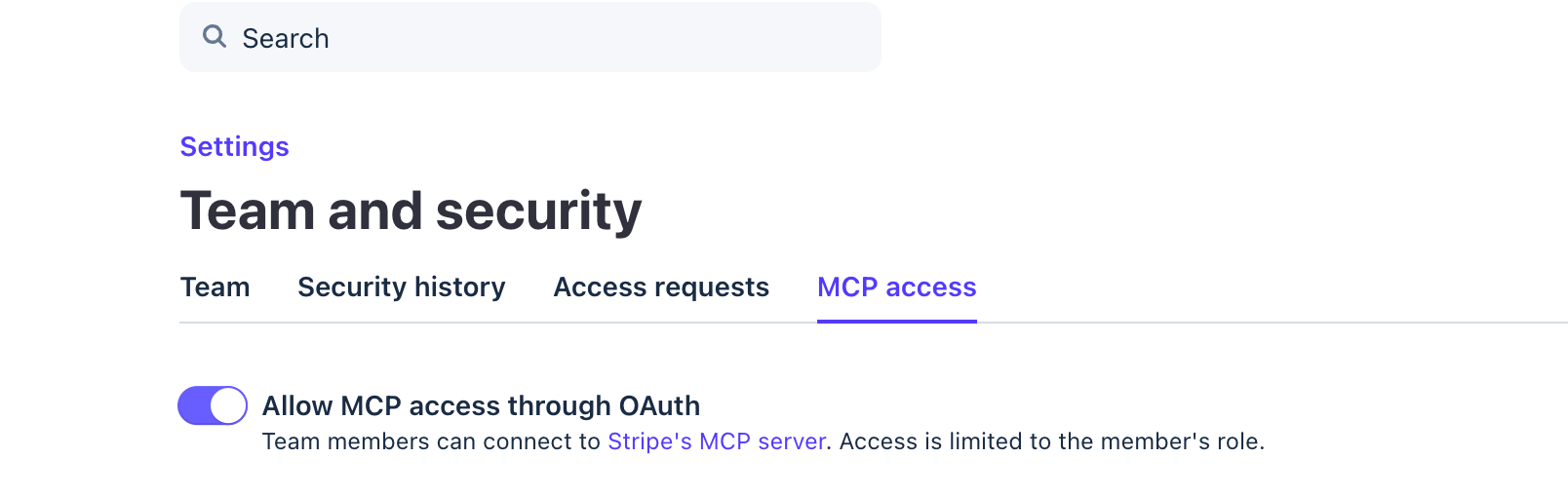
An administrator of your Stripe account controls MCP access for the whole team in the Stripe Dashboard’s MCP and CLI access settings, separately for live mode and sandboxes (Stripe MCP documentation). Make sure it is enabled before you connect.
Connect
- In Settings → Integrations, scroll to Custom MCP Servers and click Add MCP server.
- In Connect a custom MCP server, find Stripe under Popular MCP Servers and click + on its card.
- Stripe’s consent page opens in a new tab. Sign in, choose what to grant, and approve.
- Back in Fours, the dialog closes with MCP server connected successfully, and Stripe appears under Custom MCP Servers.
Create User Integration (OAuth)
Connect your own Stripe account to Fours through Stripe Connect OAuth. This gives the Fours AI assistant read access to that account — see Fours AI Tools.
- In Settings → Integrations, under User Integrations, find the Stripe card and click Connect, then click Start connection in the Connect Stripe dialog.
- Stripe’s authorization page opens in a new window. Sign in if Stripe asks you to, and authorize the connection.
- When the dialog shows Stripe is connected., click Close.
Fours requests Stripe Connect’s read_write scope, because Stripe lets only extensions request read_only (Stripe’s OAuth reference). Fours AI still uses the connection only through the tools in Fours AI Tools, none of which creates a payment, an invoice or a committed tax transaction.
The two ways to connect Stripe as yourself, side by side:
Note: If your Stripe account is already controlled by another platform, this connection will fail. Since June 2021, Stripe does not allow a second platform using
read_writeOAuth scope to connect to a controlled account. You must disconnect from the controlling platform first. See Stripe’s OAuth reference for details.
Fours AI Tools
Both Stripe connections give Fours AI the same Stripe tools: the org-level integration through its API key, and a user-level connection through your own Stripe account. They read your account and preview tax; none of them creates a payment, an invoice or a committed tax transaction.
| Tool | What it does |
|---|---|
stripe_get_balance | Get the current balance — available and pending funds per currency |
stripe_list_balance_transactions | List money movements — charges, refunds, payouts and fees — over a time window |
stripe_list_charges | List individual payments |
stripe_list_payouts | List payouts to your bank account |
stripe_list_subscriptions | List subscriptions — active ones by default, or every status |
stripe_list_invoices | List invoices |
stripe_get_tax_settings | Get your Stripe Tax settings, including status, defaults and head-office address |
stripe_list_tax_codes, stripe_get_tax_code | List product tax codes, or get one |
stripe_list_tax_rates, stripe_get_tax_rate | List tax rates, or get one — for manual-tax setups |
stripe_create_tax_calculation | Preview the tax for a customer address and line items |
Which connection a run uses depends on the agent, not on which connections exist: the Fours AI assistant and agents you own use your user-level Stripe connection, and org-level agents use the organization’s integration. See User-Level vs Org-Level Agents.
Stripe’s own MCP server is a separate connection with its own tools — see Create User Integration (MCP).
Edit Integration
Open the Stripe integration from Settings → Integrations and click Edit. The dialog covers four settings:
- Enable Auto Report Usage: When enabled, an hourly cron job fetches usage metering records from Stripe and reports them to Fours as usage record groups. Leave it off if you meter somewhere other than Stripe.
- Billing Mode: How usage is measured for that report.
quantityis the mode Fours can run today. - Billing Source: Where in Stripe the usage is read from. For
quantity, the source isusage_record. - Enable Entitlement End Soon Notification: When enabled, specify the number of days (10-60) before an entitlement ends to trigger notifications. Fours will send an initial notification when Stripe Marketplace entitlements approach ending, followed by reminders every 5 days. To configure recipients, follow the email notification configuration guide and add the scope
END_SOON.ENTITLEMENT.
The org-level Stripe card also reports when its stored API key has stopped working — for example after the key is rolled or revoked in Stripe. See Connection health.
Delete Integration
The stripe integration can be deleted like all other integrations. Once the deletion is triggered, no time window or methods to recover.
Spotted something wrong or out of date on this page? Tell us and we'll correct it.