Anthropic
Connect your Anthropic API key for unlimited features at cost.
Overview
By integrating your Anthropic account with Fours, you can utilize your own Anthropic API key. This allows you to access certain AI-powered features within Fours, with billing for API usage handled directly by Anthropic.
Org-Level vs User-Level
There are two types of Anthropic integrations:
| Type | Description | Billing |
|---|---|---|
| Org-Level | Uses Anthropic API key for org-wide access to Claude models | Billed to the organization |
| User-Level | Either a personal API key, or a Claude Code connection tied to your own Anthropic account | Billed to the individual user |
At the user level there are two connection methods — connect with an API key, or connect Claude Code. Both are personal to you and billed to you; pick whichever matches how you already pay Anthropic. See Create User Integration below.
Create Integration (Org-Level)
- Navigate to the Fours Console Integration page.
- Find the Anthropic integration and click the
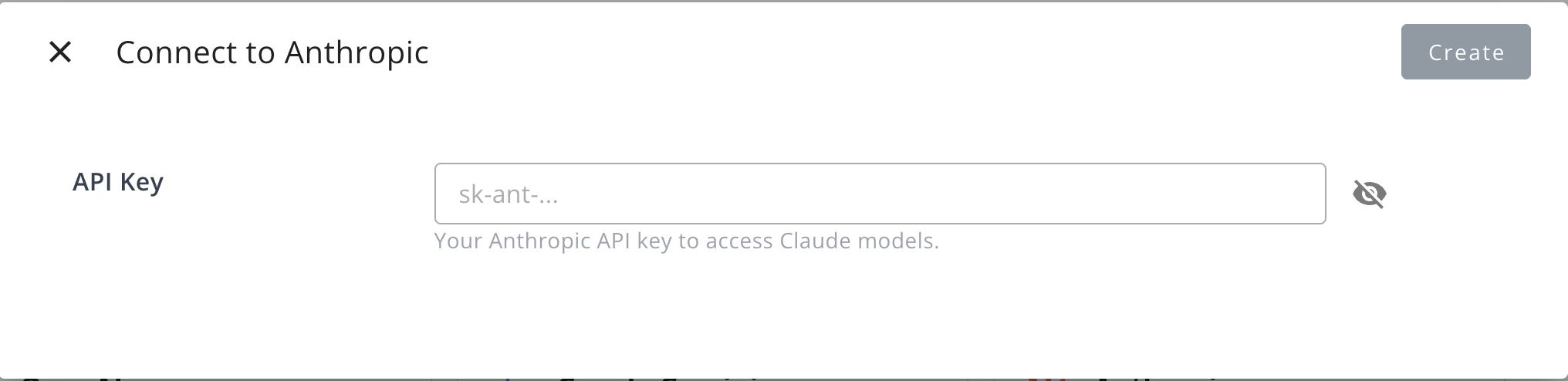
Connectbutton. - In the dialog that appears, provide the following information:
- API Key: Your Anthropic API key for accessing Claude models.
Create User Integration
Use a user-level integration when you want Claude to run against your own Anthropic account with individual billing. Two connection methods are available.
Option 1 — Anthropic API key
Use this when you have an Anthropic API key of your own.
- Click
Connect Nowbutton in the User Integrations section - Enter your personal Anthropic API key
- Return to Fours to confirm connection
Option 2 — Claude Code
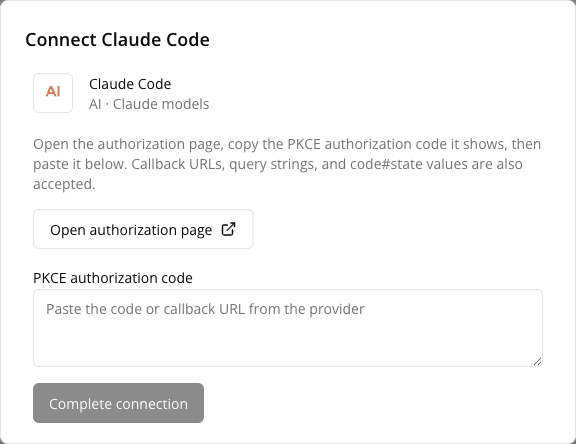
Use this when you want to connect your Anthropic account itself rather than manage an API key. This method uses a manual code-paste (PKCE) authorization — Fours gives you an authorization link, you approve it with Anthropic, and Anthropic hands you back a code that you paste into Fours to finish the connection. No API key is created or stored.
- Find the Claude Code card in the User Integrations section and click
Connect Now. - The Connect Claude Code dialog opens. Click Open authorization page — it takes you to Anthropic.
- Sign in to your Anthropic account if prompted, and approve the request.
- Anthropic displays an authorization code. Copy it.
- Paste it into PKCE authorization code and click Complete connection. The field also accepts the whole callback URL, a query string, or a
code#statevalue, so you do not have to pick the code out by hand. The integration then shows as connected.
This is the Anthropic counterpart to the OpenAI Codex user integration, which uses a device-code flow instead — see OpenAI.
Edit Integration
Editing the Anthropic integration is not supported. To change the API key, you must delete the current integration and create a new one.
Delete Integration
You can delete the Anthropic integration at any time. Please be aware that this action is irreversible and will permanently remove the integration credentials.
Spotted something wrong or out of date on this page? Tell us and we'll correct it.