Microsoft Dynamics 365
Microsoft Dynamics 365 is a cloud-based business applications platform that combines CRM and ERP capabilities. Integrate with Dynamics 365 to sync sales, customer, and operational data with Fours.
Overview
Org-Level vs User-Level
There are two separate configurations, and they authenticate in different ways:
| Org-Level | User-Level | |
|---|---|---|
| Auth flow | Azure AD client credentials (app-only) | OAuth 2.0 authorization code (delegated) |
| Acts as | The application user you create in Dynamics 365 — not a person | The signed-in person |
| Sees | Whatever the application user’s security roles allow, across the organization | Only the Dynamics 365 data that person can already see |
| Best for | Backend integrations, scheduled syncs, and automated workflows | Individual users working with their own records |
Both configurations require you to supply two values before the connection can start:
- Tenant ID — your Azure AD (Microsoft Entra ID) directory ID.
- Instance URL — your Dynamics 365 environment, e.g.
https://{your-org}.crm.dynamics.com.
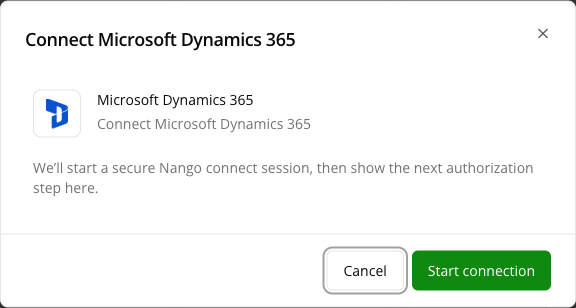
These cannot be discovered automatically, so the connect flow shows a short pre-start form asking for them before it hands you off to Microsoft. They are used to build the correct authority and API endpoints for your environment, and are validated against the same schema on both levels.
How the connection works
Both levels talk to the same Dataverse Web API on your environment; only who the calls act as differs. The org connection acts as the application user you create in Dynamics 365, so its reach is exactly what that user’s security roles allow. A user connection acts as the signed-in person, so it can never see or change more than that person already could in Dynamics 365. Reads and writes both go over this one path — a write is an ordinary Dataverse create or update, and Fours asks Dataverse to echo the stored record back so you see what actually landed rather than what was sent.
Create Integration (Org-Level)
Org-level integration uses Azure AD client credentials for application-level access. This is suitable for backend integrations that need to access data across the organization.
Prerequisites
- Dynamics 365 instance URL (e.g.,
https://yourorg.crm.dynamics.com) - Tenant ID from Azure AD
- Application User in Dynamics 365: Create an application user in Dynamics 365 linked to your Azure AD app registration. This application user will be used by Fours to access Dynamics 365 data via the Web API.
Create Application User in Dynamics 365
- In Dynamics 365, go to Settings > Security > Users
- Change the view to Application Users
- Click New and fill in the details:
- User Name: Enter a name (e.g.,
Fours Integration) - Application ID: Enter
1a00a839-496c-488d-a97a-4cdb171b747f - Display Name: Enter a display name (e.g.,
Fours Integration) - Email: Enter an email address (can be any valid email)
- User Name: Enter a name (e.g.,
- Click Save
- After saving, assign the appropriate security roles to the application user
Grant Security Roles via Power Platform Admin Center
- Visit Power Platform Admin Center
- Select the environment you are connecting — its URL looks like
https://{your-org}.crm.dynamics.com - Navigate to Settings → Users + permissions → Application users
- Click + New app user
- Add an app: select the Application (client) ID created during Azure integration setup
- Business unit: select the default one (named after your environment,
{your-org}.crm.dynamics.com) - Security roles: grant System Administrator
Authenticate
- Navigate to Settings > Integrations
- Click Connect Dynamics 365
- Enter your Tenant ID and Instance URL
- Click Verify to test the connection
- Once verified, click Connect
Create User Integration
User-level integration uses OAuth2.0 authorization code flow. Each user authenticates via Microsoft OAuth to access their own Dynamics 365 data.
Prerequisites
- Azure AD Tenant ID (provided before OAuth authorization)
- Dynamics 365 Instance URL (provided before OAuth authorization)
Before OAuth Authorization
Before initiating the OAuth flow, you must provide your Azure AD tenant ID and your Dynamics 365 instance URL on the pre-start form. Both are required to construct the correct OAuth authority, scopes, and API endpoints for your environment.
Authenticate
- Click
Connect Nowbutton in the User Integrations section - Enter your Tenant ID and Dynamics 365 Instance URL when prompted
- You will be redirected to Microsoft for authentication
- Sign in with your Microsoft credentials
- Click Accept to grant Fours permission to access your Dynamics 365 data
- After authorization, you will be redirected back to Fours
- Verify the integration by clicking the Verify button
Edit Integration
For security purposes, editing an existing Microsoft Dynamics 365 integration is not allowed. The practical way is to delete it and then recreate it from the beginning.
That is also the fix if the org-level card reports that its stored credential can no longer be used — for example after the app registration’s secret is rotated or the application user is removed in Dynamics 365. See Connection health.
Delete Integration
The Microsoft Dynamics 365 integration can be deleted like all other integrations. Once the deletion is triggered, all integration info including the credentials and access tokens will be deleted immediately and permanently from Fours.
Supported Operations
| Operation | Org-Level | User-Level |
|---|---|---|
| Read Data | ✓ | ✓ |
| Write Data | ✓ | ✓ |
| Sync Data | ✓ (opportunities) | - |
| Webhooks | - | - |
Reading and writing records
Both the org-level and the user-level connection can read and write Dynamics 365 records, across any entity set the connection’s permissions allow — accounts, contacts, opportunities, tasks, and your own custom entities alike.
| Capability | What the connection can do |
|---|---|
| Query records | Run an OData query against an entity set and page through the matching records |
| Get a record | Read a single record by its entity set and primary-key GUID |
| Create a record | Create a new record from the column values you supply, including lookups to related records. Returns the new record’s GUID and the record as Dataverse stored it |
| Update a record | Update columns on an existing record, and read back the stored result |
| Confirm the connection | Report which Dynamics 365 user the connection is acting as — the quickest way to check that the application user’s roles are what you expect |
Dynamics 365 as an Insulin rule destination
Because the connection can now write, a Dynamics 365 CRM event can drive a CRM action in an Insulin Inbox rule, exactly as Salesforce and HubSpot already could. A rule that fires on a Dynamics 365 opportunity stage change can carry a written instruction — for example “update the CRM with a short summary of the latest email thread” — and that instruction lands in the Needs approval queue behind a Run in chat button. Nothing is written to Dynamics 365 until you click it.
See Insulin → Inbox for how rules, destinations, and the approval queue work, including the note on how Dynamics 365 reports won and lost opportunities.
Opportunity Sync
Fours syncs opportunities from your Dynamics 365 environment. This runs on the org-level connection — it uses the application user’s credentials, so it is not tied to any one person staying connected, and its visibility is exactly what you granted that application user’s security roles.
Opportunity sync is what lets Fours:
- Read the opportunities in your environment so they can be turned into co-sell referrals.
- Open a specific opportunity from Fours when someone starts a co-sell from a Dynamics 365 record.
- Select opportunities automatically against conditions you configure, rather than one at a time.
Note: Webhooks are not supported at this time. Dynamics 365 data reaches Fours through the opportunity sync described above rather than by Dynamics 365 pushing change notifications to Fours.
Spotted something wrong or out of date on this page? Tell us and we'll correct it.