Google Mail
Overview
Gmail, Google’s email service, offers a comprehensive platform for communication and productivity. With features like advanced search capabilities, powerful filters, and seamless integration with other Google Workspace tools, Gmail is a cornerstone of modern email management.
By integrating Fours with Gmail, users can leverage automation workflows to enhance email productivity. Tasks such as sending emails, applying labels for organization, and managing threads can be automated, improving efficiency and enabling customized email workflows tailored to specific needs.
You can connect Gmail at two levels:
- Org-Level: Connect once for your organization, so Fours can send automated email from a corporate mailbox that everyone’s workflows share. There are two connection methods to choose from — a Service account with domain-wide delegation, or Sign in with Google — described below.
- User-Level: Each user connects their own Gmail account via OAuth 2.0, so automated emails are sent from that person’s own inbox. The Fours co-sell and commission emails a person’s own actions trigger go out from their Gmail too — see Send Co-Sell Emails from Your Gmail.
How the connection works
Whichever method you use, Google issues the credential and Fours refreshes it for you — Fours never holds your Google password. What differs afterwards is how a given Gmail operation reaches Google. Composing operations — creating, updating, sending and deleting drafts, and sending a message — are performed by Fours directly, so a slow send is not cut short by an action timeout and never leaves you unsure whether the mail went out. Every other Gmail action (labels, filters, send-as aliases, vacation settings) runs through Fours’ standard connector path.
Create Integration (Org-Level)
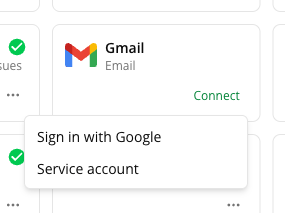
Org-level Gmail offers two connection methods. Both are set up from the same Gmail card under Settings → Integrations: click the Connect dropdown and pick the method you want.
| Method | Choose this when | Scopes granted |
|---|---|---|
| Service account | You run Google Workspace and want Fours to send as a corporate address (for example sales@company.com) with no person signing in and no user’s token to expire. Requires a Workspace admin to authorize domain-wide delegation. | Send only (gmail.send) |
| Sign in with Google | You want to authorize a mailbox directly, in a browser, with no Workspace admin action required — the fastest path, and the only one available if you are not on Google Workspace. | Send and read |
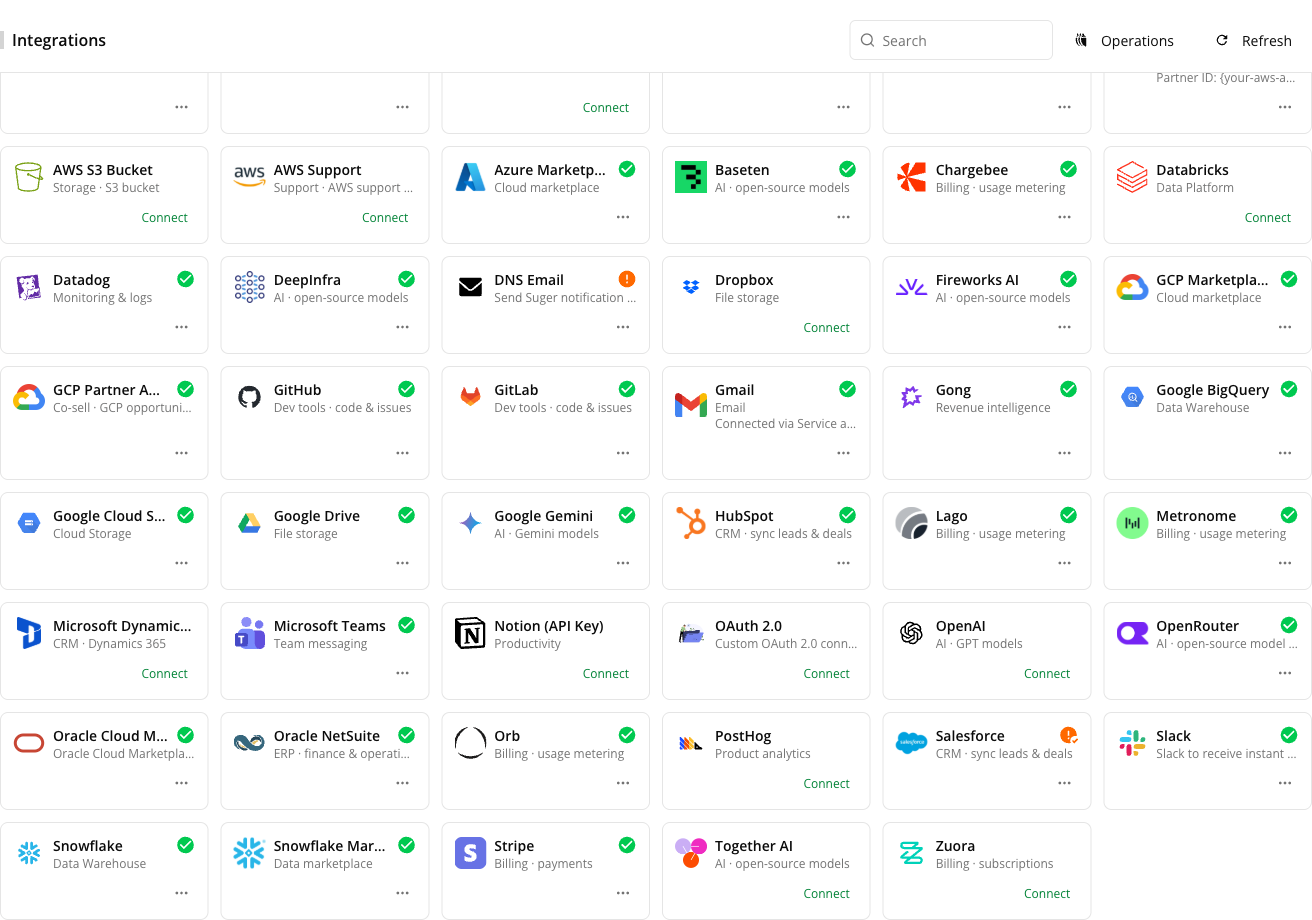
Your organization connects one way at a time. Once connected, the Gmail card shows “Connected via {method}” — for example Connected via Sign in with Google — so you can always tell which method is in force. To switch methods, delete the integration and connect again with the other one.
Method 1 — Service account (domain-wide delegation)
This method is designed for company-wide automation where Fours sends email by impersonating a specific corporate address (for example, sales@company.com) without a user manually signing in.
- Create a service account in your target GCP project for Google Mail integration.
- Enable the Gmail API in the same Google project.
- Create the service account key, and download the associated JSON file. It is required for the following integration.
- Enable G-Suite Domain-wide Delegation for the service account.
- Specify the impersonated email address, select the appropriate scopes configured in the previous step, and store the JSON key file contents within the Fours console integration page.
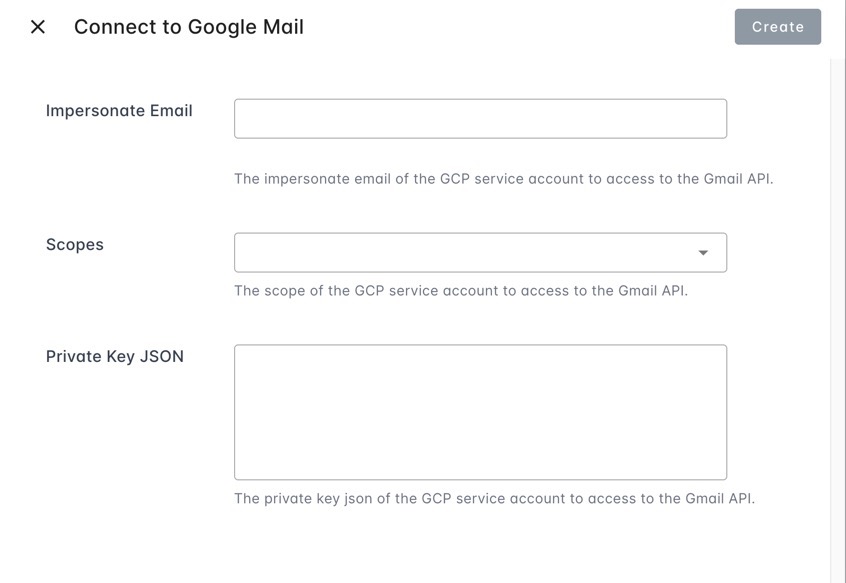
The default scope for this method is send only (https://www.googleapis.com/auth/gmail.send). Domain-wide delegation is all-or-nothing: a request asking for any scope your Workspace admin did not authorize fails entirely, so if you need Fours to read mail as well, use Sign in with Google instead.
Method 2 — Sign in with Google (OAuth)
This method authorizes a mailbox directly in the browser, using the same Google OAuth application as the user-level connection. No Workspace admin action is required, and it grants both send and read scopes.
- In the Fours Console, go to Settings → Integrations and find the Gmail card.
- Open the Connect dropdown and choose Sign in with Google.
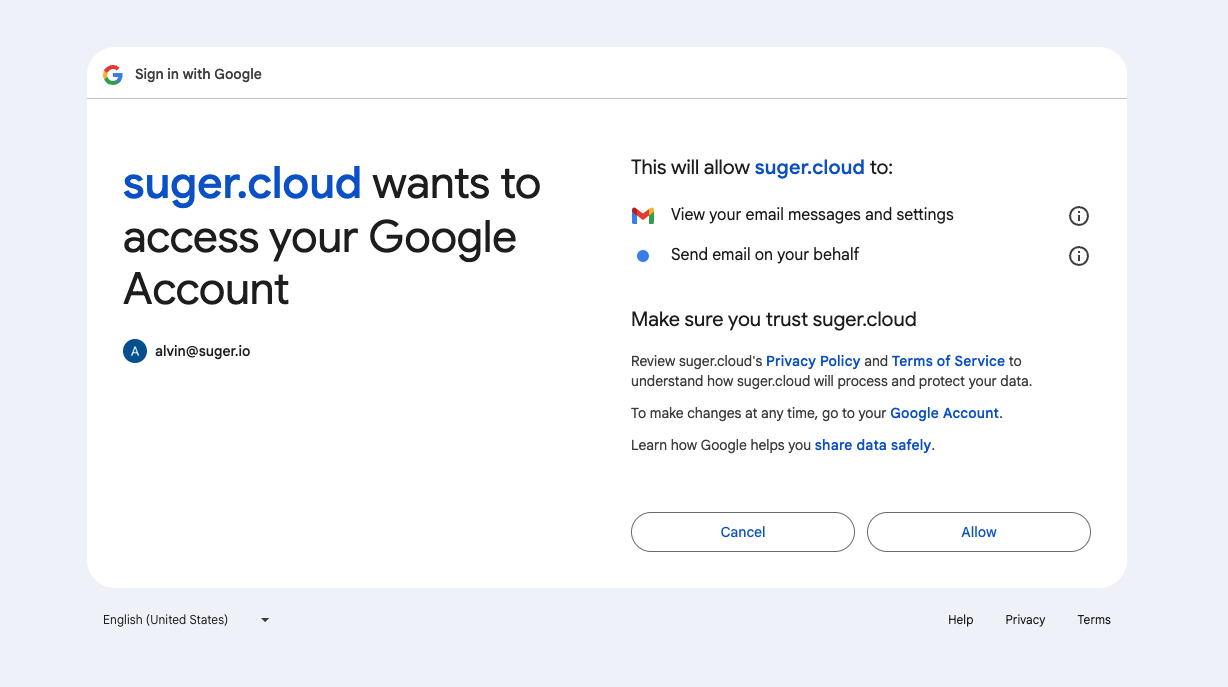
- You are redirected to the Google sign-in page. Sign in with the mailbox your organization should send from — this is the account every workflow in your organization will send as, so use a shared or role mailbox rather than a personal one.
- Review the requested access and click Allow.
- Once you are redirected back to the Fours Console, click Verify. A Verified status confirms the connection is ready.
Create User Integration
User-Level integration is personal and precise. It lets Fours send emails that look like they came from you, while automation handles the repetitive work.
- OAuth 2.0 Security: Fours never sees, asks for, or stores your Google password. The connection is a secure, token-based handshake.
- Responsive automation: Send automated private offer links and follow-up sequences the moment a buyer hits a milestone.
- Thread management: Keep your deal discussions organized without jumping between tabs.
-
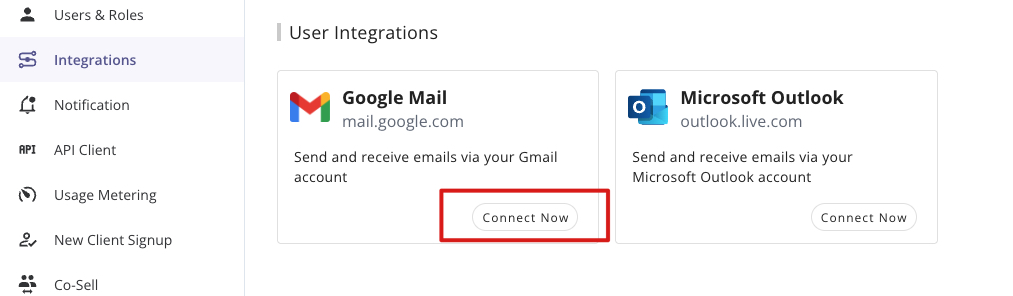
In the Fours Console, go to Settings → Integrations and scroll to the User Integrations section. Locate the Gmail card and click Connect, then click Start connection in the Connect Gmail dialog.
-
You will be redirected to the Google sign-in page. Select the account you want to use for your marketplace deals.
-
Review the request and click Allow. This grants Fours the permissions needed to read and send emails related to your marketplace workflows.
-
When the dialog shows Gmail is connected., click Close. The Gmail card now shows a green check mark, which confirms Fours is ready to send on your behalf.
Send Co-Sell Emails from Your Gmail
A user-level Gmail connection also changes who sends your co-sell email. When your own action in Fours triggers a Fours co-sell or commission email, Fours sends it from your connected Gmail instead of from that email’s usual sender. That covers sharing a deal with a partner, accepting or declining one, marking it Closed Won or Closed Lost, updating a deal, removing a partner, proposing or approving commission terms, and marking a commission payment sent or confirming it.
- It is the same email. It keeps the subject and threading that Fours’ default sender uses (see the Partners notification scopes) and the same recipients, including the deal’s activity address on Cc — so replies sent with Reply all still reach the deal’s activity feed. Because the email comes from your mailbox, a plain Reply reaches you directly, and a copy stays in your Gmail Sent folder.
- There is no setting. Connecting Gmail as a user integration turns it on; disconnecting turns it off.
- If your Gmail can’t send, the email still goes out. If you have no Gmail connection, or its access has expired or been revoked, Fours sends the email from the custom sender configured for that notification if there is one, otherwise from Fours’ default sender.
- Connect in each organization you act from. A user integration belongs to one Fours organization, so an email goes out from your Gmail only when you connected Gmail in the organization you acted in.
- Partner organizations can do the same. A partner’s users can connect their own Gmail at user level, so the emails their actions trigger come from their own mailboxes.
- One-click links work the same way. When someone completes an action from a one-click link in a co-sell email, the follow-up email goes out from their own connected Gmail, as if they had acted in the console.
These are never sent from your mailbox:
- Emails Fours sends on its own — automatic acceptance, scheduled jobs, and webhooks.
- Emails triggered by actions in the Salesforce or HubSpot app, or through the API.
- Copies that carry a personal one-click action link. Those always come from Fours’ default sender.
- Copies addressed to recipients that another organization added in its own notification settings.
- Other notifications, such as offer and entitlement emails.
Fours AI Tools
When Gmail is connected, the Fours AI agent works your mailbox through Fours’ built-in tools. The composing tools are the ones you will name most often; they carry a google_email__ prefix.
| Capability | What the agent can do |
|---|---|
| Compose a draft | Write a new Gmail draft from a subject, body and recipients — including Cc, Bcc, an HTML body and file attachments — and get back the draft’s id. The draft is saved, never sent (create-draft) |
| Revise a draft | Replace an existing draft’s contents. The whole message is rewritten from the call, attachments included, so the agent restates the complete draft rather than patching one field (update-draft) |
| Send a draft | Send a draft that is already saved. Irreversible — the recipient has it immediately (send-draft) |
| Discard a draft | Delete a draft without sending it (delete-draft) |
| Send a message | Compose and send in one step, without saving a draft first, attachments included. Irreversible. Can reply inside an existing conversation rather than starting a new one (send-message) |
| Everything else in Gmail | Labels, filters, send-as aliases, vacation settings and the rest of the Gmail surface remain available as standard actions on the connection |
You never have to hand the agent a pre-assembled raw email: it supplies the recipients, subject and body as ordinary fields, and Fours builds the message — including correct handling of non-ASCII subject lines.
Attachments. create-draft, update-draft and send-message take files to attach, each as a file name, a MIME type and the file’s contents in base64. The base64 that the get-attachment action returns for a received attachment is accepted as it is, so the agent can attach a file it read from another message. Fours checks every file before anything reaches your mailbox and refuses the call if a file’s contents are not valid base64 or the files add up to more than 18 MB. Because the contents pass through the agent, attaching suits small files — a large attachment may not reach the agent whole, so forward that email from Gmail yourself. When the agent revises a draft, any attachment it does not pass again is removed.
Edit Integration
Editing is not supported for security reasons. To change configuration, delete the integration and create a new one.
Delete Integration
The Google Mail integration can be deleted like all other integrations. Once the deletion is triggered, all integration info including the service account key and access tokens will be deleted immediately & permanently from Fours. No time window or methods to recover.
Spotted something wrong or out of date on this page? Tell us and we'll correct it.