Microsoft Outlook
Allow Fours to access your Microsoft Outlook account to send, receive, and manage emails on your behalf.
Overview
By integrating Fours with Microsoft Outlook, users can leverage automation workflows to enhance email productivity. Tasks such as sending emails can be automated, improving efficiency and enabling customized email workflows tailored to specific business needs.
Org-Level vs User-Level
Org-Level: Not available. Outlook is connected per user only.
User-Level: Each user authenticates via Microsoft OAuth for personal Outlook access.
Create Integration (Org-Level)
Outlook has no org-level connection. Each person connects their own mailbox — see Create User Integration.
Create User Integration
- Click the
Connect Nowbutton in the User Integrations section, you will be redirected to the Microsoft OAuth2.0 authentication page.
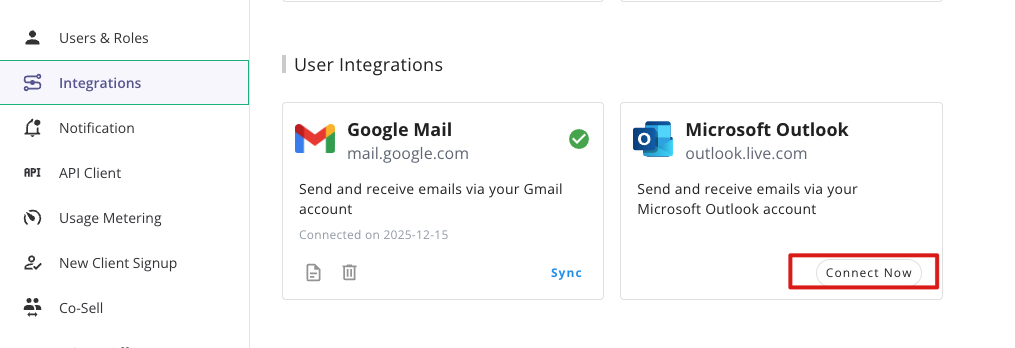
- Click the
Acceptbutton to grant Fours permission to access your Outlook account. This authorization enables Fours to read, send emails on your behalf.
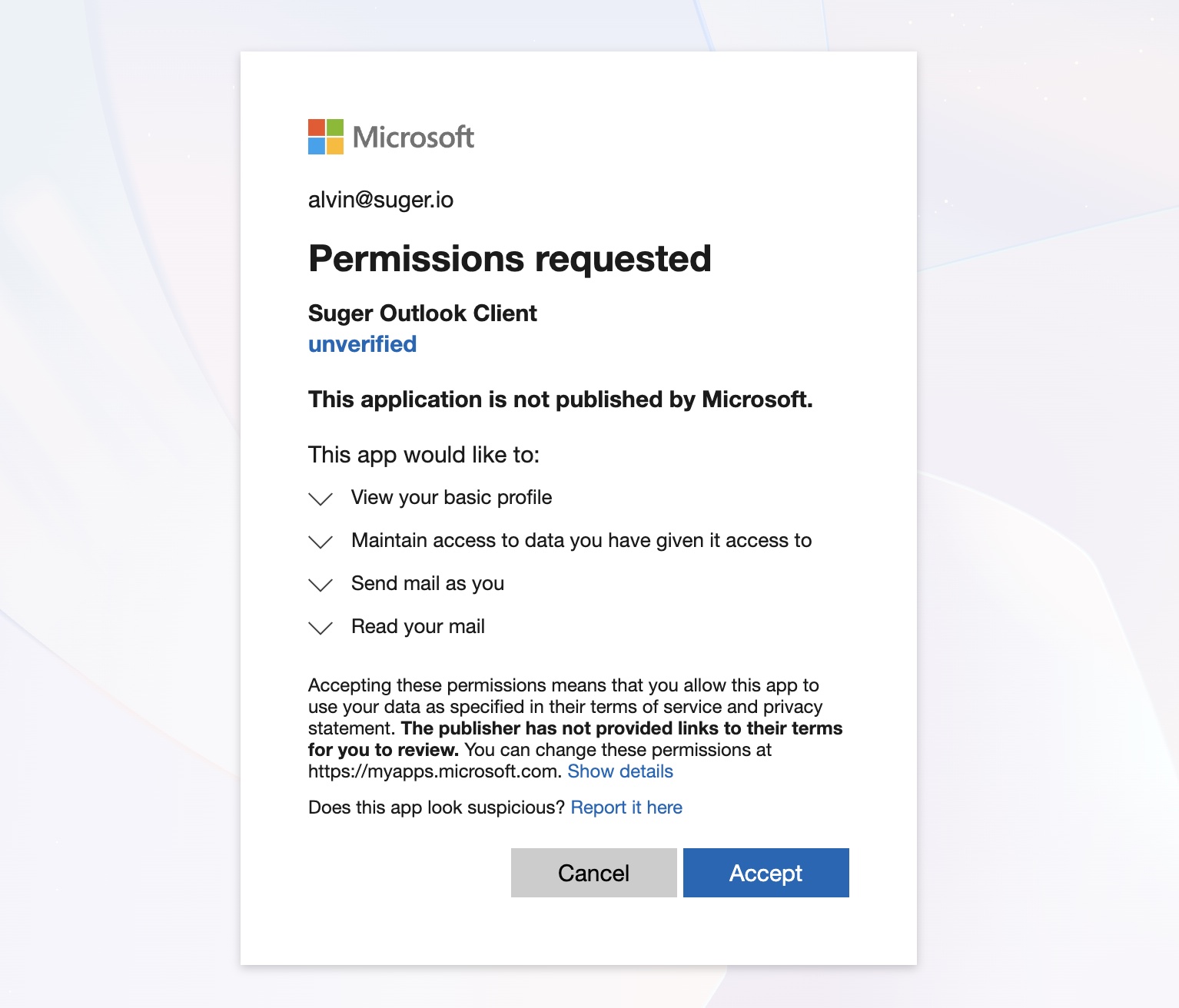
-
After the authorization is granted, you will be redirected to the Fours console. You can see the integration is connected successfully.
-
Verify the integration by clicking the
Verifybutton. If the integration is successful, you will see theVerifiedstatus.
Fours AI Tools
Fours AI works an Outlook mailbox through the actions on a user-level Outlook connection, which reach your mailbox through Microsoft Graph. In the agent they carry a microsoft_email__ prefix.
| Tool | Description |
|---|---|
list-messages | List messages from a mail folder |
get-message | Get one message |
send-mail | Send a new email immediately, optionally with file attachments |
reply-to-message | Reply to a message’s sender, optionally with file attachments |
reply-all-to-message | Reply to all recipients of a message |
update-message | Update a draft, or the fields of a message that can change |
move-message | Move a message to another mail folder |
copy-message | Copy a message to another mail folder |
delete-message | Delete a message from the mailbox |
Drafts
| Tool | Description |
|---|---|
create-draft-message | Save a new draft, optionally with file attachments |
send-draft-message | Send a saved draft |
Attachments
| Tool | Description |
|---|---|
list-message-attachments | List the attachments on a message |
download-message-attachment | Download the contents of a file attached to a message |
add-message-attachment | Attach one file to a saved draft |
Folders and account
| Tool | Description |
|---|---|
list-mail-folders | List the top-level mail folders |
list-mail-folder-children | List the folders inside a mail folder |
create-mail-folder | Create a folder inside a mail folder |
get-account | Get the connected mailbox’s address and display name |
send-mail, create-draft-message and reply-to-message attach files in the same call: each file is a name, a MIME type and the file’s contents in base64. Microsoft Graph accepts a file attached this way only when it is under 3 MB, and add-message-attachment has the same limit (Attach large files to Outlook messages). If Graph rejects a send, a draft or a reply — an attachment over that limit, for example — the tool fails with Graph’s reason; it never reports a message as sent when Graph refused it.
Edit Integration
For security purposes, editing an existing Microsoft Outlook integration is not allowed. The practical way is to delete it and then re-create it from the beginning.
Delete Integration
The Microsoft Outlook integration can be deleted like all other integrations. Once the deletion is triggered, all integration info including the credentials and access tokens will be deleted immediately & permanently from Fours. No time window or methods to recover.
Spotted something wrong or out of date on this page? Tell us and we'll correct it.