Agents
Agents are AI assistants specialized for specific tasks and domains. You work with one in a conversation, which supports streaming responses, tool execution, model selection, attachments, memory, and cross-surface threads — see Conversations.
What Are Agents?
An agent is an AI assistant with defined instructions, model configuration, optional integration access, and optional knowledge bases. Skills are not attached to one agent: every agent loads the skills you have enabled when they apply (see How Agents Use Skills). Each agent is tuned for a particular domain — from writing code to managing CRM data to analyzing revenue.
The default Insulin agent acts as your chief of staff: a general-purpose assistant for the everyday business work your teams bring to it, marketplace operations included. It is built in and cannot be edited or deleted, unlike the catalog and custom agents you install or create.
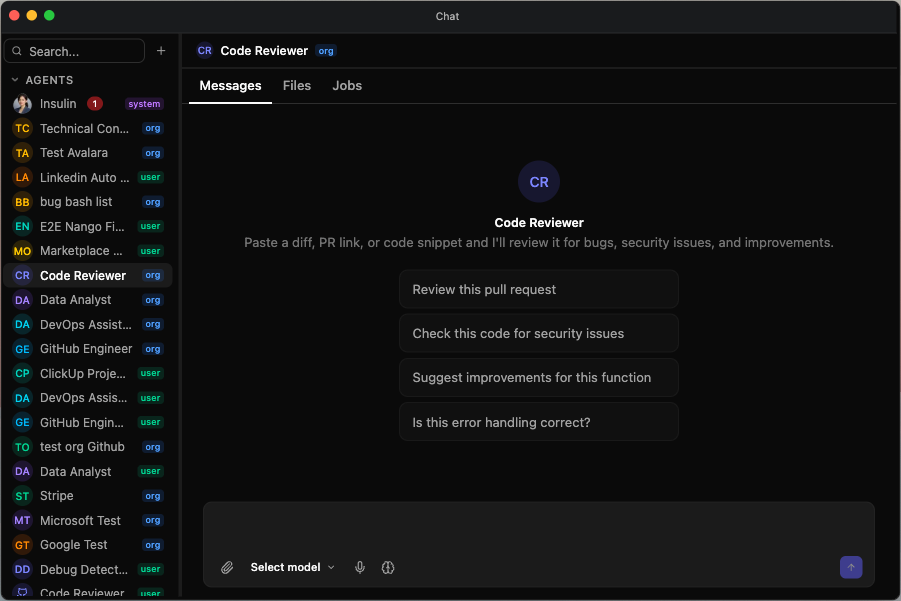
Agent Catalog
Insulin includes a catalog of pre-built agents organized by category. Install a catalog agent from Marketplace to add it to your workspace.
Development
| Agent | Description |
|---|---|
| API Designer | Design and review API schemas and contracts |
| Code Reviewer | Review code for quality, security, and best practices |
| Debug Detective | Diagnose and troubleshoot bugs and errors |
| DevOps Assistant | Help with CI/CD pipelines, infrastructure, and deployments |
| GitHub Engineer | Work with GitHub repositories, pull requests, issues, and code reviews |
Productivity
| Agent | Description |
|---|---|
| ClickUp Project Manager | Manage ClickUp tasks, projects, and workflows |
| Gmail Assistant | Read, draft, and manage Gmail messages |
| Google Calendar Assistant | Manage Google Calendar events and scheduling |
| Google Drive Assistant | Search, organize, and manage Google Drive files |
| Outlook Assistant | Read, draft, and manage Outlook email and calendar |
| Teams Coordinator | Coordinate across Microsoft Teams channels and conversations |
| Technical Writer | Draft and improve technical documentation |
Data
| Agent | Description |
|---|---|
| BigQuery Analyst | Query and analyze data in Google BigQuery |
| GCS Curator | Manage files and data in Google Cloud Storage |
Analytics
| Agent | Description |
|---|---|
| Data Analyst | Analyze datasets, generate insights, and create visualizations |
Sales
| Agent | Description |
|---|---|
| Gong Sales Coach | Review sales calls and get coaching recommendations |
| HubSpot CRM Assistant | Manage contacts, deals, and pipelines in HubSpot |
| Salesforce CRM Assistant | Manage leads, opportunities, and accounts in Salesforce |
Business
| Agent | Description |
|---|---|
| Product Strategist | Help with product planning, prioritization, and roadmap decisions |
Security
| Agent | Description |
|---|---|
| Security Auditor | Identify security vulnerabilities and recommend fixes |
Selecting an Agent
To start a conversation with a specific agent:
- Click New Conversation or click the agent name at the top of the current chat
- Browse or search your installed and shared agent list
- Select the agent to start the conversation
You can switch agents mid-conversation if needed.
Creating a Custom Agent
Build your own agent tailored to your team’s needs:
- Navigate to the Agents section in the sidebar
- Click Create Agent
- Configure the following:
| Field | Description |
|---|---|
| Icon | An avatar image that identifies the agent in lists and chat |
| Name | A descriptive name for the agent |
| Ownership | Choose Personal (only you) or Organization (shareable). The Organization option is disabled for members who are not org admins |
| Default model | The model the agent uses by default, chosen from the models your connected LLM providers make available (see below) |
| Knowledge bases | Optional knowledge bases the agent can search, each attached in Read or Edit mode (see Integrations and Knowledge Bases) |
| Integrations | Optional allowlist of connected systems the agent can use, each set to Read-only, Edit, or Full (see Integrations and Knowledge Bases) |
| System prompt | Instructions that define the agent’s behavior, personality, and constraints |
The Default model dropdown is populated from the LLM providers your workspace has connected — bring-your-own-key (BYOK) providers such as Anthropic, OpenAI, and Gemini, plus, for a Personal agent, your own Claude Code or Codex sign-in. You can also connect open-source model aggregators — OpenRouter, Baseten, DeepInfra, Fireworks AI, and Together AI — each of which serves a large catalog of models. Cloudflare Workers AI and DigitalOcean GradientAI are connected under Settings → Integrations too, and each offers a fixed set of five chat models. Because an aggregator can expose hundreds of models, the Default model picker is searchable and grouped by provider, with verified models listed first. Fours’ hosted models are offered to Personal and Organization agents alike — the same models either way — so a new agent normally has something to run on before you connect anything. Whether they are offered at all is an organization decision: see How a turn resolves to a model. The Ownership you choose controls only whose BYOK providers join that list: an Organization agent draws on the organization’s connected providers, a Personal (only you) agent on your own. If a saved default later becomes unavailable — its provider was disconnected or the model was retired — the picker marks it with the model’s name followed by ”— unavailable” with a hint to reconnect the provider or choose another model; the agent never silently switches to a different model. A turn that cannot reach the saved default stops with an error saying the model is not available, and if the default fails partway through a turn, the reply names the model that took over — see When a model fails over.
When a Default model is refused on save
Saving an agent whose Default model the agent could not actually run is refused rather than accepted and quietly failed over at the first turn. The reason you get back is the same one the runtime would give:
| Why the save was refused | What it means | What to do |
|---|---|---|
| AI policy | Your organization’s AI model policy does not permit that model | Pick another model, or change the policy under Settings → Organization → AI Gateway |
| Model unavailable | The model itself cannot be reached for this agent’s scope | Pick another model, or connect the provider that serves it |
| Nothing to resolve with | No provider could be resolved for the scope at all | Connect a provider — this is not a statement about the model you picked |
Two things this deliberately does not do. It does not hold a Personal agent to a stricter standard than an Organization one — either scope may pin a Fours-hosted model, because either scope can run one. And it re-checks the model only when you change it: renaming an agent whose long-standing pin a later policy change excluded still saves, rather than trapping you on a screen that refuses every edit over a field you did not touch.
User-Level vs Org-Level Agents
When creating an agent, you choose the ownership level:
- User-level — Private to you. Any user can create user-level agents.
- Org-level — Belongs to the organization. Only org admins can create org-level agents.
Integrations and Knowledge Bases
Agents do not automatically receive every connection your organization has configured. Their runtime access depends on the agent’s ownership level:
| Agent type | Integration access |
|---|---|
| User-level | Uses user-level integrations selected for that agent. |
| Org-level | Uses organization-level integrations selected for that agent. |
| System | Uses allowed user-scope integrations for the current user. |
Each integration you select on a custom agent has an access setting of its own — a select beside it in the agent’s Integrations list. The levels build on each other: Read-only looks things up, Edit also changes records, Full also deletes them.
| Access | What the agent can do |
|---|---|
| Read-only | Use only that integration’s read tools — listing, searching, fetching. Its write tools are removed for this agent, and a tool Fours does not recognise as a read is treated as a write. |
| Edit | Read from the integration, and create and change records there, but not delete them. A delete is anything that takes a record out of that service — including what the service calls archiving, trashing, voiding or revoking — and a tool that runs arbitrary queries, such as a SQL statement, counts as one. |
| Full | Everything Edit allows, plus deleting. This is the default, and it is what an integration selected before the access setting existed keeps. |
Fours takes each tool’s level from the integration’s own definition of that tool where it has one, and otherwise from the tool’s name.
To give an organization agent tools for your Fours records — offers, products, entitlements, co-sell referrals and more — an org admin adds the Fours MCP server to its integrations, where it is listed as Suger MCP. It is offered only on organization agents and only to org admins. Instead of an access select it carries a fixed Edit badge: the agent works on the organization’s own credential and can read and change records, but never delete them. Even once it is added, its tools are attached only when the person the agent is working for is an organization ADMIN or EDITOR; for anyone else, the agent runs without them.
If you connected the Fours MCP server to your own account (see Connect Fours’ own MCP server), it appears as Suger MCP among your personal agents’ integrations, and in the Insulin assistant’s settings, with a badge showing the access you chose when you connected it — Read-only, Edit, or Full. That level belongs to the connection, not to an agent: to change it, reconnect the server under Settings → Integrations.
Custom agents can also attach knowledge bases. A custom agent searches the knowledge bases configured on it, while the built-in Insulin assistant searches the ones you own by default and lets you narrow that to an explicit set from its own panel; it never searches an organization knowledge base. See Knowledge Bases to create one and fill it with files, websites, or synced connectors, and Choosing which knowledge bases Insulin uses for the Insulin selection.
Each attached knowledge base has an access mode:
| Mode | What the agent can do |
|---|---|
| Read | Retrieve and search the knowledge base for grounded context only |
| Edit | Retrieve, plus create, update, and deprecate files in the knowledge base (never delete) |
What the Insulin assistant may do with your integrations
The built-in Insulin assistant has no integration list to choose from: it can always reach every connection you have made under Settings → Integrations. What you can do is narrow what it may do with each one. Open a chat with Insulin, click the pencil in the conversation header, and use the panel’s Integrations section: it lists each integration you have connected, AI model providers aside, with the same Read-only, Edit, and Full levels as a custom agent. An integration you leave alone stays at Full.
- The levels are yours alone: they narrow Insulin for you, not for anyone else in the organization.
- Your own Fours MCP connection shows its access as a badge rather than a select — see above.
- If Fours cannot read your levels when a turn starts, Insulin runs that turn with every integration at Read-only rather than risk an action you restricted.
- A CRM action you approve in Inbox is not held to these levels: you approved that one action on that one connection.
Asking an agent about its own integrations
An agent can inspect the connections it has been given, so you can ask about them in plain language instead of opening Settings and guessing. There is no control to switch on — every agent has these abilities automatically:
- List its integrations — which connected systems it can reach, whether each one is user- or organization-level, and when it was connected.
- Get the details of one integration — the same record for a single connection, read from what the agent already has loaded rather than by calling the provider.
- Check whether an integration is working — a live probe that refreshes an expired OAuth sign-in if it can, then reports the connection healthy or unhealthy along with the reason it failed.
- List the actions an integration supports — the provider actions this agent may actually call, given the integration’s access level and the kind of turn it is running, each with a description and whether it is read-only, plus non-secret connection details such as an account id or base URL. Credentials are never returned.
Because “is it attached?” and “does it still work?” are answered separately, an agent now tells not connected apart from connected but failing. Ask “why can’t you update Salesforce?” and it can distinguish an integration that was never added to its allowlist from one that is on the allowlist but whose credential has stopped working — instead of reporting a live-but-erroring connection as disconnected and sending you to reconnect something that is already connected.
A connection can also be connected but unusable — for example, a Salesforce connection whose stored sign-in is missing the address of your Salesforce instance. The agent reports that one as unhealthy: it is connected, but none of its tools are available in this run, and you should reconnect it in Settings → Integrations.
Sharing Agents
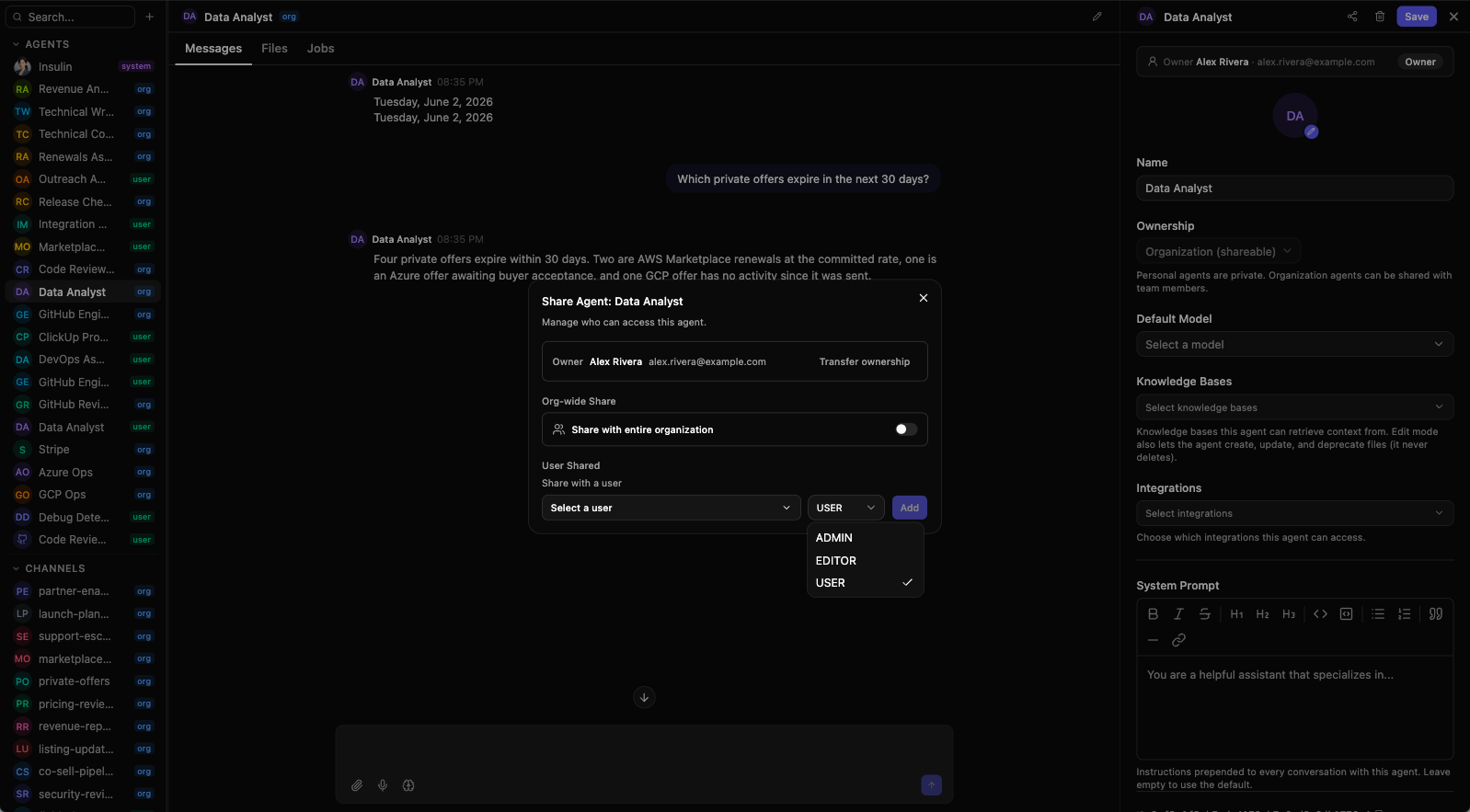
Only Organization agents can be shared. Personal (user-level) agents are private to you, and their Share button is disabled.
Share an Organization agent with specific teammates using role-based access control. Each shared user is assigned one of the following roles (see Roles and Permissions for the full model):
| Role | Permissions |
|---|---|
| ADMIN | Edit agent configuration and manage sharing (invite/revoke members, assign roles). The role picker offers ADMIN only to organization ADMINs |
| EDITOR | Edit the agent’s configuration (system prompt, default model, knowledge bases, and — for org admins — the integration allowlist) |
| USER | Use the agent in conversations |
To share an agent:
- Open the agent’s settings
- Click Share
- Add team members and assign roles
When a teammate opens an agent shared with them, its settings show an owner-and-role banner, and anyone below Editor (a USER/Member) sees the configuration read-only. See Working with a Shared Resource.
Org-Wide Sharing
Instead of inviting people one at a time, you can share an Organization agent with your entire organization. Org-wide sharing grants either EDITOR or USER (never ADMIN); everyone in the organization then gets that role automatically without an individual invite.
Transferring Ownership
Only an Organization agent can change hands, and only its owner can hand it over — the Share dialog shows Transfer ownership beside the Owner row to the owner and to no one else.
- Open the agent’s settings and click Share
- Click Transfer ownership next to the Owner row
- Choose the new owner from Select new owner… — only organization ADMINs are listed
- Click Transfer
The new owner receives full ownership and control of the agent. You drop to USER: you can still use the agent, but the new owner has to grant you EDITOR or higher if you should keep editing it. If you are no longer an organization ADMIN yourself, the transfer is refused, and the message says why.
Agents in Channels and Jobs
Agents can be reused across Insulin:
- Add agents to Channels when multiple people and agents need to collaborate in a shared thread.
- Assign agents to Jobs when work should run manually, on a schedule, or from an event.
- Use agents with Custom Apps when a workflow needs both an AI builder and an interactive UI.
Conversations
Each conversation is a multi-turn thread between you and an agent. Conversations are persisted automatically and appear in the sidebar for easy access. You can have multiple conversations open and switch between them.
The Chat window’s address follows the conversation you have open — #/chat?agent=<id> for an agent, #/chat?channel=<id> for a channel — so reloading the page brings you back to the same conversation, and a link carrying that address opens it.
Each agent or channel view has a tab bar with Messages, Files, and Jobs — the same three whether you are in a solo agent chat or a channel. The Files tab lists the attachments in the thread. The Jobs tab surfaces jobs: in a solo chat, that agent’s own scheduled and on-demand jobs; in a channel, the jobs belonging to the agents that are members of it.
When you open a fresh solo chat, the empty state shows the agent’s welcome message and a set of clickable conversation-starter buttons — click one to begin without typing.
Insulin also supports thread events through a live stream. This lets the UI update while an agent is running, while a channel is active, or while a paused run is waiting for an approval.
The built-in Insulin assistant also answers in the Fours console’s AI chat and in the Fours Chrome extension. Each of those keeps its own conversations, separate from your chats in the workspace, so a question asked there doesn’t appear in the Chat app here.
Message Types
- User messages — Your inputs, including text, file references, and images.
- Assistant messages — Responses from the agent, streamed in real time as they are generated.
- System messages — Status updates, such as when an agent is switched or a tool completes execution.
The Composer
The composer is the input bar at the bottom of the conversation. It holds the controls for everything you send:
- Text with @mentions and /slash commands — Type your message;
@and/open inline pickers (see below). - Mic / voice — Dictate a message instead of typing. The button shows a live elapsed timer while recording; stop to insert the transcribed text.
- Attach (paperclip) — Add files for the agent to read. You can also drag and drop files onto the composer or paste them.
- Thinking toggle — The Brain button turns extended thinking on or off for the session.
- Send / Stop — Send your message, or stop a response that is still streaming.
File Attachments
Attach files by clicking the paperclip, dragging them onto the composer, or pasting them. Files upload before the message is sent and appear as attachment chips you can remove before sending.
| Limit | Value |
|---|---|
| Files per message | Up to 10 |
| Size per file | Up to 25 MB |
Before sending, each attachment shows as a chip you can remove. Attachments become viewable once the message is sent (see Attachments in a Thread).
The agent can read images (PNG, JPG, GIF and WebP, up to 5 MB each — a larger image uploads, but the model can’t read it), PDFs, Word (.docx, .doc), Excel (.xlsx, .xls) and PowerPoint (.pptx) files, and text files. A file in any other format still uploads, but the agent is told it can’t read it, along with the formats it can.
How much of a file reaches the model depends on the model the turn runs on:
- Anthropic, OpenAI and Gemini models read a PDF itself, layout, images and charts included.
- The Fours-hosted models and the open-source providers — OpenRouter, Baseten, DeepInfra, Fireworks AI, Together AI, Cloudflare Workers AI and DigitalOcean GradientAI — get only a PDF’s text, up to 50,000 characters. A scanned PDF has no text to give, so the model is told it could not read the file rather than left to guess. Of these models, only the Fours-hosted GLM 5.3 Flash and Gemma 4 31B can see images; the others are told an image is there that they can’t view.
Slash Commands
Type / at the start of the composer to see the commands available for the current agent. The list includes the agent’s built-in skills plus any skills you have enabled, each slugified from its name. Selecting a command inserts it into your message.
For the built-in Insulin assistant, those include /skill-creator, which co-authors a new skill with you and saves it to your library, and /suger-queries, which covers reading your Fours records. With it, the assistant asks for just the records and fields it needs rather than whole lists, and links the offers, offer sets, products, buyers, contacts, entitlements, support tickets and co-sell referrals it reports to their pages in the Fours console — when it has the record’s ID. Anything else, such as an invoice, or a record it recalls without its ID, is named without a link. The assistant draws on the skill by itself when you ask about your Fours records. A link opens in whichever organization you have selected in the console.
A third built-in command, /deal-registration, records a deal a partner brought up as a deal-registration draft in your partner program’s review queue. It never registers the deal itself — an admin confirms the draft in Fours — and it needs a Fours MCP connection with write access. Name the partner, or leave it for the admin to pick when confirming; before filing, the assistant checks the queue for a draft of the same deal and asks rather than creating a second one.
One command is built in everywhere: /clear replaces the current conversation with a fresh, empty one (see Resetting a Conversation).
@Mentions
Type @ to mention a participant. In a channel, this addresses a specific agent so it answers your message. Clicking an @agent mention in a message switches you to that agent’s solo chat.
Quoting part of a message
To reply to one specific passage rather than a whole answer, select the text in the message. A small Quote reply button appears just above your selection; click it and the selection lands in the composer as a Markdown blockquote, with the caret placed after it so you can type your response straight away.
The quote is added above whatever you had already typed, so an in-progress sentence is never interrupted. Quoting inside a sub-thread puts the quote in that sub-thread’s own composer, not the main one.
Model Selection
Insulin selects the model for you — there is no per-conversation model picker. Each agent runs on the models available to it and fails over automatically: if a model call fails — a provider outage, a usage limit, or a rejected key — the turn retries on your next connected provider, so a single provider problem doesn’t stall the conversation.
Most agents can also draw on the Fours-hosted models, so nothing has to be connected before you start. What the agent’s ownership decides is whose connected providers join that pool:
- The built-in Insulin assistant and Personal (only-you) agents add the providers you have connected under Settings → Integrations (bring-your-own-key). They never reach the organization’s keys.
- Organization agents add the providers the organization has connected.
In both cases your own connected models are preferred and the Fours-hosted ones are the fallback the turn degrades to.
How a turn resolves to a model
Two organization settings sit between an agent and the hosted pool, and a third threshold quietly changes which hosted models are on offer:
Both organization settings live on Settings → Organization → AI Gateway (formerly AI Model Policy) and are described in Getting Started. The spend threshold is not a setting at all — it is a Fours-set figure your organization cannot configure, described under the Fours-hosted tier step-down.
When nothing survives that chain, the model list is simply empty — you are told “No models are available right now,” which may be temporary or may mean no provider is connected yet, with a link to connect your own.
A turn that has no model to run on stops, and what you see depends on where you are chatting:
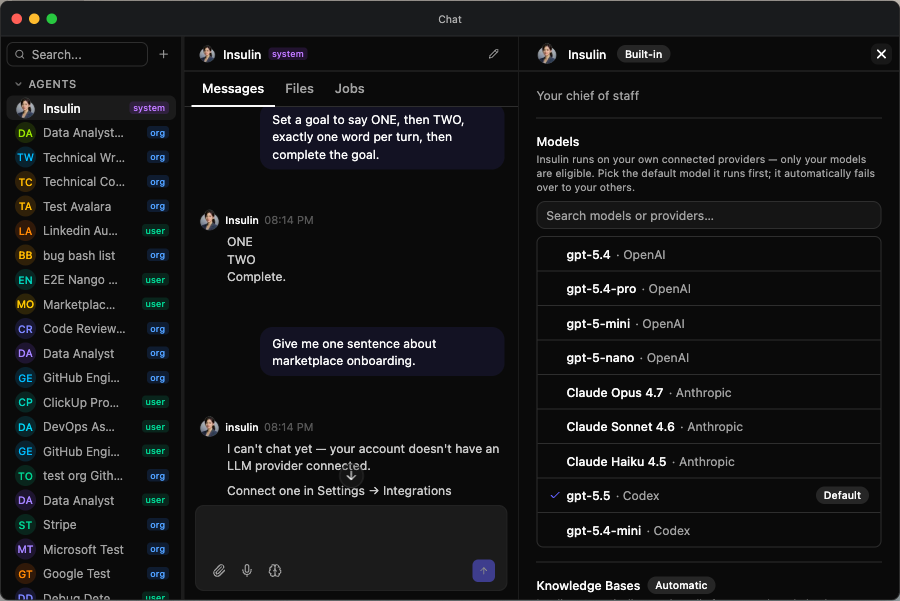
- The built-in Insulin assistant, outside an Insulin channel — a one-on-one chat on the web, a Slack DM or @mention, or a Teams DM — replies in the conversation rather than showing an error: “I can’t chat yet — your account doesn’t have an LLM provider connected.” It asks you to connect one in Settings → Integrations (Anthropic, OpenAI, Codex, Claude Code, or Gemini) and then send your message again. It gives this reply whatever emptied the model list.
- Any other agent, in a one-on-one chat, stops with an error card that names the cause. It reads either “No model available for your account: your organization has disabled Fours’ hosted models and you have no personal AI provider connected. Connect one in Console → Settings → Integrations, or ask an org admin to allow Fours’ hosted models.” or “No model available right now: Fours’ hosted models could not be reached and you have no personal AI provider connected. This is on Fours’ side — retry in a moment. Connecting your own provider is optional.”
- In an Insulin channel, there is no friendly reply — not even from the Insulin assistant. If any agent the channel needs cannot get a model, the whole turn stops with an error card that shows the same cause, prefixed with that agent’s name and a colon, and none of the channel’s other agents answer it.
See Creating a Custom Agent for how an agent’s ownership and its configured Default model determine which models it uses.
Where you set the model
There is no picker in the composer, but you do still choose the model — just once, not per message.
For the built-in Insulin assistant: open a chat with Insulin and click the pencil button in the conversation header (its accessible label reads Insulin model settings). A panel slides out with a Models section listing the Fours-hosted models plus every model your own connected providers make available.
- Search or scroll to the model you want
- Click its row — that makes it Insulin’s default
- The row you picked now carries a Default badge
Insulin runs that model first, then fails over to the others from there. On a workspace that has not restricted its model policy you do not need to connect anything to get started, because the Fours-hosted models are in the list already; whether they are offered at all is decided by the chain in How a turn resolves to a model. Connecting your own provider under Settings → Integrations adds its models, and they take priority over the hosted ones.
If the panel reads “No models are available right now,” nothing has resolved for this agent — either temporarily, or because no provider is connected and the hosted pool is not available to it. The panel offers a link straight to Settings → Integrations to connect your own.
For a custom agent: the model is a field on the agent itself. Set Default model in the agent’s own settings — see Creating a Custom Agent.
When a model fails over
Failover is surfaced, not silent. When a turn switches models and then succeeds, the reply carries a short italic note at the end naming both models, in this form:
first-modelhit its usage limit — continued withsecond-model.
The note reads was unavailable instead of hit its usage limit when the switch was caused by an error — a provider outage or a rejected key — rather than a quota.
When there is nothing left to fail over to, the turn stops and says why:
- One model is out of quota. A usage-limit card appears in the thread — “You’ve hit the usage limit for
<model>.” — plus “Your limit resets at<time>” when the provider reports one. The card links to that provider’s usage page, or points you at Settings when the model was Fours-hosted. - Every connected model is limited. You get a message naming the model you hit first, listing the others that are limited too, and the time the first limit resets, with a suggestion to check your providers’ usage pages or try again once a limit clears.
- Some models were busy or at their limit, and the rest failed for a reason Insulin doesn’t recognize. You’re told “The AI models are busy or at their usage limit right now, so this request could not be completed. Please try again in a few minutes.” That is a capacity problem on the providers’ side, not a broken connection, so there is nothing to reconnect. When a failure is recognized — a rejected key, a model that can’t be reached, a provider outage — the message names that cause instead.
Picking the turn back up
A failed turn carries its own buttons, so you do not have to retype what you asked:
- Retry re-sends the message that failed — the user message immediately above that error card, not whatever you typed most recently. Scroll back to an old error and Retry still re-sends the right turn.
- Switch model opens the agent’s model settings so you can pick a different one before trying again.
Switch model is only offered when Insulin knows what went wrong, because a model change is only the fix for some causes:
| How the failure was classified | Retry | Switch model |
|---|---|---|
| Usage limit — that model’s quota is spent | Yes | No |
| Provider auth — the key was rejected | Yes | Yes |
| Model unavailable — the model itself could not be reached | Yes | Yes |
| Provider unavailable — the provider is down | Yes | Yes |
| Interrupted — the reply stream ended before the turn finished | Yes | No |
| Unclassified — the cause is not known | Yes | No |
The usage-limit card described above carries the same buttons rather than a separate set.
One card leaves Retry out on purpose: a failed CRM action run in the Inbox chat rail. The CRM write may already have happened, so the card asks you to check the record in your CRM, or the action’s outcome, before running it again — see Inbox.
An interrupted card means the reply stopped arriving before the turn finished — for example “The response stream ended before this turn finished. Retry to run it again.” It is provisional, because the turn may still have finished on the server. If it did, the card is withdrawn and the reply is loaded in its place. If that reply then cannot be loaded, the card is replaced by the note “This turn finished, but its reply could not be loaded here. Reload the conversation to see it.” — reload the conversation rather than retrying, because the work is already done.
Streaming Responses
Agent responses stream token by token as they are generated. You can read the response as it appears without waiting for the full message to complete.
Extended Thinking
When extended thinking is enabled, the agent shows its reasoning process before delivering a final answer. The thinking steps appear in a collapsible section above the response, and it starts collapsed — Thinking… while the answer is still streaming, Thought process once it is saved — so the answer is what you read first. Click either to expand it. This helps you understand the agent’s logic and verify its approach on complex tasks.
Toggle thinking on or off with the Brain button in the composer. The setting applies to the session and is remembered in your browser.
Tool Calls
Agents can execute tools — external actions like querying data, calling APIs, or running code. When a tool is invoked during a conversation, you see:
- Running — The tool call is in progress, with a spinner and the tool name displayed.
- Awaiting approval — A pause icon instead of the spinner: the call is waiting on a Tool Approval Required card, and nothing has run yet.
- Success — The tool completed and its output is shown inline.
- Error — The tool failed, with the error message displayed.
- Denied — You denied the call on its approval card, so the tool never ran. It shows a muted icon rather than the red error mark, because nothing failed.
Tool call details are expandable so you can inspect inputs and outputs.
Tool Approvals
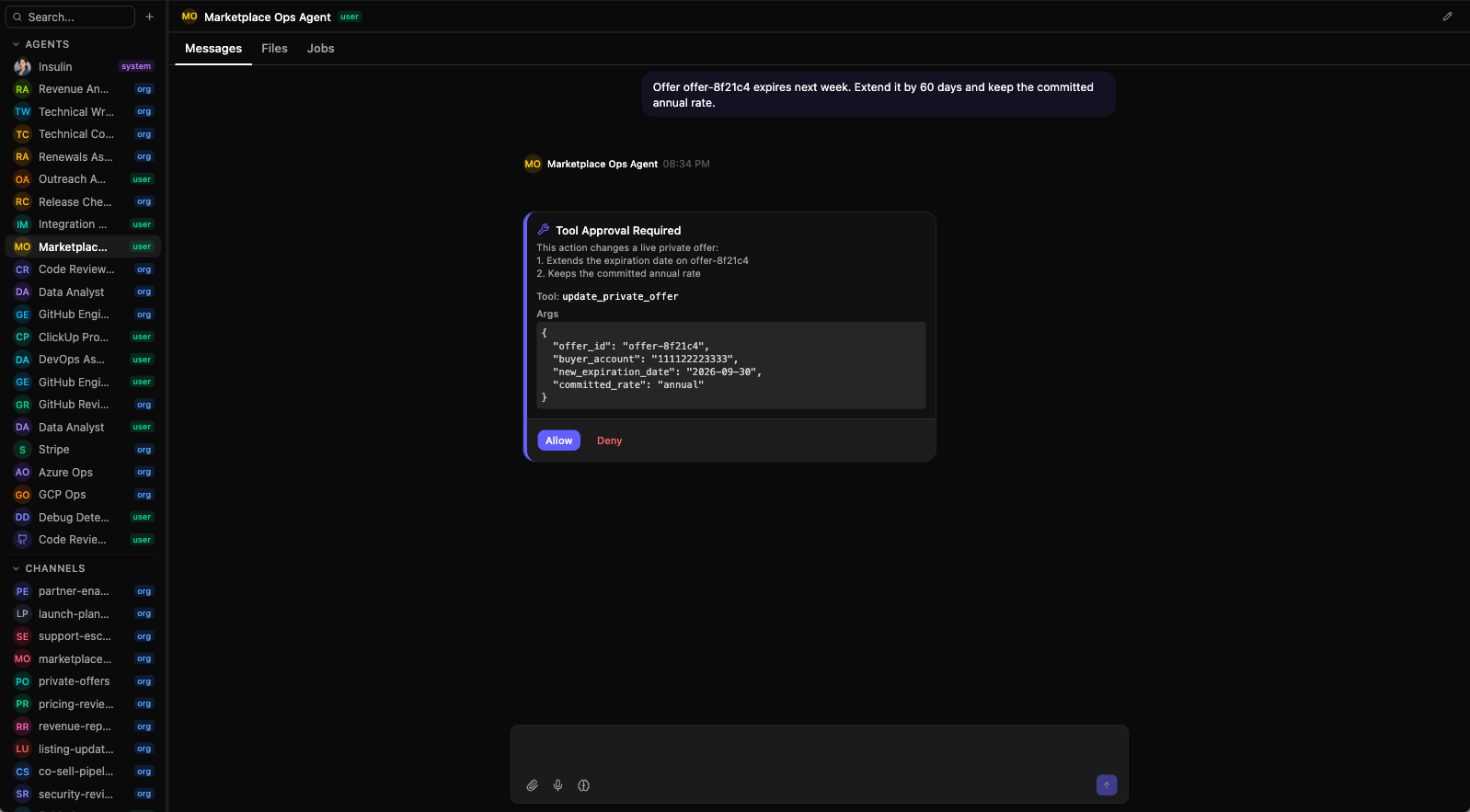
Some tool calls pause for your explicit approval before they run: posting a message to Slack, since other people can read it the moment it is sent — whether you asked in the web workspace, a Slack DM or a Slack channel (see What Insulin can do when mentioned in a channel). When one does, a Tool Approval Required card appears in the thread. It names the tool, shows the arguments it would be called with, and explains why it stopped to ask. Two buttons:
- Allow — the tool runs and the turn carries on.
- Deny — the tool is not called.
Once you answer, the card keeps a badge recording what you chose: Approved or Rejected. If you leave it alone, the request times out after about three minutes, the card is marked Expired, and nothing is sent.
Plan Progress
When an agent works through a multi-step plan, it shows you the steps and their progress as a checklist it writes for itself. Its header shows the label, a done / total count, and a thin progress bar; collapse it and the card becomes that single header row. It updates in real time as the agent works.
A step here is in one of three states:
| Status | Meaning |
|---|---|
| Pending | Step has not started yet |
| In progress | Step is currently executing |
| Completed | Step finished successfully |
A step that started but was never closed out — because the run ended, errored, or simply answered without updating its checklist — is shown as unfinished once the run is over, rather than spinning forever in a conversation you reopen weeks later.
Long-running work
Some requests take more than one exchange to finish. “Reconcile last quarter’s entitlements and write up what doesn’t match” isn’t one answer — it’s a stretch of work. Ask for something like that and the agent may keep going across many turns until the job is done, rather than stopping at the end of its first reply.
Work like that becomes a goal, and the agent drops a goal card into the transcript naming the objective. The card tracks its own status and the round it is on, and it is persisted with the thread — close the window, come back later, and it is still there with the progress it made in the meantime.
Three kinds of card can appear in a conversation this way:
| Card | What it tracks | Where it comes from |
|---|---|---|
| Plan | The step list and its progress (see Plan Progress) | The agent writing out a plan |
| Goal | A stretch of work pursued across many rounds | The agent setting a goal |
| Job | A job the agent created for you | The agent creating a job |
You never fill in a form for any of them — there is no “new goal” screen. A goal exists because the agent decided the request needed one. To nudge it along, hover one of your own messages and use Set as goal: that asks the agent to turn that message into an objective, and the agent is still the one that creates it.
Watching and steering a goal
Click the goal card and a details drawer opens down the right-hand side of the conversation. It holds:
- the goal’s live status and the round it is on,
- a timeline of rounds — the agent’s own progress replies, in order, each expandable,
- a steer composer at the bottom, and
- a Cancel goal button.
Type into the steer composer while the goal is live and it is picked up on the goal’s next round, so you never have to wait for a gap to redirect it. A steer that narrows the work (“Actually, only look at AWS.”) is applied from the next round onward. A steer that changes what the goal is goes further: the agent amends the recorded objective, so the card and the drawer describe the work you actually asked for rather than the one you started with. Only your steer can amend an objective — the agent cannot quietly rewrite it on its own.
Once the goal has ended, the composer says so (“Goal has ended”) rather than accepting a steer that nothing would read.
Plain English still works everywhere the drawer does not reach: writing “Stop.”, “Cancel”, “pause”, or “drop it” in the conversation ends the work the same way the button does. In a channel the goal belongs to the conversation, so any member can steer it by writing in the channel.
Memory
Insulin maintains memory across conversations:
- Short-term memory — Context from the current conversation, including earlier messages and tool results.
- Long-term memory — Persistent knowledge the agent retains across conversations, such as your preferences, decisions, and recurring instructions. Long-term memories are categorized as fact, preference, decision, context, or learned.
Memory recall happens automatically — when the agent surfaces relevant past context, you see a memory recall indicator showing the number of memories retrieved and their content. Memory confidence decays over time, so older memories that are no longer reinforced gradually become less prominent.
You can also manage long-term memory directly, in Settings → Personal → Memory: search what is stored, correct a memory with its Edit (pencil) button, delete one, or Clear All. Editing, deleting, and Clear All act only on memories that are yours — memories shared across your organization are listed too, but their Edit and Delete buttons are disabled. You can also just tell the Insulin assistant that something it remembered is wrong: it corrects that memory in place rather than saving a second, competing one.
Recall matches words, not meaning — a memory is recalled when it shares words with what is being looked up — so memories written in Chinese or Japanese are not recalled.
Connection Status
The chat interface shows a Connecting… banner while it establishes a connection to the AI service. Once connected, streaming is active and the agent can respond.
If the connection drops briefly, the client reconnects on its own in the background — no banner is shown and no action is needed on your part. The exception is a drop that cuts off a reply while it is still being written: that turn shows an interrupted card you can retry, which is withdrawn if the turn still finishes — see Picking the turn back up.
Reloading doesn’t stop a reply. If you reload the page, or your connection drops, while an agent is still writing, the agent keeps working. In a one-on-one chat or a personal channel, Insulin waits 30 seconds after it notices you have gone, then checks whether that conversation is open again — in the reloaded page or in any other tab: if it is, the reply carries on — and in a one-on-one chat you get the Stop button back for it — and if it isn’t, the turn is cancelled. In an organization channel a dropped connection still stops your turn at once, and a goal keeps running either way. Pressing Stop is different from leaving: it cancels the turn immediately.
Sub-Threads
Within a conversation, you can branch into sub-threads to explore a topic without disrupting the main conversation flow. Sub-threads appear as nested discussions tied to a specific message.
How you get into one depends on where you are:
| Way in | Solo chat | Channel |
|---|---|---|
| Hover a message, then click Reply in thread | Yes — starts a new sub-thread, or reopens the existing one | Not offered |
| Click the N replies badge on a message | Yes | Yes — this is the only way in |
In a channel, an agent’s reply is delivered into a sub-thread and the parent message grows a 1 reply / N replies badge you click to read it. Sending a message in a channel no longer pops the side panel open by itself — it used to interrupt whatever you were reading. Open the panel yourself while a reply is still being written and it streams live from that point.
While the agents work, every member of the channel sees the working agent’s name under the message that started the turn — Planner is working…, for example, or Working on it… until an agent picks it up. Click it to open the thread. Once replies land, the badge also names up to three of the people and agents who took part, followed by +N for the rest.
You can rename a sub-thread, or ask Insulin to regenerate its title from the conversation. Renaming and title regeneration are available to the sub-thread’s owner.
Unread Messages
Organization channels in the sidebar carry an unread count, so you can see where the conversation moved on while you were away. The badge counts up to 99 and then reads 99+.
Nothing else accumulates unread counts — not personal channels, not your one-on-one chats with an agent, and not sub-threads. Those are places only you and your own agents write, so a badge there would only ever be counting your own conversation back at you.
What an agent’s row in the sidebar does carry is a status dot, showing what that agent is doing in your one-on-one chat with it. Hover the row and its tooltip names the status:
| Dot | Status | Means |
|---|---|---|
| Grey, pulsing | Running | The agent is still working on a reply |
| Amber | Waiting for approval | The turn is paused on an approval card that needs your answer |
| Blue | Unread response | A reply finished while you were in another conversation |
The dot is kept in your browser, not on the server: it covers only the chats you have opened since the page loaded, and reloading the page clears it.
Attachments in a Thread
Files you attach in the composer are uploaded and shown as attachment chips before you send. Once sent, they belong to the thread and appear in its Files tab, where they are listed and can be downloaded. Click an attachment on a sent message to open it in the Preview app — PDFs, images, and video render there.
Quick Replies
Agents may offer quick reply suggestions — pre-written response options you can click instead of typing. These appear as buttons below the agent’s message and are useful for common follow-up actions.
Draft Preservation
If you start typing a message and navigate away from the conversation, your draft is preserved. When you return, your unsent message is restored in the composer. Your scroll position is preserved the same way, per conversation.
Message Pagination
Long conversations load messages incrementally. As you scroll toward the top, earlier messages load automatically. When you scroll away from the bottom of the conversation, a floating jump to latest button appears so you can return to the newest message in one click.
Slack and Teams
When your organization has connected Slack or Microsoft Teams, you can talk to the built-in Insulin assistant there as well as in the web workspace. The two work differently:
| Slack | Microsoft Teams | |
|---|---|---|
| Where Insulin answers | A direct message with the Fours app, and any channel where you @mention the app | A one-on-one chat with the bot only |
| Conversation | Each Slack DM and each Slack thread you talk to it in is a conversation of its own, separate from your Insulin chat in the web workspace | The same conversation as your Insulin chat in the web workspace, so work carries across both |
| Tool approvals | The approval card is posted in Slack | Not offered, so an action does not wait for you |
| Files | Files and images attached to the message you send are read — see Sending Files and Images | Not read: text only |
| Cards | Goal and question cards follow the reply, and an approval card appears while a turn waits for you | Text replies only |
In both, Insulin acts without organization-admin rights — even when you are an org ADMIN — so actions that need an ADMIN aren’t available there. For multi-agent group discussions inside Insulin itself, see Channels.
Talking to Insulin in Slack
- In a direct message, every message you send is answered. Start a thread inside the DM and that thread becomes its own conversation; the first time you write in it, Insulin reads the thread’s earlier messages.
- In a channel, Insulin answers only when you @mention the Fours app — inside a thread too, including one it has already answered in, so people replying to each other under its answer don’t set it off. A mention in the channel itself is answered in a thread under your message, after Insulin reads the channel’s most recent messages; a mention inside a thread reads that thread, its first message and the latest replies. Either way you can ask about what was just said without pasting it.
- Replies in a channel start with an @mention of whoever asked, because several people may be talking to Insulin at once. An
@hereor@channelin the agent’s own text is shown as plain text, so a reply can’t notify the whole channel. - Files and images attached to the message you send — the DM, or the message that @mentions the app — are read the way attachments in the web workspace are: up to 10 files, 25 MB each and 64 MB in all. Files on earlier messages in a thread are seen by name only, so attach a file again to have it read. See Sending Files and Images.
The Fours app is the one your organization installed for Fours notifications. Inside Slack it still carries Fours’ former name — see Slack.
Who Insulin answers in Slack
Insulin answers someone only when the email on their Slack profile matches a Fours account that belongs to the Fours organization the Slack workspace is connected to. Otherwise it says what is missing: the workspace is no longer connected, it could not read an email from the Slack profile, no Fours account uses that email, or the account is not a member of that organization. In a channel it tells only that person, where Slack allows it; in a channel shared with another company (Slack Connect) it answers in the thread instead, without quoting their email address. A member of the other company is checked against the Fours organization their own workspace is connected to.
What Insulin can do when mentioned in a channel
A mention in a channel gets the same assistant as a Slack DM and the web workspace: every tool your connections give it, the MCP servers you connected yourself, and goals. As in a DM, only posting a Slack message waits for your approval, on a card that only you can answer. Creating or changing a record, a memory, a job, an agent or a channel, and handing part of the work to a helper agent, don’t wait — what bounds them is the access you gave each connection (a read-only Fours MCP connection can’t change anything) and your own Fours permissions.
Everyone in a channel can write the messages Insulin reads there. It answers the mention it was given, and treats the channel’s other recent messages as background to that request. What it reads can include your private messages — your Slack DMs and private channels, your Teams chats, or your email — if your connections reach them.
What you see in Slack
-
Progress — while Insulin works, Slack shows its status under the thread. In a DM outside a thread, a Thinking… message appears instead and becomes the answer. On a long step the status is refreshed every minute so it stays visible, for up to ten minutes without progress. The answer is only Insulin’s final reply: its notes along the way and a helper agent’s drafts are not posted.
-
Cards — goal and question cards are posted after the reply:
- Goal set names the objective when the agent sets a goal. It is posted once and does not update the way the card in the web workspace does.
- A question for you offers one button per answer. Only the person who was asked can click one; the choice is posted in the thread and sent as their next message. The buttons stay active, so choosing again later is the same as typing a new answer.
A job the agent creates gets no card; the reply already reports it. The Tool approval required card comes earlier, while the turn is paused — see Approving a Slack message in Slack.
-
Large tables — a table longer than about 8,000 characters is attached as a CSV file instead of shown in the message. Tables with the same columns are combined into one file, named after the heading above them, and a cell that is a link becomes a clickable link in the spreadsheet. A table the agent has shortened stays in the message, so a partial list never arrives looking complete.
-
Long replies — a reply too long for one Slack message is attached in full as a file, with its opening in the message.
Approving a Slack message in Slack
When the agent wants to post a Slack message, it stops and posts a Tool approval required card in the conversation — in a DM and in a channel alike. It is the only action that waits for you in Slack.
- Check where the message would go and read the preview of its text. If the destination is shown only as a raw Slack ID, the card says so — make sure it is the channel or person you meant.
- Choose Allow to post it, or Deny to stop it.
Only the person who asked can answer; anyone else who clicks is told so. Once you choose, the buttons are replaced by a record of the decision — Allowed by you, or Denied by you with the action was not sent — and the turn carries on. If nobody answers within three minutes, nothing is sent, the reply ends “No approval within 3 minutes — nothing was sent. Ask again if you still want it.”, and a later click is told the approval has expired. In a DM, the answer is posted below the card.
Microsoft Teams
In Teams, Insulin answers only in a one-on-one chat with the bot, and that chat continues the conversation you have with Insulin in the web workspace. Teams has no approval card, so an action that would wait for your approval elsewhere is not held back there. While Insulin works, Teams shows a status line; the answer arrives as text, once, when the run ends.
Resetting a Conversation
To start over with a clean slate, send the /clear command in the composer. It first asks the agent to stop any reply that is still being written and clears it from your screen, then deletes the current conversation and its messages and opens a fresh, empty one for the same agent or channel — the old conversation is not kept. A message you send while /clear is still working waits, and lands in the new conversation. An organization channel’s conversation is shared by every member, so it can’t be cleared this way.
Spotted something wrong or out of date on this page? Tell us and we'll correct it.