Inbox
Inbox is an email-triage workspace that connects your mailbox, labels incoming mail the way your rules say, and drafts replies in your writing style — plus rules that can react to a CRM event. Nothing leaves your mailbox until you approve it, unless you author an auto-send rule yourself.
What Is Inbox?
Inbox is a built-in Insulin app pinned to the desktop Dock. Once you connect a mailbox, Insulin watches for incoming email, checks each message against your rules, and — when one matches — produces something for you: a drafted reply, a Slack notification, or a CRM action. Drafted replies and CRM actions wait in the Approvals ▸ Pending queue where you read, edit, and confirm them. A Slack notification is only a heads-up sent straight to you, and an auto-send rule you write yourself sends its reply without stopping in the queue unless its pre-send check holds it back.
Prefer video? Watch a quick overview:
The whole feature is built around one safety promise:
Opening the Inbox App
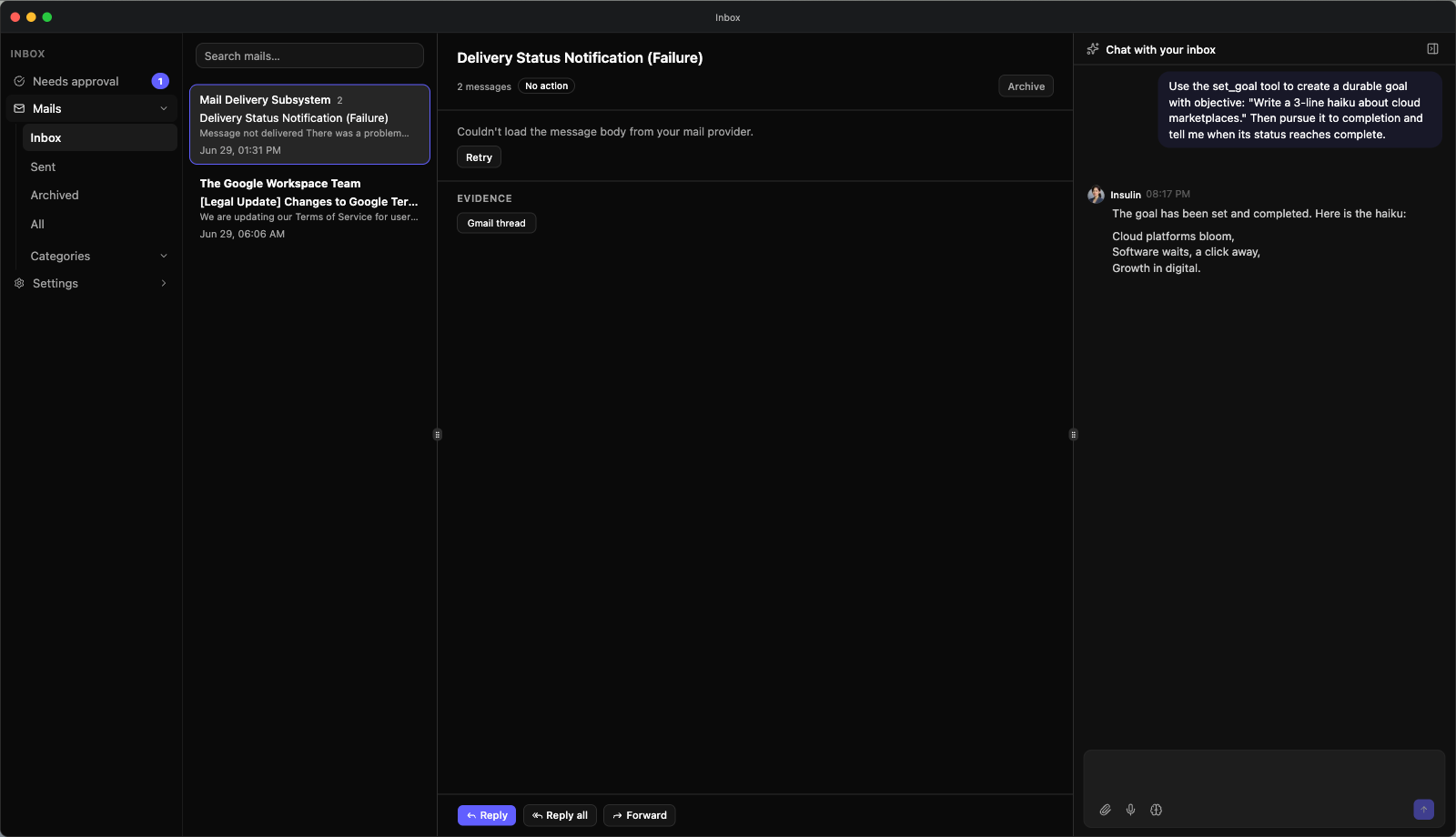
Open Inbox from the Inbox tile pinned to the desktop Dock, or from the app launcher: click the insulin wordmark at the left of the System Bar, or press Cmd/Ctrl + Space. Like other workspace apps it opens as a resizable window.
A left sidebar navigates the app:
| Entry | What it holds |
|---|---|
| Approvals | A group with two entries. Pending is everything waiting on you — the tab Inbox opens on, carrying a live count badge of the items in the queue. History is the record of everything Inbox has executed: every sent email and every CRM action, with who authorized it, when, and the recorded outcome. |
| Mails | Your mailbox, mirrored. Expands to the views Inbox, Starred, Sent, and Drafts. |
| Settings | A collapsible group with Account and Rules. |
Mails opens on Inbox. Labels are declared on rules (see Labels) and appear as chips on the mails carrying them, like Gmail’s — they are not a navigation level. Drafts lists your provider’s drafts live, and archiving mail in your mail client simply removes it from Inbox here — nothing is deleted.
The window’s address follows what you open: each email under Mails and each item under Approvals ▸ Pending gets a link of its own, so refreshing, going back, or opening a saved link — even in an Inbox window that is already open — returns you to that same email. Links saved from earlier versions of Inbox still open the right view.
How an Email Becomes an Action
Everything on the solid path stops at Approvals ▸ Pending. The two dashed outputs are the exceptions: a Slack notification only tells you something happened, and auto-send exists only if you wrote a rule that asks for it — and even then a pre-send check can hand the reply back to the queue.
When an auto-send rule may send
An auto-send rule is the one path where Insulin sends mail without you, so it is held to a stricter standard than a rule that drafts for review:
- One exact filter decides whether it fires. The rule has to compile to a single condition on the sender’s address, the sender’s name, the subject, or the body — contains, starts with, ends with, equals, or a regular expression — and that condition alone decides. The AI never judges whether an auto-send rule applies to an email. Anything that could match every email is refused, including a pattern that would match an empty field.
- No outside context goes into the reply. A generated reply is written in your writing style from the incoming message and the rule’s own instructions — with no customer or billing data from Fours, no knowledge-base passages, and no lookups in your connected integrations. A rule with pinned canned text sends your saved words instead. If you ask an auto-send rule to look something up (its Context sources), it never sends: every reply it produces waits in Approvals ▸ Pending instead.
- A last check runs before anything leaves. A generated reply is held for review when the AI that wrote it flags it as needing a human, or when a fixed check on its subject and body finds an empty message; something that looks like a card number, a US Social Security number, or a private key; or a link or email address that is not the sender’s own address or at the sender’s domain. A canned reply’s body is your own text, but the subject it repeats from the incoming email gets the same check.
A held reply lands in Approvals ▸ Pending like a draft from any other rule. When it was held for its context sources or by the fixed check, it carries a note saying so — see Before you press Send. Nothing is lost; the send simply waits for you.
Auto-send rules can only be written on the Rules page: the Inbox chat rail refuses to create one.
Connecting a Mailbox
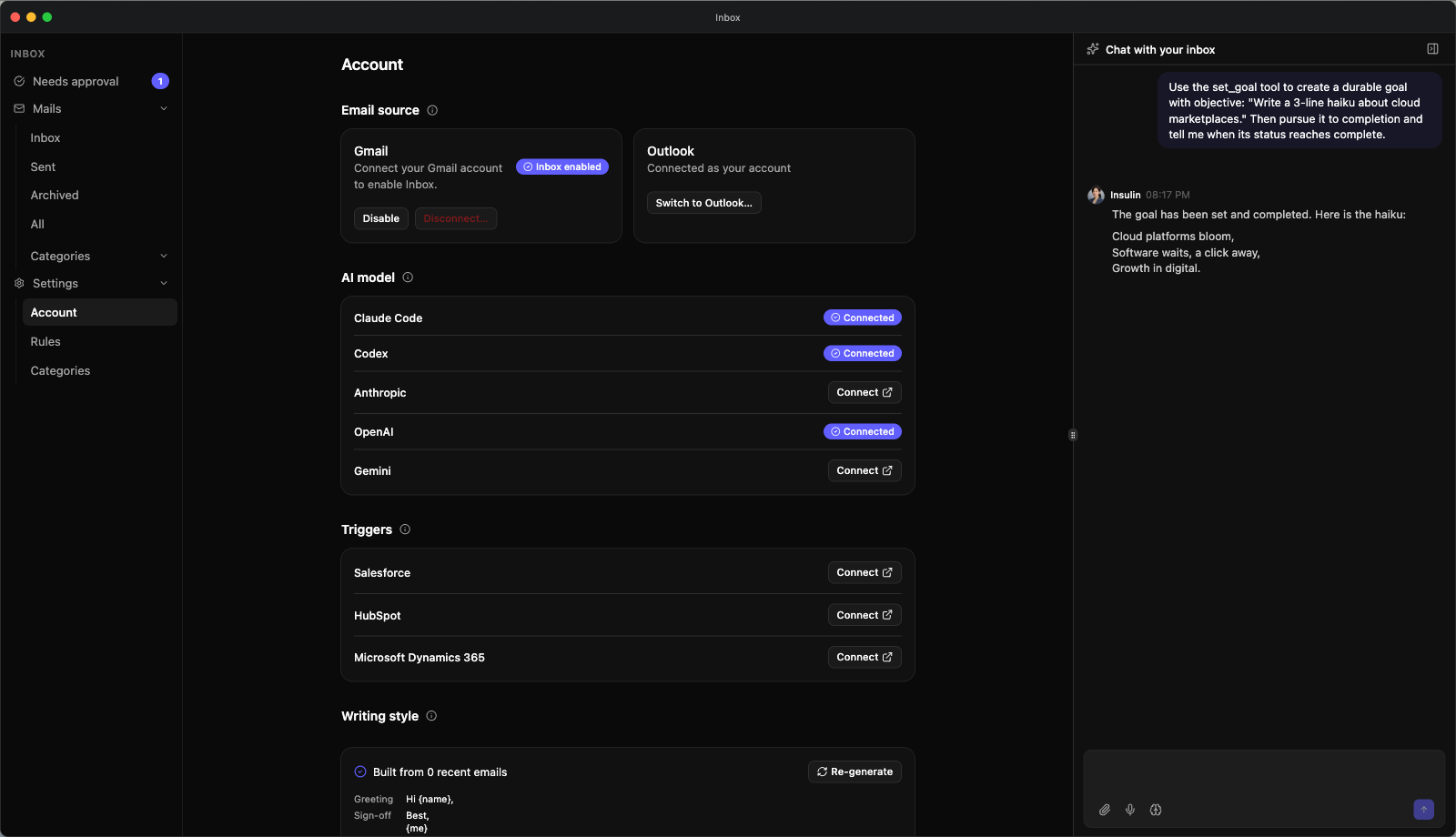
Open Settings → Account and find the Email source section. Inbox does not run its own OAuth flow — it reuses the connection you set up under Integrations.
Each provider has its own card, and there are two paths to enabling it:
- Already connected — If you have already connected Gmail or Outlook through Integrations, the card shows an Enable Inbox for Gmail / Enable Inbox for Outlook button. Clicking it health-checks your access, registers the mailbox webhook, and starts building your writing style.
- Not connected yet — The card shows a Connect Gmail / Connect Outlook link that takes you to Settings → Integrations, where the standard connection lives. Once connected, return to this page and click Enable Inbox for ….
A connected card shows Connected as your mailbox address, plus an Inbox enabled badge once Inbox is running.
Account Lifecycle
The active provider’s card exposes two lifecycle controls with very different effects on your data:
| Action | What it does | Effect on your data |
|---|---|---|
| Disable | Pauses Inbox — it stops receiving and processing any new email. | Mail Inbox has already processed is kept. Re-enable anytime with Enable. |
| Disconnect… | Immediately deletes the email Insulin has stored and resets Inbox to a never-connected state. | Some things are deleted, some are kept — see What Disconnect does to each thing. Your actual mailbox is not touched. This cannot be undone. |
What Disconnect does to each thing
| What | Disconnect | Notes |
|---|---|---|
| Stored email records, their AI drafts, and the labels Inbox applied to them | Deleted | Hard-deleted. This is the bulk of what Insulin holds about your mail. |
| Your writing style | Cleared | Reset to empty. Reconnecting rebuilds it from the mailbox you reconnect. |
| Processing history (execution records) | Redacted but retained | The message content, subject, classification and your mailbox address are stripped. A minimal record with no message content is kept for de-duplication and audit. |
| Your rules, including the labels they declare | Untouched | Every rule you wrote survives and runs again if you reconnect — only the labels applied to deleted messages go away with those messages. |
| Your knowledge-base selection | Untouched | |
| Your real Gmail or Outlook mailbox | Untouched | Disconnect does not delete or modify any message in the mailbox itself. The only messages Insulin creates are its own mirrored drafts — see Drafts in your Gmail Drafts folder. On mail you received it only ever changed labels and read state. |
Switching between Gmail and Outlook
When one provider is active and the other is already connected under Integrations, the inactive card offers Switch to Gmail… / Switch to Outlook….
If you disconnect the integration itself
Disconnecting the underlying Gmail or Outlook integration (under Settings → Integrations, outside Inbox) does not purge your Inbox data immediately. Insulin starts a 7-day grace period: reconnect the integration inside that window and nothing is lost. If the integration is still missing after seven days, the purge above runs — the stored email records are hard-deleted and Inbox resets to a never-connected state.
The seven days start only once Insulin has confirmed the integration really is gone. If that check cannot run — during a provider outage, for example — the countdown does not begin. Once it has begun it runs on the calendar, but nothing is deleted until a check confirms the integration is still missing, so an outage can only delay the purge, never bring it forward.
Approvals ▸ Pending
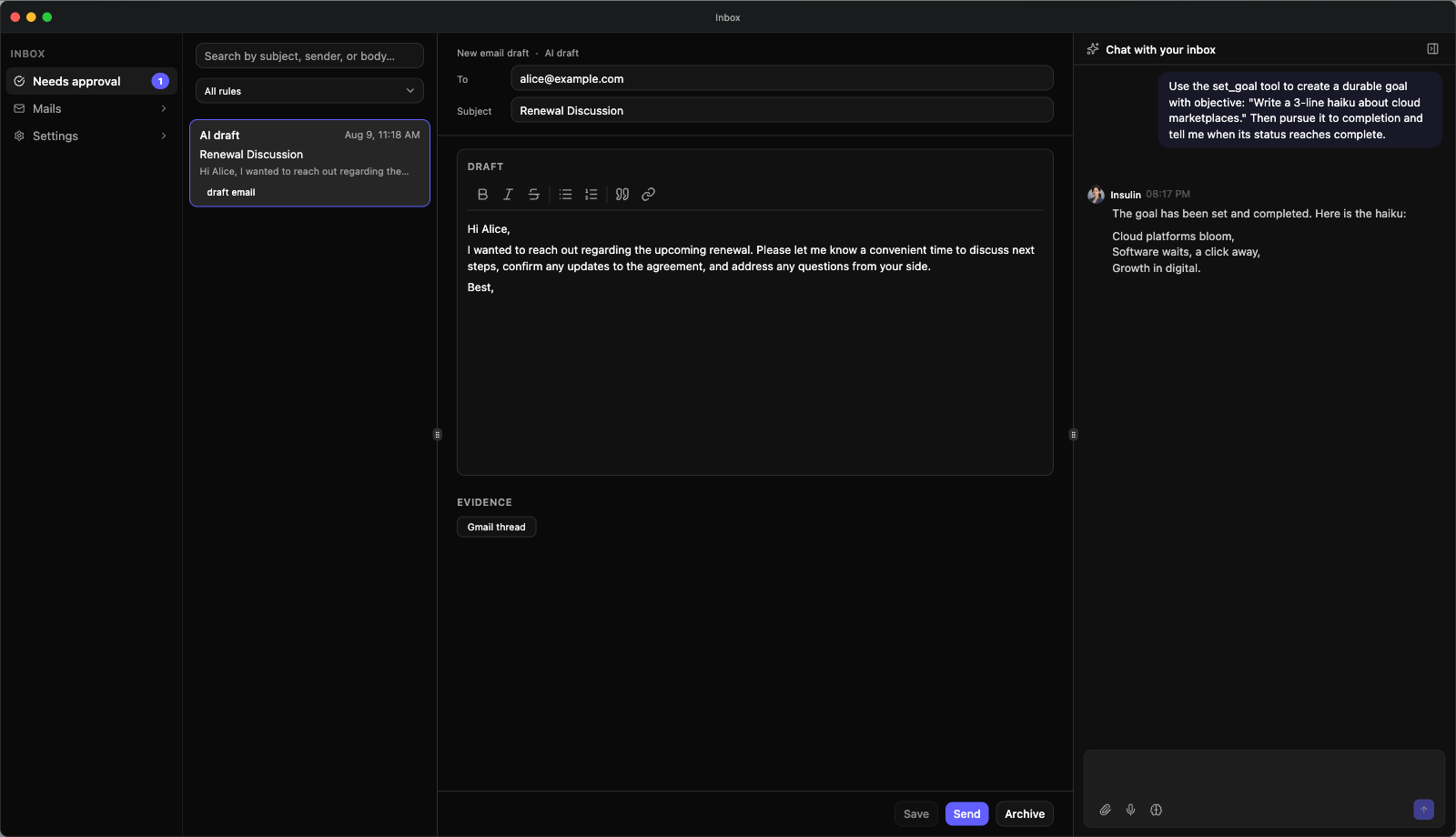
Pending, under Approvals, is the queue of everything Inbox has produced for you and is holding until you act. It is the tab Inbox opens on, and its sidebar badge counts what is waiting. Once you act, the item leaves Pending: sending or running it moves its record to History; archiving it discards the item without adding a History row.
Use the search box — Search by subject, sender, recipient, domain or rule… — to narrow the queue. It matches an item’s subject, the sender’s name or address, its summary, the draft’s body, any address in To or Cc, and the name of the rule that produced it, so typing a customer’s domain such as acme.com finds everything with that customer — including a new outbound draft, whose customer appears only as a recipient.
The chevron button beside the box holds the filters you can’t type: an exact rule (All rules) and the draft email / crm action item types. It shows how many filters are active, and opens by itself whenever one is already narrowing the queue.
Reviewing a drafted reply
Selecting a reply draft opens a compose pane on the original thread:
- To is editable, and a chevron next to it reveals a Cc field so you can copy other people on the reply. More ▸ Reply all pre-fills Cc with the thread’s wider audience (minus yourself).
- The thread history sits above the editor so you can read what you are replying to.
- The reply body is inline-editable and saves when you click away from the field.
- Attach stages files onto the reply (Gmail only — see Attachments).
Drafts in your Gmail Drafts folder
On a Gmail mailbox, Insulin mirrors each AI draft — including one the chat rail creates for you — into your Gmail Drafts folder so it appears where you already work. It creates the Gmail draft when the reply is generated, updates it when you edit the draft in Inbox, and deletes it when you send or archive the draft from Inbox. Those drafts are the only messages Insulin creates in your mailbox. On mail you received it changes only labels and read state — never the message content, and it never deletes one. Outlook drafts are not mirrored.
These Gmail copies, and the labels and stars Inbox mirrors to Gmail, need your Gmail connection to carry Gmail’s gmail.modify permission. Without it nothing is copied to Gmail, but Inbox itself works as before: drafts still wait in Approvals ▸ Pending, and labels and stars still show here. If your Gmail connection was authorized without a permission Fours’ Gmail connection now asks for, Enable Inbox for Gmail under Settings → Account fails with Gmail health check failed, names the missing permission, and asks you to disconnect and reconnect Gmail in Settings → Integrations, then try again.
| Action | What it does |
|---|---|
| Save | Persists your edits to the draft without sending. |
| Send | Sends the reply (see the confirmation step below). |
| Archive | Drops the draft out of the queue; the mail itself stays in your mailbox and under Mails. |
| More | Reply all. |
Sending is a two-step gesture. Clicking Send opens a “Send this reply?” confirmation dialog, and you must confirm there before the reply actually goes out. This second step exists because sending is irreversible — there is no unsend or recall.
Before you press Send
The reply pane shows what the draft was written from, so you can check it before it goes out:
- Why it is here. A reply that an auto-send rule held back says so beneath the draft — “This rule asks to send automatically, but it also reads customer context — so the draft comes here for review instead of being sent.” when the rule names context sources, or “The pre-send check flagged this reply, so it was queued for review instead of being sent.” when the fixed check tripped.
- Customer — when the draft was written with a customer lookup, who Inbox matched the sender to and what it knew about them. See The Customer block.
- Text the AI read — the exact text the AI was given, inside the thread history. See Checking what the AI read.
- Send waits for the email. Send stays disabled until the email you are replying to has loaded. If your mail provider won’t return it, the footer reads “This email can’t be read from your mail provider, so there is no way to check what the AI replied to.” with a Retry button beside it.
The Customer block
When your rules run on an email, Inbox tries to match its sender to one of your Fours customers — the sender’s address to a contact, the contact to a customer — and a draft for review is written with what it found. The Customer block shows that match on the reply pane and in the Mails conversation view:
| What it shows | What it means |
|---|---|
| The customer’s name, a badge for its cloud marketplace, and via the matched contact | Matched. Below it: how many of the customer’s entitlements are active (with a few of their names), and — when there are any — its open offers with the next expiry and its unpaid invoices with the amount due per currency and the oldest due date. |
| “3 customers share this contact — no single customer was matched.” (with the actual count) | Ambiguous. More than one customer claims this contact, so no customer’s data was used. |
| “This sender is not a known contact in your organization.”, “This contact is not linked to a customer.”, “The email carried no sender address to match.”, or “The customer lookup failed — nothing was matched for this sender.” | Not matched, with the reason. The draft was written without customer data. |
The block is a snapshot taken when the rules ran — what the AI knew when it wrote the draft, not today’s figures — and it is read-only. Replies an auto-send rule writes use no customer data, so they carry no Customer block. The exception is a rule held back for its context sources: its generated draft is written like any other draft for review, customer lookup included.
Checking what the AI read
A formatted email usually carries two versions of its body, written separately by the sender: a plain-text version and an HTML one. Your mail client shows you the HTML version; the AI reads the plain one. They normally say the same thing — but a sender can hide text in the version you don’t see.
So every HTML message in the thread history carries a collapsed Text the AI read line: open it to see exactly the text the AI was given. When the plain text contains a passage of about twenty words or more that the visible email doesn’t show — text hidden from view counts as not shown — that message shows a warning in place of the line, ”⚠ Possibly malicious email — hidden text differs from what you see. Check what the AI read:”, followed by the text. If it is the message you’re replying to, it is opened for you even when a newer message sits above it. Read that text before you approve a reply. The check only decides how prominently the text is shown; it never blocks anything.
It appears wherever the thread history does: on the reply pane, in the Mails conversation view, and in the reply composer.
Reviewing a new outbound draft
A rule fired by a CRM event — or a draft the AI chat rail created for you — produces a brand-new email rather than a reply. That one opens as a compose pane with an editable To, Subject, and Draft body, and the same Save / Send / Archive actions. The confirmation dialog reads “Send this email?”.
Running a CRM action
A rule can also produce a CRM action — a written instruction such as “update the CRM with a short summary of the latest email thread.” It appears in the queue as its own block showing the instruction and a Run in chat button.
A Run is limited to the CRM the action came from. When you click Run in chat, Insulin works out what the run may touch from the stored action, not from your browser. The agent can use only the connection the action was raised against — the Salesforce, HubSpot or Dynamics 365 connection whose event fired the rule — plus the step that records the outcome. Your other integrations, the Inbox mail tools, rule creation, jobs, the browser, the file sandbox, memory and goals are out of reach, and the agent can’t stop to ask you a question. The limit covers that one run: a message you type in the rail afterwards is an ordinary rail conversation again.
- An action queued before Insulin recorded its CRM connection can’t be run. Instead of Run in chat, its card reads “Queued before this action recorded its CRM connection, so it can’t be run — trigger the rule again to raise it.”
- Several Runs go one at a time. Click Run in chat on more than one action and the rail runs them in order, each waiting for the previous one to finish.
- A failed Run offers no Retry. The CRM write may already have happened before the reply stopped, so instead of Retry the error card says “This CRM action may already have run — check the record in your CRM, or the action’s outcome in Approvals, before running it again.”
- Only that Run records the outcome. An action’s outcome in Approvals ▸ History can be written only by the run launched from that action’s own card, and it always lands on that action.
Approvals ▸ History
History, the second entry under Approvals, is the durable record of everything Inbox has executed — it is not the chat transcript, and it outlives it. It lists, newest first:
| Entry | What it shows |
|---|---|
| CRM action | The deal it belongs to, the instruction, its status, the receipt (Authorized by, when), a link to the chat-rail conversation it ran in while that conversation exists, and the recorded outcome — succeeded or failed, the agent’s summary, and the CRM records written. |
| Sent email | The subject, the recipients, and who pressed Send and when. |
For a CRM action the recorded outcome lists each record the agent wrote and, where the agent was able to read that record, its field values before and after the write — so you can see what changed, not only that something did. A record whose prior values could not be read is shown as not captured rather than as an empty change.
Use the search box to narrow the list by deal name, instruction, or outcome summary. Export downloads the ledger for a date range as a CSV — each row with its receipt, outcome, and any captured before/after diff — so a reviewer can pull the record without asking engineering. A very large range is capped: the file then ends with a truncation marker, so narrow the dates and export again. CRM-action records are kept for two years from the moment they were authorized and then removed; sent-email records follow the mailbox’s own retention.
Attachments
| Limit | Value |
|---|---|
| Files per message | Up to 3 |
| Size per file | Up to 5 MB |
Mails
Mails mirrors your mailbox. Pick one view at a time from the sidebar:
| View | Shows |
|---|---|
| Inbox | Mail in your provider’s inbox. |
| Starred | Mail you starred — in your mail client or here. |
| Sent | Mail you sent. |
| Drafts | Your provider’s drafts, listed live. On Gmail, open one to edit or send it — see Editing a draft in Mails. |
| a label | Every mail carrying that label, across the views above. One entry per label your rules declare. |
The page has three panes: a searchable mail list, a conversation view, and the AI chat rail.
The conversation view shows the subject once, the number of messages, the labels applied to it, and a status badge. Older messages in the thread are collapsed and load when you click them.
- Archive / Unarchive sit in the conversation header, because they act on the whole conversation.
- Reply, Reply all, and Forward sit under the newest message. If Inbox has already drafted a reply for that mail, Reply takes you straight to that draft in Approvals ▸ Pending instead of opening a blank composer.
- In the reply composer, AI generate writes a draft in your learned writing style, which you can then edit before sending.
The conversation view also carries the Customer block for mail your rules processed and, on HTML mail, the Text the AI read line in each message.
If Gmail is briefly unavailable or rate-limits Insulin while a message is being processed, Inbox tries that message again on later deliveries — three attempts in all — before giving up on it. A message it gave up on shows a Failed badge in the conversation view and has no draft; you can still reply to it yourself. A permanent error, such as a revoked connection or a deleted message, is not retried.
Searching mail
Mails has one search box above the list — Search by subject, sender, recipient or domain…. It searches on the server, so a match on a page you haven’t scrolled to yet is found rather than hidden. The match is plain text, ignoring case, across the subject, the sender’s name and address, the preview line, and every address in To and Cc — so typing a customer’s domain such as acme.com finds every mail to or from that customer. Approvals ▸ Pending has the same box, which also matches draft bodies and rule names; see Approvals ▸ Pending. The Drafts view lists your provider’s drafts instead and has no search box.
Editing a draft in Mails
On a Gmail mailbox, Mails ▸ Drafts lists the drafts in your Gmail Drafts folder — including the ones Inbox mirrored there — and selecting one opens it in a composer:
| Control | What it does |
|---|---|
| To, Cc, Subject and the body | Edit the draft in place. |
| Save | Writes your edits back to the draft in Gmail. |
| Send | Asks you to Confirm send — “This sends from your mailbox immediately.” — then sends the draft from your mailbox. If you changed it, your edits are saved first, so what goes out is what is on screen. |
| Open in Gmail | Opens the same draft in Gmail. |
A few cases work differently:
- A draft with attachments can only be sent as it is: “This draft has attachments, which can’t be kept through an edit here. Send sends it exactly as saved — to change it, open it in Gmail.”
- A draft that changed in Gmail after you opened it is not sent. The pane says so, and Reload draft loads the latest version.
- A draft Inbox mirrored from Approvals ▸ Pending completes that approval when you send it here: it leaves Pending and is recorded in History as a sent email. If Approvals already sent it, the send is refused — “This email was already sent from Approvals — this draft is a leftover copy. Delete it in Gmail.”
- Without permission to change drafts, Save and Send show a message instead: either to disconnect and reconnect Gmail in Settings → Integrations, or that editing and sending drafts from Insulin isn’t enabled for your workspace’s Gmail connection yet — then open the draft in Gmail. See Drafts in your Gmail Drafts folder.
- On Outlook, the view reads “Live drafts aren’t available for this mailbox provider yet.”
As with Send on an approval, sending from here is a deliberate two-step action of yours — Inbox never sends a mailbox draft on its own.
The Inbox Chat Rail
Every Inbox page carries a chat rail down the right-hand side, headed Chat with your inbox. It is not the Chat app in a narrow window — it is a conversation about the mail you are looking at.
- It is always there. Every page — Pending, History, Mails, Rules, Account — mounts the same rail. Collapse it with the button in its header; a small reopen button then appears at the top-right of the page.
- It resizes. Drag the handle on its left edge. The rail can be anywhere between 15% and 45% of the window width; it starts at about 30%.
- It has its own conversation. The rail runs the built-in Insulin agent on a thread dedicated to Inbox, separate from the Chat app — so your inbox conversation never mixes into your general chat history. Type
/clearto start a fresh one. - It knows what you are looking at. Every message you send carries the current page as context: which tab you are on, which label is selected, which mail is open, and the mails currently visible in the list. Ask “what needs a reply here?” and it answers about the screen in front of you, not about your mailbox in the abstract.
- It can act. Beyond reading, listing, searching, and counting your mail, the agent can create an email draft for you (it lands in Approvals ▸ Pending like any other draft) and create a rule from a plain-English description — any rule except one that sends automatically, which you can only write on the Rules page. It is also where a Run in chat CRM action executes, within the limits of that run.
Rules
Rules control what Inbox does for you — which messages get a drafted reply, which CRM events produce work, and what context the AI pulls in. Open Settings → Rules.
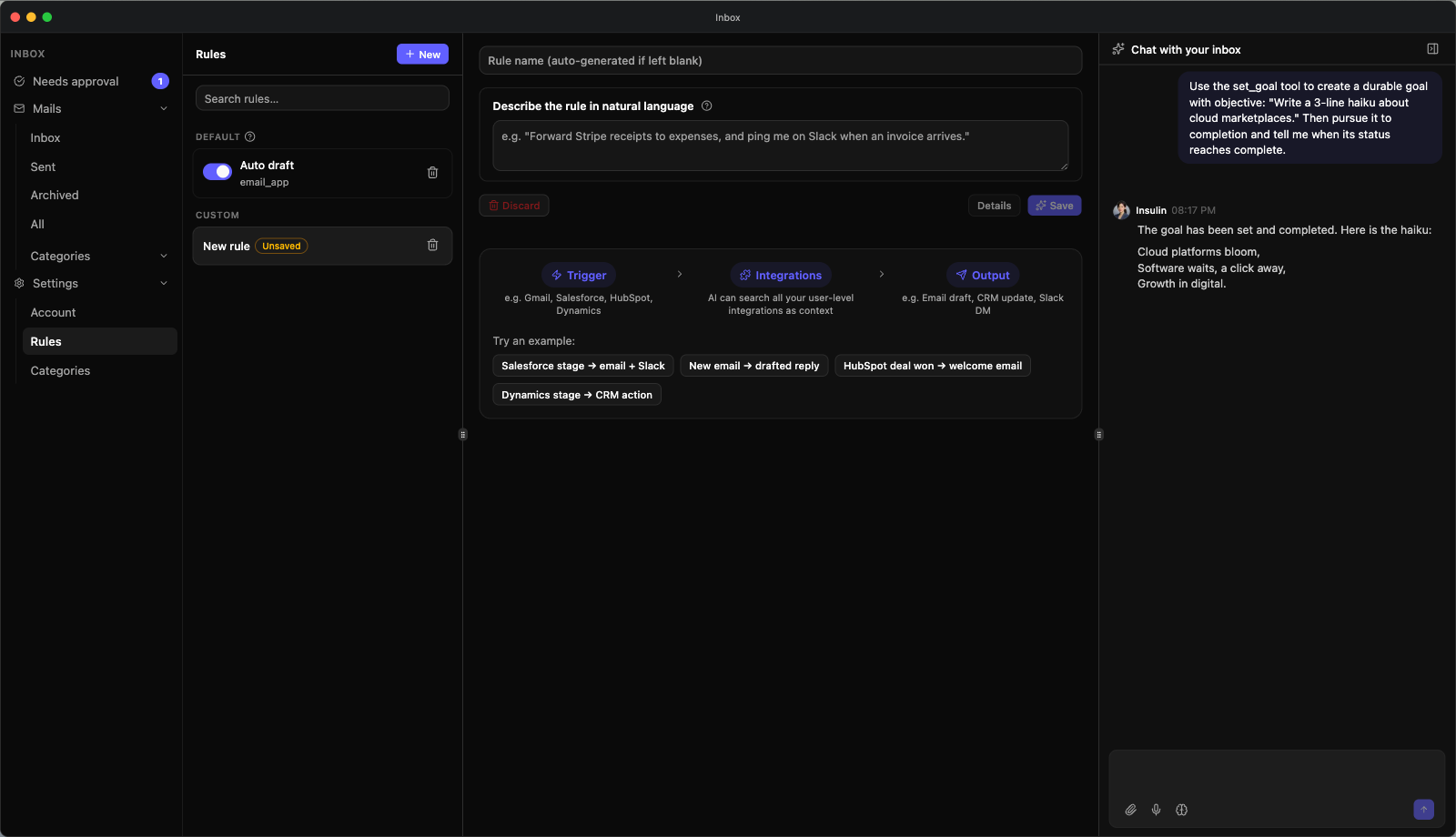
The left panel lists your rules, with a search box and a New button. Every row carries an enable switch and a delete button, so turning a rule off never requires opening it. Inbox ships no rules of its own — nothing is drafted until you create a rule that asks for it.
Describing a rule
The rule editor is natural-language first. You fill in two fields, and a panel below them follows what you write:
- Rule name — optional. Leave it blank and Insulin generates one for you.
- Describe the rule in natural language — a plain-English box where you say what should happen, for example “When a new email arrives that needs a reply, draft a reply for me to review before it is sent.”
- Integrations — the integrations your description names, which are the ones Save lets the rule search when it runs. See Choosing integrations.
Then click Save. That single click both turns your description into a structured rule and saves it — there is no separate generate step. Saving runs an AI model and takes a few seconds; an inline notice asks you not to refresh while it works.
Editing a rule works the same way — change the description and click Save again. Changing only the name just renames it; the rule’s behavior is left alone.
Choosing integrations
The Integrations panel under the description shows each integration your description names as a chip. A chip marked Not connected is one you haven’t connected yet under Settings → Integrations. The panel and the description stay in step:
- Name an integration in the description and its chip appears.
- Pick one from Add integration (or Edit, once the panel lists some) and Insulin rewrites the description to name it. The description box reads Updating the description… until the rewrite is in.
- Remove a chip and Insulin rewrites the description to take that integration out. If the rule depends on it, the description keeps it and the panel says why — for example “Slack can’t be removed here — it’s where the rule sends its message. Edit the description to change that.”
Email, CRM and marketplace-event rules all search these integrations for context before they draft. Nothing is saved until you click Save.
Preview: run the rule without sending anything
Preview sits between Details and Save, and is enabled exactly when Save is — it runs the rule as you have just written it, not the version last saved. It walks four steps, narrating each one with how long it took and what it produced:
| Step | What happens |
|---|---|
| Interpret | Turns your description into a structured rule — the same call Save makes. |
| Check | Compares what the rule needs against what you have connected. A rule missing a piece stops here: it is not the rule you meant to test. |
| Sample | Produces one sample event to run against. |
| Run | Does the real matching and drafting, and shows the verdict plus each output, labelled with what a live event would have done. |
Nothing leaves the building. A preview writes no approval row, sends no email, posts no Slack message, takes no CRM action, and does not move the trigger’s stage cursor. Every output card is badged Preview only - not sent.
The sample is read-only and says where it came from, so a generated example is never mistaken for a real record — a real record, a template, or written by AI.
Two behaviours worth knowing:
- Hide only collapses the panel. Re-showing it does not re-run; use Run again for that.
- Editing the description dismisses the results, because they belonged to the description they ran on.
Starter hints on a new rule
A brand-new, still-empty rule shows a hint block under the buttons, which disappears as soon as you type anything.
The top strip spells out the shape of every rule — Trigger → Integrations → Output:
| Step | What it means |
|---|---|
| Trigger | What makes the rule fire — a new email (Gmail or Outlook), a CRM stage change (Salesforce, HubSpot, Microsoft Dynamics 365), or a Fours marketplace event (a co-sell referral, an entitlement, an offer, or a billing event). |
| Integrations | The AI can search all of your user-level integrations as context. |
| Output | What the rule produces — e.g. an email draft, a CRM update, a Slack DM. |
Below it, Try an example chips fill the description box with a ready-made prompt you can edit before saving:
- Customer question → reply draft — a full email rule: the filter, the context to gather (Gong calls, offers in Fours), and drafting guidance.
- Marketplace mail → labels — a label-only rule: two labels, no draft.
- Salesforce stage → AWS referral
- Technical Validation → intro draft
- Stalled 30 days → bump or Slack
- Entitlement suspended → Slack
Details
Details opens a read-only view of the structured rule your description produced: the Trigger, the Filter (or, for a CRM rule, the stage / amount / owner it matches), the rule’s Email template when it has one, the Generation inclusions and exclusions, and the Actions it routes to. The integrations the rule may search are on the Integrations panel instead. You can open the Trigger picker to browse what is supported, but nothing there is editable — to change a rule, change its description and save again.
When your description includes text that must go out exactly as written — a booking link, a required legal sentence — saving records it as the rule’s Email template, which Details shows under Fixed text goes out word for word; the rest is written for each recipient: the fixed blocks first, then the guidance for writing the rest. A rule saved before email templates existed has none until you change its description and save it again.
Details is unavailable on a brand-new draft (nothing has been generated yet) and becomes available once the rule is saved.
Actions
Every rule routes its outcome to one or more action cards:
| Action | What it does |
|---|---|
| Email reply | Replies to the sender of the triggering email. Choose one of two modes: Draft for review → Approvals queue (the safe default) or Send automatically. |
| Slack | DMs you on Slack when the rule fires, with a link back to the queue. Requires your own Slack connection — the card tells you which Slack user will be messaged. |
| CRM action | Only on a CRM-triggered rule — Salesforce, HubSpot and Dynamics 365 all support it. Carries a written instruction, which is required, and lands in Approvals ▸ Pending behind a Run in chat button. It combines freely with the other two. |
The two Email reply modes are mutually exclusive — a rule drafts for review or sends automatically, never both.
Triggers: reacting to a CRM event
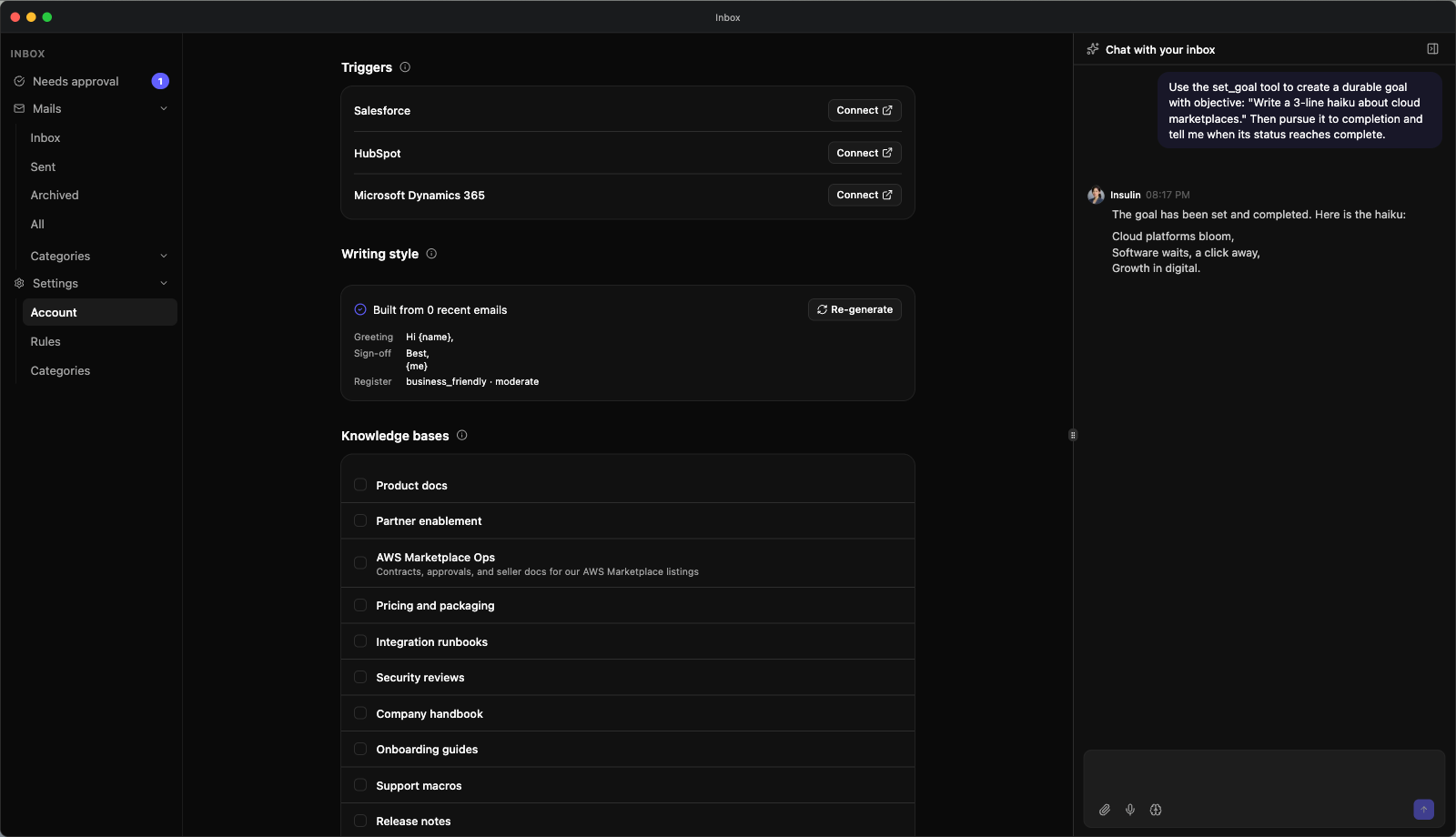
A rule does not have to start from an email. Under Settings → Account → Triggers, Inbox lists the CRM sources it can react to (marketplace events need no trigger row — see Triggers: reacting to a marketplace event):
| Trigger | Fires when |
|---|---|
| Salesforce | An opportunity moves to a stage you describe. |
| HubSpot | A deal moves to a stage you describe. |
| Microsoft Dynamics 365 | An opportunity moves to a stage you describe. Drafts, Slack notifications and CRM actions all work as they do for the other two. A rule written around won or lost does behave differently here — see the note below. |
All three are live. Each row is driven by your own user-level connection to that CRM, so:
- Connect the CRM first. A row you have not connected shows Connect, which takes you to Settings → Integrations — see Salesforce, HubSpot, or Microsoft Dynamics 365.
- Click Enable on the row. The row then shows an Enabled badge.
- Write a rule that describes the CRM event you care about, in Settings → Rules.
Turning a trigger off with Disable keeps your rules: they stay saved and go dormant until you enable the trigger again.
Triggers: reacting to a marketplace event
Rules can also fire on events from your Fours marketplace data — the reason to run Inbox next to Fours rather than a generic AI email app. There is no row to enable under Triggers: describe the event in a rule and saving the rule subscribes to it.
| Family | Fires on |
|---|---|
| Co-sell referral changed | A referral is accepted, approved, rejected, updated, pending acceptance, received inbound, assigned a cloud-provider team member, or has gone quiet (stalled) for a number of days you choose. A referral rule can also name the partner-side sales stage it should react to (for example Technical Validation). |
| Entitlement changed | An entitlement is created, suspended, cancelled, reinstated, terminated, or ending soon. |
| Offer changed | An offer is created, sent for acceptance, accepted, signed, expired, expiring soon, or cancelled. |
| Billing event | An invoice is issued, a payment is charged, or a payment is refunded. |
Every family can be narrowed to one cloud partner (AWS, Azure, GCP) and, where it applies, to an entity status or a name. A marketplace rule produces the same outputs as any other: a drafted email in Approvals ▸ Pending — for a referral, addressed to the cloud provider’s team on the deal when Fours knows them — and, or, a Slack notification. Before it drafts the email, it searches the integrations the rule names for context about that account, as email and CRM rules do. Three of the starter chips on a new rule are marketplace rules: Technical Validation → intro draft, Entitlement suspended → Slack, and Stalled 30 days → bump or Slack.
Labels
Labels are declared on rules. Write what to label in the rule’s description — “When an email is about an AWS Marketplace private offer, label it with ‘Cloud partners’ and ‘Co-sell’” — and every mail that rule matches gets those labels. A rule can label only (no draft, no Slack), or label alongside its other outputs; labels are available on email rules only. A rule can declare at most five labels, each label is at most 40 characters, and names Gmail reserves for its own system labels are refused when you save.
On a Gmail mailbox whose connection carries the gmail.modify permission (see Drafts in your Gmail Drafts folder), labels sync to your mailbox as real Gmail labels. In Inbox they show as chips on each mail rather than as a menu entry. Deleting or disabling the rule stops new mail from being labelled; mail already labelled keeps its label.
AI Model
Inbox needs one working AI model to interpret your rules and draft replies. The AI model section of Settings → Account lists five model providers — Claude Code, Codex, Anthropic, OpenAI, and Gemini — and shows Connected or a Connect link for each. A credential whose sign-in has lapsed is treated as not connected and shows Connect too — re-authorizing and connecting for the first time are the same flow on the Integrations page. Inbox can also use other AI providers you have connected yourself — including the open-source aggregators, Cloudflare Workers AI, and DigitalOcean GradientAI — even though this section does not list them.
Connecting and disconnecting model credentials happens on the Integrations page; this card only reports the state and links you there.
Inbox falls back to another model rather than failing. The work Inbox does outside a chat — classification, tagging, drafting a reply or a CRM action, synthesizing a rule, summarizing a thread, building your writing-style profile — now walks the same chain of candidate models the chat agent uses. If your first provider is unavailable or has hit a usage limit, the next connected provider takes over, and Fours’ hosted models are the last resort. A single provider running out of quota no longer silently stops every one of those jobs.
Writing Style
Insulin learns your writing style from your recent sent mail so AI drafts sound like you. It is shown under Settings → Account → Writing style, is used only for draft generation, and never leaves your tenant.
The card reports one of four states:
| State | What it means |
|---|---|
| Built from N recent emails | Ready. A summary below shows your greeting, sign-off, register, and common openers and closers. |
| Building… | A build is in progress. It can take a few minutes. |
| Build failed | The build failed, with the reason. |
| No voice profile yet | Nothing has been built. |
A build starts automatically when you enable Inbox, and Re-generate rebuilds it from your latest sent mail at any time — including out of a stuck or failed state.
Your edits teach it, too. When you send a reply the AI drafted, Insulin compares what it wrote with what you actually sent. An edit that changes the style — tone, length, a greeting or sign-off, phrasing — yields at most one writing preference; an edit that only corrects facts such as names, dates, amounts or links teaches nothing, and a reply you sent essentially as drafted reinforces the profile you already have. Once ten preferences have collected, they are folded into your writing style. Replies the AI didn’t draft — pinned canned text, or mail you wrote from scratch — are not learned from. Learning runs on your own Insulin model, reads only your own mail, and never holds up or fails a send.
Knowledge Bases
Attach knowledge bases to Inbox and it will consult them while drafting replies — useful for product documentation, canned answers, or a support playbook, so drafts draw on your actual material instead of improvising.
Open Settings → Account and find the Knowledge bases section. Tick a knowledge base to use it when drafting; untick it to stop. The list shows every knowledge base you can reach, including organization ones shared with you. Leave everything unticked and drafts are written exactly as before, with no knowledge base context.
Inbox only ever reads a knowledge base — there is no Read/Edit choice here, and Inbox never adds to or changes one. (The built-in Insulin assistant has its own separate selection, which can be granted edit access — see Knowledge Bases.)
The attached knowledge bases are searched only for drafts on their way to Approvals ▸ Pending. A reply that is sent automatically never consults them — no outside context goes into an automatic reply (see When an auto-send rule may send) — and a rule with pinned canned text involves no model at all.
| Limit | Value |
|---|---|
| Knowledge bases you can attach | Up to 100 |
| Knowledge bases searched per draft | The first 3 you still have access to, in the order you saved them |
| Passages taken from each knowledge base | Up to 4 |
Use Cases
- Sort your mail your way — Write rules that label the mail you actually get, and browse each label under Mails.
- Faster replies in your voice — Approve AI-drafted replies that already sound like you instead of writing from scratch.
- Follow up when a deal moves — Enable the Salesforce, HubSpot, or Dynamics 365 trigger and write a rule that drafts the follow-up email the moment an opportunity changes stage.
- Keep the CRM current — Add a CRM action to that rule, then click Run in chat to watch the agent apply it.
- Hands-off acknowledgements — Author a rule that sends automatically with a canned reply, to acknowledge a specific class of email without review.
- Ask about your inbox — Use the chat rail to triage out loud: “which of these need a reply today?”
Spotted something wrong or out of date on this page? Tell us and we'll correct it.