Custom Apps
Custom Apps are interactive tools you build with AI inside Insulin, using the AppBuilder.
What Are Custom Apps?
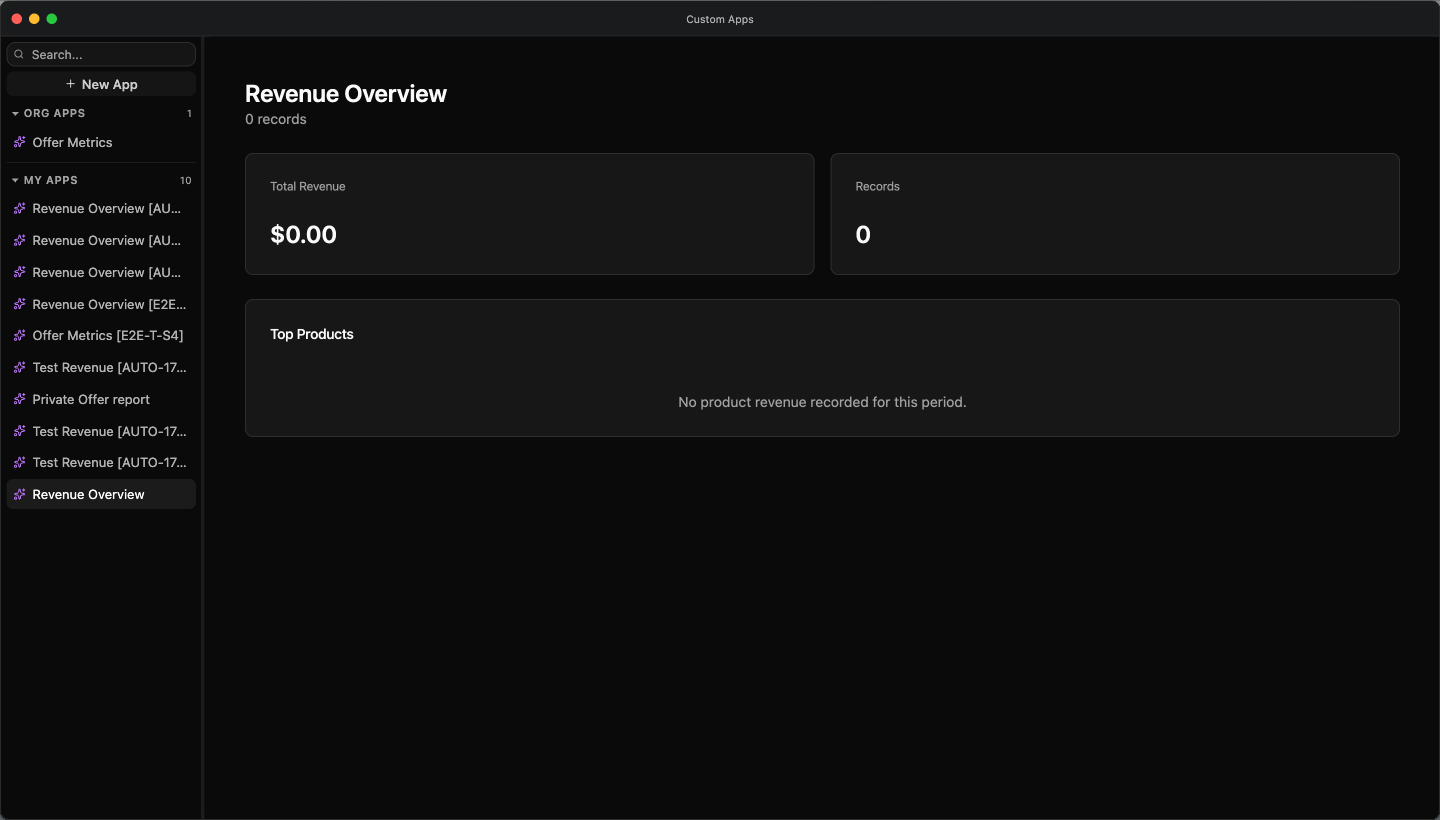
A Custom App is a reusable interface, dashboard, form, or workflow tool you build and edit in the AppBuilder, Insulin’s app builder. Use a Custom App when a workflow needs more structure than a chat answer, such as a revenue dashboard, a deal review tool, a co-sell tracker, or an internal operations screen.
The AppBuilder builds a real, browser-native app. When you approve a project, it mounts a self-contained npm project — its own package.json, framework configuration, and editable source — and runs it live in your browser, so the preview you see is the working app rather than a static mock. Publishing a saved version to production, to give the app its own URL, is not available in the Fours Console yet — see Publishing.
Custom Apps are different from built-in Insulin apps such as Chat, Jobs, Marketplace, Knowledge Base, Inbox, Settings, Files, Browser, or Git. Built-in apps are part of the Insulin workspace. Custom Apps are apps your team creates, runs, edits, and shares.
When to Use a Custom App
Use a Custom App when you want to:
- Turn a repeated marketplace workflow into a reusable interface
- Build a dashboard or report from connected systems
- Create a form-like tool for sales, operations, or partner workflows
- Share an internal app with teammates without building a separate product
For one-off questions, use Chat. For repeatable background work, use Jobs. For packaged expertise, use Agents and Marketplace.
Build Dashboards with AI
Custom Apps are the recommended way to build dashboards and reports in Insulin.
As we continue to expand AI-powered analytics, the legacy Analytics experience is being deprecated. Your existing Analytics dashboards are not moved across automatically: they stay on the Analytics page, which keeps working until a removal date is announced, and none is committed yet. Instead of relying on fixed dashboards, users can create dashboards tailored to their own marketplace workflows using AI.
You can create a dashboard by simply describing what you need in natural language. For example:
- “Show my top customers by marketplace revenue over the last 90 days.”
- “List overdue marketplace payments.”
- “Build an AWS Marketplace revenue dashboard.”
- “Track offer acceptance rates and pending private offers.”
The AI builder generates an interactive dashboard that you can continue refining through conversation or by editing the generated app.
Migration from Analytics
If you currently use the legacy Analytics dashboards, we’ll help you migrate them to AI Custom Apps. Our team can help recreate your existing dashboards as AI Apps while preserving the reports and workflows your team relies on. If you have any questions about migration or need assistance, please contact your Customer Success Manager.
The Creation Interview
Creating a new Custom App runs a four-step wizard — Describe, Clarify, Theme and Plan — before any code is generated. The pattern is AI proposes → you decide → AppBuilder builds, and nothing is created until you approve the plan.
| Step | What happens |
|---|---|
| Describe | Answer What are you building? — one sentence is enough, up to 4,000 characters — or start from an example: Deal desk approvals, Partner referrals, Renewal follow-ups or Team requests (Undo brings back what you had written). The model picker sits in the same box: choose the AI model that builds the app, or leave it on Auto. Then answer Who is this app for?, which can’t be changed once the app is created: Other people will use it too makes an Organization app, private to you until you share it, and Only I will use it makes a Personal app, which can never be shared. |
| Clarify | Under A few questions about your app, the AI restates your idea and who it is for, above the words you wrote. If it misread you, Not quite right? lets you say what to change, then Update. Choose What kind of app? — one option is marked Recommended — and answer the AI’s questions; each offers a few choices plus Something else… for your own words. |
| Theme | Pick a theme for the app — Salesforce (navy, sans, sharp corners), Stripe (indigo, sans, rounded) or Editorial (green, serif, rounded), each previewed in the shape of the app you described. The one that suits that kind of app is marked Recommended; Skip this part leaves the look out of the brief. You can restyle the app once it is built. |
| Plan | Set the App name and choose the First release: checked items go into the first release and the rest are saved for later. Add your own items, and keep at least one checked. Decisions the AI raised take its recommended answer, and its open questions go into the brief for the builder to settle. Under What happens next, See the exact brief shows the text the builder starts from. |
Click Build my app on the Plan step to create the app. The AppBuilder sets up the app’s own npm project — its package.json, framework configuration, and editable source — and the builder starts from your plan. You can inspect and change every generated file afterward in the AppBuilder.
Once the first build finishes, you keep working on the app in the AppBuilder — asking for changes in the assistant chat, editing the source, and saving new versions.
Discuss before you change
The builder no longer has a separate discussion mode: the Discuss toggle and its Implement this button have been removed, so every message you send goes to the builder as a request it can act on. To point a change at one part of the app, draw an annotation on the preview.
Typing / in the builder’s composer lists the builder’s own guides — on integrations, the Fours API, app structure, server routes, the database, interface design, secrets and configuration, access and users, debugging, and publishing. The builder reads the one a request calls for on its own; name one, such as /integrations, to point it there.
Mark an area of the preview
Once the app is running in the preview, the Preview toolbar has a Draw annotation button. Turn it on and drag a box over the part of the app you mean — the preview prompts Drag a box over the part you mean. Esc to stop. The area and the elements inside it are attached to your next message as a reference, so you can write “make this chart taller” or “change this label” instead of describing the whole screen. Each box you draw replaces the last one, and the reference shows above the composer, where you can remove it. Press Esc to stop drawing and clear it.
Choose the AI model
The builder includes a model picker — the sparkle icon in the composer — so you can choose which model generates the app. You first choose it on the wizard’s Describe step, or leave it on Auto, and can change it here later. Models are grouped by provider, and you can type in the picker to search them. The grouping is driven by the server rather than a fixed list — connect another provider, such as Cloudflare Workers AI or DigitalOcean GradientAI, and its group appears in the picker. The Fours-hosted models have a group of their own. Which models appear in the groups depends on the app’s ownership:
- Organization apps list Your key rows built from your organization’s own connected provider keys (BYOK). Only providers you have connected contribute rows; connect a provider to add its models.
- Personal apps list Your key rows for the providers you have connected — a personal app never reads your organization’s keys. Connect a provider to add its models.
Ownership decides only whose BYOK keys are listed. Fours’ key (Fours-hosted) rows are offered to personal and organization apps alike, so you can build an app before connecting any provider of your own.
An organization administrator can also constrain the picker, in two ways that behave differently:
- Turning the Fours-hosted fallback off removes every Fours’ key row for everyone in the organization, in both kinds of app. Only your own connected keys remain.
- Restricting which providers may be used removes the Fours’ key rows served by a provider that is not on the allow-list. Your own Your key rows are still listed — a model on a restricted provider is rejected when the app runs rather than being hidden from the picker.
The model you pick is pinned on the app, so saved apps keep building with the same model.
Multi-File Source
A Custom App is a real npm project, not a single text blob. Every text file in it is editable — the app’s own code under src/app/, and also package.json, configuration, and framework files — and supporting files can hold components, helpers, data-shaping code, and database migrations. Binary files are read-only.
This lets the AppBuilder build more maintainable apps:
- UI code can be split into focused files
- The app’s own
package.jsonand lockfile decide which dependencies it uses - You can browse and edit every text file on the Code surface, and download the complete npm project
An app’s working tree is held on the server, which allows up to 2,000 files per app.
Studio surfaces
The AppBuilder is a single window with an assistant panel on the left and a workspace on the right. The workspace switches between six surfaces. Preview and Settings are tabs of their own; Code, Terminal, Data and Analytics share a More menu, which takes the name of the one you have open.
| Surface | Where | What it shows |
|---|---|---|
| Preview | Tab | The running app, live, at desktop / tablet / phone widths. Reload preview reloads it, Full screen preview opens it over the tab, and Draw annotation scopes a change to one area. |
| Settings | Tab | Everything about the app that is not its code, in sections: General (how it appears in Apps), Access (ownership, sharing, and who can open it), AI model, Integrations (the connected services its code may use), Secrets (the owner’s own secrets), Database (the published app’s data), and Danger zone. |
| Code | More menu | The project’s file tree — filter it, open files in editor tabs, edit any text file (binary files are read-only), and Download the complete npm project. If you can edit the app, the tree also offers New file and New folder, and Rename and Delete when you hover an entry. |
| Terminal | More menu | The app server’s own terminal — its install and dev-server output — plus any shell you open with New shell, which runs in the app’s workspace. Stop interrupts the active one. |
| Data | More menu | The app’s own database (SQLite): its tables, their rows, and a Structure view of each table’s columns. |
| Analytics | More menu | Requests, errors and latency of the live app, and its database activity, over the last 24 hours, 7 days or 30 days. It has figures only once the app is published. |
The header shows whether a version is live (vN live — click it to open the app) or the app is still a Draft. Beside App history and Publish is Save version, which saves the app as its next version. A visual review runs against the surfaces the same way you read them: the rendered preview, its console, and its network activity.
Your edits reach the app’s shared draft as you make them. If some have not arrived when you close the AppBuilder — with its back arrow, the window’s close control, or Close in the Dock — it sends them first, and only if that fails does it ask Discard unsynced edits? (Some of your latest edits haven’t reached the app’s draft. If you close now they’ll be lost.), with Discard & close.
The Live Preview
The Preview surface runs the real app, not a static mock. The AppBuilder mounts the app’s npm project in the browser, installs or restores its dependencies, and starts its dev server, so the preview is the working app with its own front end and its own backend — an HTTP server backed by an in-browser database.
While it starts, the preview shows each step — Runtime, Prepare, Download, Unpack and Run — and, once the app is compiling, the app server’s latest output. The first launch downloads the app’s packages; later launches reuse them.
Because the app runs a real project, an app that needs to remember what people enter gets a database of its own (see Data an app keeps for itself); there is nothing to set up.
The app’s secrets are injected into the preview as environment variables when the person previewing it is an organization ADMIN or EDITOR with Editor or higher on the app. Preview code and browser DevTools can read them, so sharing Editor access to an app shares its credentials. The same people’s preview also gets an access token for the app itself, so its server code can call the Fours API — see How a published app reaches your Fours data — and the app’s connected integrations. For a personal app, that is its owner.
The preview can go full screen and copy to your clipboard, but it cannot use your location, camera or microphone: it runs code the assistant has just written. A published app can use all three once your browser allows it, and the browser remembers that permission for the Fours console rather than for one app — allowing it once allows it for every app you open there. An app can never read your clipboard or capture your screen.
The assistant can also run a visual review: it reads the rendered preview, screenshots, runtime logs and network activity to decide whether the output matches your request or needs another edit.
Starting the builder conversation over
Your conversation with the builder is your own: each person who edits an app has a separate builder conversation for it, and nobody else sees what you asked. An app’s earlier, shared builder conversation is not carried into anyone’s.
If a session has gone in circles, send /clear in the builder’s composer. It stops any reply still being written, deletes your builder conversation for this app and opens a fresh one. Other editors’ conversations and the app’s own code are untouched.
The builder works on one request per app at a time. If another editor — or you, in another tab — already has it working on the app, your message is refused with The agent is already working on this app. Try again when it finishes.
A very large request can stop part-way with This task took more steps than allowed and stopped before it finished. Its changes so far are saved; send a smaller next step to continue. The edits it made are kept, so ask for the rest as a smaller next step.
Connected Integrations
An app can use the services connected in Fours — Salesforce, HubSpot, Slack, Google, GitHub, Notion, Stripe and the rest — without anyone pasting a credential into it. You grant it each one in the AppBuilder’s Settings → Integrations; the app’s code then calls the service through Fours, which checks the grant and adds the connection’s credentials on the way out. The credentials themselves never reach the app.
Whose connections an app can use follows its ownership: an organization app uses your organization’s connections, a personal app only its owner’s own.
- Open the app in the AppBuilder and go to Settings → Integrations.
- Click Add integration and pick a service. Only services that are connected and that an app can use are listed.
- Set its access on the card. A new grant starts at Read-only:
| Access | What the app’s code may do with the service |
|---|---|
| Read-only | Read records (GET requests). |
| Edit | Also create and change records (POST, PUT and PATCH). |
| Full | Also delete them (DELETE, and the calls that can delete in bulk, such as batch endpoints). |
Each card shows the name the app’s code uses for the service, and × removes the service from the app. A change applies from the app’s next call — in the preview and in the published app alike, with nothing to republish. Some calls are never allowed, whatever the level: in Salesforce, for example, running Apex, changing users and permissions, or setting a password.
- Who can change it. On an organization app, only an organization ADMIN; on a personal app, only its owner. Other editors see each service and its level but can’t change them, and the section is hidden from anyone below Editor on the app.
- Everyone who can edit the app can use these integrations through its code. If the app is Public, anyone on the internet can reach the code that uses them.
- A disconnected service stays listed, marked not connected. Its access applies again if the service is reconnected — possibly to a different account — so remove it if the app should no longer use it.
- Not every connection can be used this way. AI model providers, custom MCP servers, AWS S3, Snowflake and Microsoft Teams can’t; for any other service the app needs, store an API key under Secrets.
The builder’s assistant can ask for an integration it needs: it opens Settings at Integrations for you to grant it, and grants nothing itself.
What a Published App Can Reach
Not available in the Fours Console yet — see Publishing.
A published app reaches outside services and your Fours data from its own server code:
- Your connected integrations — through Fours, as granted under Settings → Integrations; see Connected integrations.
- Other outside services — an app can call another service’s API with a key you store under its Secrets; the key reaches the live app when you publish (see Publishing).
- Your Fours data — through the Fours API, as described below.
The app’s own database is separate from both — see Data an app keeps for itself.
How a published app reaches your Fours data
Every app has an OAuth client of its own, created along with the app (or, for an app made before this changed, the first time its preview starts). The app’s server code calls the Fours API with it: a published app holds the client’s credentials, delivered when it is published, while the AppBuilder’s preview is handed an access token for the client and never sees its secret.
- It has the Editor role. The Fours API treats every call the client makes as coming from an Editor, for organization and personal apps alike, so the app’s server code can do what an Editor can do through the Fours API.
- Console-only and Public apps both get it. The access setting decides who can open the app, not what its code can reach.
- The preview gets it only for an editor. The access token reaches the preview of someone who can edit the app — for a personal app, its owner. Anyone else’s preview has none, and a call to the Fours API there fails with a message that API access is available after the app is published.
- It goes away with the app. Deleting the app deletes its OAuth client.
Ownership and Sharing
Custom Apps can be user-level or organization-level.
| Ownership | Behavior |
|---|---|
| User | Private to the creator (labeled Personal app in the builder), and it can never be shared. Use this for personal tools or drafts. |
| Organization | Shareable with teammates. Use this for team workflows and shared dashboards. |
Who can create which kind of app depends on your organization role:
- An organization ADMIN can create organization or personal apps; the wizard preselects the organization app.
- An EDITOR can create personal apps only — the wizard’s Other people will use it too option reads Only organization admins can create apps for the organization.
- A VIEWER can’t create apps: New app is hidden, and the wizard says You can’t create apps.
Sharing an app
Only organization-level apps can be shared, and the two ways to share combine:
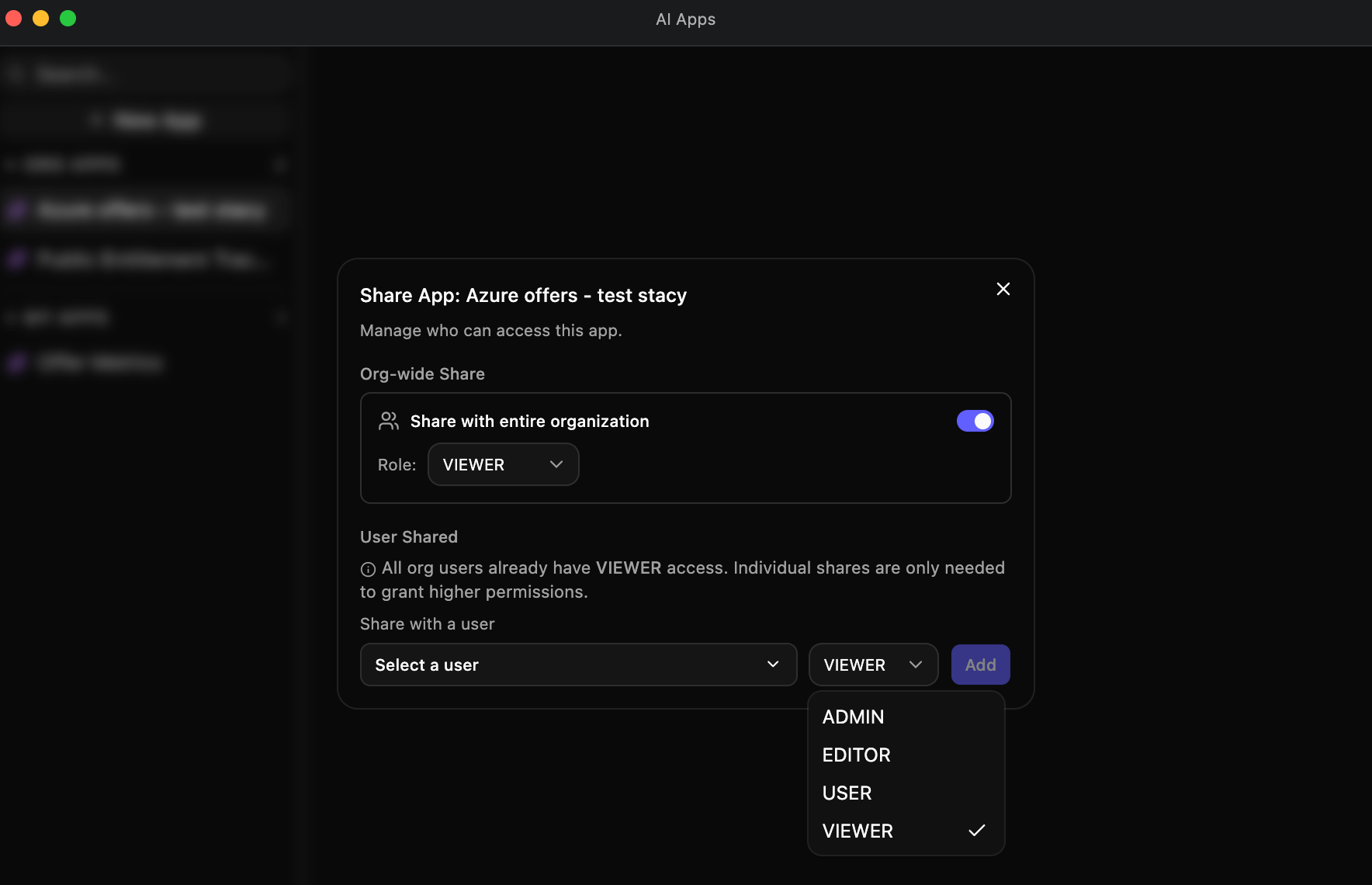
- Share with the entire organization — turn on Share with entire organization and pick a default role for every member. Org-wide sharing offers Editor, User, or Viewer.
- Share with specific users — select a user and assign a role. Individual sharing offers Admin, Editor, User, or Viewer — Admin only when you are an organization ADMIN yourself. For anyone else the role picker leaves it out, and the server refuses the grant.
A member’s effective access is the higher of the two, so you can share an app org-wide as Viewer and grant Editor or Admin to the few people who maintain it.
| Role | Run & interact | Edit & save | Manage sharing | Delete |
|---|---|---|---|---|
| Owner | Yes | Yes | Yes | Yes |
| Admin | Yes | Yes | Yes | Yes |
| Editor | Yes | Yes | No | No |
| User | Yes | No | No | No |
| Viewer | View only | No | No | No |
The Owner is the app’s creator, or whoever ownership was transferred to (see Transferring ownership). A personal app can be deleted only by its owner; an organization app can also be deleted by anyone who holds Admin on it. Being an organization ADMIN does not count by itself: an org ADMIN who did not create the app needs an Admin share on it to delete it.
When you open an app shared with you, its run panel shows an owner-and-role banner — even before the app has been built — and anyone below Editor (a User or Viewer) sees it read-only. See Working with a Shared Resource.
Transferring ownership
An organization app’s Share App dialog opens with an Owner row naming the app’s owner. Only the owner sees Transfer ownership beside it:
- Click Transfer ownership
- Pick the new owner from Select new owner… — the list shows only organization ADMINs other than you
- Click Transfer
You keep Admin on the app, so you can still edit it, manage its sharing, and delete it. A personal app has no Owner row and cannot be transferred. If you are no longer an organization ADMIN yourself, the transfer is refused and the message says why.
Sending someone a direct link
The Share App dialog also carries a Copy link button. It copies a deep link that opens the app’s window straight away in the recipient’s own Insulin workspace, so you can drop it into a message or an email instead of talking someone through where to click. The link also names the app’s organization, so it opens Insulin in that organization even if the recipient usually works in another. Someone who isn’t a member of it sees This app’s organization is unavailable or you do not have access to it. and an Open Insulin without this app button.
Finding and managing your apps
The Custom Apps window shows your apps as a grid of cards. The rail on its left switches between All apps, My apps (the apps you own, organization or personal) and Shared with me, each with its count, and its Search apps… box filters by name or description; All apps shows both groups, each with the most recently edited first. New app is at the top right, for anyone allowed to create one.
Each card says where the app has got to — Draft (not published yet), Team only (published Console-only, for signed-in members of your organization who have access to it) or Public (published, for anyone with its URL) — and when it was last edited. Clicking a card opens a published app; a draft opens in the builder if you can edit it. Edit on the card opens the builder either way.
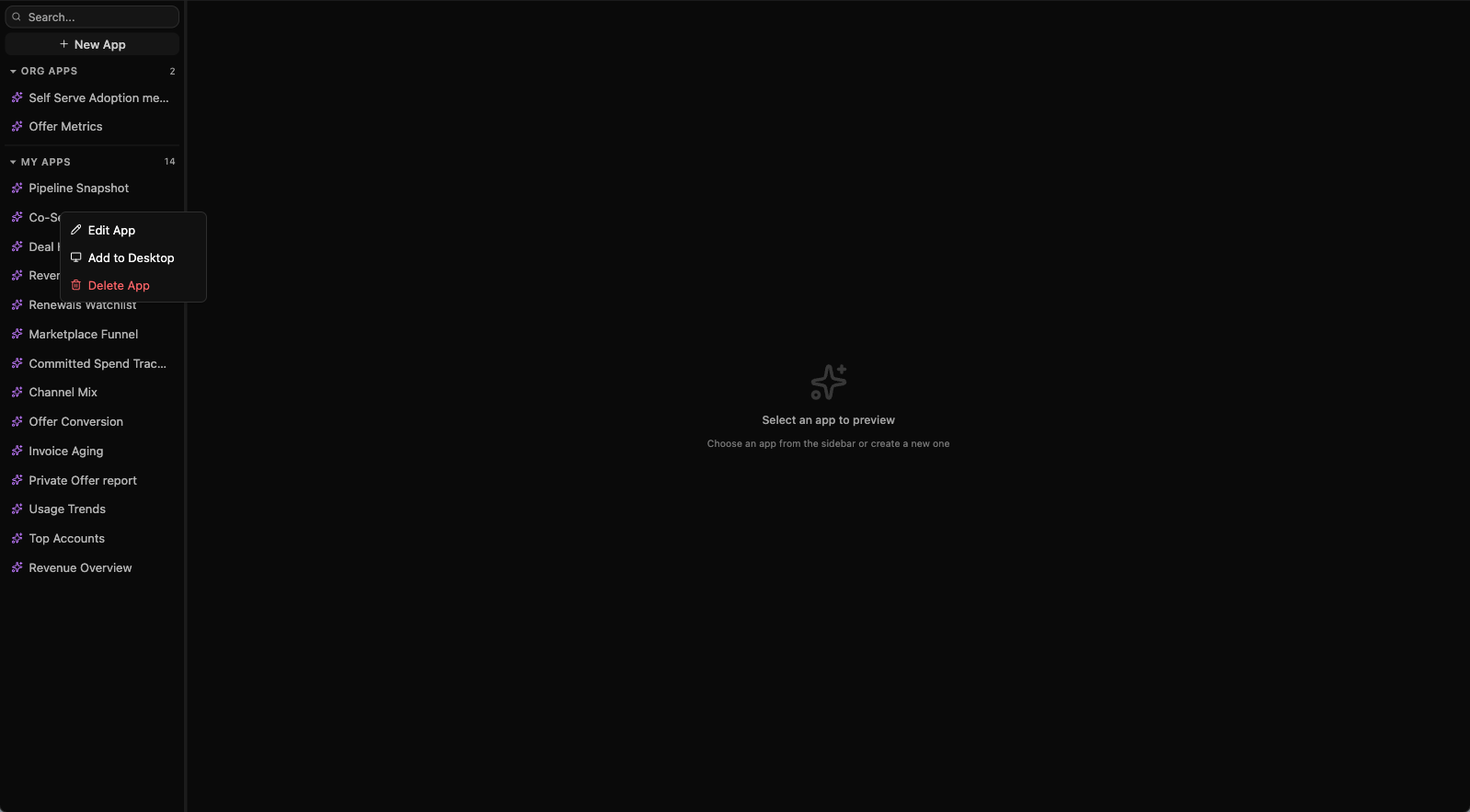
The card’s ⋯ button, or a right-click on the card, opens its actions. Which ones appear depends on your role on that app and in the organization, so the same menu is shorter on an app someone else owns:
| Action | What it does | When it appears |
|---|---|---|
| Edit App | Opens the app in the builder. | Editor or above on the app, for an organization ADMIN or EDITOR. |
| Add to desktop | Puts an icon on the Insulin desktop that opens the running app. | Published apps only. |
| Share App | Opens the Share dialog. | Organization apps only, and only for an admin or the owner. |
| Delete App | Permanently removes the app. | The owner; on an organization app, also an Admin. |
That is why a personal app you created offers Edit App and Delete App — and Add to desktop once it is published — but never Share App, while an organization app you are only a member of may have no actions at all, and so no ⋯ button.
Deleting an app starts a cleanup of everything it had — its source and saved versions, its database and data, and the published app.
Publishing
An app becomes a working tool for other people by being published. Publishing takes a saved version and puts it in production, giving the app its own live URL. Until you publish, the app runs only in the AppBuilder’s preview.
Open the Publish panel from the AppBuilder header. It has two parts:
- Production — what is live now: the version, when it was published, and its URL. A publish in progress (even one started in another tab) shows its steps here, and a failed one shows why while leaving whatever was already live untouched. Anyone who can edit the app can Cancel a publish while it is still building or deploying; once the new version has deployed and is only waiting to go live, publishing another version replaces it instead. If a deployment hasn’t been confirmed yet, the panel says the version may already be serving rather than calling it live.
- Versions — every saved version, each with its own Publish button. Publishing is one step per version — Publish vN to production — so publishing an earlier saved version is also how you roll an app back. Only saved versions can be published, so save first to include your latest changes; an app with nothing saved yet offers Save first version in the panel.
Publishing is also what delivers the app’s secrets — the owner’s own credentials for the app — to the live app. Secrets are managed on the Settings surface. The preview receives them too, but the live app gets them only at a publish, so adding or changing a secret means re-publishing. Removing one also asks for it to be removed from the live app straight away: the Secrets section shows Live removal is requested; its progress appears below. and tracks it under Live removal requests, with Retry removal if it fails. Where that isn’t available, it shows The live app keeps it until you publish again. Only the app’s Owner or an Admin on it can add or remove a secret — and Anyone who can edit and publish this app can read these values from its environment. Share it accordingly.
The builder’s assistant can ask for a secret change, but it cannot make one. If you are the app’s Owner or an Admin on it, the request opens Settings at Secrets with either the add form ready for the secret it named — you enter the value yourself — or a confirmation to remove it: The assistant requested this removal. Confirm to delete the stored value and request removal from the live app. Nothing changes until you save the form or click Remove secret.
Who can open a published app
Not available in the Fours Console yet — see Publishing.
Settings → Access → Published access decides who can open the app once it is published:
| Setting | Who can open the published app |
|---|---|
| Console-only | Only people signed in to the Fours console who have access to the app. A new app starts here. |
| Public | Anyone with the published URL. Sharing still decides who can edit the app. Apps created before this setting existed are Public until someone changes them. |
Only the app’s Owner or an Admin on it can change the setting; everyone else sees it read-only. Switching a Console-only app to Public asks you to confirm in Allow public access?, because anyone with the URL could then open it without signing in. The change takes effect at the next publish — Live access shows what the published app uses now — so publish a saved version, then check the publish status to confirm the change is live.
Running a Saved App
Not available in the Fours Console yet — see Publishing.
A saved app runs by being published. Once a version is live, opening the app shows the running app in the runner window: the live app is embedded directly in the window (in a credentialless iframe), so you use it without leaving Insulin.
If the app has not been published, the runner window says Not published yet — Publish a saved version from the builder to give this app a live URL — instead of a blank screen, and offers Open in builder to someone who can edit the app. Publish a saved version to bring it to life. Once it runs, Reload app in the window’s title bar reloads it.
Where an app cannot be embedded, the runner window shows the app’s live URL with an Open app button that opens it in a new tab instead.
A Console-only app opens in the runner window under your own Fours sign-in — the window shows Opening and the app’s name while it signs you in. This needs a browser that supports credentialless iframes, such as Chrome or Edge; in another browser the runner window asks you to use one of those. Opening a Console-only app’s address directly takes you to the app inside the Fours console instead. Your access is re-checked every few minutes, so if it is removed while the app is open, the app stops within about five minutes with Your access to this app ended. Open it again.
While a publish that changes how the app is reached — its access setting or its address — is waiting to be confirmed, the runner window shows Deployment is not confirmed instead of the app; check the publish status in the AppBuilder before opening it.
Data an app keeps for itself
An app can keep data of its own. Ask the builder for an app that has to remember what people enter — a request tracker, a to-do list, an intake form — and it gives the app a database of its own, separate from every other app’s. The database is created the first time the app needs it; there is nothing to set up.
What happens to that data as the app changes:
- Saving new code — existing data is not automatically reset. The app’s migration, its own setup step, runs again on each save that changes the code and may change the data already stored.
- A migration that fails — the save is refused and the app keeps its previous version, but any database changes the migration made before it failed are not undone.
- Restoring a version — brings back that version’s code, not its data (see App History and Restore).
- Deleting the app — makes the app and its data unavailable, and schedules removal of its database. Treat the data as gone.
Not available in the Fours Console yet — see Publishing. Once the app is published, Settings → Database lets app admins — the app’s Owner or an Admin on it — browse that production database read-only: pick a table and page through it 25 rows at a time (Read-only production data. Pages reflect live data. Binary values are omitted and long text is shortened.). Anyone else sees Only app admins can inspect production data., and until the published app has a database the section says No production database is available yet.
This database is separate from your Fours data, which a published app reaches through the Fours API — see How a published app reaches your Fours data.
App History and Restore
The builder header carries a History button, which opens the App History dialog, titled with the app’s name.
Every save that changes the app’s code is snapshotted. Saves that do not are deduplicated away — saving the same source again, or editing only metadata, does not mint a version — so the list is a record of the app actually changing rather than of how often you pressed Save. The newest 50 versions per app are kept.
From the list you can preview any version, then Restore it behind a two-step confirmation.
Discard draft to vN puts that saved version back in the editor without creating a new version. The AppBuilder’s working draft is shared by everyone editing the app, so this replaces it for every collaborator — the confirmation reads This replaces the shared draft for every collaborator with vN. Unsaved edits will be lost. No new saved version is created; the live app stays as it is. Click Confirm discard to go ahead.
Read-only roles can list and preview versions, but cannot restore or discard.
When an app fails to render
If the AppBuilder can’t start the app in the preview, the Preview surface shows Preview couldn’t start with the error the runtime reported, instead of a blank screen. If the app loads but never finishes starting, the preview says Your app may have failed to compile. Reload the preview to try again. with a Reload preview button.
How Custom Apps Fit With Insulin
Custom Apps work best alongside the rest of Insulin:
- Use Agents to define the expertise behind a workflow
- Use Marketplace to install reusable agents or skills before building
- Use Jobs for scheduled or event-triggered runs
- Use Channels when teammates need to discuss app output with agents
- Use knowledge bases and connected systems to ground the app in your organization’s data
Spotted something wrong or out of date on this page? Tell us and we'll correct it.